View real-time availability for your listings using the property page calendar. The calendar shows exactly why certain dates are unavailable or restricted, making booking easier for your guests and eliminating confusion.
Note:
The calendar logic described in this article applies only when guests view the calendar on an individual listing page. Availability may appear differently on the main Booking Engine page or general calendar.
Identify availability states
The property page calendar displays three availability states. Understanding these helps you manage expectations and clearly see why dates are bookable or restricted.
Available dates
Guests can select dates that meet all booking requirements and have no reservations. These dates show as available and can be selected for reservation.
Unavailable dates
Unavailable dates are fully blocked. Guests cannot select these dates. Guesty marks dates as unavailable when any of these rules apply:
- Existing reservations: Any dates with a confirmed booking.
- Advance notice: Dates that fall within your "Advance notice" window, preventing last-minute bookings that are too close to the arrival date.
- Preparation time: Blocks created as buffer days between bookings to allow for cleaning or maintenance.
- Booking window: Dates that fall outside of your specified booking window, such as dates too far in the future.
Limited dates
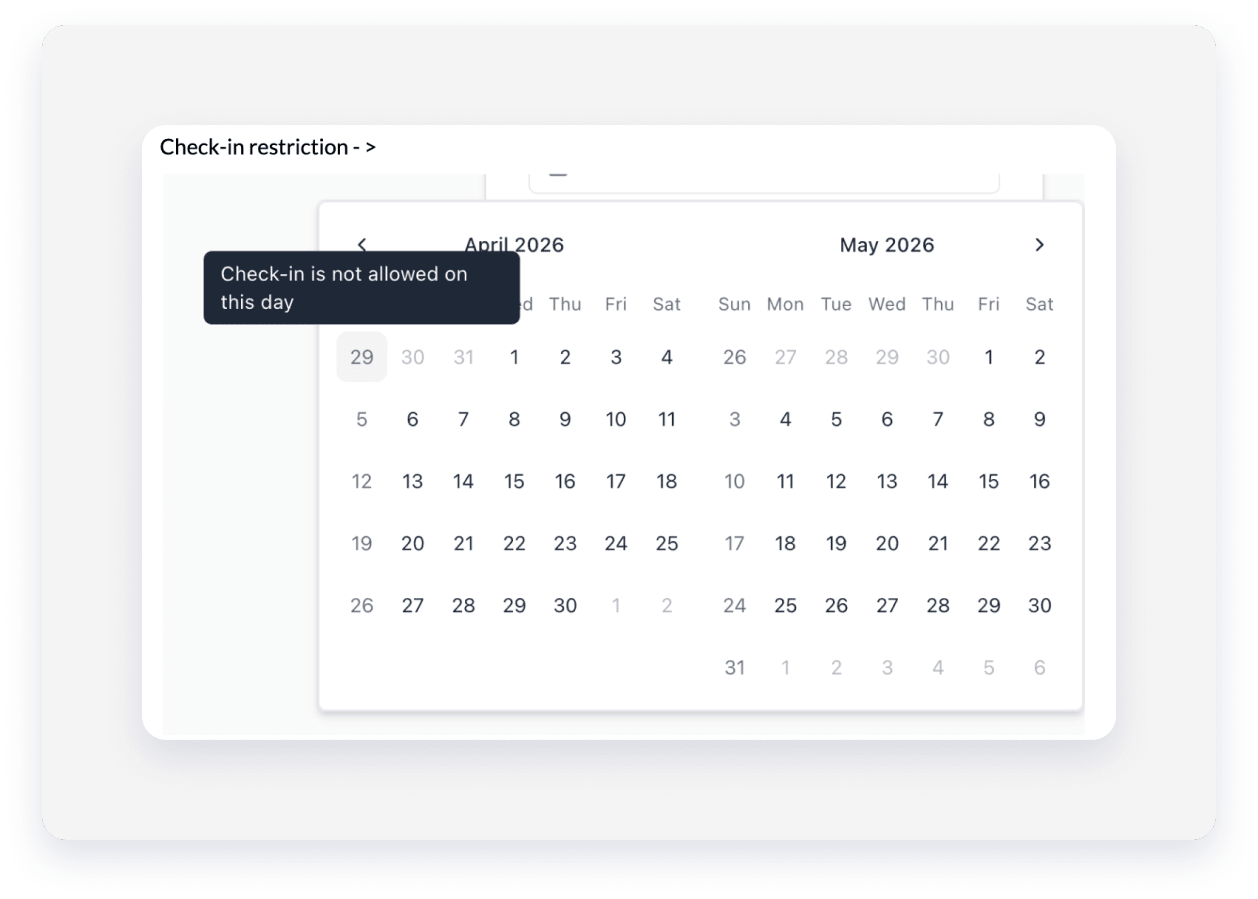
Some dates may look available but have booking restrictions. When guests hover over (on desktop) or tap (on mobile) these dates, a tooltip displays the specific restriction. Restrictions include:
- Length of stay rules: Minimum or maximum night requirements that the guest's selection does not currently meet.
- Check-in and check-out restrictions: Specific days of the week where check-in or check-out is not permitted.
Tip:
On mobile devices, tap a date on the calendar to view tooltips and see restricted status, just as you would hover with a mouse on desktop.
Update your availability settings
To change booking restrictions or availability rules:
- Sign in to your Guesty account.
- In the side navigation menu, click
 Properties.
 - Select the relevant listing to update your rules as needed:
- In the submenu, click Pricing and policies and select Reservation policies. Learn more about Reservation policies.
- In the submenu, click Calendar and select Availability settings. Learn more about Availability settings.
- Click Save to apply your changes.
