Red Sky Travel Insurance provides guests with coverage for guests' cancellation penalties due to trip cancellations and interruptions caused by covered events, such as sickness, injury death, hurricane and other Natural Disasters. By offering this as an extra service (upsell), you provide guests with peace of mind while protecting your property.
Set up the insurance fee and integrate it into your Guesty Booking Engine or Booking Engine API-powered websites. To use this feature, ensure the "additional fee from total payout" setting is enabled in your account. If you don't see this option, contact us for assistance.
Before you begin
To set up Red Sky Travel Insurance, confirm the following:
Red Sky Travel is only offered to guests booking through the Guesty Booking Engine or Booking Engine API-powered websites.
The "additional fee from total payout" feature is enabled in your Guesty account. If it isn't, contact us to request it.
Step by step
Follow the steps below to configure your account and start offering insurance to your guests.
In Red Sky travel
Sign the agreement with Red Sky Travel Insurance.
Red Sky Travel Insurance will confirm the insurance product and fee amount.
In Guesty
Create an insurance fee for your account or for specific listings.
In "Fee settings", select "Total Payout Based" as the fee type.
Enter "Red Sky Travel Insurance" as the fee name.
Enter pricing based on your agreement with Red Sky. This is a percentage-based fee applicable only to the total payout, excluding channel commissions and processing fees.
Keep "Sync channels" toggled off to ensure the fee remains an optional upsell.
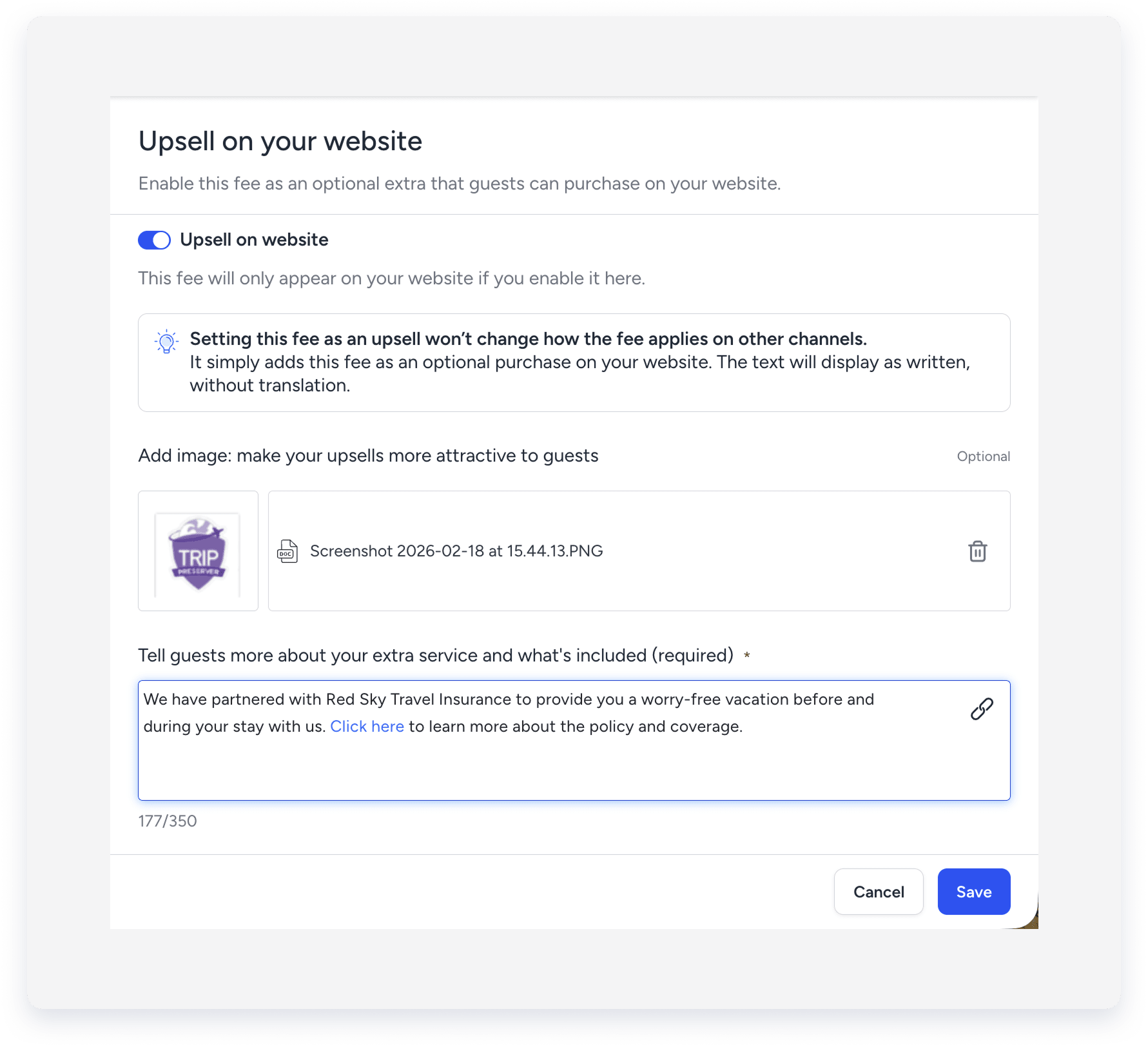
In your Guesty Booking Engine, toggle on Upsell on website and add travel insurance.
-
Copy and paste the following text into the upsell text field:
"We have partnered with Red Sky Travel Insurance to provide you a worry-free vacation before and during your stay with us. Click here to learn more about the policy and coverage."
Create the following reservation custom fields to collect guest information:
| Field name | Field type |
|---|---|
| Guest state/province | Text |
| Net plan cost due Red Sky | Number |
Create or edit the guest app check-in form.
In the check-in form, add the "Address" and "Guest state/province" input fields.
Toggle on Required for both fields.
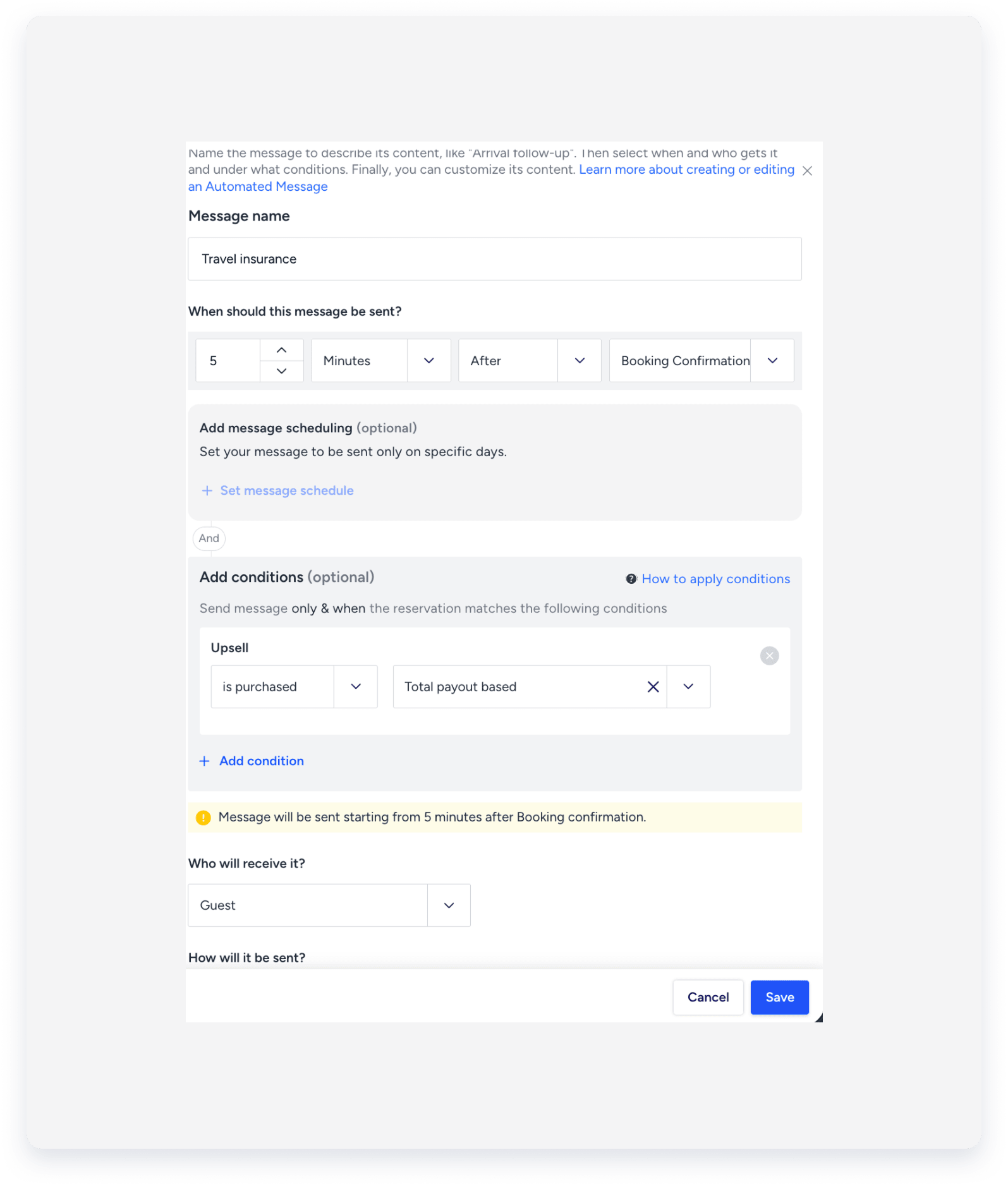
Create an automated message to send the guest app link. You can add this to an existing automation or create a new one. The workflow conditions must be set to "Specific" with only Booking engine selected.
-
Use these settings for the automated message:
Trigger: Send five minutes after the booking confirmation.
Content: Include the guest app link and instructions to complete the details.
Condition: Set the message to send only if the "Upsell" Total Payout Based is purchased.

-
Set up auto payments: Create a rule to collect the insurance fee at the time of Booking Confirmation. Configure this rule for every listing included in the insurance plan.
Important:
Guests must submit a check-in form to be issued an insurance policy.
Managing reports and adjustments
You must send a custom reservation report to Red Sky once a month.
Creating the monthly report
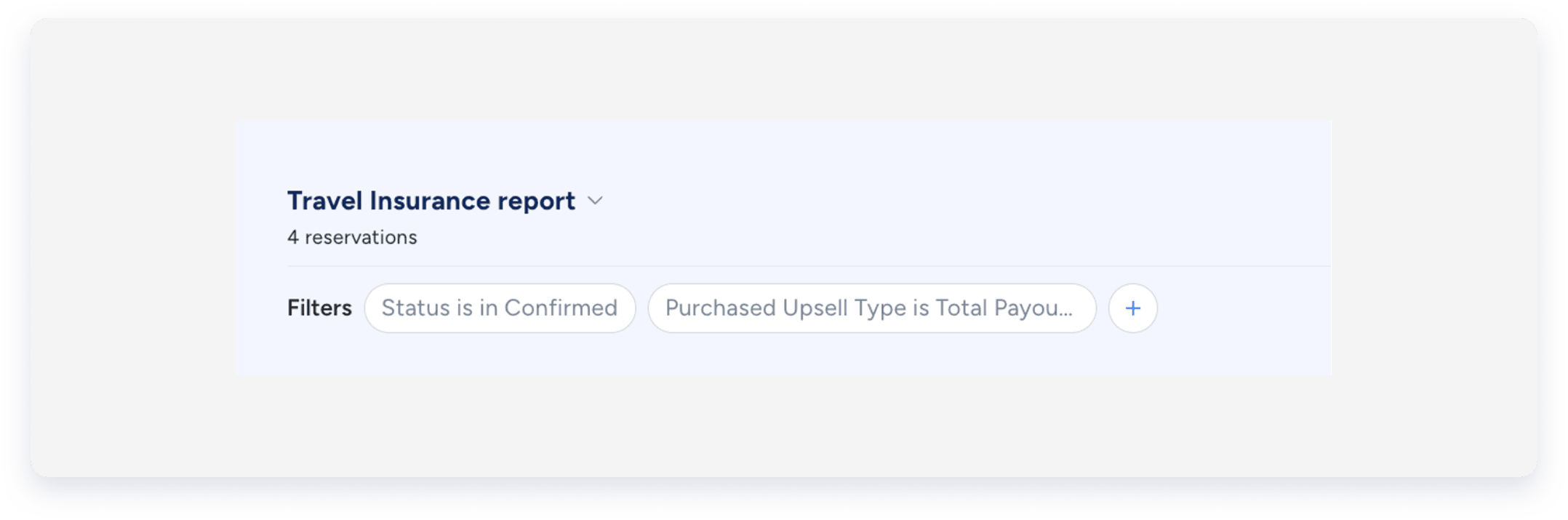
Create a report with the following filters:
"Status" is "Confirmed"
"Purchased Upsell Type" is "Total Payout Based"
"Confirmation date" is between the reporting month dates.
"Purchased fee type" is “Total payout based".
Include these columns in your report:
| Column category | Column name | Notes |
|---|---|---|
| Guest | "Guest’s name" | |
| Guest | "Guest’s street", "Guest’s city", "Guest’s state", "Guest’s postal code", "Guest’s country", "Guest’s email", "Guest’s phone" | |
| Reservation | "Confirmation code" | |
| Reservation | "Confirmation date" | |
| Reservation | "Check-in date", "Check-out date" | |
| Financials | "Total payout" | |
| "Total payout based fee" | Use the values in these columns to calculate the delta between original Travel Insurance fee value and adjusted value (in case reservation was changed) | |
| "Total payout based fee purchased"* | ||
| "Total payout based fee updated at" | Last adjustment date of the total payout based fee | |
| "Total payout based fee purchased at" | Reservation creation date if the fee was added automatically, or the first creation date if fee was added manually. | |
| "Total payout based fee purchased" | The original fee amount at the creation date, in the listing timezone |
Email the report to the address provided by Red Sky.
Handling manual adjustments
The Total Payout Based fee is a manual fee and is not supported for OTAs. This fee does not automatically recalculate if a reservation changes.
Changes to reservations: If dates, prices, or fees change, calculate the difference between the original "Total payout based fee purchased" and the "Total payout based fee". Manually include this difference in the "Plan Cost" column of your next monthly report..
Finalizing reports: After adjusting columns, enter the values for the "Net plan cost due Red Sky" field based on your agreement. Email the report to the address provided by Red Sky.
-
The Total Payout Based fee does not automatically recalculate if a reservation changes.
Manually adjust the fee after the guest confirms the change.
Follow the steps in these articles to adjust a folio item:
Accounting users: Adjusting a reservation's guest folio
Non-accounting users: Adjusting a reservation's guest folio
Collecting payments
Set up an auto payment rule to collect the insurance fee at the time of purchase.
The insurance fee must be collected in full at the time of purchase.
Configure this rule for every listing included in the insurance plan.