Maximize visibility and prevent double bookings by setting up properties as combos or variants. Once linked, availability syncs automatically between properties — a reservation on one unit instantly blocks the others.
- Combo properties let you group multiple properties and sell them as a single unit (for example, renting two floors separately and the whole villa).
- Property variants link similar properties to manage their settings centrally. This is useful for marketing the same property to different audiences (for example, as a family suite versus a couple's retreat).
Create a property in Guesty first, then configure it as a combo property or assign variants to it.
Note:
Test property types can't be configured as a combo property or linked as a variant.
Manage combo properties
Follow the steps below to manage your combo properties.
Configure a combo property
Follow the steps below to configure a property as a combination of two or more existing properties.
Step by step:
- Sign in to your Guesty account.
- In the side navigation menu, click
 Properties.
 - Select the main property that represents the property as a whole.
The following property types can’t be assigned as part of a combined property:- A multi-unit
- A property variant
- In the left-side menu, click Settings.
- Under the “Combo properties” section, click Set up combo properties.
- Click Link properties and in the pop-up, select properties or search for them by name.
- At the bottom-right, click Done.
- (Optional) Sync manual blocks so that blocking a linked property also blocks the combo property's calendar:
- Check the Include manual blocks box.
- At the top-right, click Save.
- In the pop-up, choose whether to apply the availability sync retroactively to existing bookings and blocks. (This behaves like retrospective sync for Smart Calendar Rules.)

- Click Next.
- In the pop-up, click Save.
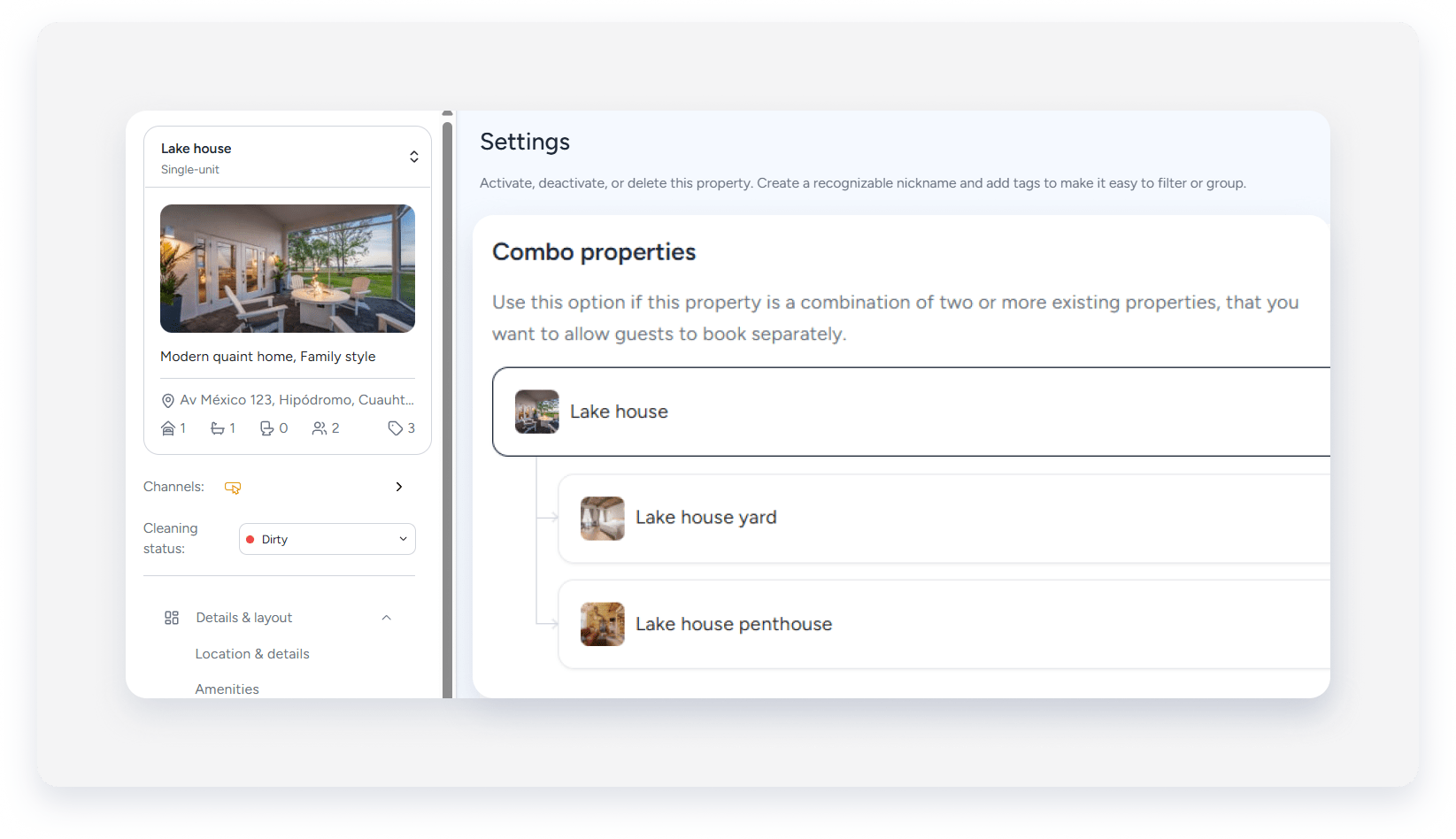
Link or unlink properties
Navigate to the main property and follow the steps below to edit the properties linked to it or to remove them.
Important:
Combo property settings can only be edited from the main property. Linked properties can't be used to edit the combo structure.
Step by step:
- Repeat steps 1-4 above.
- Next to “Combo properties”, click Edit.
- To open the selected property’s page: Hover over a property’s name and click
 .
. - To remove a linked property: Click Unlink, and in the pop-up, click Unlink property. At the top-right, click Save.
- To add more properties: Click Link properties.
- To open the selected property’s page: Hover over a property’s name and click
- At the top-right, click Save.
Deactivate or delete a combo property
You can deactivate or delete the main property or any of the properties linked to it. Keep the following implications in mind:
- Deactivating or deleting the last active property starts billing for the combo.
- Deleting a combo unlinks any linked properties.
- Deleting the last linked property causes the combo structure to be removed. Additional billing may occur.
Manage property variants
Follow the steps below to manage your property variants.
Configure a property variant
Follow the steps below to link property variants to create a group of duplicate properties.
Step by step:
- Sign in to your Guesty account.
- In the side navigation menu, click Properties.
- Select the relevant property to be the main property you want to assign variants to.
The following property types can’t be assigned as a main variant:- A multi-unit
- A combo property or an existing variant
- In the left-side menu, click Settings.
- Under the “Property variants” section, click Set variants.
- Click Link properties.
- In the right-side panel, select properties or search for them by name.
- At the bottom-right, click Done.
- (Optional) Sync manual blocks across linked variants:
- Check the Include manual blocks box.
- At the top-right, click Save.
- In the pop-up, choose whether to apply the availability sync retroactively to existing bookings and blocks. (This behaves like retrospective sync for Smart Calendar Rules.)
- Click Next.
- At the top-right, click Save.
- In the pop-up, click Link variants.
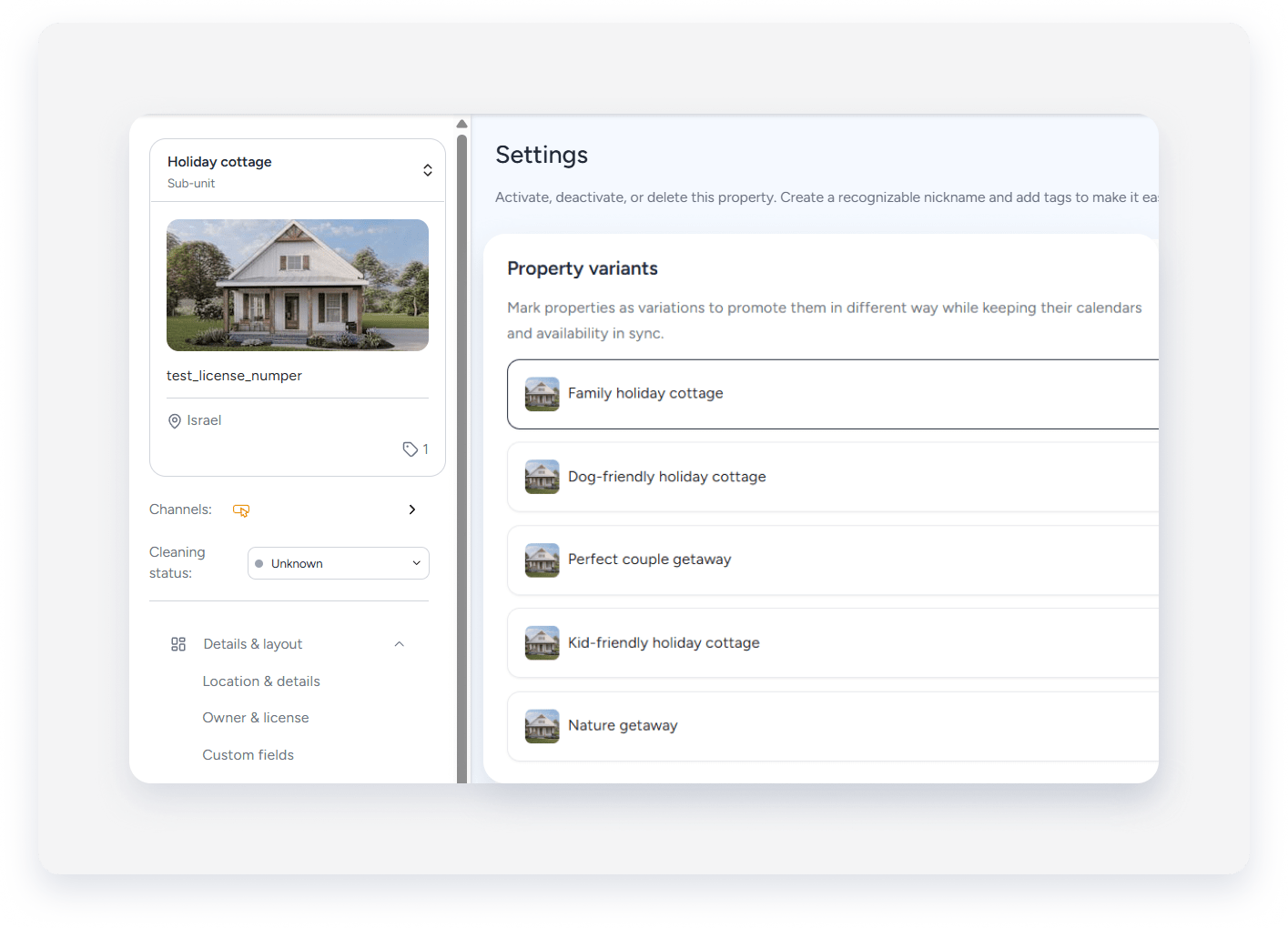
Link or unlink variants
Navigate to any property in the variant group to edit the variants linked to it or to remove them.
Important:
Unlike combo properties, variant settings can be edited from any property in the variant group — not only the main property.
Step by step:
- Repeat steps 1-4 above.
- Next to “Property variants”, click Edit.
- To open the selected property’s page: Hover over a property’s name and click .
- To remove a variant: Click Unlink, and in the pop-up, click Unlink property.
- To add more properties: Click Link properties.
- To open the selected property’s page: Hover over a property’s name and click
- At the top-right, click Save.
Deactivate or delete a property variant
You can deactivate or delete the main property or any of its variants.
