Track and manage property-related costs and charges from one centralized integration page. You can also create recurring expenses, or create a one-time expense.
Create an owner charge by selecting yourself/PMC as the vendor when adding an expense.
Follow the steps below to manage expenses and download an expense report.
Important:
Accounting users: Once the new expenses feature is enabled, all recurring charges/expenses in the business model are void and will no longer create transactions.
Manage expenses in the report
Step by step:
- Sign in to your Guesty account.
- In the side navigation menu, click
 Financials to open the dropdown menu.
 - Under Expenses, select Expenses report.
Customize your view
-
Filter: The default view shows expenses created in the last 30 days. Edit this by clicking
 and changing the date parameters. Add filters by clicking
  and selecting options like listing or owner.
Column display: Scroll right to see additional columns. Edit the displayed columns by clicking Columns at the top-right and toggling specific columns on or off.
Column data: Click column headers to sort the data. The "Created by" column displays the user name for one-off expenses, "Automatic" for expenses created by a rule, or "API" for expenses created via API.
Tip:
Click Save as at the top right to save and name customized views as reports.
Export a report
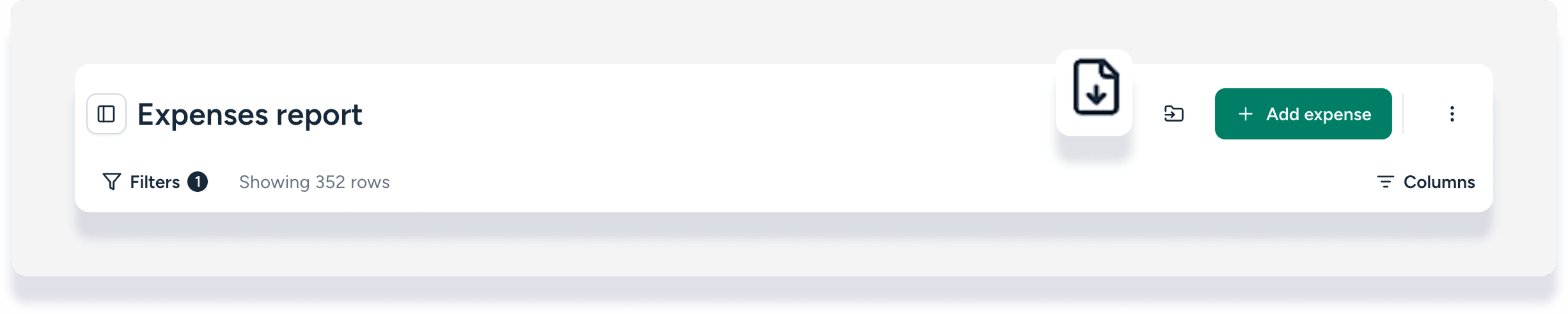
- Click the file icon to open the reports menu, then select the relevant report.
- At the top right, click

- Check your Guesty account email address for the csv file attachment.
Understanding expense statuses
Tip:
Scroll to the right to see the Status column.
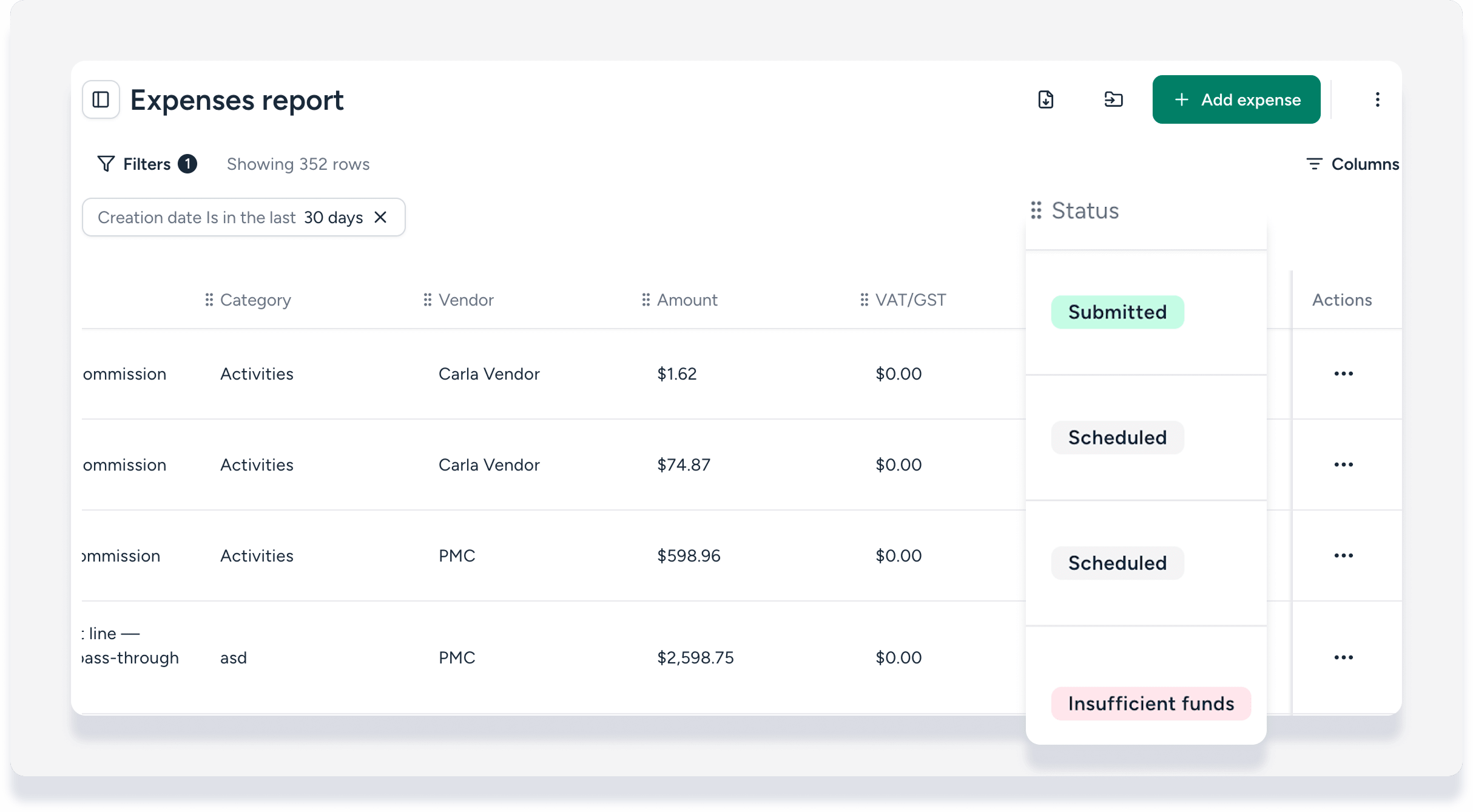
- Scheduled: Created for a future date
- Submitted: Created for today or a past date
Insufficient funds: Not enough money in the owner's account when the expense was submitted. Sort the display by status to find these quickly.
Paid: Journal entry is paid.
Canceled: The expense was manually canceled, the recurring rule was deactivated for existing reservations, or the related reservation was canceled.
Taking action on expenses
Cancel an expense
Important
You can't undo a cancellation. All related journal entries are deleted, or reversed if the expense is in a locked period.
You can't cancel an expense that is already paid.
- To the right of the relevant expense, click
 and select Cancel expense.
 - In the pop-up, click Cancel.
Retry an expense with insufficient funds
- To the right of an expense with status "Insufficient funds", click and select Retry.
- In the pop-up, click Cancel.
Learn more about the automatic retry process for insufficient funds.
