Accounting by Guesty helps you generate ABA (Australian Bankers' Association) bank files. This enables efficient Direct Entry transfers for payouts to owners or vendors. Create and manage ABA files for payouts to ensure compliance and streamline bulk payments.
Before you begin
This option is available for Accounting by Guesty users based in Australia and New Zealand.
If you have multiple cash accounts in Guesty, ABA files can only be generated from your default account.
- Coverage and requirements
For Australia: Full coverage is supported for all Australian banks. The required recipient bank details (owners and vendors) include Account Holder's name, BSB, Account number, Bank name, and Account type.
For New Zealand: Support is provided for ASB, Westpac, and ANZ banks. When setting up recipient details, select the relevant bank from the dropdown. We're working to support more New Zealand banks in the future.
Owner payout
Before you begin, enter the owner's bank details.
Create a ABA file for payout to owners
Step by step:
- Sign in to your Guesty account.
- In the side navigation menu, click
 Accounting to open the dropdown menu.
 - Under General ledger, select Balances.
- In the top-left click the view name to change it, then select Owners balance as of today. (See more information about creating a filter for outstanding balances.)
- Search or filter for the relevant owner.
- Click the checkbox for one ore more relevant line items, then click Pay in the top-right.
- You must individually select each item. If you click "select all" at the top of the column, ABA will not appear as a payout option in the next step.
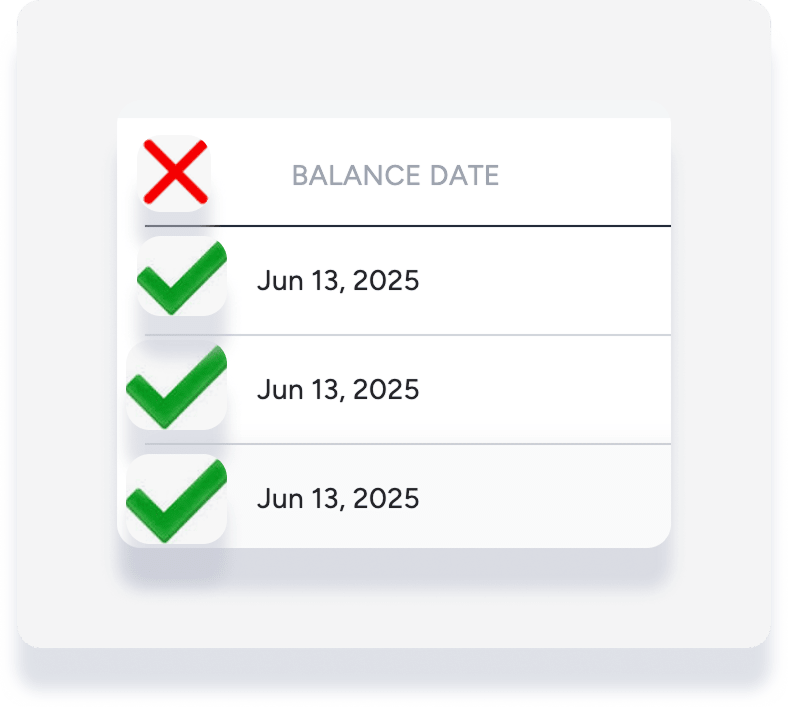
- You must individually select each item. If you click "select all" at the top of the column, ABA will not appear as a payout option in the next step.
- Under "Payout method" select ABA bank transfer file. Complete the rest of the fields. (See more information about editing a payout.)
- In the bottom-right, click Download ABA file.
Vendor payout
Before beginning, enter the vendor's bank details.
Create a ABA file for payout to vendors
Step by step:
- Sign in to your Guesty account.
- In the Sidebar, click Financials.
- Click Accounting
 .
. - Click General ledger and select Balances.
- At the top left click the view name, then select Vendors balance as of today. (See more information about creating a filter for outstanding balances.)
- Search or filter for the relevant vendor.
- Click the checkbox for one ore more relevant line items, then click Pay in the top-right.
- You must individually select each item. If you click "select all" at the top of the column, ABA will not appear as a payout option in the next step.
- You must individually select each item. If you click "select all" at the top of the column, ABA will not appear as a payout option in the next step.
- Under "Payout method" select ABA bank transfer file. Complete the rest of the fields. (See more information about editing a payout.)
- In the bottom-right, click Download ABA file.
Next steps
Upload the generated ABA file or files to your banking platform to initiate payouts.
Processing the payout in Guesty can take up to 15 minutes. View the processing payout in your disbursements reports.
Once the payout is processed, this occurs:
- The status changes to "completed" in the disbursements reports
- The outstanding balance amount is updated in the general ledger balances
- A new payment entry is added to your posting journal
