Pilot: New guest folio with tax per line item breakdown

The reservation's guest folio breakdown gives you the most accurate summary of services in a reservation, per night. 

The redesigned guest folio provides a tax breakdown for every line item. Each entry—such as nightly rates, fees, or services—shows applicable taxes, including both percentage-based and fixed amounts, as set in your tax configuration.

Important:

Once this feature is enabled, all reservations use the new guest folio layout described below. However, only newly created reservations have the line-by-line tax breakdown. Existing reservations still display taxes as one total.

How adjustments affect the guest folio

All account users can view the guest folio breakdowns, but only users with administrative or accounting permissions can adjust line items or change tax settings. All tax and folio changes are logged for audit purposes.

The tax breakdown is based on your tax setup in Guesty.

Adjustments made to the guest folio have the following effect:

  • Line item adjustment
    • Adjusting a taxable line item, like accommodation fare or fees, causes the related taxes to automatically recalculate.
    • This change is reflected both on the line item level and in the total tax summary.
  • Standalone fixed tax adjustment
    • Adjusting a fixed rate tax that is not tied to a specific item, for example a $10 local tax, updates the tax itself like any other line item.
    • This change is reflected both on the line item level and in the total tax summary.
  • Percentage tax adjustment
    • Adjusting a percentage tax that is related to a line item, for example 10% city tax on accommodation fare, only affects the total tax summary.
    • This won’t change individual line items.
    • The total shown in the tax column may differ from the sum of the individual line item taxes. (See more details below.)

See more information and screenshots below about the two different tax types.

Access the guest folio

To access the guest folio breakdown, navigate to a reservation in Guesty then click Balance due in the banner at the top right.

Toggle between "By night" and "By line item" to change the details displayed. Taxes are displayed in a new column for both options.

View items by night

  1. Click By night.
  2. Click the arrow to the left of a date to expand the line items displayed.
  3. Click a line item for the details to slide open to the right, including percentage taxes applied to that line item.

View items by line item

  1. Click By line item.
  2. Click a line item for the details to slide open to the right, including percentage taxes applied to that line item.

View tax breakdown details

At the bottom of the folio, you can see the subtotal, total taxes, and net total, providing a transparent financial summary for every transaction.

From either "by night" or "by line item" view, click the tax total to open the slide panel.

For auditing purposes, adjustments are indicated with the user name and timestamp.

If the adjustment is to a fixed tax amount - for example, local tax of $10 per stay - it will appear as above, similar to any other adjustment for a standalone line item.

If the adjustment is to a percentage tax applied to a line item - for example, 2% GST on the accommodation fare - the adjustment is applied to the total tax amount only and will not be reflected at the individual line item level. 

As a result, the total shown in the tax column may differ from the sum of the individual line item taxes. This is indicated with warnings, as shown here:

Updates for Accounting users

The new tax breakdown per line item is reflected as follows for Accounting by Guesty users.

Accounting folio

The reservation's accounting folio creates a separate journal entry for each percentage tax that is applied per line item in the Accounts payable and the Advanced deposit ledgers. 

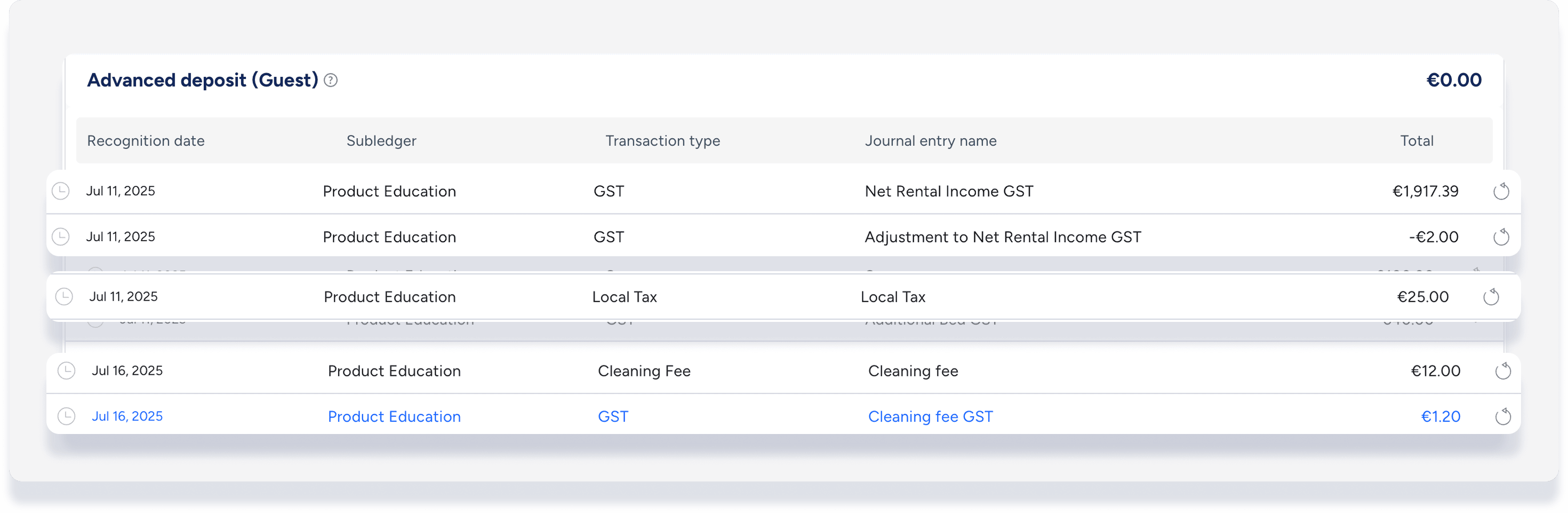
For example, previously there would be one journal entry for "GST". The new breakdown displays a journal entry for each tax per line item - "Net rental income GST" and "Cleaning fee GST". A journal entry is also created for any line item tax adjustments made.

Revenue recognition

Important:

Because each new tax journal entry is linked to a specific line item, the tax recognition date is based on the business model setup for each related line item. 

For example, in your business model, the following revenue recognitions are set:

  •  Net rental income on check-in
  • Cleaning fee on check-out
  • Guest taxes on check-in

Taxes are:

  • GST 10% per stay on accommodation fare and cleaning fee (applied to specific line items)
  • Local tax $5 per night (fixed fee standalone line item)

Based on the business model set up, the revenue for each tax is recognized as:

  • Net rental income GST on check-in
  • Cleaning fee GST on check-out
  • Local tax on check-in

You can see this in the accounting folio as the recognition date for each journal entry:
Note:

If you reverse a transaction that has a linked tax line item, the tax will be automatically reversed. For example, if you reverse the cleaning fee journal entry, "cleaning fee GST" is also reversed. Reversing "cleaning fee GST", however, will not reverse "cleaning fee".


Was this article helpful?
0 out of 0 found this helpful