An expense is a transaction paid to a vendor on a specific recognition date. You can charge the property management company (PMC) or owner for the expense. Apply the expense to one or more listings or owners as needed.
Before you begin
If you have fewer than 20 fields to update, add owner expenses manually by adding transactions via Accounting reports, a reservation, or the posting journal.
If you have at least 20 fields, import owner expenses in bulk by providing a CSV file with the required columns and data. Contact us with the completed CSV file attached.
Submit only one attachment per request. If you need to upload expenses for multiple accounts, submit each request separately.
Tip:
You can also upload owner charges in bulk.
Template to bulk import expenses into posting journal
Important:
Rows with invalid or missing data fail during upload.
Download the bulk import template here.
Template columns explained
Required fields
- name (name)
- category
- This can be any transaction category that exists in your account, and must be provided in the exact same format as shown in your account. For example, if the category is Management Fee, enter this. Do not change the format for the template.
- description (max 255 characters)
- amount (in account currency)
- Enter as a numeric value with no commas or special characters
- For example: enter 1000, not "1,000"
- Enter as a numeric value with no commas or special characters
- recognitionDate (in year-month-day format)
- vendorId
Optional fields
- expenseShare: If not defined, the default split is 100% attributed to the PMC.
- shareSplit: Floating point number for the percentage (not percentage format)
- 0.5 = 50% between PMC and Owner
- 0.1 = 10% Owner and 90% PMC
- 0 = 100% PMC
- shareSplit: Floating point number for the percentage (not percentage format)
- listingId
- ownerId
Important:
To apply charges only by listing (such as in fractional ownership), either leave the "ownerId" field empty or omit the column and provide only "listingId".
If you include both "listingId" and "ownerId", the chargeapplys only to the specified owner for that listing.
- attachment
- Provide a URL to CDN where the attachment is stored
- Upload your image to any cloud storage (like AWS S3, Cloudinary, Firebase, etc). You'll get a link (URL) to the file to add in this column
- Maximum length is 2048 characters
- Provide a URL to CDN where the attachment is stored
Find listing IDs
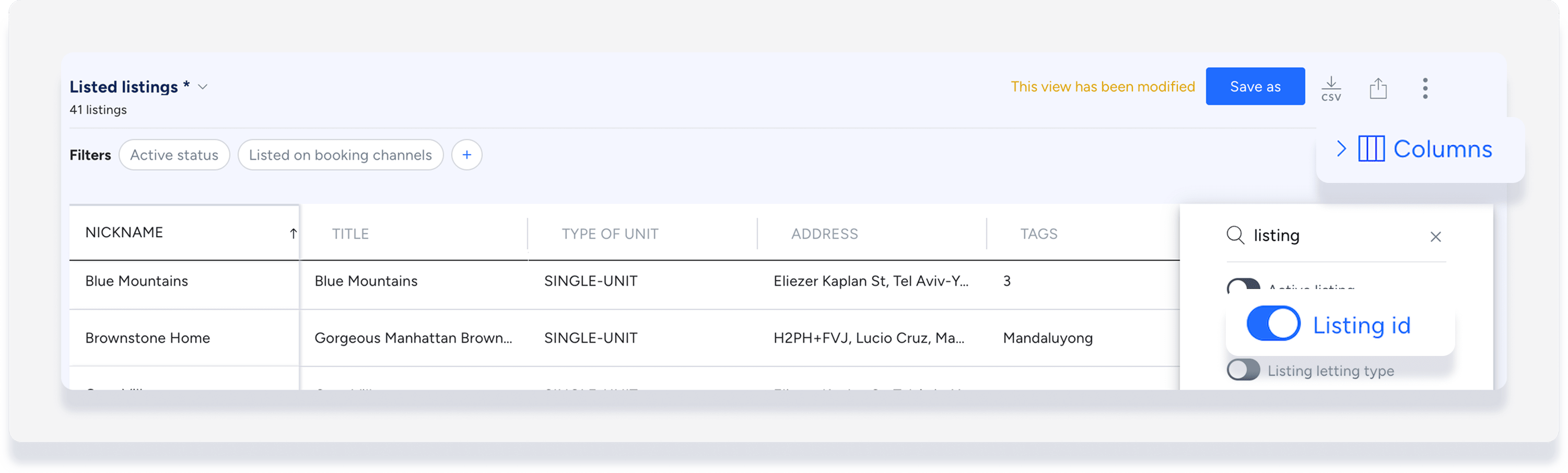
Find listing IDs by adding a column in the properties report.
Step by step:
- Sign in to your Guesty account.
- In the side navigation menu, click
 Properties.
- Select a filter.
- At the top right, click Columns and enter "listing" in the search bar.
- Toggle on Listing ID.
- Click Save as new custom report.
- Type a name for the report and click Save.
Find owner IDs
Get owner IDs by downloading a csv file from the Owners page.
Step by step:
- Sign in to your Guesty account.
- In the side navigation menu, click
 Operations to open the dropdown menu.
 - Under Portfolio, select Owners.
- Narrow the data as needed by searching for an owner or filtering by properties.
- At the top right, click
 .
. - In the downloaded file, find the relevant owner ID in the first column.

Find vendor IDs
Step by step:
- Sign in to your Guesty account.
- In the side navigation menu, click
 Accounting to open the dropdown menu.
 - Under Accounting setup, select Vendors.
- To generate a report of IDs for all your vendors, at the top right, click .
- To find a specific ID, click the relevant vendor.
-
Find the vendor ID in your browser's address bar after: "https://app.guesty.com/vendors-list/edit/”. Example:

