Accounting by Guesty helps you generate NACHA (National Automated Clearing House Association) bank files. This enables efficient ACH transfers for payouts to owners or vendors. Create and manage NACHA files for payouts to ensure ACH compliance and streamline bulk payments.
Before you begin
This option is available to Accounting by Guesty users based in the US.
Most US banks require a corporate bank account to support NACHA file uploads. Standard business banking accounts don't typically support this functionality. Verify this requirement with your financial institution.
If you have multiple cash accounts in Guesty, NACHA files can only be generated from your default account. Your Company ID is required when setting up your default account. This 10-digit identifier is for entities collecting payments or sending money via NACHA bank transfer files. Company ID may also be referred to as "originator".
Bank requirement for separate account payments
Some banks, such as Wells Fargo, require that payments to personal bank accounts be submitted in a separate NACHA file from payments to business bank accounts (for example, an owner's LLC). If both recipient types are in the same file, Wells Fargo will reject it.
Our system handles this requirement automatically. When you initiate a payout using the steps below, Guesty checks if your default cash account bank name is Wells Fargo. If the payout batch includes both personal and business bank accounts, Guesty automatically creates and downloads two separate NACHA files instead of one. The files are clearly identifiable.
Owner payout
Before you begin, enter the owner's bank details.
Create a NACHA file for payout to owners
Step by step:
- Sign in to your Guesty account.
- In the side navigation menu, click
 Accounting to open the dropdown menu.
 - Under General ledger, select Trial balances.
- In the top-left corner, click the view name, then select Owners balance as of today. (See more information about creating a filter for outstanding balances.)
- Search or filter for the relevant owner.
-
Check the box for the relevant line items, then click Pay in the top-right.
Each item must be selected individually. If you click Select all at the top of the column, NACHA will not appear as a payout option in the next step.
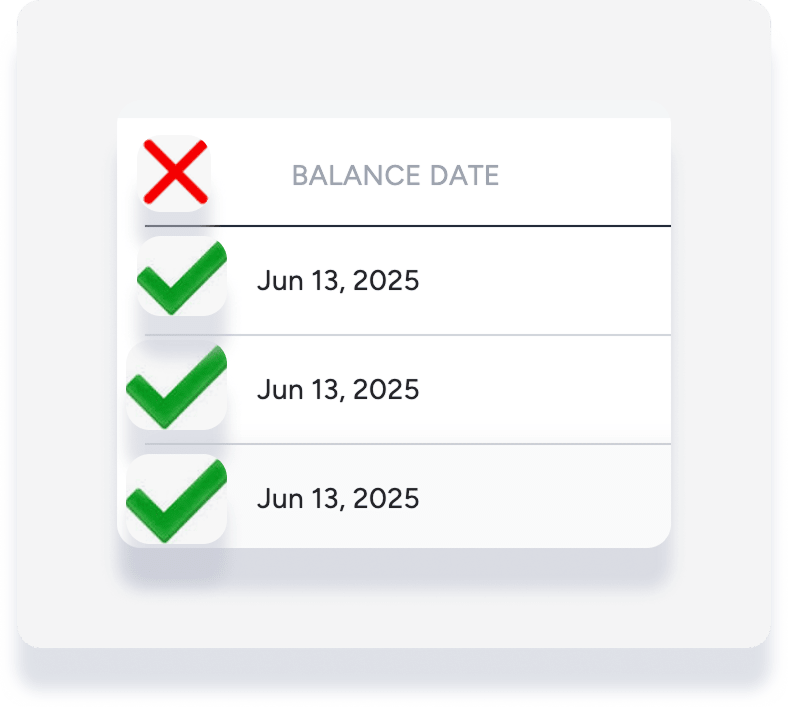
- Under "Payout method" select NACHA bank transfer file. Complete the rest of the fields. (See more information about editing a payout.)
- In the bottom-right, click Download NACHA file.
Vendor payout
Before you begin, enter the vendor's bank details.
Create a NACHA file for payout to vendors
Step by step:
- Sign in to your Guesty account.
- In the side navigation menu, click Accounting to open the dropdown menu.
- Under General ledger, select Trial balances.
- In the top-left, click the view, then select Vendors balance as of today. (See more information about creating a filter for outstanding balances.)
- Search or filter for the relevant vendor.
-
Check the box for the relevant line items, then click Pay in the top-right.
Each item must be selected individually. If you click Select all at the top of the column, NACHA will not appear as a payout option in the next step.
- Under "Payout method" select NACHA bank transfer file. Complete the rest of the fields. (See more information about editing a payout.)
- At the bottom-right, click Download NACHA file.
Next steps
Upload the generated NACHA files to your banking platform to initiate payouts.
Important:
When Guesty provides two NACHA files for separate account payments, upload both files to your banking portal. Uploading only one file results in an incomplete payout batch, meaning some owners or vendors won't be paid.
Processing the payout in Guesty can take up to 15 minutes. View the processing payout in your disbursements reports.
Once the payout is processed, this occurs:
- The status changes to "completed" in the disbursements reports
- The outstanding balance amount is updated in the general ledger balances
- A new payment entry is added to your posting journal
