Online booking platforms that facilitate short-term accommodation services (such as Airbnb, Booking.com, and Vrbo) are required to charge, collect, and remit a new Short Stay Levy (SSL) tax as follows.
The SSL applies to the total amount of a relevant booking. However, because the levy itself is included in that total, this must be factored into the tax calculation accordingly. This varies per region, see details below.
SSL per region
Victoria
- SSL applied for reservations 28 days or less
- 7.5% charged on the total booking payout including taxes
To ensure the levy represents exactly 7.5% of the total amount paid, we recommend setting the tax at 8.11% of the pre-levy amount. This calculation should accurately incorporate the levy into the overall cost without reducing the amount collected. Example:
Base amount (Accommodation fare plus fees): $100
8.11% tax: $8.11
Total fare: $108.11
$8.11 ÷ $108.11 = 7.5%
So, applying 8.11% to the base amount results in a 7.5% levy on the total.
Where to add the SSL tax
How you configure the new SSL tax depends on which distribution channels you're connected to and where your guest reservations originate.
Reservation made through |
Where to configure SSL |
|---|---|
| Agoda | In channel |
| Airbnb | n/a - Airbnb is applying the SSL automatically to relevant guest reservations. Full details from Airbnb |
| Booking.com | In channel (configure in extranet) |
| Direct bookings, i.e. reservations that are made: Manually / Through the Booking Website, Booking engine, or Booking engine API / Via Google | In Guesty |
| Expedia | In channel |
| Marriott (HVMB) | In Guesty |
| Rentals United | In channel |
| Trip.com | In channel |
| Vrbo | In Guesty |
Note:
Accounting users: In the related business model this tax should be configured as remitted by PMC.
Length of stay condition limitations
When creating the SSL in Guesty, a length of stay condition is added for direct bookings (see table above) so that the tax is only applied to reservations of 28 days or less.
The length of stay condition does NOT apply to synced channels.
For Marriott and Booking.com (see table above), the tax will be added to all reservations. To avoid an unnecessary charge for reservations over 28 days, you can zero out the amount in the guest folio. See steps below.
Create SSL on the account level
Add the SSL tax on the account level if most of your properties are in Victoria. For any properties outside Victoria, you can turn off the tax sync on the listing level.
- Sign in to your Guesty account.
- In the side navigation menu, click
 Financials to open the dropdown menu.
 - Under Items, select Tax configurations.
- To the right, click New tax.
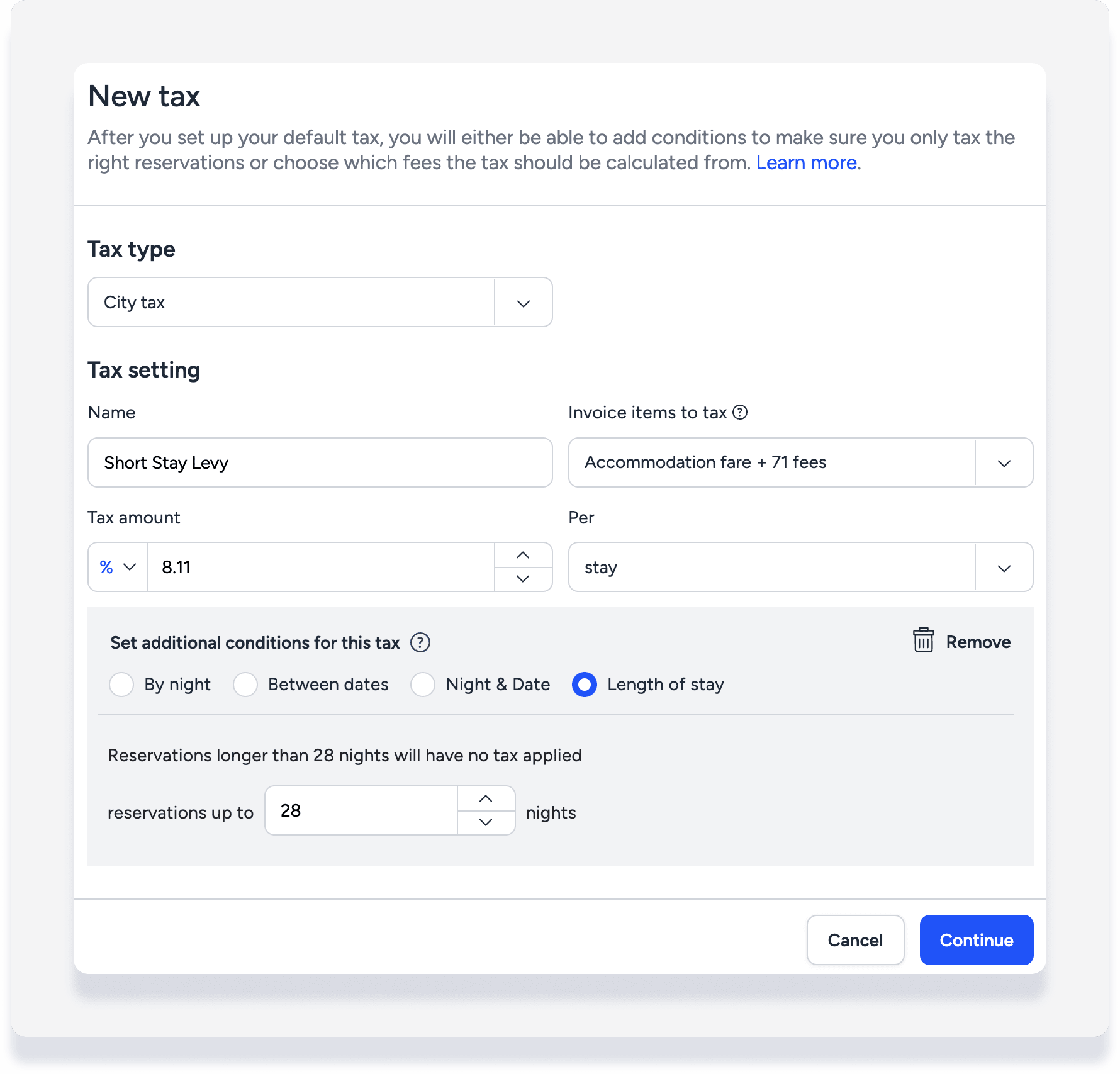
- Set up the basic tax settings:
- Tax type: Select City tax.
- Name: Enter an identifying name, e.g. "Short Stay Levy".
- Invoice items to tax: Check the select all box.
- Tax amount: Select % and enter the recommended amount per region (See above).
- Per: Select stay.
-
Click Set additional conditions for this tax.
Important:
Conditions only apply to direct bookings (see table above).
- Select Length of stay.
- For "Reservations up to _ nights", enter 28.
- Click Continue to exit the new tax settings.
- Back on the "Tax configuration" page, at the top-right click Save tax configuration.
Creating an additional fee to cover the SSL for specific channels only is an option. However, additional fees are not recognized as a tax and will be included in your channel fees. Length of stay conditions cannot be used, and not all channels, including Marriott, sync additional fees with Guesty.
If you're interested in setting up the SSL as an additional fee, please contact us at team.anz@guesty.com to discuss further.
Create SSL on the listing level
- Sign in to your Guesty account.
- In the side navigation menu, click
 Properties.
 - Click the relevant listing. If the listing is a multi-unit, make these changes by editing the main settings of the multi-unit. The changes will apply to all sub-units.
- In the left menu, click Pricing & Policies and select Tax configuration from the dropdown menu.
- Make sure the Use your account's default settings toggle is OFF, or the listing will use taxes set up on the account level. If you need to turn it off, read the information in the pop-up and click Confirm.
- To the right, click New tax.
- Set up the basic tax settings:
- Tax type: Select City tax.
- Name: Enter an identifying name, e.g. "Short Stay Levy".
- Invoice items to tax: Check the select all box.
- Tax amount: Select %, and enter the recommended amount per region (See above).
- Per: Select stay.
-
Click Set additional conditions for this tax.
Important:
IMPORTANT: Conditions only apply to direct bookings (see table above).
- Select Length of stay.
- For "Reservations up to _ nights", enter 28.
- Click Continue.
- If your account is connected to Airbnb, select No, do not sync to Airbnb.
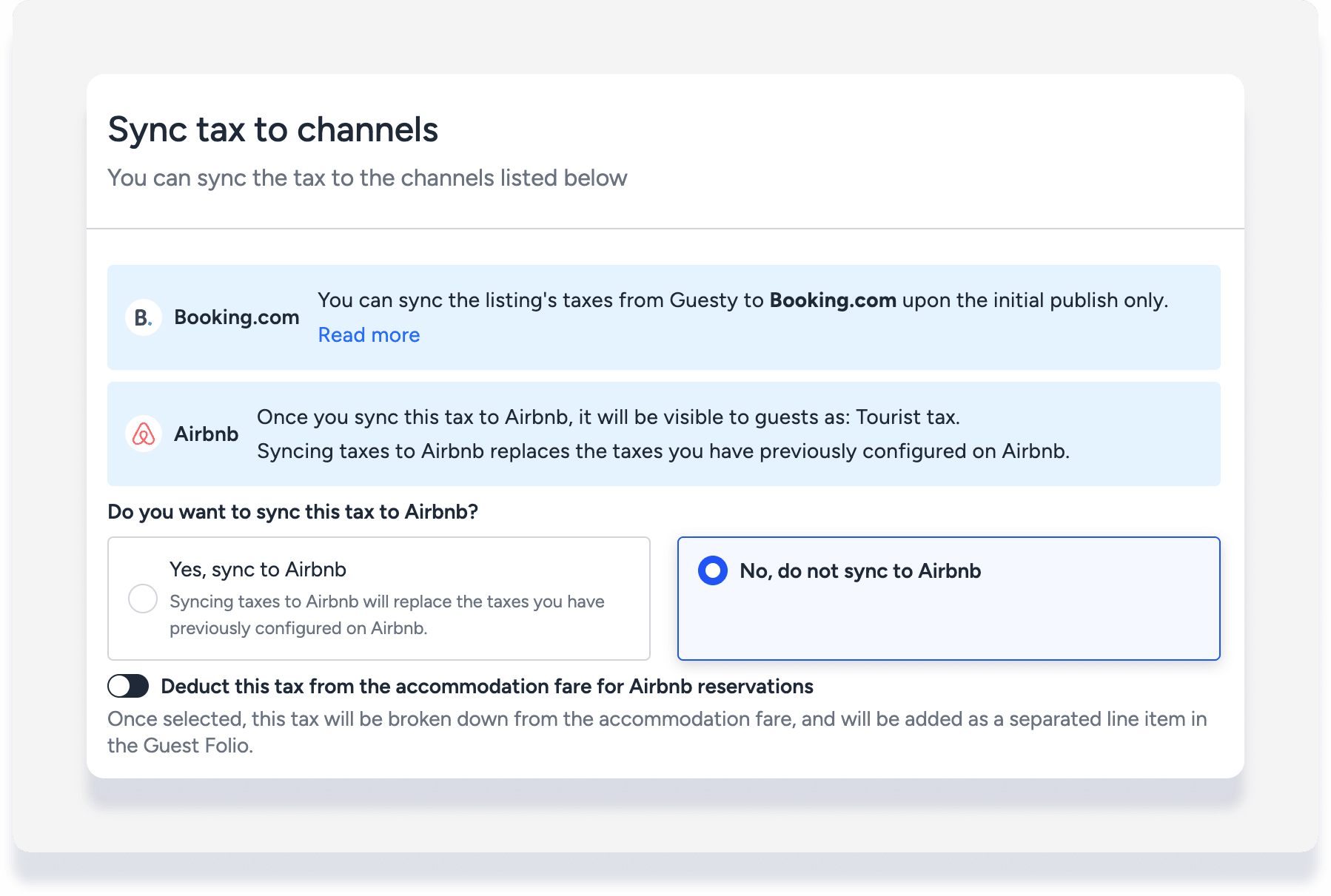
- Keep "Deduct this tax from the accommodation fee for Airbnb reservations" toggled OFF.
- Click Continue.
- Back on the "Tax configuration" page, at the top-right click Save tax configuration.
Adjust SSL in a reservation's guest folio
A line item cannot be deleted once it's been added in a reservation. However, you can make an adjustment in the guest folio to zero out the amount. Follow this process in the situations explained above for Marriott and Booking.com, or for any other reservation where SSL is not required.
Note:
Accounting users: Understand how guest folio adjustments are reflected in the accounting folio and the owner statements.
- Sign in to your Guesty account.
- In the side navigation menu, click
 Reservations.
 - Select the relevant reservation.
- In the left submenu, click Guest folio and invoice.
- In the guest folio breakdown, click Adjust line item.
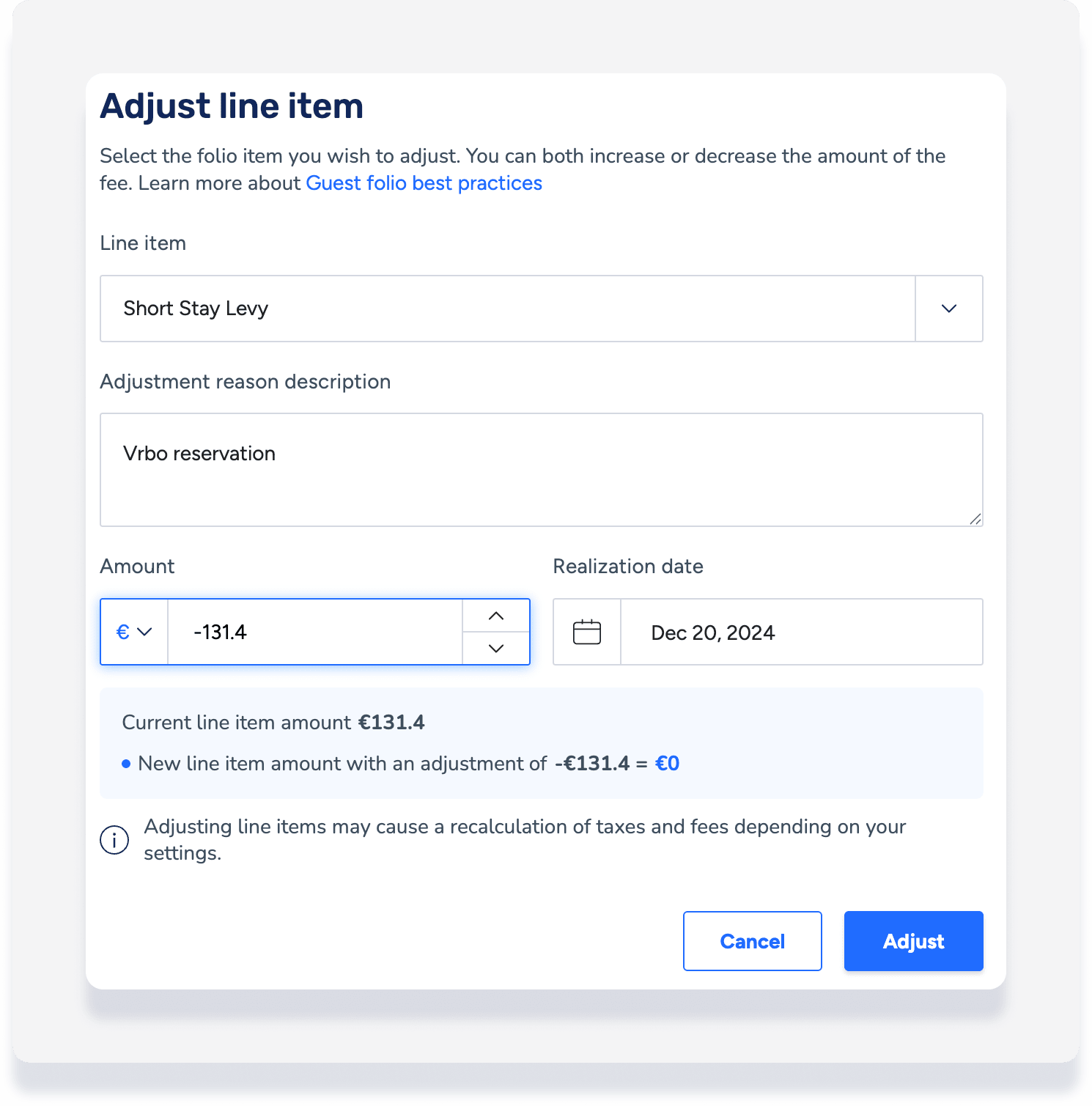
- Fill out the information in the pop-up:
- Select the SSL line item to adjust.
- Enter a description / reason for the adjustment.
- Enter the SSL amount as a negative number to adjust the total to zero.
- Accept or change realization date:
- If the item is adjusted before check-in, the default realization date is check-in
- If it is adjusted after check-in, the default realization date is the date the change is made
- Click Adjust.
Note:
If you have any questions or configuration concerns, please contact us at team.anz@guesty.com.
