Guests' payment methods fail for various reasons, such as an invalid credit card or a missing payment method on a reservation. This in indicated by an error message shown in the reservation:

When a payment method is declined or missing, any pending scheduled payment automations will fail.
To successfully process these charges, you must add a new payment method to the reservation and update the specific payments to use it. In some cases, you may need to cancel a failed payment entirely to recollect it later.
Follow the steps below to manage payment methods and handle failed payments on a reservation.
Add a new payment method to a reservation
Before updating a specific payment, ensure the new credit card information is saved to the guest's Guesty account.
Step by step:
Sign in to your Guesty account.
- In the side navigation menu, click
 Reservations.
 - Select the relevant reservation.
- In the left submenu, click Payments.
In the blue banner click Add payment method.
Enter the new card details.
At the bottom-right corner, click Add payment method.
Tip: Stay informed
Configure notifications to receive alerts for invalid payment methods. This helps you take action immediately when a payment fails.
Update existing payments with the new card
Once you add the new card to the reservation, you must attach it to the pending or failed payments. Use one of the following methods to ensure the correct card is charged.
Edit individual payments
Update a specific payment to use the newly added card through the "Edit payment" screen.
Step by step:
Go to the Payments section of the reservation.
Locate the failed or pending payment and click Edit payment.
-
In the Payment method dropdown menu, select the new credit card.
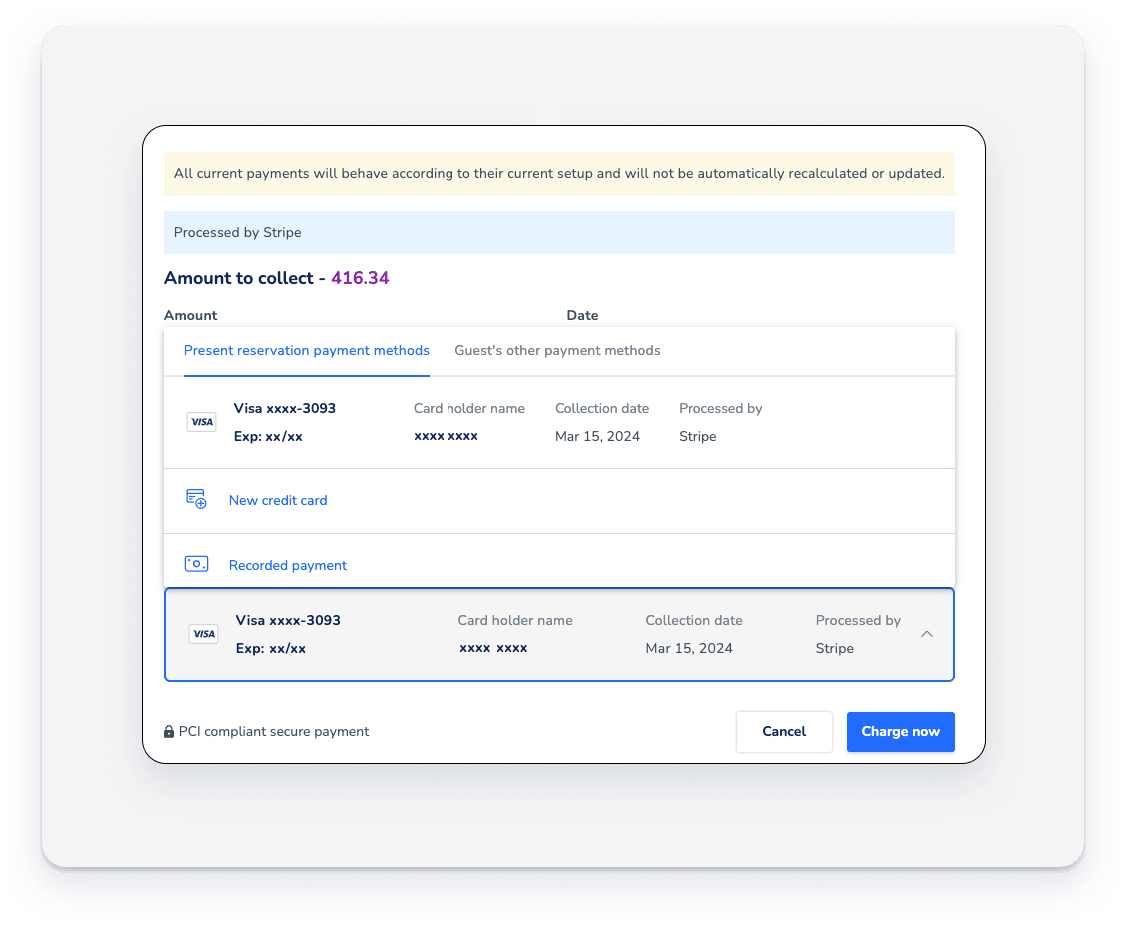
Click Change now.
Replace in payment automation
If the reservation uses payment automations, learn how to turn a scheduled payment into a recorded payment using the new card.
Cancel a payment
You can cancel a reservation's payment before it is successfully charged or if a guest's payment fails. This allows you to recreate or recollect the payment later if needed.
Step by step:
Sign in to your Guesty account.
- In the side navigation menu, click Reservations.
- Select the relevant reservation.
- In the left submenu, click Payments.
On the relevant payment click Actions, then select Cancel payment.
In the pop-up, click Yes, cancel payment.
Note: Payment failure limits
If a payment fails for the third time, Cancel payment is no longer an option. In this case, you must add a new payment method to the reservation to proceed.
