Providing clear instructions ensures guests have a smooth start to their stay, while also reducing the need for manual communication. It's a great way to manage expectations and provide a seamless hospitality experience from arrival to departure.
Tell guests how to enter your property, for example, by picking up keys from a specific location.
Beta users: For Airbnb listings, you can also set how guests should leave your property, for example, by gathering used towels before checking out.
Use the instructions below to add entry or departure instructions to your properties.
Airbnb listings
Only set or update check-in and check-out instructions in Guesty if you use Full sync for your listing. If you use a Limited sync, manage these instructions directly in Airbnb. You can change sync settings from Full sync to Limited sync to manage all content attributes in Airbnb.
Changing check-in or check-out instructions in Airbnb disables updates from Guesty, regardless of the sync type. In this case, instructions become "locked" in Guesty and must be managed in Airbnb. They won't appear in Guesty, but guests will see them in Airbnb.
Follow Airbnb’s content policy to avoid sync failures. Syncing fails if you include:
- Commercial content (company names)
- Email addresses
- Emojis
- Phone numbers
- Repetitive special characters or symbols
- Website links
- Words in all capital letters
Photo requirements
Follow these requirements when adding photos to entry instructions:
- File formats: jpg, png
- Max file size: 6MB
- Max files: 10
Set up arrival instructions
Follow the steps below to set up arrival instructions for your guests.
Step by step:
- Sign in to your Guesty account.
- In the side navigation menu, click
 Properties.
 -
Select the relevant property.
For multi-units, manage this feature via the main unit's settings rather than sub-unit settings. The settings apply to all sub-units automatically.
- In the left-side menu, click Pricing & Policies and select Reservation policies.
- Click Edit next to the "Check-in and check-out policy" section.
- Scroll down to the "Arrival instructions" section.
-
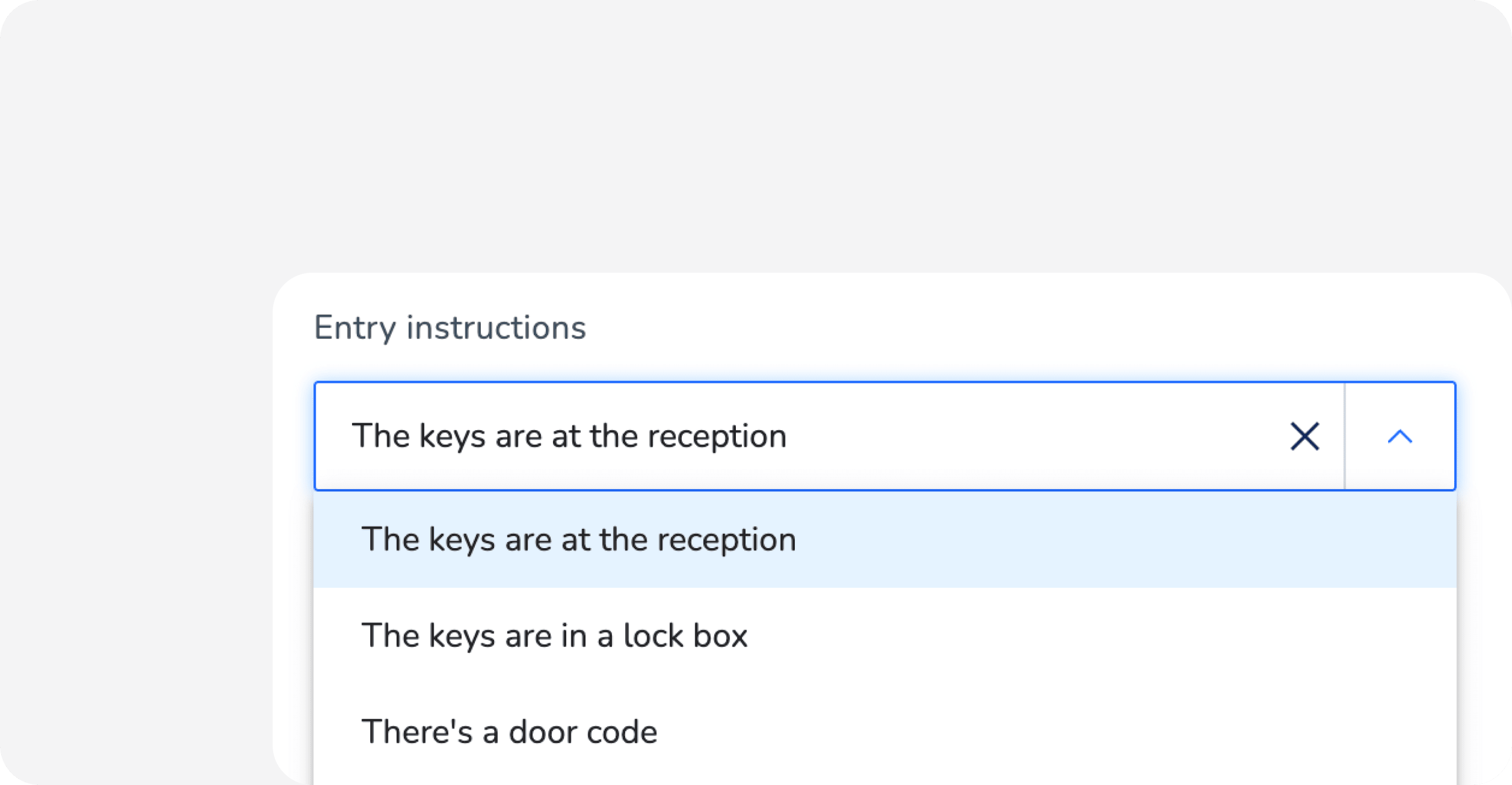
Under "Entry instructions", select the relevant option from the dropdown.
Airbnb users: To trigger "Self check-in" in the Airbnb listing description, select The keys are at the reception, The keys are in a lock box, or There’s a door code.
- Under "Backup entry instructions", select the relevant option from the dropdown.
- Under "Additional entry instructions", enter any relevant information.
- Under “Photo with entry instructions”, upload photos by dragging and dropping files or click Upload photos.
-
Under "Luggage storage (optional)" and "Check-out instructions (optional)", fill in relevant information.
Learn how luggage storage and check-out instructions work compared to other fields.
- Click Save.
Luggage storage and check-out fields
Unlike the other arrival instructions, the "Luggage storage" and "Check-out instructions" fields don't publish to your Airbnb listing page and don't automatically send to guests. They are designed for:
- The Guesty Booking Engine: The content appears on your direct booking website.
- Merge variables in automated messages: The content can be pulled into your guest communication using variables.
To have this content reach guests, insert the matching variable into an automated message (for example, a pre-departure message):
-
Check-out instructions:
{{listing_checkout_instructions}} -
Luggage storage:
{{listing_luggage_storage}}
Set up departure instructions (Airbnb only)
Departure instructions only sync with Airbnb and display after a reservation is confirmed.
Step by step:
- Repeat steps 1-5 above.
- Scroll down to the "Departure instructions" section.
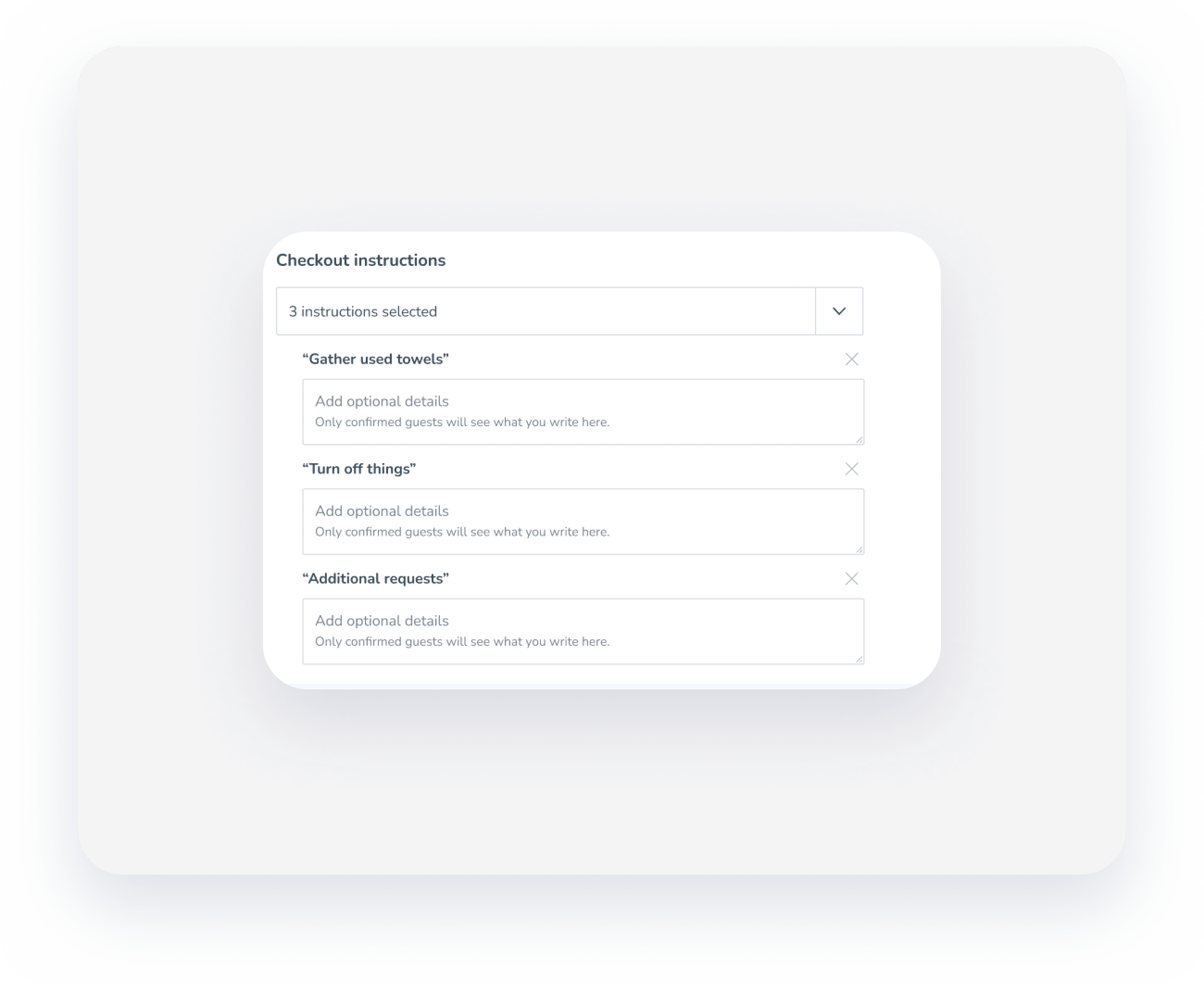
- Click the Select or type field and check the boxes for the instructions you want to add.
- Fill in any additional details in the text field.
- Click Save.
