In Guesty, you can choose between several third-party providers that generate keycodes for your guests, such as Lynx, Aurmur, Vikey, KeyNest, and RemoteLock.
Most partners sync the keycode into the "Keycode" field in Guesty, but some use the "Guest notes" field or custom fields. The keycode usually takes up to one hour after confirmation to generate and appear in Guesty.
Check the keycode in Guesty
If an automated message is sent after confirmation without the keycode, confirm that the keycode exists in Guesty. The keycode field only appears when a keycode exists.
Locate the keycode
The keycode field can be found in two locations:
- The Guesty Inbox: View the keycode under the "Guest" widget.
- The Reservation page: The keycode appears under the Guest tab.
If you don't see the keycode
Check the reservation confirmation time to determine your next steps.
- If the reservation was confirmed less than one hour ago: Your third-party provider may still be generating the keycode. Change the message sending time to two to three hours after confirmation to allow the keycode enough time to appear in Guesty. Check the reservation Activity log tab to confirm when the partner updated the reservation.
- If the reservation was confirmed more than one hour ago: Check the partner's integration page to confirm the listing is connected correctly. If it is connected correctly, contact the partner’s support team.
If you do see the keycode
Check if the variable was added to the message correctly. If the variable was manually typed, it might be incorrect.
Add the correct keycode variable to the message:
Step by step:
- In the relevant message, click +Add variable.
- Check the partner connection guidelines to see which variable the partner updates. Compare the newly added variable to the one already in your message.
- If the variables are not identical, the keycode variable was added incorrectly. Remove the existing variable and replace it with the new one.
- Check if the keycode displays for the relevant reservation in Guesty. For example, verify that partner-related custom fields have values under the reservation's Booking details tab. If they are empty, contact the partner's support team.
- If the keycode is present in both platforms and the correct variables and triggers are used, but the message sends without a keycode value, contact us.
If there was a reservation alteration
Check if the keycode updated when the reservation changed. If the keycode didn't change after a reservation update, contact the partner to check why the update was not received.
Locate details for contacting support
If you confirm the configuration is correct and the issue persists, contact us to begin troubleshooting.
To help us triage the issue quickly and accurately, provide the following details along with a screenshot showing any error messages:
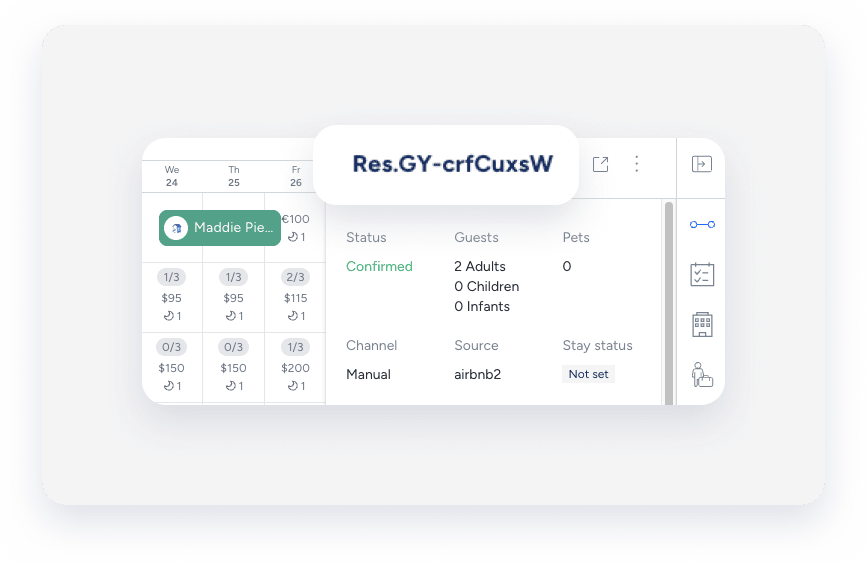
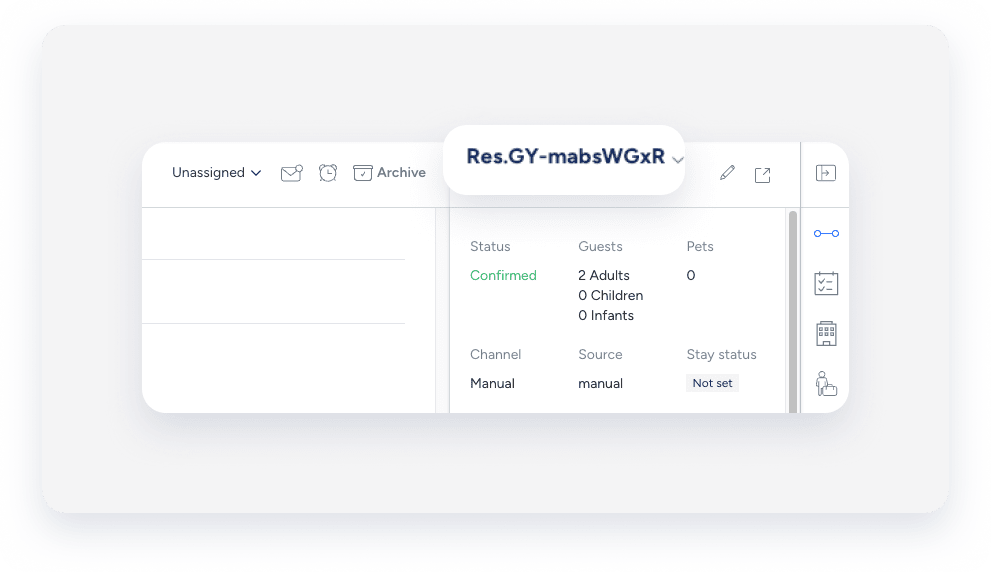
The reservation code is a unique identifier assigned to each booking. The code's format depends on the booking channel.
Code formats
- Airbnb: Starts with "H" (e.g., HMEXF9BKQ4).
- Booking.com: Starts with "BC" (e.g., BC-1000gAmP).
- Vrbo: Starts with "HA" (e.g., HA-8XTV36).
- Manual/Direct Bookings: Have their own specific format.
Location
-
On the Reservation Page: Select the relevant reservation. The reservation code displays at the top of the reservation card, in the top left corner.

-
On the Multi-Calendar: Click a reservation in the Multi-Calendar to access its details. The reservation code displays in the side panel.
-
In the Guesty Inbox: The reservation code displays in the Inbox Reservation widget of the relevant conversation thread.
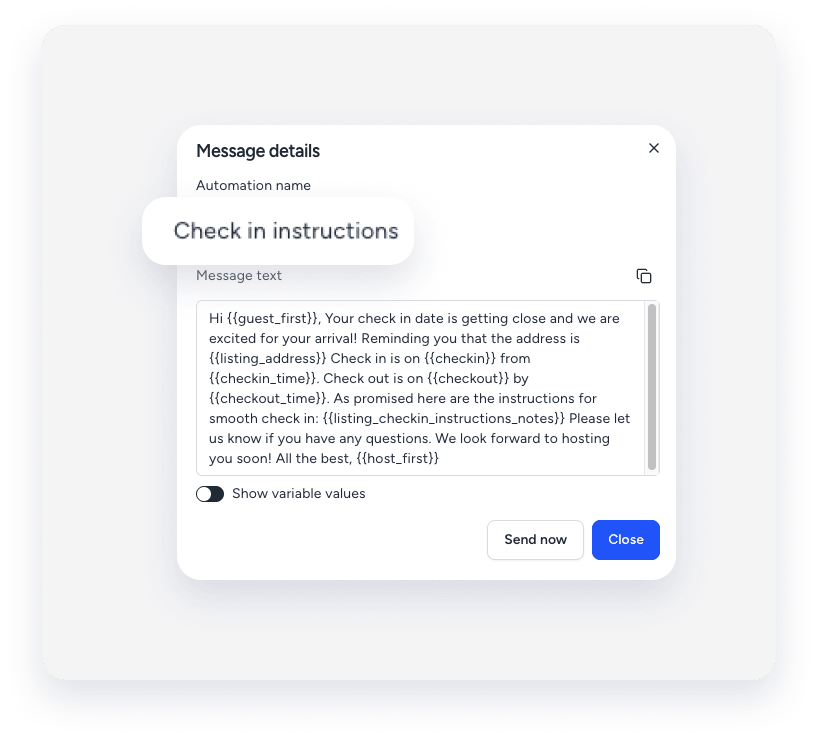
The label you assign to identify a specific message in your message automation workflow. The name is only for user identification and is not visible to guests.
Location
-
In the messaging automation page: In the side navigation menu, click
 Operations and select under Front desk, select Message automation. Click the relevant automation. The automated message name displays in the automations list.
-
In the Guesty Inbox: (for scheduled or sent messages): Select the relevant conversation thread. In the right side panel, click Automated messages. The automated message name for sent or scheduled messages displays in the History tab.

Tip:
Use a consistent naming convention (e.g., channel + purpose + trigger) so automations are easy to find with partial searches.
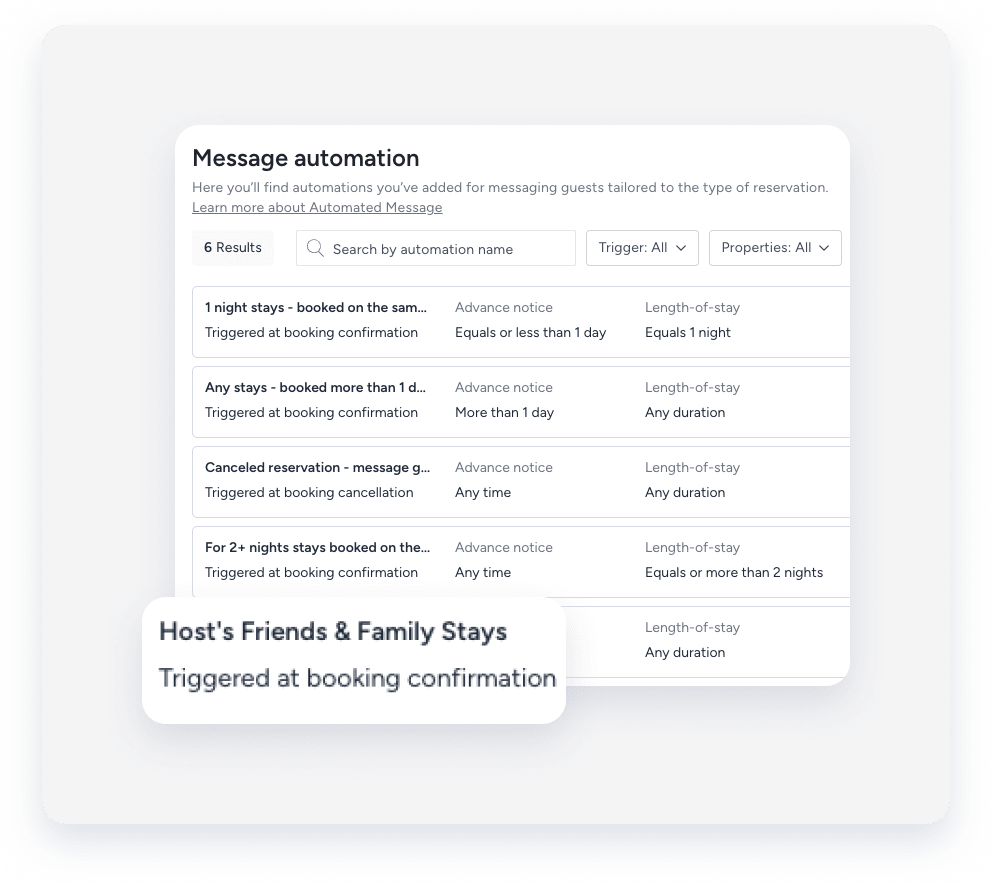
A message automation, sometimes referred to as a workflow, is the visual framework you use to set up automated guest communication based on the reservation lifecycle. The automation name is for internal use only and is not visible to guests.
Location
-
In the messaging automation page: In the side navigation menu, click Operations and select under Front desk, select Message automation. The message automation name displays in the automations list. To search for a specific automation, use the search bar at the top of the page: Type the full or partial name to quickly find it.
-
In the Guesty Inbox: (for scheduled or sent messages): Select the relevant conversation thread. In the right-side panel, click Automated messages. Select the Scheduled or History tab. Under the relevant automation, click See more. The message automation name displays in the pop-up.