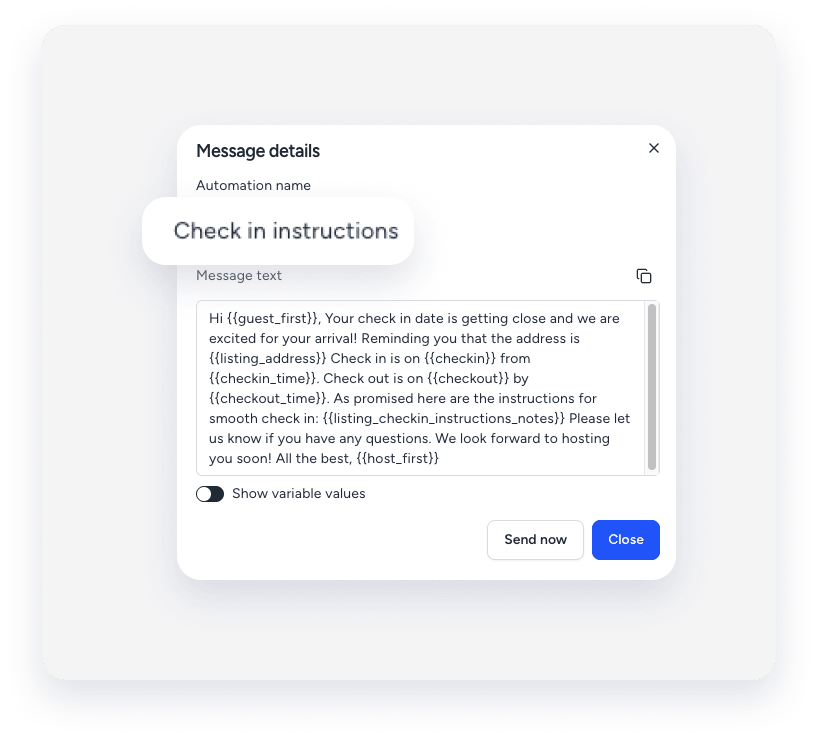
The Guesty Inbox is a messaging platform that centralizes your guest communication and history. It includes messages sent by email, SMS, via the booking channel, and automated messages triggered by a message automation.
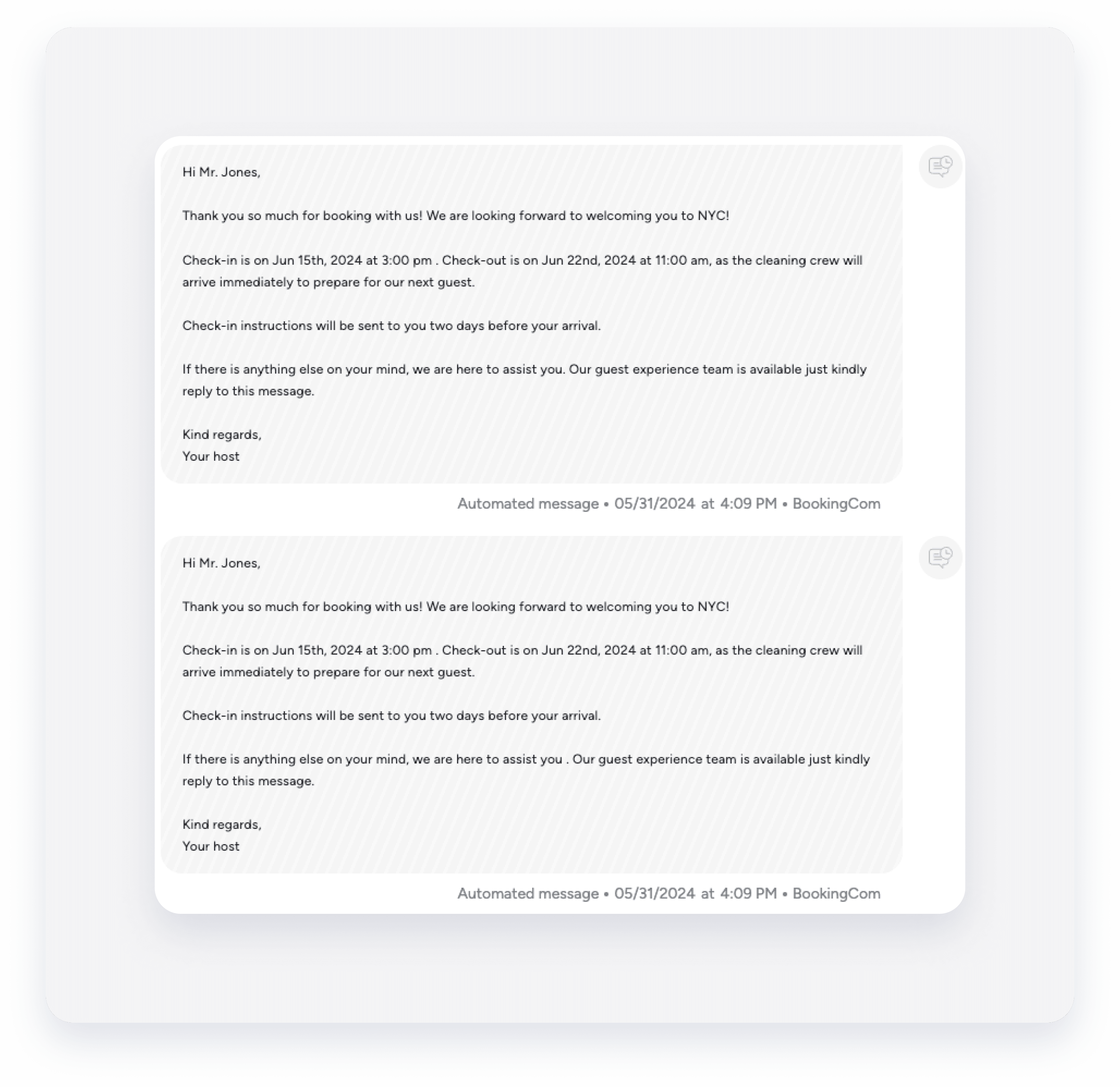
A message may be duplicated in a conversation thread for several reasons:
- If the guest has more than one reservation, messages are merged under a single conversation thread.
- If a reservation meets the reservation conditions of more than one message automation, it can trigger multiple automated messages.
In some cases, an automated message may appear twice in the Guesty Inbox for an Airbnb reservation. This typically occurs when the message body contains special characters or excessive blank spaces.
Here is how this creates a duplicate in Guesty:
- Guesty sends an automated message to Airbnb and generates a unique message ID based on several parameters, including the content of the message.
- Airbnb processes the message, removing special characters or extra spaces.
- Airbnb returns the message to Guesty as an incoming message.
- Since the returned message no longer matches the original, Guesty considers it a new message and generates a unique message ID.
- As a result, the message appears twice in the Inbox.
The message is not actually sent twice to the guest. The duplicated message is only visible in the Guesty Inbox due to formatting changes made by Airbnb.
Find the source of the issue
Follow these troubleshooting steps to find the source of the issue.
Step by step:
- Sign in to your Guesty account.
- In the side navigation menu, click
 Inbox.
 - In the Inbox submenu, select the relevant inbox.
- Click the relevant message thread.
- Locate the duplicate messages. Note the content, delivery date and time, and delivery method.
- In the inbox widget submenu, click
 . Note the listing name, because you will use this to filter results in step 6 of "Find the message automations".
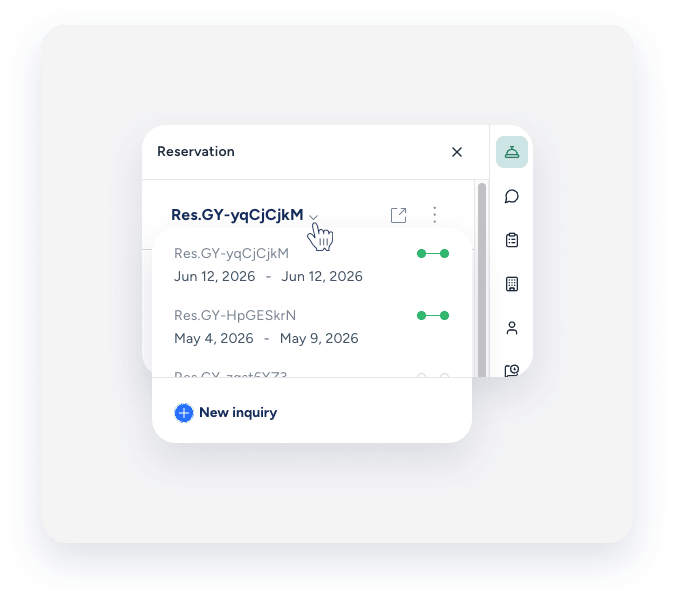
 - Click the arrow next to the confirmation code to check if the guest has more than one reservation.
- If the guest has multiple reservations: they may receive the same automated message for each reservation, resulting in duplicate messages. This is normal, and no action is necessary.
-
If the guest has one reservation: follow the instructions below to investigate and adjust the triggered message automations.
Find the message automations
Follow these instructions to investigate and adjust the message automations when the guest has only one reservation.
Step by step:
- In the inbox widget submenu, click
 .
. - Under "Guest auto messages", select History.
- Locate the duplicate automated messages and note the name of the trigger, such as "At reservation confirmation". Use this to filter results in the next step.
- In the side navigation menu, click
 Operations to open the dropdown menu.
 - Under Front desk, select Message automation.
-
Filter your message automations to identify the message that was duplicated:
- Use the trigger filter to select the trigger that caused the duplicate message.
- Use the properties filter to select the listing name identified in step 5.
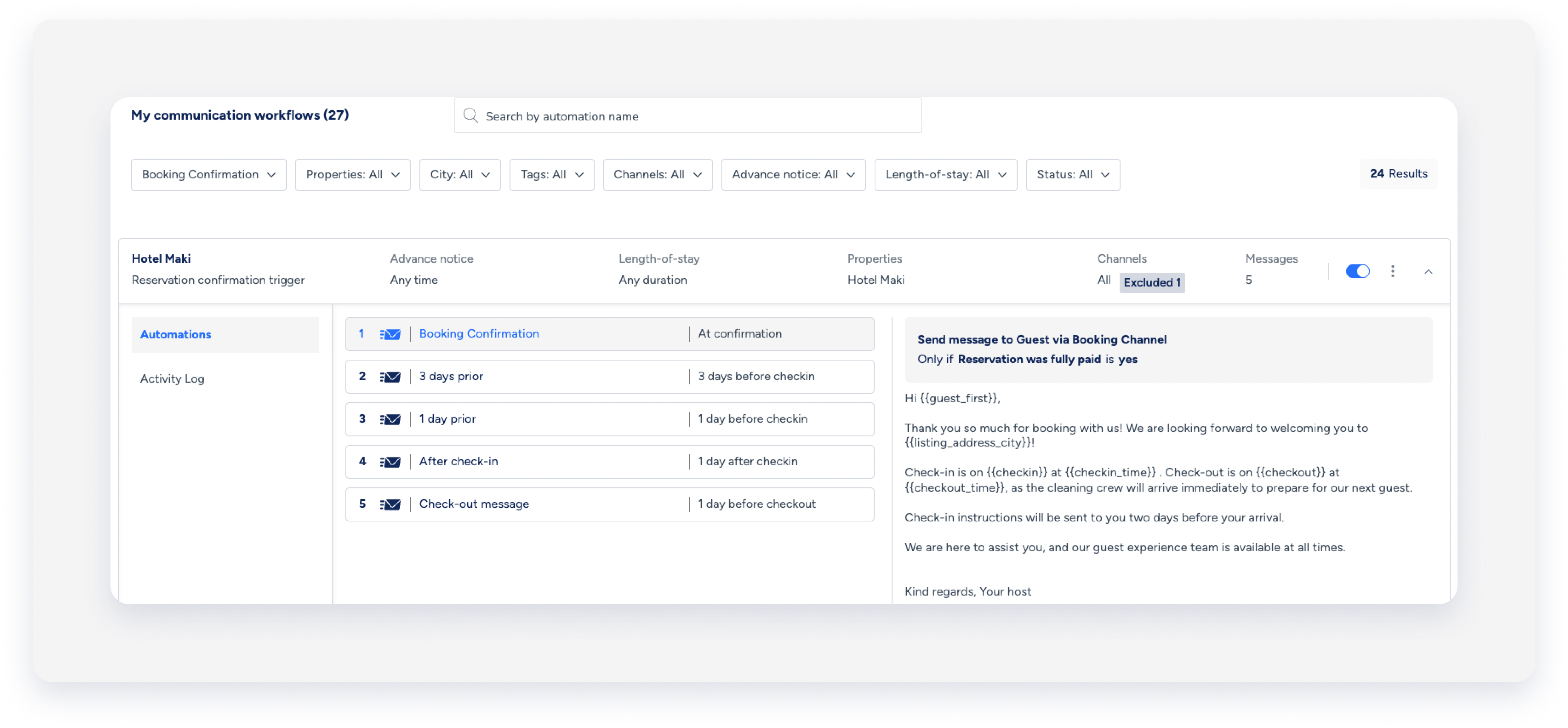
- Expand each message automation to view the associated automated messages. Identify the message automations that triggered the duplicate automated message.
For example:
You might have one message automation assigned to all listings that sends a thank you message, and a different message automation assigned only to Booking.com reservations that sends the same message.
This overlap triggers duplicate automated messages when a guest reserves via Booking.com.
- Decide what action to take:
- Deactivate message automations that you don't need.
- Adjust reservation conditions to remove any overlap for the property, including advance notice and length of stay.
- Add message conditions to automated messages to ensure they are only triggered with the relevant reservations.
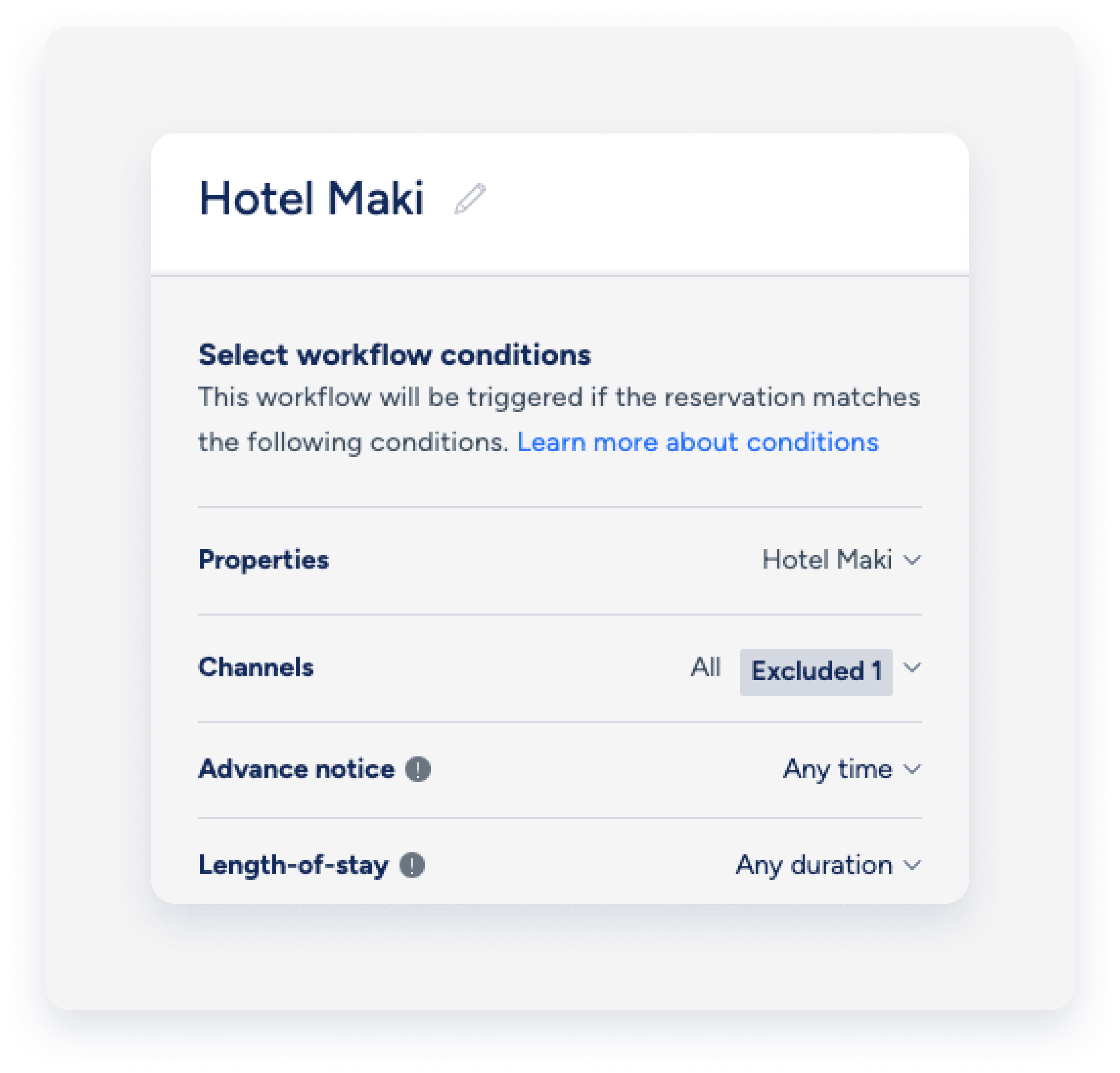
Locate details for contacting support
If you confirm the configuration is correct and the issue persists, contact us to begin troubleshooting.
To help us triage the issue quickly and accurately, provide the following details along with a screenshot showing any error messages:
The reservation code is a unique identifier assigned to each booking. The code's format depends on the booking channel.
Code formats
- Airbnb: Starts with "H" (e.g., HMEXF9BKQ4).
- Booking.com: Starts with "BC" (e.g., BC-1000gAmP).
- Vrbo: Starts with "HA" (e.g., HA-8XTV36).
- Manual/Direct Bookings: Have their own specific format.
Location
-
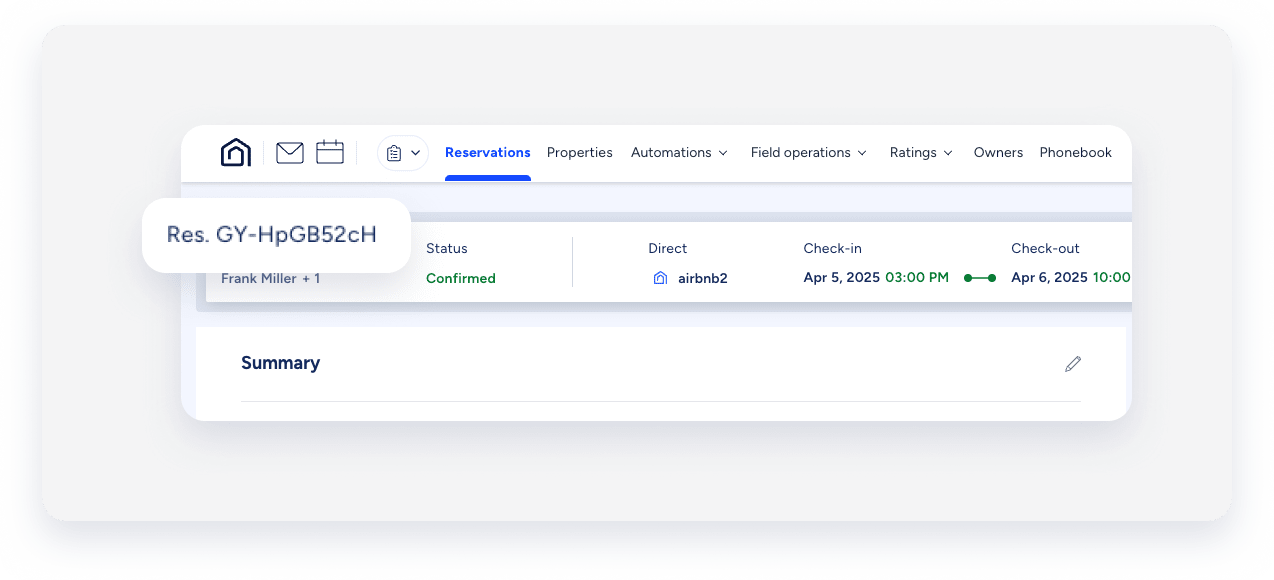
On the Reservation Page: Select the relevant reservation. The reservation code displays in the banner at the top of the page.
-
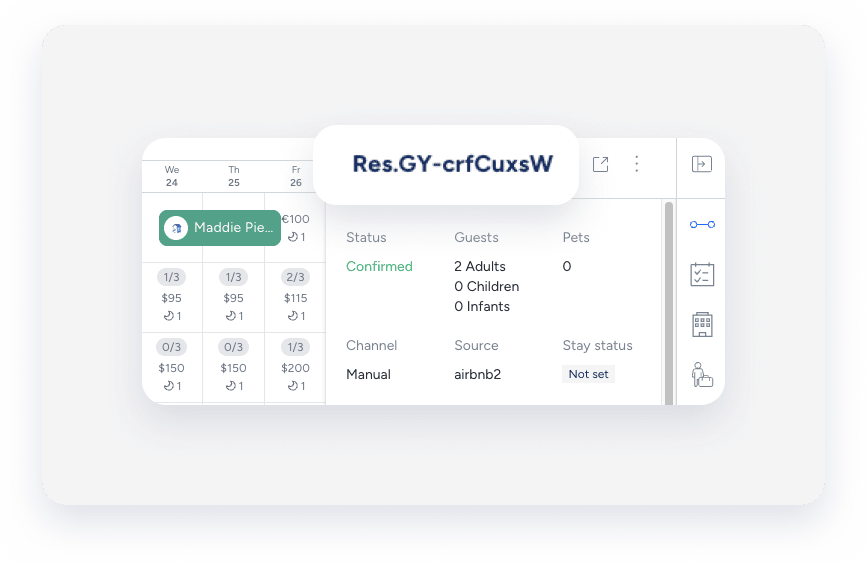
On the Multi-Calendar: Click a reservation in the Multi-Calendar to access its details. The reservation code displays in the side panel.
-
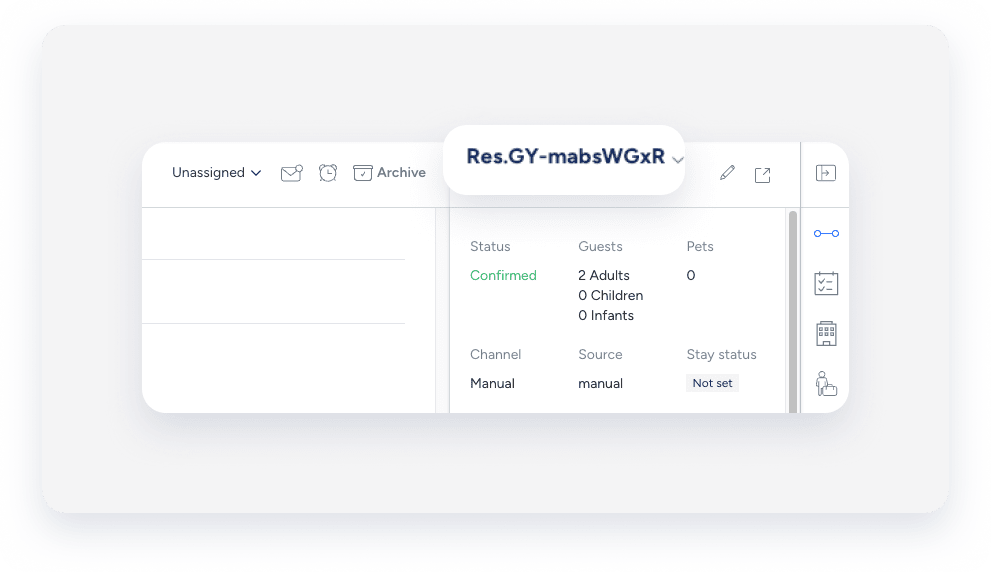
In the Guesty Inbox: The reservation code displays in the Inbox Reservation widget of the relevant conversation thread.
The label you assign to identify a specific message in your message automation workflow. The name is only for user identification and is not visible to guests.
Location
-
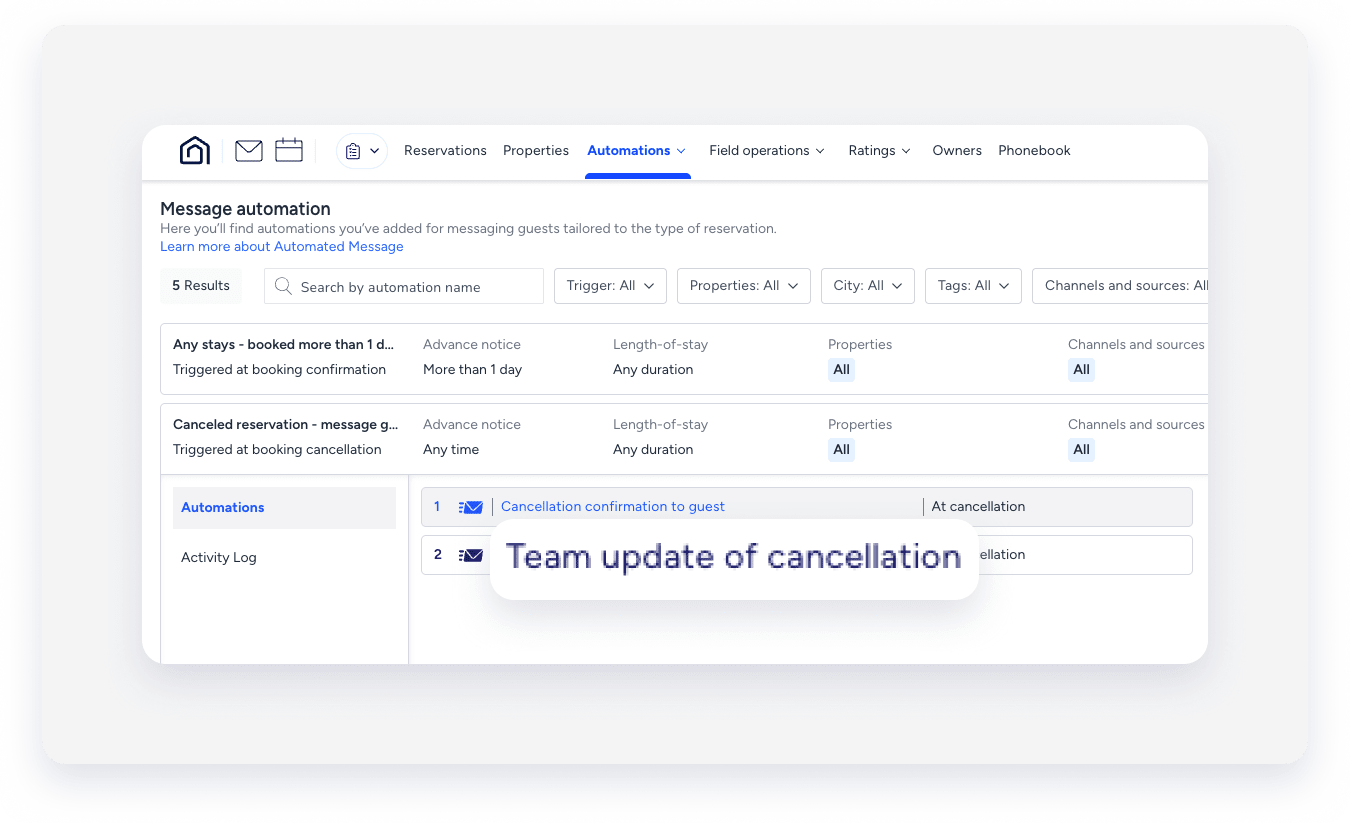
In the messaging automation page: In the top navigation bar, click Automations and select Messages. Click the relevant automation. The automated message name displays in the automations list.
-
In the Guesty Inbox: (for scheduled or sent messages): Select the relevant conversation thread. In the right side panel, click Automated messages. The automated message name for sent or scheduled messages displays in the History tab.

Tip:
Use a consistent naming convention (e.g., channel + purpose + trigger) so automations are easy to find with partial searches.
A message automation, sometimes referred to as a workflow, is the visual framework you use to set up automated guest communication based on the reservation lifecycle. The automation name is for internal use only and is not visible to guests.
Location
-
In the messaging automation page: In the top navigation bar, click Automations and select Messages. Click the relevant automation. The message automation name displays in the automations list. To search for a specific automation, use the search bar at the top of the page: Type the full or partial name to quickly find it.

-
In the Guesty Inbox: (for scheduled or sent messages): Select the relevant conversation thread. In the right-side panel, click Automated messages. Select the Scheduled or History tab. Under the relevant automation, click See more. The message automation name displays in the pop-up.