This article explains how to set your Net Rental Income (NRI) calculation to be based on gross (tax-inclusive) amounts. Calculating NRI on gross amounts allows your PMC commission to be based on the total tax-inclusive amount collected from the guest.
Note:
This feature is available if you are using the expenses feature. You can learn more about it in our article, Managing expenses and owner charges (New feature).
Understanding the NRI calculation options
You can choose between two methods for calculating the Net Rental Income for each business model:
- Net amount: This is the standard calculation method. The NRI is built from the net amount of each line item you select. Taxes are excluded unless you manually select specific tax line items to include in the calculation.
- Gross amount: With this calculation method, every line item included in the NRI is counted at its tax-inclusive value. All taxes attached to the selected line items are automatically included in the NRI and the commission base.
Configure your business model for gross NRI calculation
Follow the steps below to access a business model's net rental income settings, depending on if you have the legacy business model setup or the new business model setup, currently in pilot.
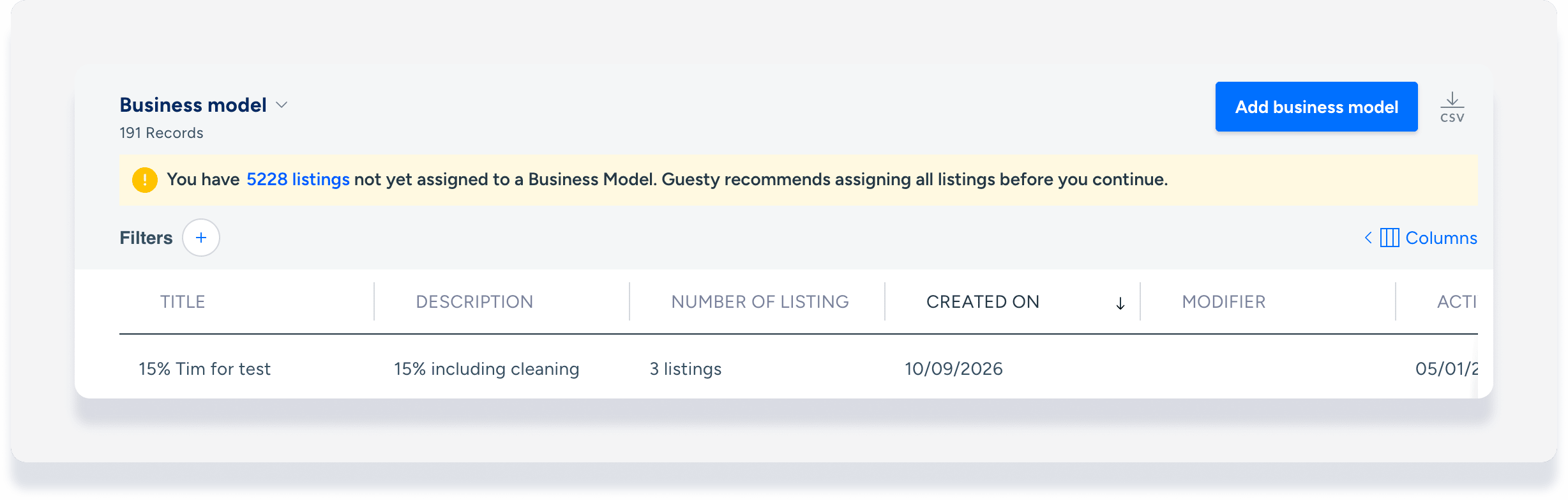
Legacy business model page:
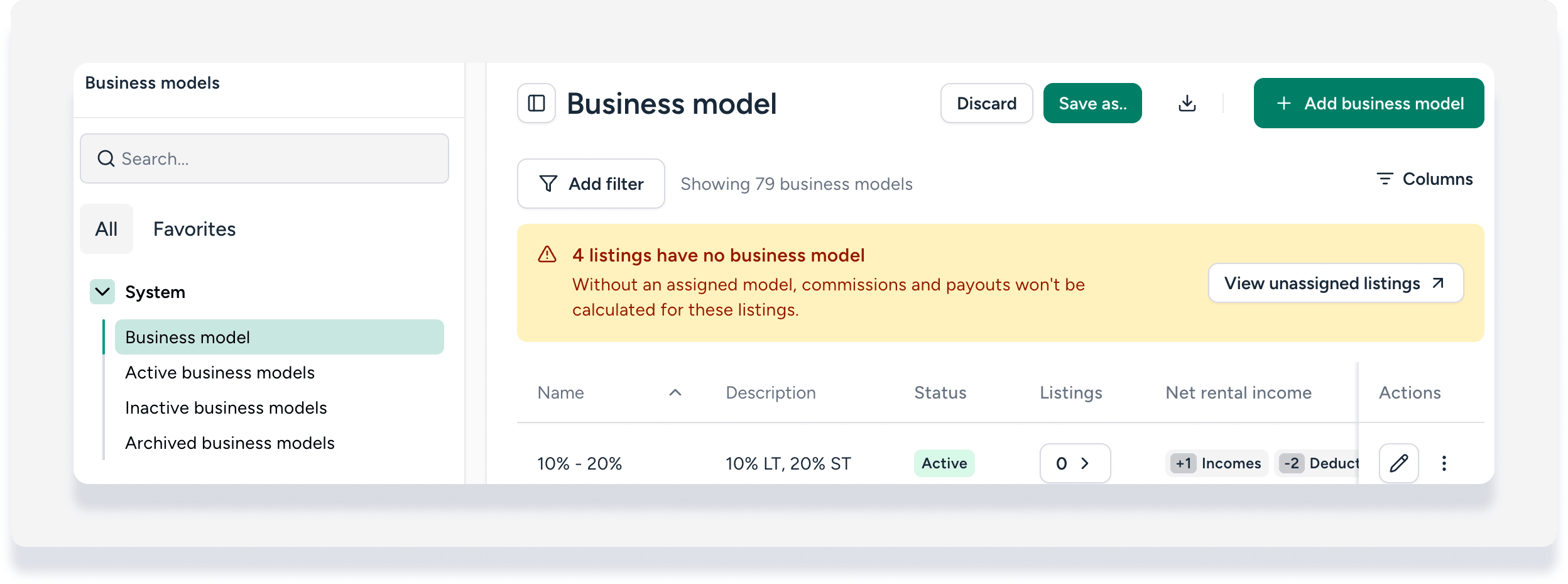
New business model page:
Step by step:
- Sign in to your Guesty account.
- In the side navigation menu, click
 Accounting to open the dropdown menu.
 - Under Accounting setup, select Business models.
- Click Add business model or select an existing one.
- Under "PMC commission", click Edit net rental income.
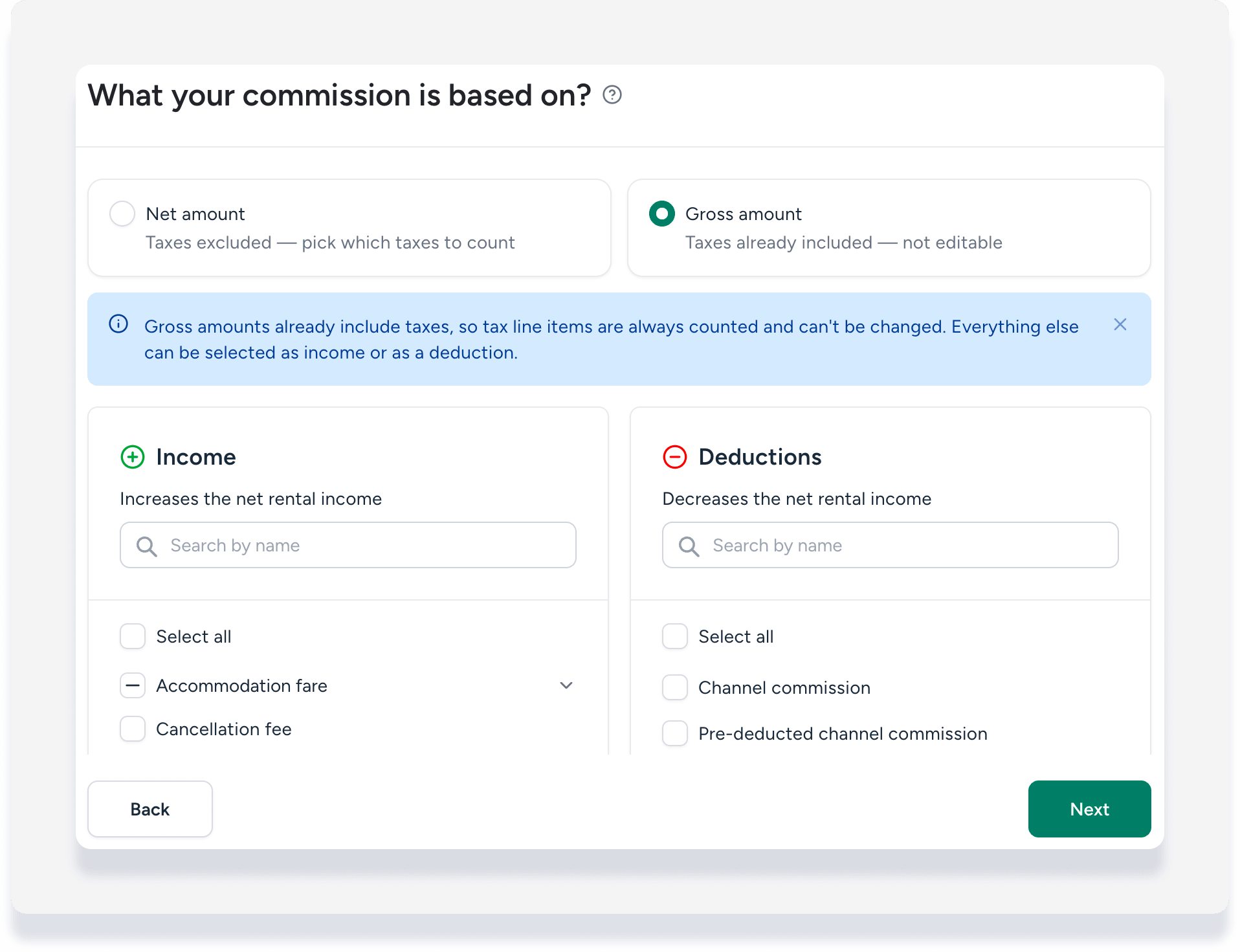
- Under "What is your commission based on?", select Gross amount.
- Check the boxes to add items to the "Income" or "Deductions" columns. Since taxes are already included in the gross amount configuration, they are automatically included and can't be changed.
- Click Save.
Step by step:
- Sign in to your Guesty account.
- In the side navigation menu, click Accounting to open the dropdown menu.
- Under Accounting setup, select Business models.
- Click Add business model, or click
 to the right of an existing business model to edit it.
- For a new business model, select Set up manually, then click Next.
- For an existing business model, in the lefthand menu select Net rental income.
- Under "What is your commission based on?", select Gross amount.
- Check the boxes to add items to the "Income" or "Deductions" columns. Since taxes are already included in the gross amount configuration, they are automatically included and can't be changed.
- Click Next or Publish new version.
Important:
The selections for line items are saved independently for each calculation type. If you switch from the net to the gross option and then back, your original selections for the net calculation will be restored.
View the calculation method on a reservation
You can see which calculation method was applied to a specific reservation directly from the reservation page.
Step by step:
- Sign in to your Guesty account.
- Navigate to the relevant reservation.
- Select the relevant reservation.
- In the left submenu, click Accounting.
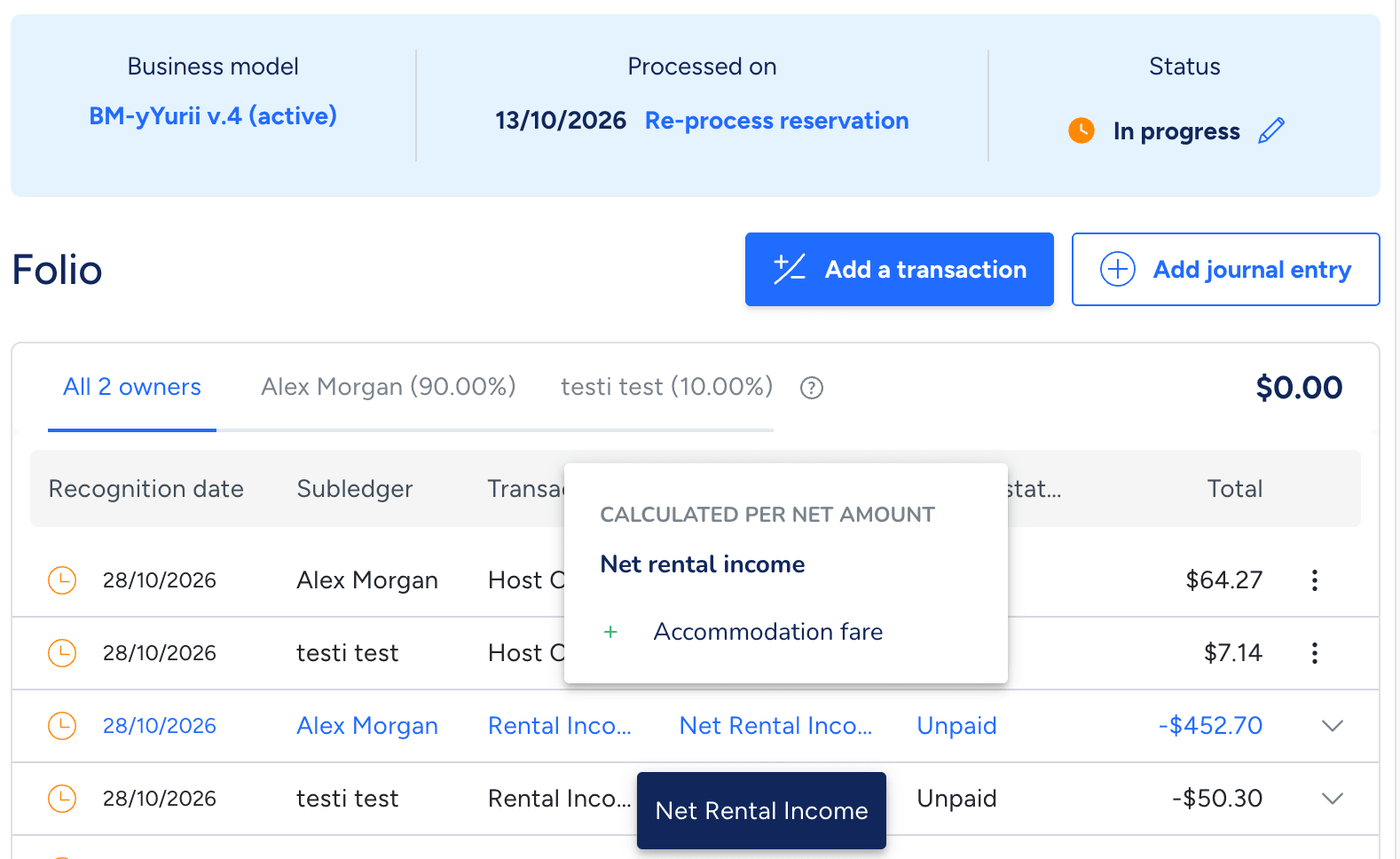
- In the Accounting folio, hover over "Net rental income" to see the calculation type.