This article explains how to use the AI knowledge base feature in Guesty's agents hub. You can create topics and add informational sources to manage company and property knowledge, allowing Guesty's AI agents to provide accurate and helpful answers.
The knowledge base is a central library for property-specific information that doesn't fit into standard data fields, such as how to operate a specific appliance or where the water shut-off valve is located.
Understanding topics and sources
The Knowledge Base is organized into two main parts:
- Topics: A topic is a container for a specific subject, like "Check-in Instructions" or "Appliance Manuals". Each topic is assigned to one or more properties.
- Sources: A source is a piece of information inside a topic. This can be a file that you upload (like a PDF manual), or text you enter directly. A single topic can include multiple sources.
Topics are currently used only by ReplyAI to answer guest questions.
Coming soon
You'll have the option to create topics available to your team through internal tools like Co-Pilot.
Create a new topic
Step by step:
- Sign in to your Guesty account.
- In the side navigation menu, select
 Agents hub.
 - In the left-side menu, click Settings, then select Knowledge base.
- In the top-right corner, click + New topic.
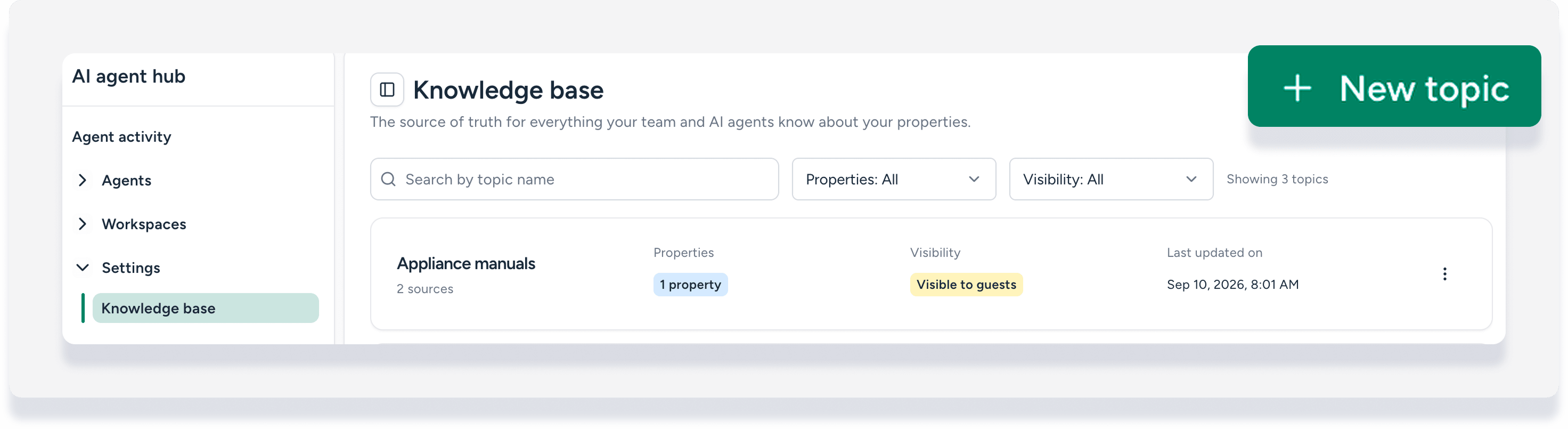
- To the left, click + Add source.
- Under the "Upload" tab, click Select files then Upload. You can upload up to 10 files at a time. Each file has a maximum size of 5MB, and each topic can hold a maximum of 20 sources.
- To enter text, click the "Free text" tab. Enter a name and freeform text, then click Upload.
- Click the source to open the automatically generate a summary, tags, and a preview. Review these to ensure the content was processed correctly.
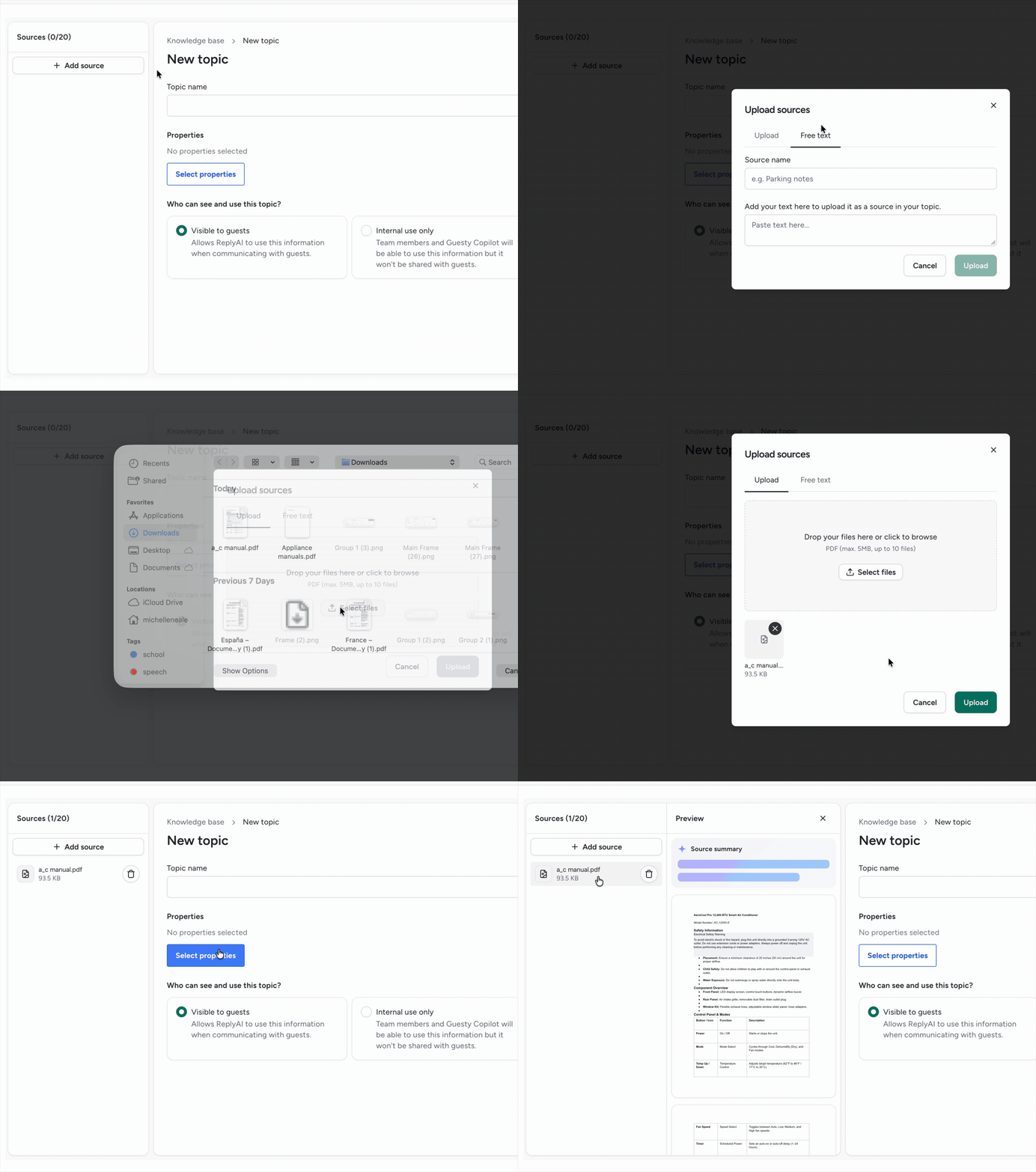
- Enter a topic name.
- Click Select properties to assign relevant properties.
- The topic's visibility defaults to Visible to guests, used by ReplyAI to answer guest questions.
- In the top-right corner, click Save.
Manage your knowledge base
From the main knowledge base page, search for topics by name and use the filters to view topics by property or visibility status.
Edit a topic
Step by step:
- Sign in to your Guesty account.
- In the side navigation menu, select Agents hub.
- Click Settings, then select Knowledge base.
- To the right of the relevant topic, click
 then select Edit topic.
 - Edit the details as needed. Existing sources can't be edited, whether a file or free text. You can delete sources and add new files or free text.
- At the top right, click Save.
Delete a topic
Note:
Deleting a topic or a source is permanent and cannot be undone.
Step by step:
- Sign in to your Guesty account.
- In the side navigation menu, select Agents hub.
- Click Settings, then select Knowledge base.
- To the right of the relevant topic, click then select Delete topic.
- In the pop-up, click Delete.
Important considerations and limitations
Keep the following rules and limitations in mind when using the knowledge base.
Precedence rule
If information in a knowledge base source conflicts with data stored in a structured field on a property's page (such as check-in time or a Wi-Fi password), the AI agents will always use the data from the structured field.
File and topic limits
- Max file size: 5MB per file
- Max sources per topic: 20
- Max files per upload: 10
File processing
- The system detects and prevents duplicate file uploads.
- A file under 5MB may still be rejected if it contains an excessive amount of text.
- The system will show an error if a file fails to process, contains no readable text, or is password-protected.