Sometimes you need to know when a guest actually booked, not when the reservation landed in Guesty. The booking date shows this, along with a booking window that indicates how far in advance the guest reserved. View both on the relevant reservation page.
Booking date and creation date
The booking date reflects when a reservation was made at the source. The creation date reflects when Guesty created the record. When no source provides a booking date, it defaults to the creation date, which is why the two dates match on most reservations.
The booking date matches the creation date when:
- You create the reservation directly in Guesty, manually or as a direct booking, without supplying a booking date.
- Guesty imported the channel reservation before June 2, 2026.
The booking date differs from the creation date when:
- A connected channel supplies its own booking timestamp.
- You import reservations with the upload template and fill in the booking date column.
- An API call sets the booking date, or corrects it later through the booking date endpoint.
For example, an Airbnb reservation that syncs to Guesty shows when the guest booked on Airbnb. The same reservation, imported before June 2, 2026, shows the import date instead.
Booking window
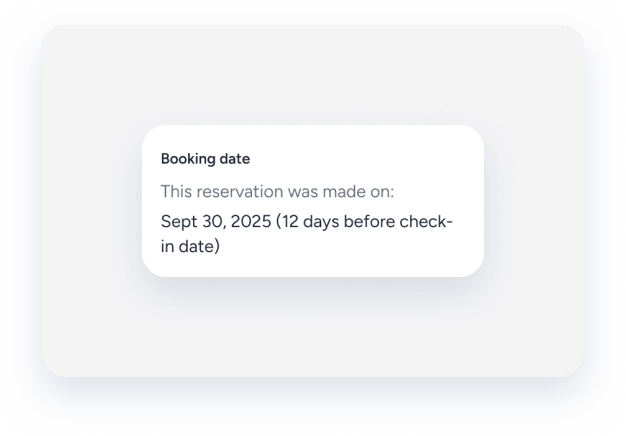
The booking window appears in brackets next to the booking date and shows how many days before check-in the guest booked. Guesty calculates it as the check-in date minus the booking date, in whole calendar days, in the listing's time zone.
Limitations
- The "Booking date" section doesn't appear when the reservation has no booking date.
- Imported reservations display the import date instead of the original booking date.
- The booking window doesn't appear when the booking date falls on or after check-in. Same-day bookings display the date only.
View a reservation's booking date
Follow the steps below to view the booking date on the reservation page.
Step by step:
- Sign in to your Guesty account.
- In the side navigation menu, click
 Reservations.
 - Click the relevant reservation.
- In the left submenu, select the Booking details tab.
The booking date is displayed under the "Booking date" section.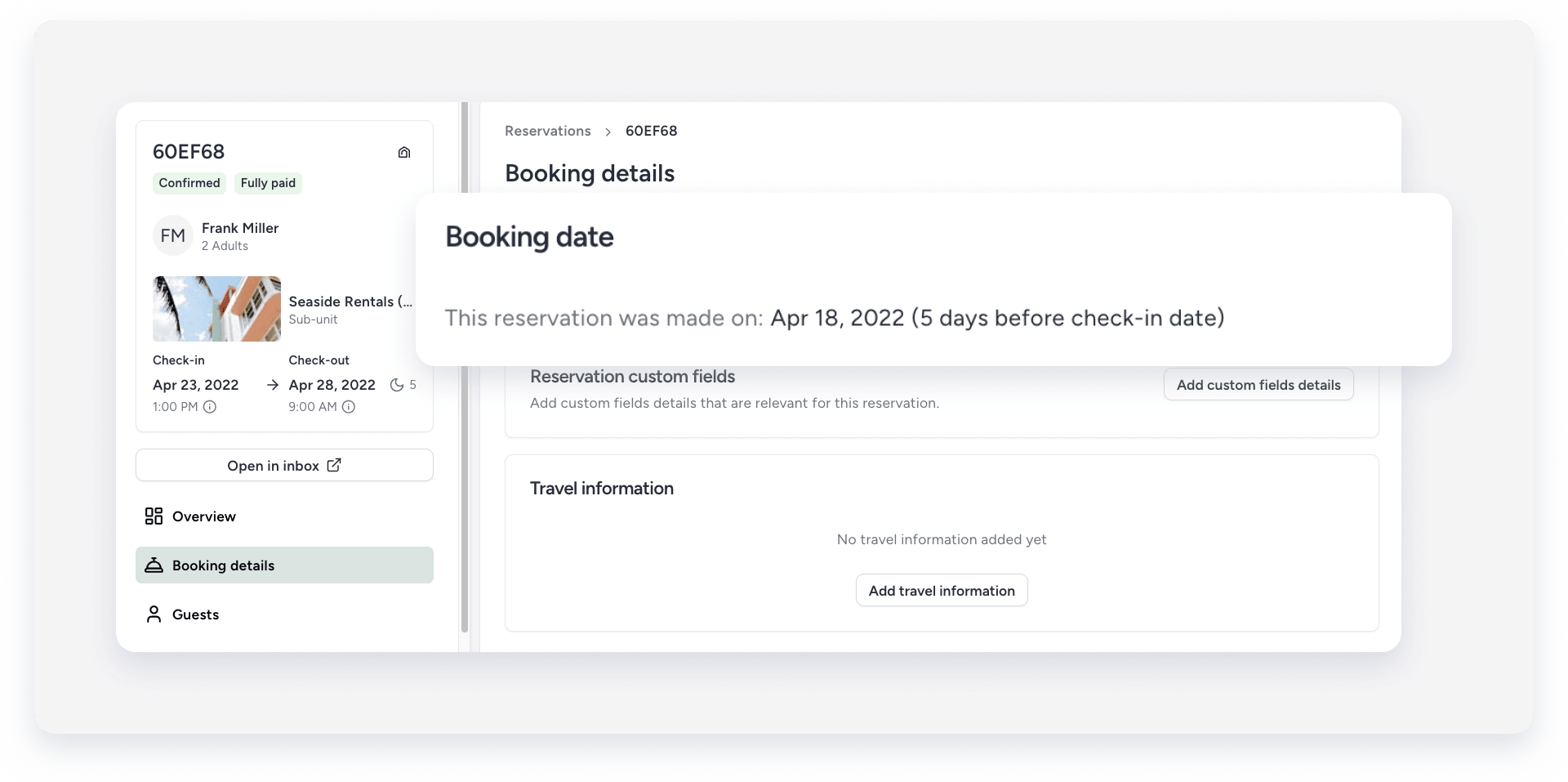
Tip:
You can also customize the overview page to add the "Booking date" section.
