Automated messages play a key role in delivering timely communication to your guests, such as booking confirmations, check-in instructions, and post-stay follow-ups.
If a "Confirmed" reservation has no scheduled automated messages despite being eligible, review the troubleshooting steps below to identify why the messages weren't scheduled.
Determine why a message wasn't scheduled
Follow the troubleshooting steps below to resolve issues when no automated messages were scheduled or triggered.
-
Check the reservation details
Review the following reservation details, as these determine whether an automated message can be scheduled:
-
Advance notice ― the number of days between the booking confirmation date and the check-in date.
- For example, if the confirmation date is January 1st, 2026 and the check-in date is January 5th, 2026, the advance notice is 4 days.
- Length of stay ― the number of nights of the stay.
- Property ― the listing the reservation is assigned to.
- Booking channel/source ― the channel or source the reservation was booked through.
-
Advance notice ― the number of days between the booking confirmation date and the check-in date.
-
Verify the reservation meets the message automation conditions
Compare the reservation details above to the reservation conditions configured on your message automation templates:
- If the reservation doesn't meet the conditions of any message automation template, no automated messages will be scheduled for it.
- If the reservation meets the conditions of a message automation template but the system still didn't trigger the message, review the reasons an automated message wasn't sent.
-
Check if the message automation template is active
Confirm the status of the message automation template at the time of booking confirmation:
- If the template was activated before the booking was confirmed and messages still weren't scheduled, contact us for further investigation.
- If the template was deactivated after the booking was confirmed, all scheduled messages associated with that template will be removed from the reservation.
Locate details for contacting support
If you confirm the configuration is correct and the issue persists, contact us to begin troubleshooting.
To help us triage the issue quickly and accurately, provide the following details along with a screenshot showing any error messages:
The reservation code is a unique identifier assigned to each booking. The code's format depends on the booking channel.
Code formats
- Airbnb: Starts with "H" (e.g., HMEXF9BKQ4).
- Booking.com: Starts with "BC" (e.g., BC-1000gAmP).
- Vrbo: Starts with "HA" (e.g., HA-8XTV36).
- Manual/Direct Bookings: Have their own specific format.
Location
-
On the Reservation Page: Select the relevant reservation. The reservation code displays at the top of the reservation card, in the top left corner.

-
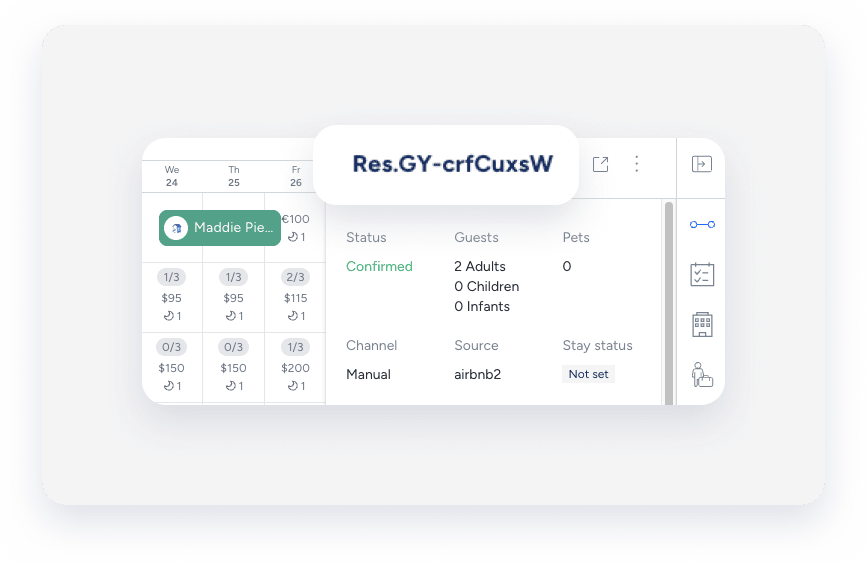
On the Multi-Calendar: Click a reservation in the Multi-Calendar to access its details. The reservation code displays in the side panel.
-
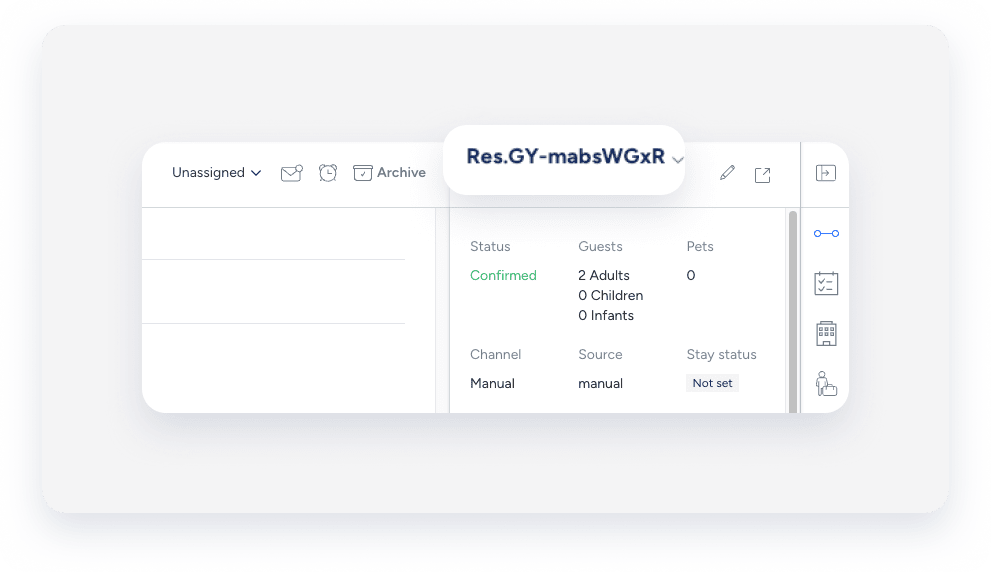
In the Guesty Inbox: The reservation code displays in the Inbox Reservation widget of the relevant conversation thread.
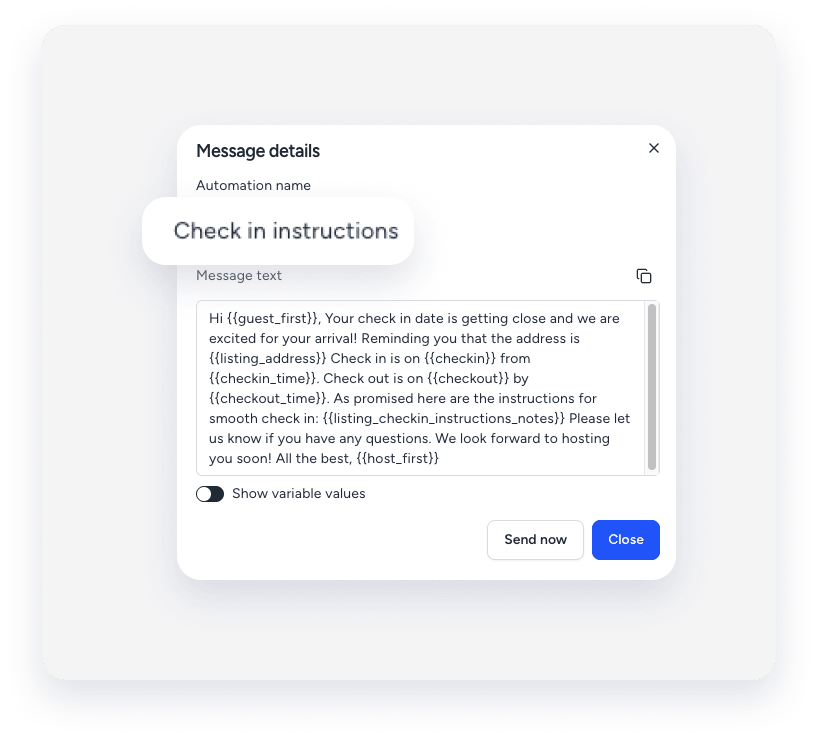
The label you assign to identify a specific message in your message automation workflow. The name is only for user identification and is not visible to guests.
Location
-
In the messaging automation page: In the side navigation menu, click
 Operations and select under Front desk, select Message automation. Click the relevant automation. The automated message name displays in the automations list.
-
In the Guesty Inbox: (for scheduled or sent messages): Select the relevant conversation thread. In the right side panel, click Automated messages. The automated message name for sent or scheduled messages displays in the History tab.

Tip:
Use a consistent naming convention (e.g., channel + purpose + trigger) so automations are easy to find with partial searches.
A message automation, sometimes referred to as a workflow, is the visual framework you use to set up automated guest communication based on the reservation lifecycle. The automation name is for internal use only and is not visible to guests.
Location
-
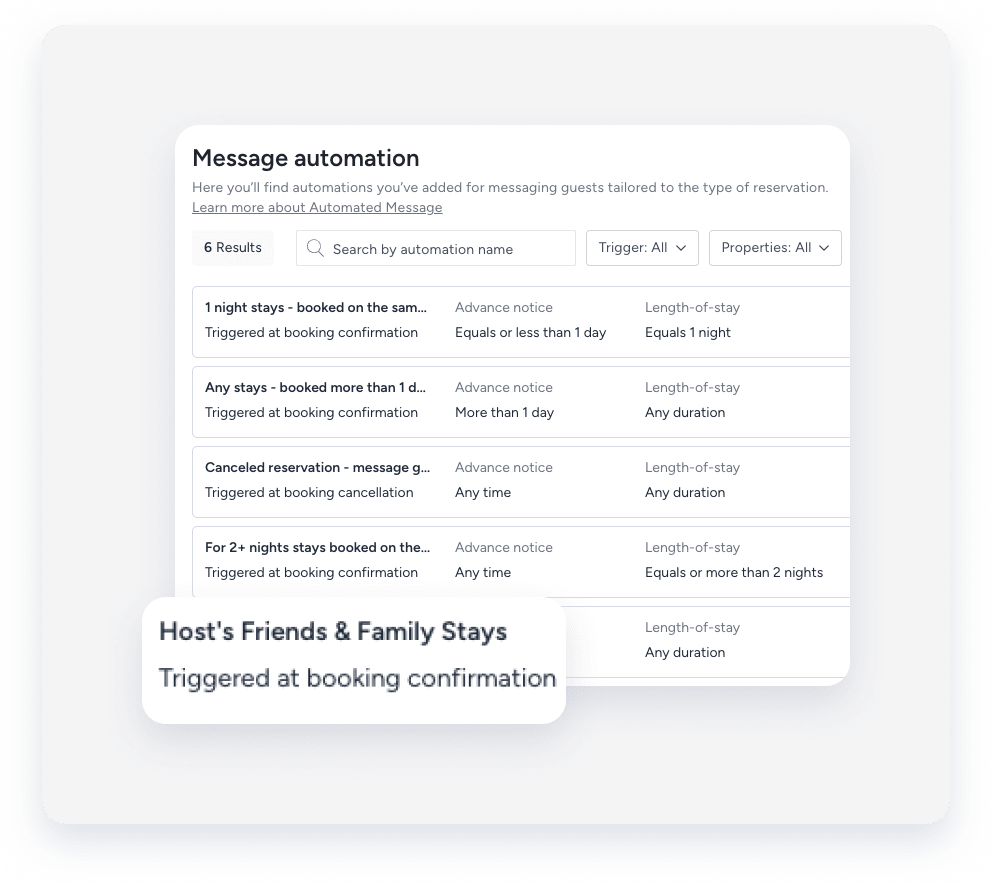
In the messaging automation page: In the side navigation menu, click Operations and select under Front desk, select Message automation. The message automation name displays in the automations list. To search for a specific automation, use the search bar at the top of the page: Type the full or partial name to quickly find it.
-
In the Guesty Inbox: (for scheduled or sent messages): Select the relevant conversation thread. In the right-side panel, click Automated messages. Select the Scheduled or History tab. Under the relevant automation, click See more. The message automation name displays in the pop-up.