AutoComply assigns a status to each reservation so you can track guest registration progress at a glance. Learn what each status means and how AutoComply handles reservations when only some guests submit their details.
Tip:
To monitor and manage AutoComply status, add the "AutoComply" column to your reservations report.
Understand AutoComply statuses
AutoComply uses color-coded icons to show the progress of each compliance action on a reservation. Every icon represents a specific action, and its color indicates the current state of that action.
Follow the steps below to view reservation statuses:
Step by step:
- Access the AutoComply dashboard.
- Select the relevant property.
- At the top, select the Reservations tab.
- Hover over any status icon to see more details.
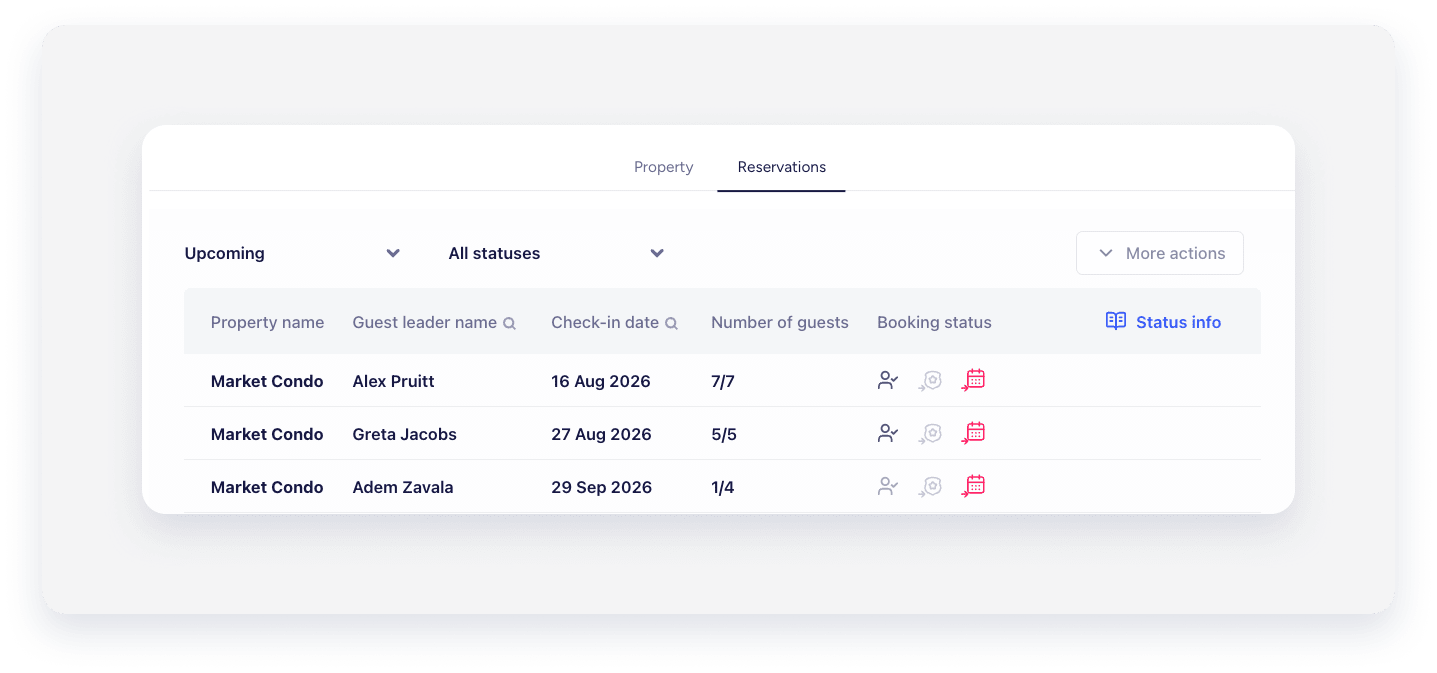
Status icons
Each icon represents a compliance action tracked by AutoComply:
| Icon | Action | Description |
|---|---|---|
 |
Online check-in email | Tracks the online check-in email sent to the guest. |
 |
Guest data | Tracks whether the guest submitted their personal data. |
 |
Identity verification | Tracks the guest's identity verification. |
 |
Property protection | Tracks the property protection process. |
 |
Tourist taxes | Tracks tourist tax collection. |
 |
Booking payments | Tracks booking payments. |
 |
Remote access | Tracks remote access setup. |
 |
Police (check-in) | Tracks guest data submission to the police at check-in. |
 |
Police (check-out) | Tracks guest data submission to the police at check-out. |
 |
Police booking registration | Tracks booking registration with the police. |
 |
Statistics (check-in) | Tracks statistical data reporting at check-in. |
 |
Statistics (check-out) | Tracks statistical data reporting at check-out. |
 |
Tax reporting | Tracks tax reporting to the relevant authorities. |
 |
E-invoicing | Tracks electronic invoicing. |
Status colors
Statuses are indicated by distinctive colors to show whether a process is completed or not:
| Color | Status | Description |
|---|---|---|
 |
Pending | Action is required, either from the guest or from the host. |
 |
In progress | Indicates an intermediate status. This occurs when the guest views the form but hasn't started typing, partially completes the form, or the form is complete for only some guests. |
 |
Completed | Requires no further action. |
 |
Excluded | Indicates a payment is exempt or must be paid on arrival. |
 |
Error | Requires action from the host. Open the reservation to review the error. |
Partial guest registration
If a reservation includes ten guests but only five submit their details, AutoComply registers those five guests. Guesty automatically sends the available data to the authorities at approximately 22:30 (Madrid time) on the day of check-in. Any information successfully submitted by that cutoff time is sent, ensuring compliant guests register promptly.
If a guest registers after this cutoff time, you'll need to send the data manually.
