Manage your business spending by attributing Guesty Card transactions to specific properties, owners, or your property management company (PMC). Once you attribute a transaction, Guesty automatically generates an expense in the accounting ledger, ensuring your owner statements remain accurate and up to date.
Manage transaction attributions
The transaction review queue helps you identify which card purchases require classification. After you approve a transaction, the system syncs it directly to Guesty expenses.
Access the accounting review queue
To begin allocating your spending, navigate to the transaction list.
Step by step:
- Sign in to your Guesty account.
- In the side navigation menu, click
 Financials to open the dropdown menu.
 - Under Items, select Guesty card.
- Navigate to transactions in one of the following ways:
- Click the Accounting section
- Click the More dropdown menu, and select Guesty Accounting
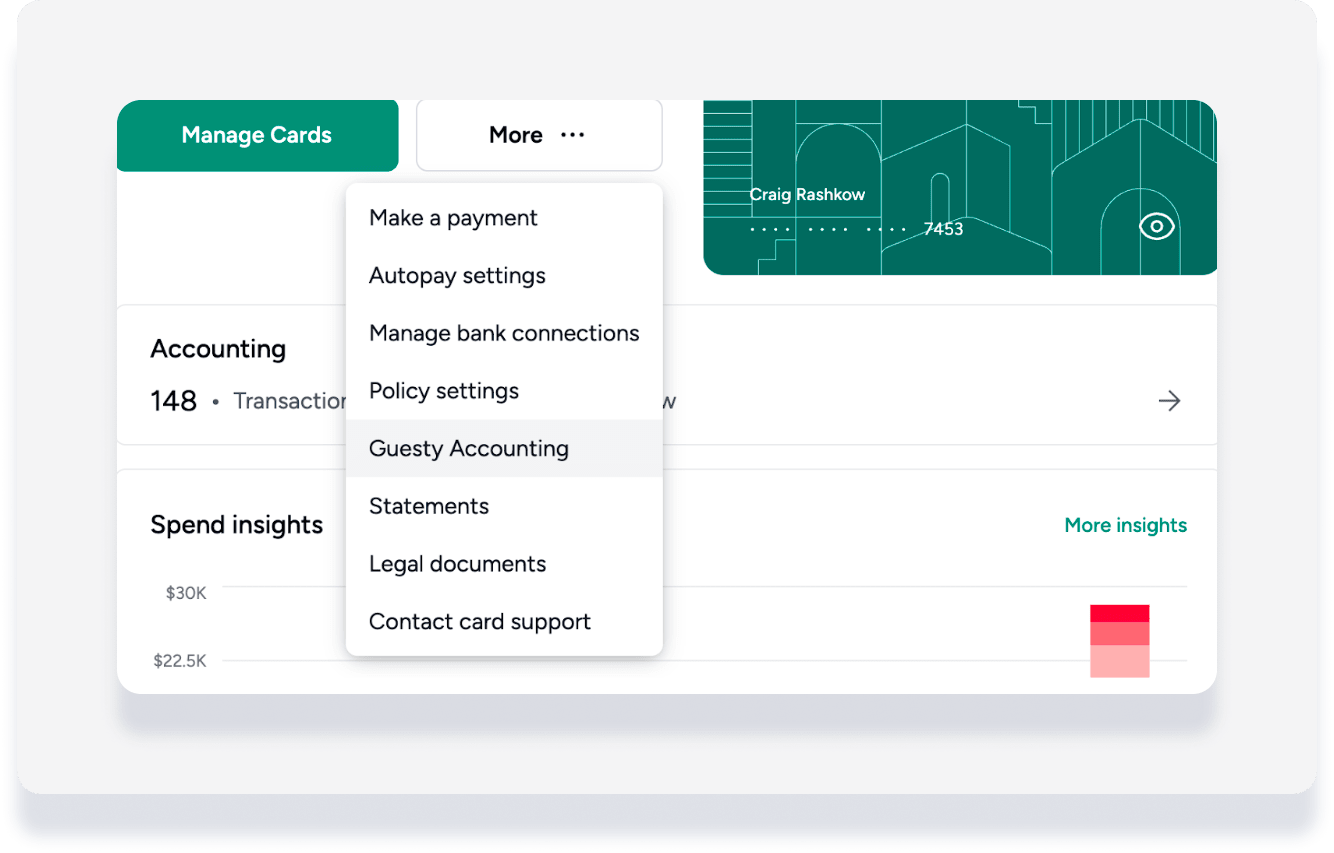
Classify and allocate a transaction
Follow the steps below to attribute a transaction and sync it to your ledger. You can split the cost by adding additional parties or categories until the total amount is allocated.
Step by step:
Click a transaction under the Needs Action tab.
Review the transaction details including the merchant, amount, and any attached receipts.
Under "Responsible Party", select the relevant listing, owner, or PMC from the dropdown menu.
Select the correct expense category, such as supplies or repairs.
Enter the amount to allocate to this party.
Add a markup if applicable.
Click Add responsible party as many times as needed to allocate any remaining balance.
Upload all required documentation, like receipts or memos, as per company policy.
Click Approve.
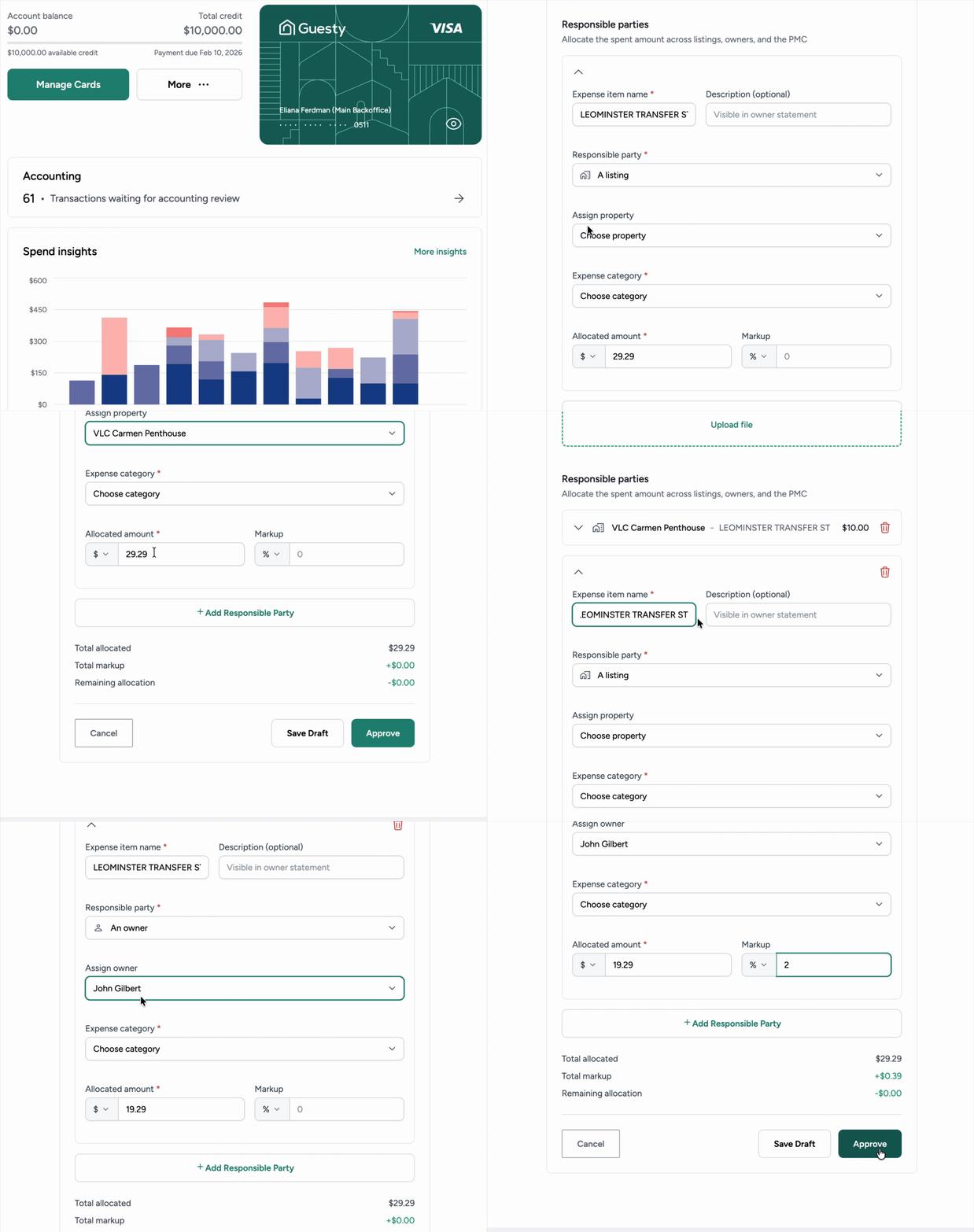
The transaction is now converted to an expense and automatically synced with the Guesty Accounting ledger, updating owner statements and the general expense report accordingly.
Review expense history
Audit your previous allocations at any time to ensure your records are correct.
Step by step:
- Sign in to your Guesty account.
- In the side navigation menu, click Financials to open the dropdown menu.
- Under Items, select Guesty card.
- Navigate to transactions in one of the following ways:
- Click the Accounting section
- Click the More dropdown menu, and select Guesty Accounting
- Click the History tab.
