You can define and enforce reservation limitations for owner stays to improve operational efficiency and ensure fair property usage. Owner stay rules help manage when and how long owners can book their properties while maintaining clear guidelines for all parties.
Rules
When creating custom owner stay rules, you can configure the following restrictions:
- Yearly limit: The maximum number of nights an owner can stay per calendar year. The yearly limit is shared among all owners with fractional ownership.
- Advance notice: The minimum number of days required for booking in advance.
- Booking window: The specific period in which an owner can make a reservation.
- Minimum/maximum nights: The minimum and maximum length of stay allowed.
- Blocked dates: Specific dates or a date range when owners can’t make reservations, with the option to recur annually.
- Active date range: Limit the rate plan to be available only during a selected date range, with the option to recur annually.
Rule configuration
Owner stay rules can be configured in three ways:
- Same as listing: Rules follow the rate plan applied to guests.
- No limit: No restrictions are applied.
- Custom: Tailored restrictions based on specific requirements.
Default configuration
By default, owner reservations inherit the listing's current advance notice and booking window settings. No minimum or maximum night limits are set by default.
How owner stay rules apply
Owners Portal
Rules are strictly enforced when owners create reservations through the Owners Portal. Owners are blocked from completing bookings that violate owner stay rules.
When a rule violation occurs, the owner sees a notification explaining why the reservation can’t be created, ensuring transparency about the restrictions in place.
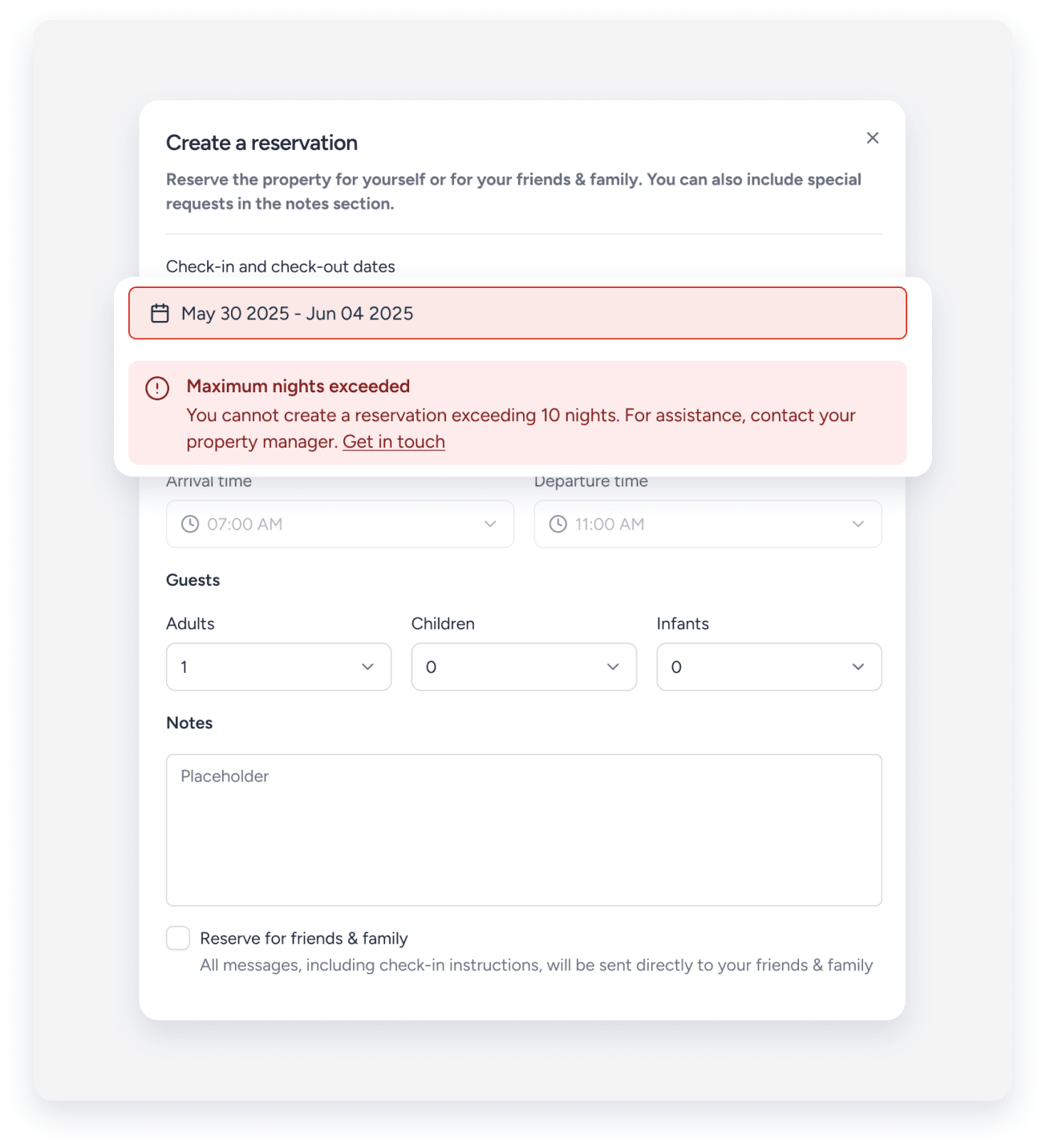
Under the "Owner stats" section, owners can view available nights, booked nights, and remaining nights to track their usage.

Multi-Calendar
You retain full flexibility when creating owner reservations through the Multi-Calendar and can override rules for exceptions. When overriding a rule, you'll see a notification showing which limitation is being bypassed.
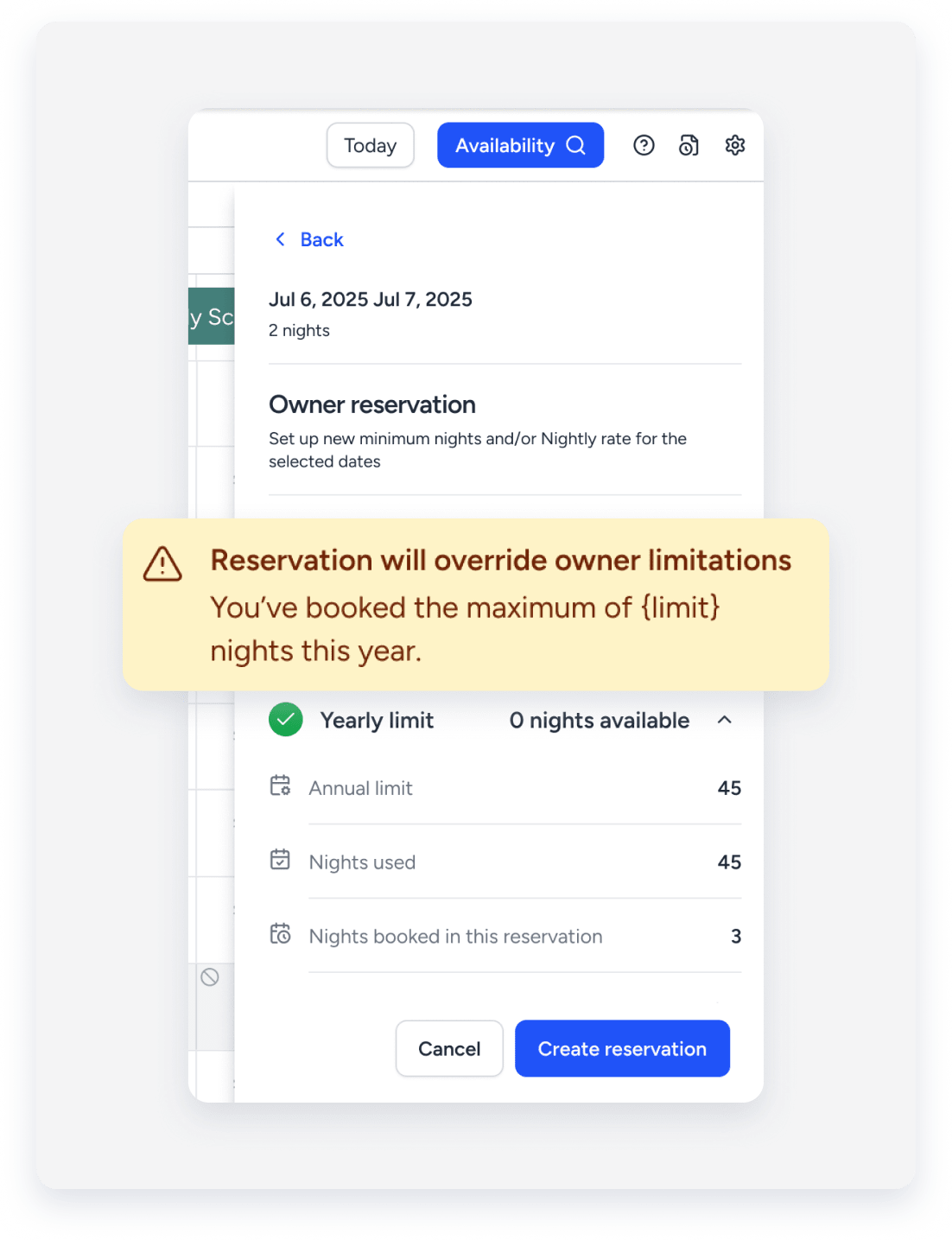
The "Quota" section displays available nights, booked nights, and remaining nights for each owner.
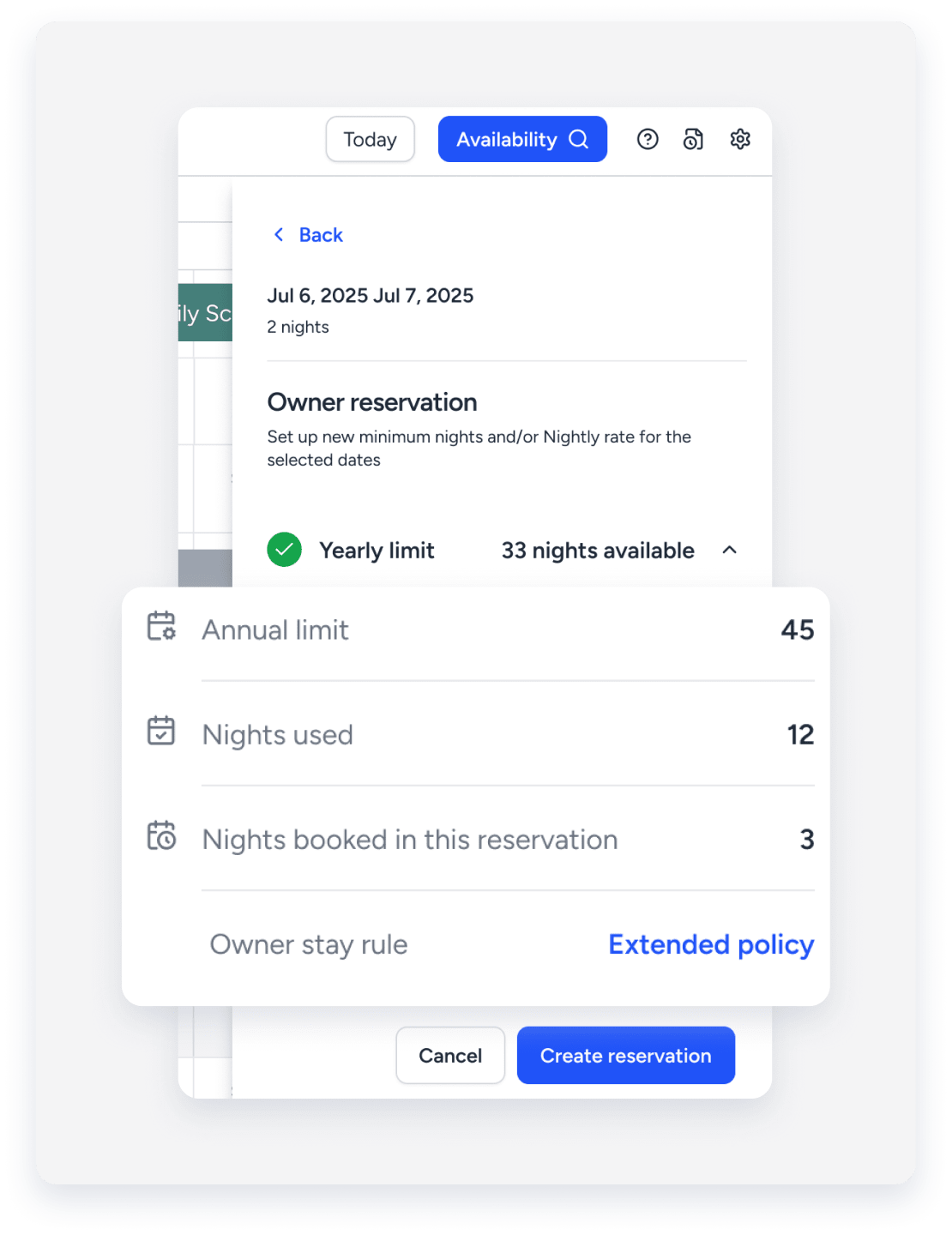
Important:
While you can override rules via the Multi-Calendar, owners are still subject to all restrictions when using the Owners Portal.
Create owner stay rules
Follow the instructions below to create and apply owner stay rules.
Step by step:
- Sign in to your Guesty account.
- In the side navigation menu, click
 Operations to open the dropdown menu.
 - Under Portfolio, select Owners.
- In the left sidebar, click Owner stay rules.
- In the top-right corner, click New owner rate or select an existing rule to modify.
- Fill in the information fields:
- The rule name: Enter a descriptive name for the rule.
- Yearly Limit: Set the maximum nights per calendar year.
- Availability settings (optional):
- Select Same as listing to follow guest rate plan restrictions.
- Select No limit if you don't want to apply any restrictions for this rule.
- Select Custom to set specific limitations.
- If you selected Custom, configure the rules as needed.
- Unavailable dates for owner bookings: Select single dates or date ranges to block.
- Active date range: Click the checkbox to activate a limited date range, then select the dates.
- In the top-right corner, click Next.
-
Click Select properties to choose the listings to which this rule is set. There are two options:
- All: Applies to the current total number of listings. Future properties will be included automatically. To exclude certain properties, next to "Exclude properties", click Select an option and choose the relevant listings from the dropdown or search by name.
- Specific properties: Select the relevant listings from the list, or search for them by name. You can also click Filters to filter the listings. Check the "Select all" checkbox to select all current properties.
Note:
If a selected listing already has rules applied, you'll see an indication. Click Review properties to see which listings will be affected. You can proceed to override existing rules. Changes take effect immediately for all future reservations.

- At the bottom-right corner, click Done.
- At the top-right corner, click Create.
Edit or delete a rule
Once created, you can edit or delete an owner stay rule.
On the right side of the relevant rule, click  . From the dropdown menu, select either Edit or Delete for the selected rule. After making the change, in the pop-up, click Yes, I’m sure.
