Guesty offers two ways to communicate with guests via WhatsApp from the Guesty Inbox, both of which are free of charge:
- Recommended: Connect your own WhatsApp Business number by integrating your Meta Business account with Guesty. This method gives you full control over the sender number and branding.
- Use Guesty’s default WhatsApp number without connecting your own. This quick setup allows you to send and receive WhatsApp messages through the Inbox right away, using a number managed by Guesty.
Integrate your WhatsApp Business account in Guesty
Connect your WhatsApp Business account to the Guesty Inbox to centralize communication. Communicate with guests via WhatsApp directly from Guesty to maintain consistent branding and ensure a professional, personalized experience.
View images sent from guests via WhatsApp directly in Guesty.
Limitations
Review the limitations below before beginning.
Scope and availability
- WhatsApp is available for manual messaging in the Guesty Inbox only. It can't be selected as a delivery method for automated messages.
- Only one WhatsApp Business number can be connected per Guesty account.
- WhatsApp integration is currently supported on desktop only.
- Use a connected WhatsApp number for reservation-related messages only, not for general use.
Number setup requirements
- Once you connect your number to Guesty, you can no longer use it in the WhatsApp or WhatsApp Business apps.
- Numbers starting with +1-555 must have display names approved by Meta in the WhatsApp Manager before use. Refer to Meta's documentation for more information.
Messaging behavior
- Sending images in messages, including templates, from Guesty via WhatsApp isn't supported.
- Forward videos sent via the Inbox as an attachment to view them on an external platform.
- If a guest changes their WhatsApp number, messages sent before the change don't display retroactively after you update the number in Guesty.
WhatsApp conversation sync behavior
For WhatsApp conversations to appear in the Inbox, the following conditions must be met:
- The guest has an active reservation with a valid phone number in the reservation details.
- You initiate the conversation by sending a message to the guest first.
If a guest sends a message before receiving one from you, the conversation doesn't sync to the Inbox. Once you send an initial message, any subsequent reply from the guest syncs and becomes visible in the Inbox.
HQ accounts
Guesty doesn't support WhatsApp messaging from HQ Main Accounts. This is because WhatsApp integrations, including Guesty WhatsApp numbers and WhatsApp Business Accounts, are configured and linked at the subaccount level, not the HQ Main Account level.
Configure and link WhatsApp integrations at the subaccount level.
WhatsApp message logs availability
Guesty provides WhatsApp message logs from the past 14 days only. We can't retrieve or check logs outside that timeframe.
Connect your WhatsApp Business account
To use WhatsApp in Guesty, you must connect your Facebook (Meta) account and your WhatsApp Business account. If you don't have these accounts, you can create them during the connection process.
If you're using a number that was previously connected to WhatsApp, update your WhatsApp settings to allow Guesty to import it. Once connected, the number will no longer be accessible via the WhatsApp app. If you wish to continue using WhatsApp outside of Guesty, use a different number for the integration.
Before you begin
- Verify your Meta Business account.
- Resolve any pending display name change requests.
- Ensure your existing WhatsApp Business account and display name are approved.
- Confirm the currency of your WhatsApp Business account is set to Euro or USD under "Business settings". Other currencies are not supported.
- Disable two-step verification (2FA) for your number in the WhatsApp Manager, or ask your previous provider to disable it.
- Confirm your WhatsApp number is not linked to an existing personal or business account. If the number is in use, delete the existing account first. To avoid disrupting your current usage, use a separate number dedicated to the Guesty integration.
Refer to Meta's official documentation for more information about migrating a business phone number.
Adjust your settings in WhatsApp
Follow the steps to enable Guesty to import an existing number from WhatsApp.
Step by step:
- Open your WhatsApp Account Manager.
- To the right of the relevant phone number, click
 .
. - Click Two-step verification and follow the on-screen instructions to disable two-step verification. If your WhatsApp Business account is owned by your BSP, contact them to request that two-step verification be turned off.
Connect WhatsApp to Guesty
Follow the steps to connect your WhatsApp Business account to Guesty.
Step by step:
- Sign in to your Guesty account.
- In the side navigation menu, click
 Inbox.
 - In the left-side menu, click Manage and select WhatsApp Business.
- Click Connect WhatsApp Business.
- In the pop-up, click Continue.
- Log in to your Facebook (Meta) account in the Facebook widget. If you don't have a Facebook account, click Create new account.
- Follow the prompts to connect your WhatsApp Business account to Guesty. If you don’t have a WhatsApp Business account, follow the prompts to create one.
Once the number connects, your WhatsApp account information appears in the Inbox, and you can send and receive messages via WhatsApp. Only conversations linked to reservations appear.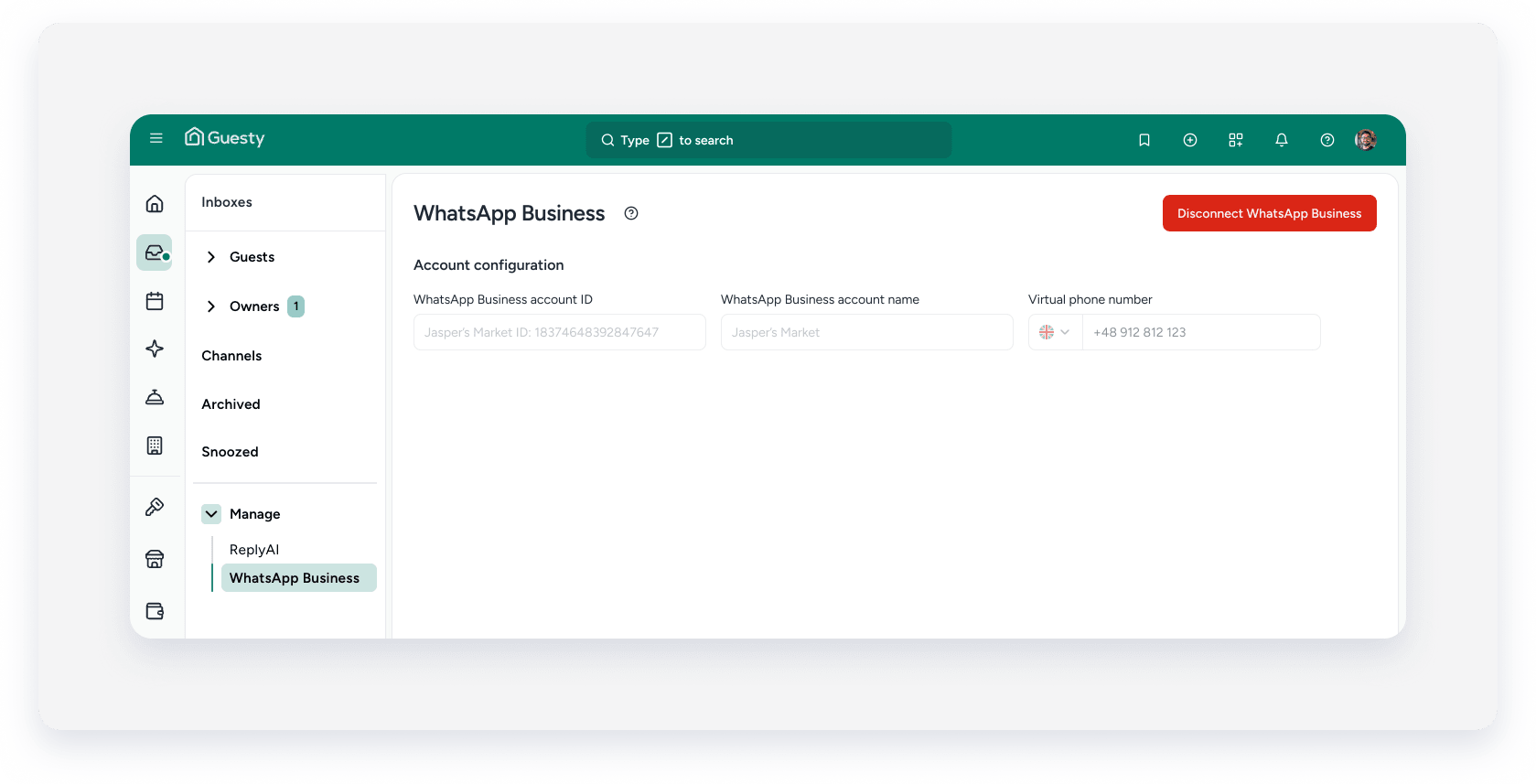
Send a WhatsApp message using a custom template
Use custom templates to send structured, pre-approved messages to guests who haven't messaged you within the last 24 hours. Once the guest responds, continue the conversation freely within the 24-hour window without a template. There is no limit to the number of templates you can create on a single WhatsApp Business account.
If you don't have templates in your WhatsApp account yet, go to Meta to create message templates for your WhatsApp Business account. WhatsApp templates require Meta approval, which can take a few hours. Check that the template status shows "Active (ready to send)" to use it in the Guesty Inbox.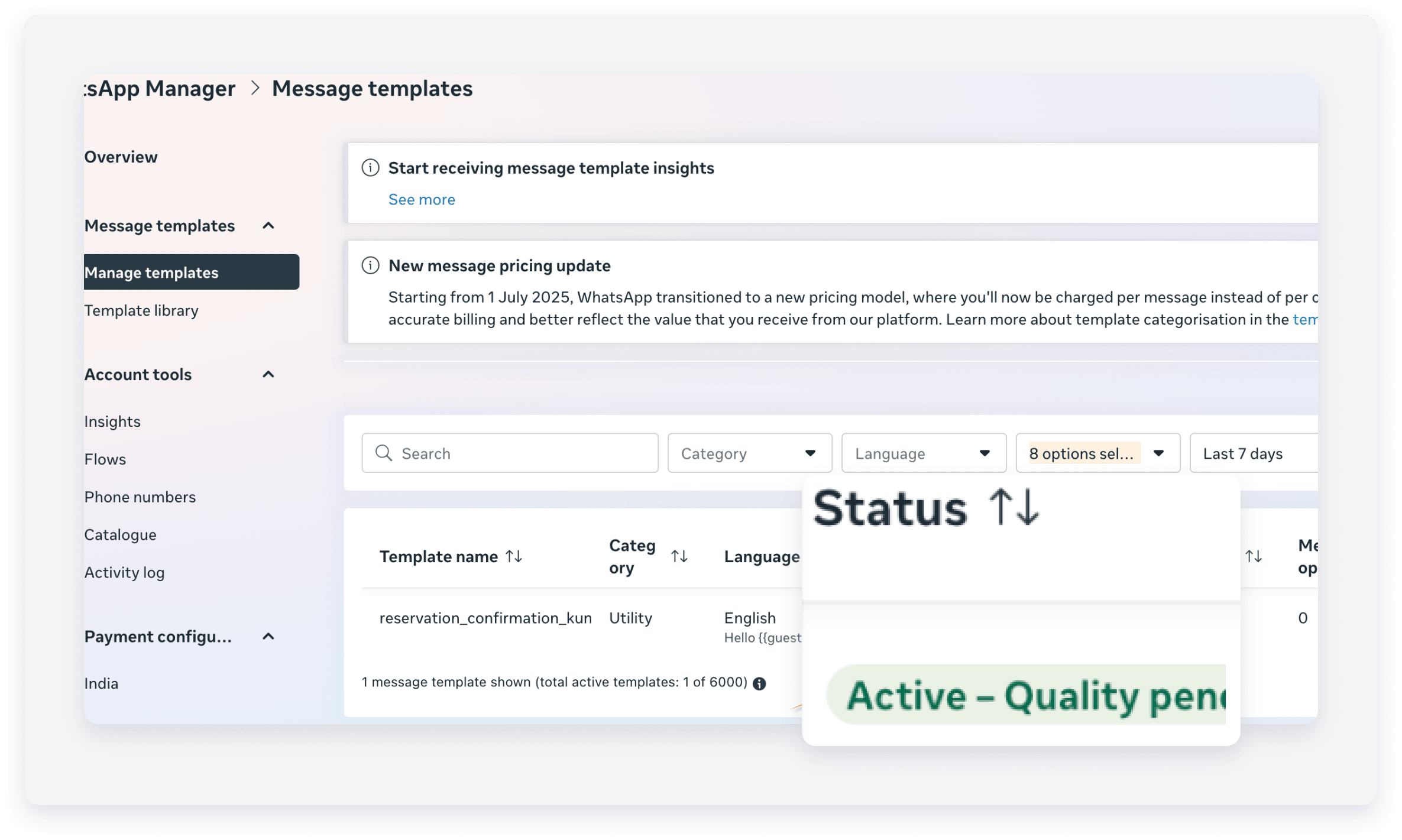
Note:
- Send pre-approved template messages via the desktop version of Guesty only.
- To send free-text messages via the mobile app with the integration, first send a templated message from the desktop, then continue on mobile.
- To send free-text messages via the mobile app with Guesty shared numbers, disconnect the WhatsApp integration on the desktop first.
- When you connect a number, recreate any previously used WhatsApp Business templates.
- If you edit a template in your WhatsApp Business account, it undergoes WhatsApp’s approval process again. The template temporarily disappears from Guesty until approved.
Step by step:
- Sign in to your Guesty account.
- In the side navigation menu, click Inbox.
- In the Inbox submenu, select the relevant inbox.
- Select the relevant conversation thread.
- At the bottom of the page, click Type your message here and enter your message.
- Next to the Send button, select the communication method WhatsApp.
- In the bottom-right corner, click Select template.
- In the pop-up, select one template from the list, and click Select template.
- Review the message. Variables fill in automatically when the message is sent.

- Click Send message.
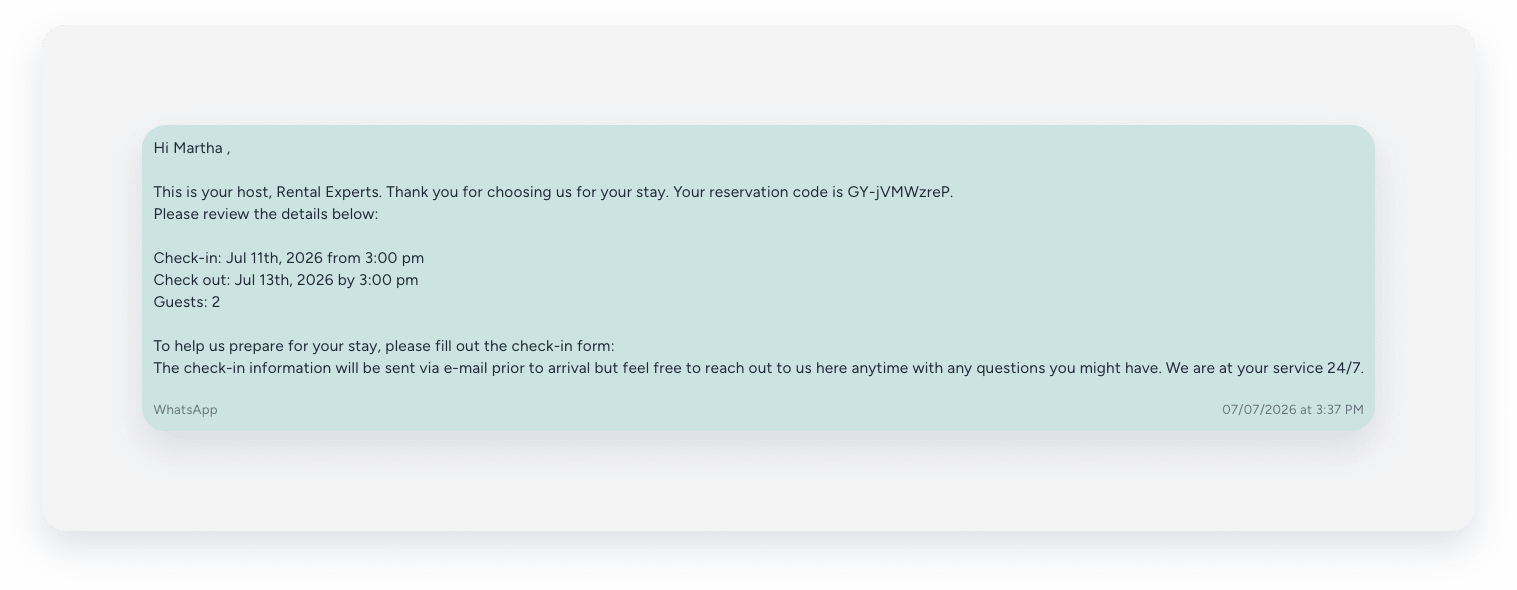
Select an alternative communication method and attempt to send the message again if the guest isn't a WhatsApp user.
The message is sent to the guest from your WhatsApp Business account number, saved as your "virtual phone number" in Guesty.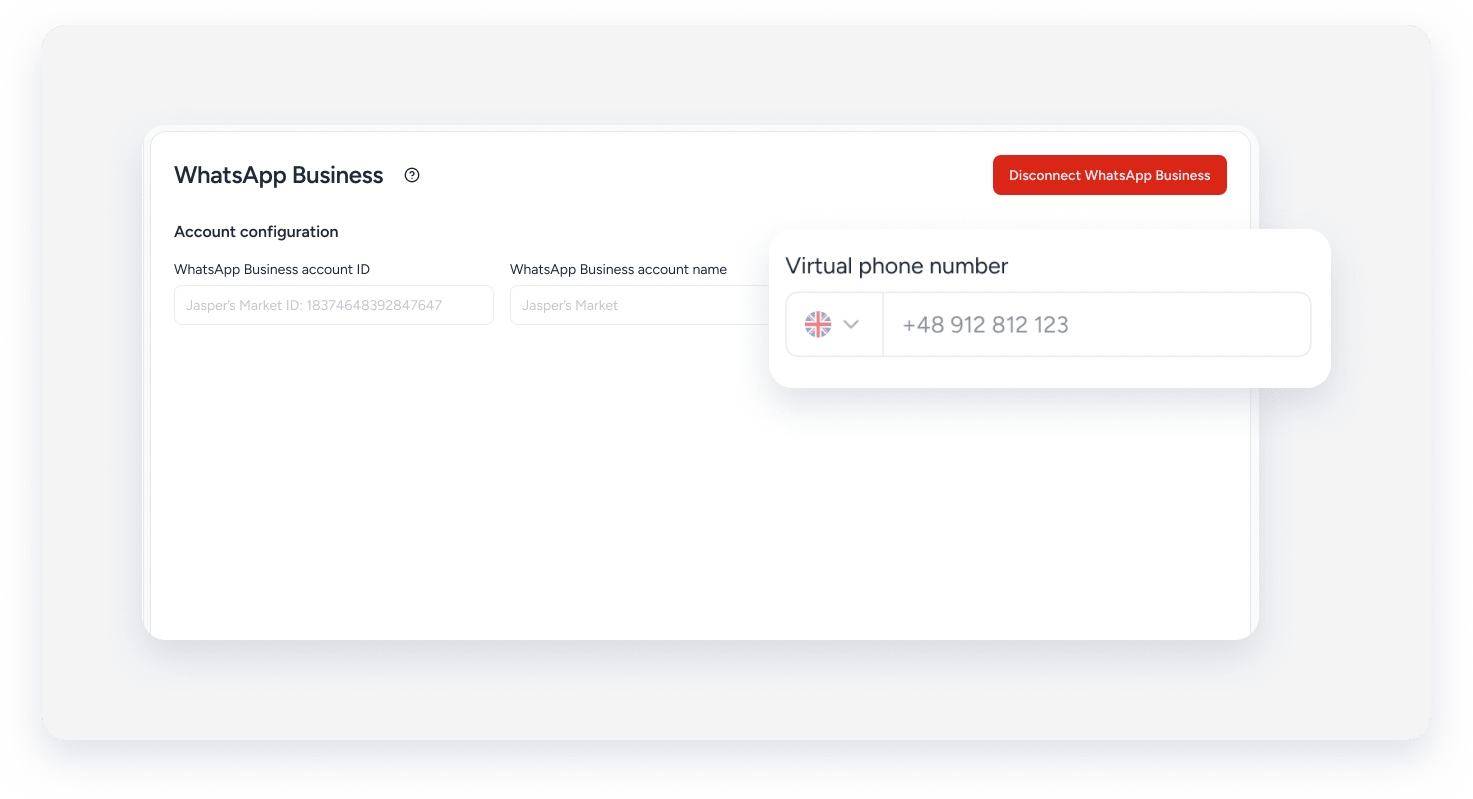
Use WhatsApp in Guesty without integration
You can communicate with guests via WhatsApp using Guesty's default number from your Inbox.
The Guesty WhatsApp business number that guests will see is +1 210 686-1984, which can be used for text messages only. You don't need to set anything up in Guesty to use this number. You can also share this number with guests. Guests can reply directly to the message they receive, and their responses appear in your Guesty Inbox. Messages sent to saved guest phone numbers are automatically routed to the relevant conversation in the Guesty Inbox.
Tip:
Set up a message automation to share the WhatsApp number with your guests before check-in.
To resolve any issues, use our WhatsApp error message troubleshooting guide.
