Additional contacts provide property owners with flexibility by allowing trusted individuals to access and manage their Owners Portal on their behalf.
This feature also helps property managers handle owners who operate multiple properties under different LLCs. To separate financial data, owner statements, and 1099 forms for tax compliance, create a unique Owner profile for each LLC in Guesty. Then, add the individual as an additional contact to each of those LLC profiles using the same email address. This allows them to log in once and switch between all their entities from a single account.
This article explains how additional contacts work, how to add them to owner profiles, and how to manage their access.
Tip:
Learn how to set up portal access for an individual who manages multiple LLCs.
Understanding additional contacts
Each additional contact uses a single email address for all Owners Portal accounts they need to access. A separate email for each portal is not required.
The default for additional contacts is full access to the Owners Portal. Additional contacts can perform the same actions as the property owner, including:
- View all portal information, including calendars, reservations, and financial data
- Create and manage owner stays on behalf of the owner
- Access accounting and financial information
- Communicate through the portal
- Update owner profile information
To clarify each contact's purpose, use descriptive role names when adding contacts, such as "Accountant", "Assistant", or "Managing Member". You can customize an additional contact's permissions (see steps below).
Limitations
Additional contacts do not receive guest reservation notification emails, regardless of permission settings. If an additional contact needs visibility into new bookings, the primary owner must forward those emails manually, or the additional contact would need to be made the primary owner instead.
Tip:
Monitor portal activity through standard reporting tools. Communicate responsibilities to additional contacts directly to set expectations.
Accessing multiple portals
The centralized access feature provides specific benefits for additional contacts:
Streamlined onboarding: The first invite to the Owners Portal lets a contact set their password. Subsequent invitations prompt a notification to accept the invite, reducing onboarding steps.
Unified access: Additional contacts sign in once to reach all Owners Portal accounts tied to their email. After logging in, they use the Owner Switcher dropdown menu to switch between different owner entities, such as multiple LLCs.

Add additional contacts to an owner profile
To grant an individual portal access, add them as an additional contact to the relevant Owner profile. If an individual needs to manage multiple entities (like different LLCs), repeat these steps for each Owner profile. Use the exact same email address for the contact each time to enable the single login experience.
Follow the steps below to add an additional contact.
- Sign in to your Guesty account.
- In the side navigation menu, click
 Operations to open the dropdown menu.
 - Under Portfolio, select Owners.
- Select the relevant owner or LLC profile.
- In the left sidebar, click Additional contacts.
- Click + Add contact.
- Enter the relevant information.
- Toggle on Activate Owners Portal and send email invitation.
- At the bottom-right corner, click Save.
- Repeat these steps for every owner profile or LLC linked to this individual if they manage multiple accounts, ensuring you enter the exact same email address each time.
The first invite lets the contact set their password and log in. For additional portals, they receive a notification to accept the invite.
Customize an additional contact's permissions
Control exactly what each additional contact can view and do in the Owners Portal:
- Each additional contact has an independent permission profile.
- By default, existing contacts keep full access (no change unless edited).
Follow the steps below to restrict access for an additional contact.
- Sign in to your Guesty account.
- In the side navigation menu, click Operations to open the dropdown menu.
- Under Portfolio, select Owners.
- Select the relevant owner or LLC profile.
- In the left sidebar, click Additional contacts.
- Click + Add contact, or click
 on an existing contact and select Edit.
 - Toggle on I want to customize.
- At the bottom-right corner, click Next.
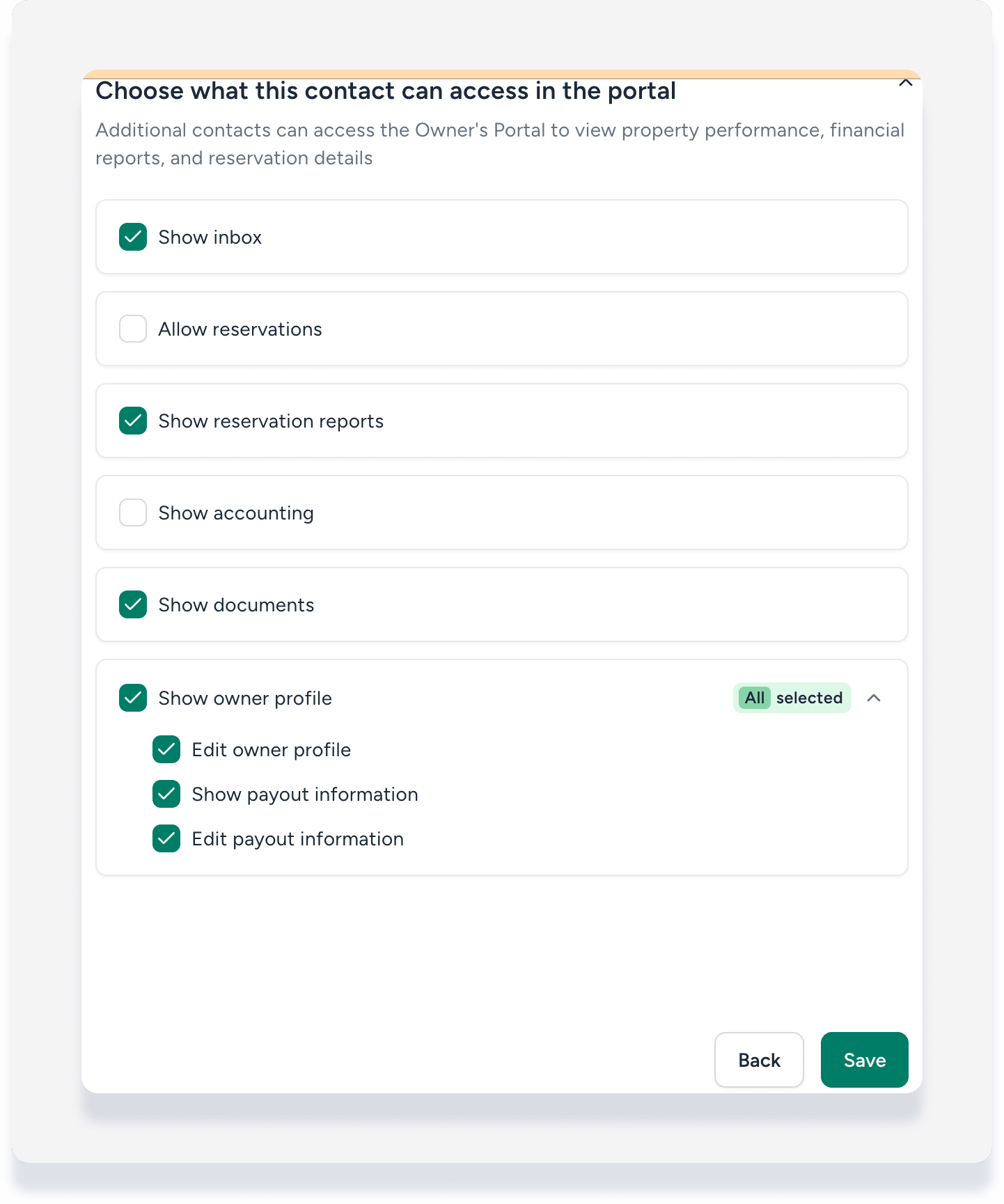
- Click the checkboxes to restrict visibility for any of the following options:
- Show inbox
- Allow reservations
- Show reservation reports
- Show accounting
- Show documents
- Show owner profile
- At the bottom right corner, click Save.
Your changes apply everywhere for that contact—including navigation sidebars, exports, and deep links.
Important:
Additional contacts can never access more than the primary owner. If owners do not have access to a module, it cannot be granted to a contact.
Manage existing additional contacts
Manage contact access from the Additional contacts tab of the relevant owner profile.
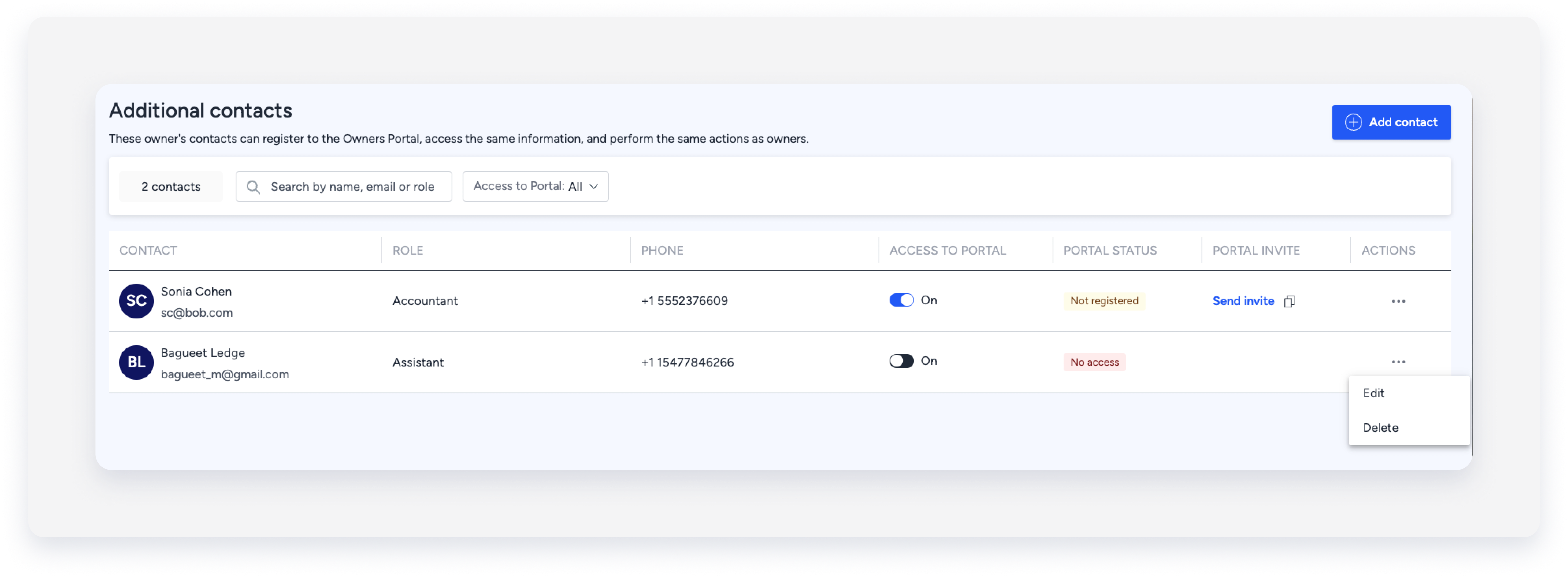
- Filter: Search contacts by name, email, role, or access status.
- Provide access: Turn the Access to portal toggle on or off to grant or revoke access, and confirm in the pop-up.
- Send invite: Click Send invite to resend the registration email. Copy the invitation link if you prefer to send it through another communication channel.
-
Edit or delete: Click next to the contact and choose your action. Confirm in the pop-up.
Important:
Editing an additional contact’s email address after creation is not possible. To change it, remove the contact and add a new one with the correct email address.
Owner reservations as an additional contact
When additional contacts create reservations in the Owners Portal, they can choose:
- Owner reservation – Tagged as created by the owner.
- Owner-guest reservation – Tagged as an owner stay with the owner as the guest.
Reservations by additional contacts don't show a separate label. They appear as created by the owner entity.
