Guesty's owner management features allow you to effectively manage communication with property owners, oversee owner stays, and handle payments (for Accounting users).
Create a new owner
Limitations
- Owners can only have one email address registered on Guesty per account
- To create owner profiles in bulk, contact us.
Follow the instructions to create a new owner.
Step by step:
- Sign in to your Guesty account.
- In the side navigation menu, click
 Operations to open the dropdown menu.
 - Under Portfolio, select Owners.
- In the top right, click New owner.
- Fill in the owner's details. The "First name", "Last name", and "Email" fields are mandatory.

- Click + Assign properties. In the sidebar, check the boxes next to the properties to assign them, then click Done.
- You can assign and unassign properties at any time.
- To activate the Owners Portal and send an invitation, toggle on Activate owner portal and send owner invitation.
- The default portal settings will be applied to the Owners Portal. You can customize these settings from the "Portal settings" tab on the owner's profile.
- Click Add owner at the top right.
The owner is added, and you will be redirected to the owner profile, where you can manage your owner.
Edit an owner profile
After creating an owner, update their information from the owner profile. Store helpful details, such as birthdays and partnership anniversaries, and key business data, such as an owner's commission and payout details.
See more information about deleting an owner.
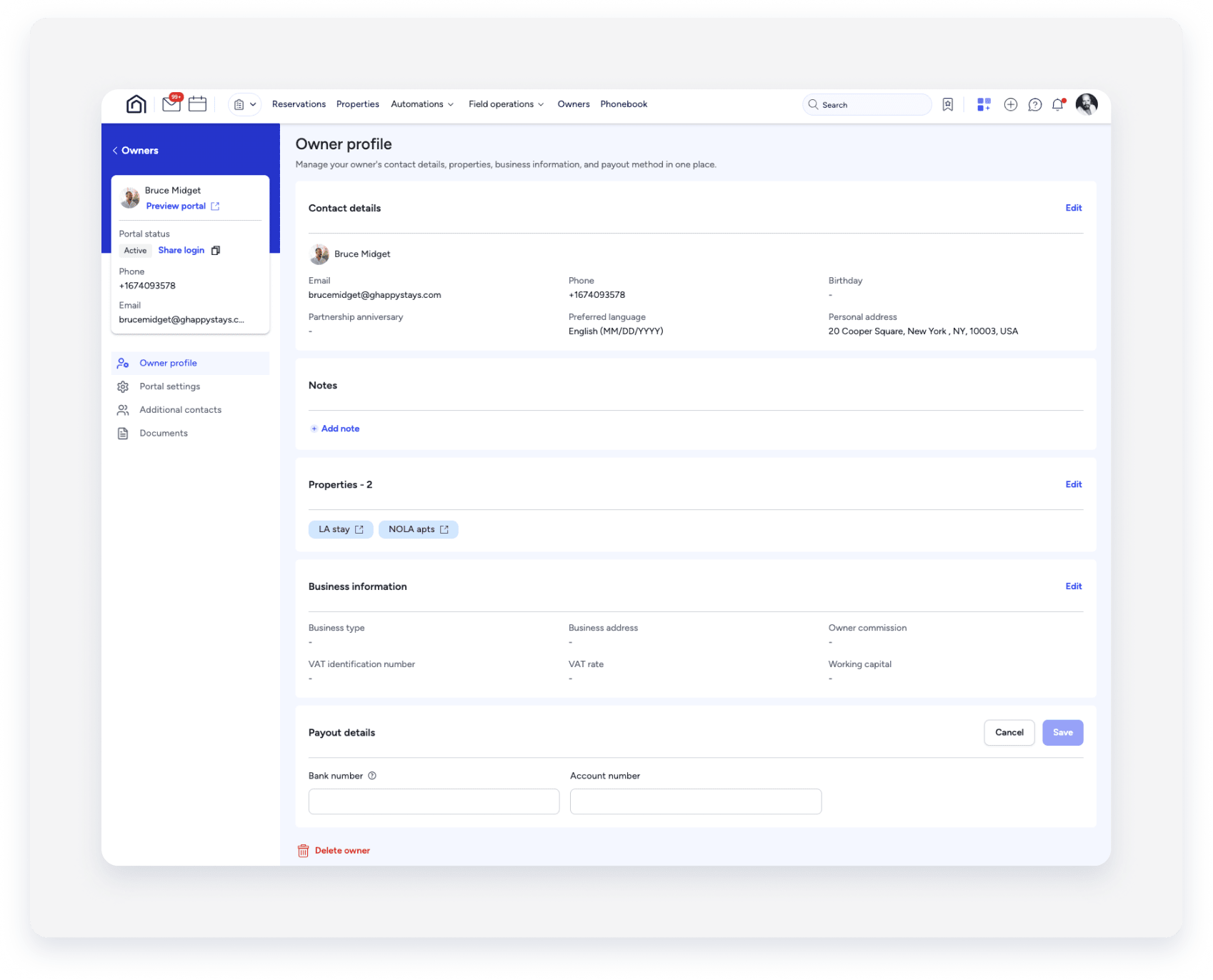
To access an owner, click Owners from the top navigation bar and select the relevant owner. You are You will be redirected to the owner profile, where you can edit the following fields:
Preferred language
Applies to the Owners Portal and emails sent to the owner. Owners can also change their preferred language from the "My profile" page within their portal. Supported languages can be found in the dropdown menu.
Certain languages are supported for translation of the owner statements.
Limitations
Reports in the Owners Portal are not translated.
Notes
Notes are visible only to you; the owner won't be able to see them. To add a note, click + Add note, enter the note, and click Save. To update a note, click Edit, and then click Save. A note is not required initially; however, once saved, it can't be left empty. To remove a note, use a period or a space to create an empty note.
Properties
Learn more about assigning owners and listings.
Business details
Only "Working capital" and "Business name" fields are used for Accounting. The "Business details" section includes:
- Business address: Indicates the owner's business address. This field is used for payouts if the payment type is a business.
-
Business name: Enter the business name for corporate owners, such as an LLC or a trust. Guesty prioritizes this name for 1099 forms. You can also use this name to search and filter forms. If left empty, the 1099 form uses the owner's first and last name.
- For API support, the all owners endpoint includes a "business name" field under the businessInformation object.
- Business type: Specifies the owner's business type.
- Owner commission, VAT rate, and VAT identification number: These fields are for your reference only.
- Working capital: Allows you to set up and use working capital.
Payout details
Click + Add payout method to enter the owner's bank details. Click Save. Owners can also update their own payout details in the Owners Portal. Learn more about saving an owner's bank details.
Tip:
To master Owner management, visit Guesty Academy for interactive courses and step-by-step video tutorials.
