Note:
This information is relevant only for Accounting by Guesty users. If you are not an Accounting user, see this article.
The reservation's guest folio breakdown gives you the most accurate summary of services in a reservation, per night.
Since the guest folio is a financial record of a reservation, line items cannot be deleted or removed. You can change the price of an existing line item, like the accommodation fare or an additional fee, and you can add a new line item. Values can be entered as a positive or negative amount.
Before you begin
Important:
If the line item being added or adjusted is taxable, the related taxes will automatically recalculate in the guest folio.
If a tax is set up specifically to calculate as "% per stay", the automatic recalculation may be higher than expected and create a balance due. If this happens, create another manual adjustment to balance the amount.
See more information on guest folio adjustment calculations, channel notes, and limitations in FAQs: Guest folio adjustments and FAQs: Guest folio adjustments in Accounting and owner statements
Adjust a line item
Tip:
As you enter an adjustment amount, the calculation of the original line item is displayed in real time. Play around with the amount to ensure the calculation is correct before clicking "Adjust", as this action cannot be reversed.
Step by step:
- Sign in to your Guesty account.
- Navigate to the relevant reservation.
- Select the relevant reservation.
- In the left submenu, click Guest folio and invoice.
- In the guest folio breakdown, click Adjust line item.
- In the right side panel, select the line item you want to adjust and enter a description or reason for the adjustment.
- If you have multiple entries for the same line item, click the specific line item to adjust.
- Enter a flat or percentage value to add or deduct. To deduct, enter a negative number.
- Review the adjustment calculation displayed. Change the value as needed to ensure the calculation is correct.
- Under "Realization date", you have two options:
- Enter the realization date for when the full amount is recognized as revenue.
- Click Break the amount to be realized nightly to have the adjusted amount realized across each night of the reservation.
- Click Adjust.

Add a line item
Step by step:
- Sign in to your Guesty account.
- In the side navigation menu, click
 Reservations.
 - Select the relevant reservation.
- In the left submenu, click Guest folio and invoice.
- In the guest folio breakdown, click Add line item.
- In the pop-up, select the item you want to add and enter an amount.
- Under "Realization date", you have two options:
- Enter the realization date for when the full amount is recognized as revenue.
- Click Break the amount to be realized nightly to have the adjusted amount realized across each night of the reservation.
- Click Add.
Reprocess reservation - Locked period only
When you adjust the guest folio for a reservation that is in a locked accounting period, you must reprocess the reservation in order to update the accounting folio and owner statement.
For all other reservations do not reprocess the reservation, only refresh the page after making the adjustment.
How adjustments are reflected in the accounting folio
After making a manual adjustment to the guest folio, refresh the page then click Accounting in the left submenu.
The adjustments appear as separate line items in the accounting folio and include related automatic adjustments depending on your business model logic. See examples below.
One guest folio adjustment
In the guest folio, an adjustment of - $150 is made.
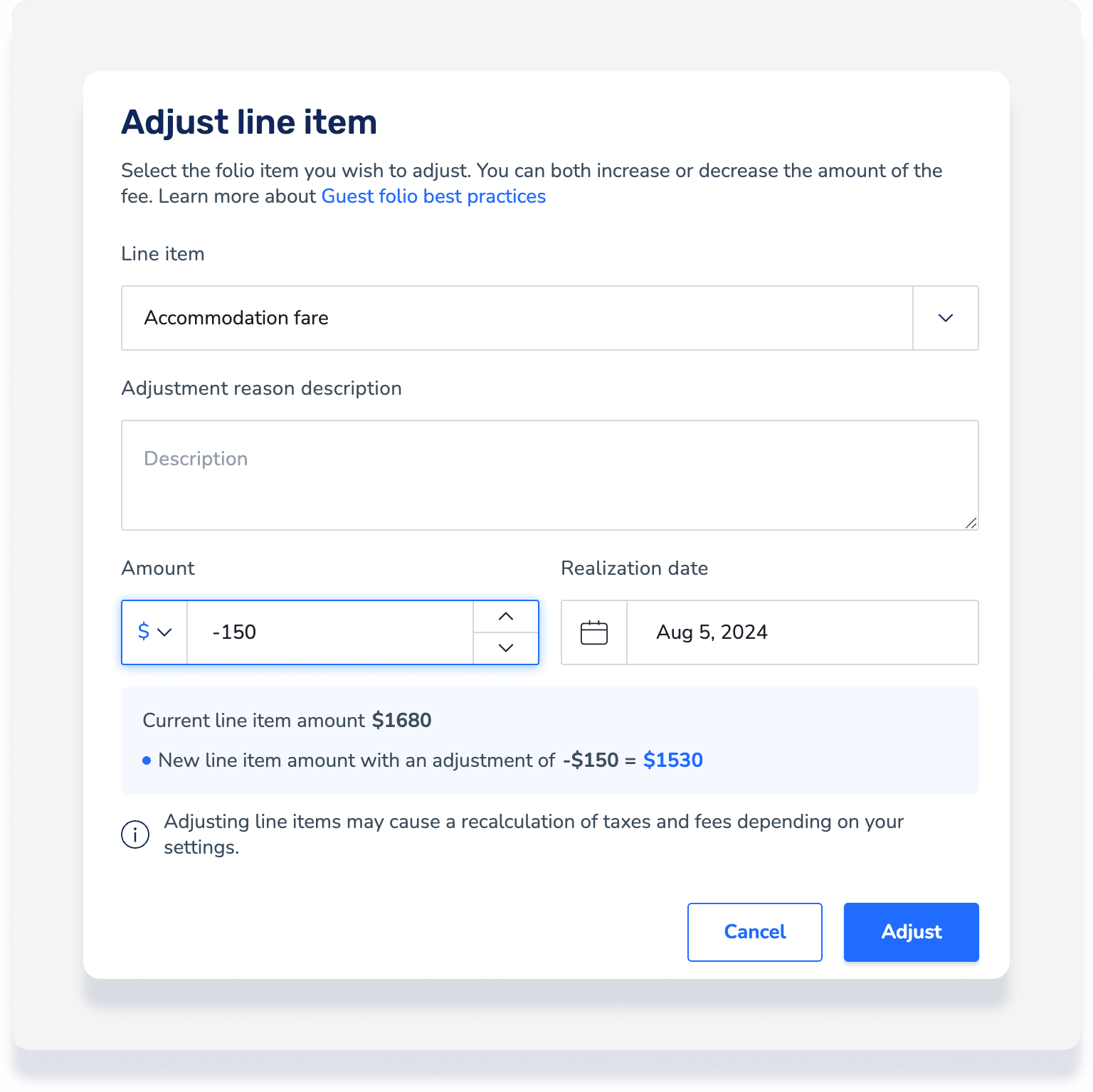
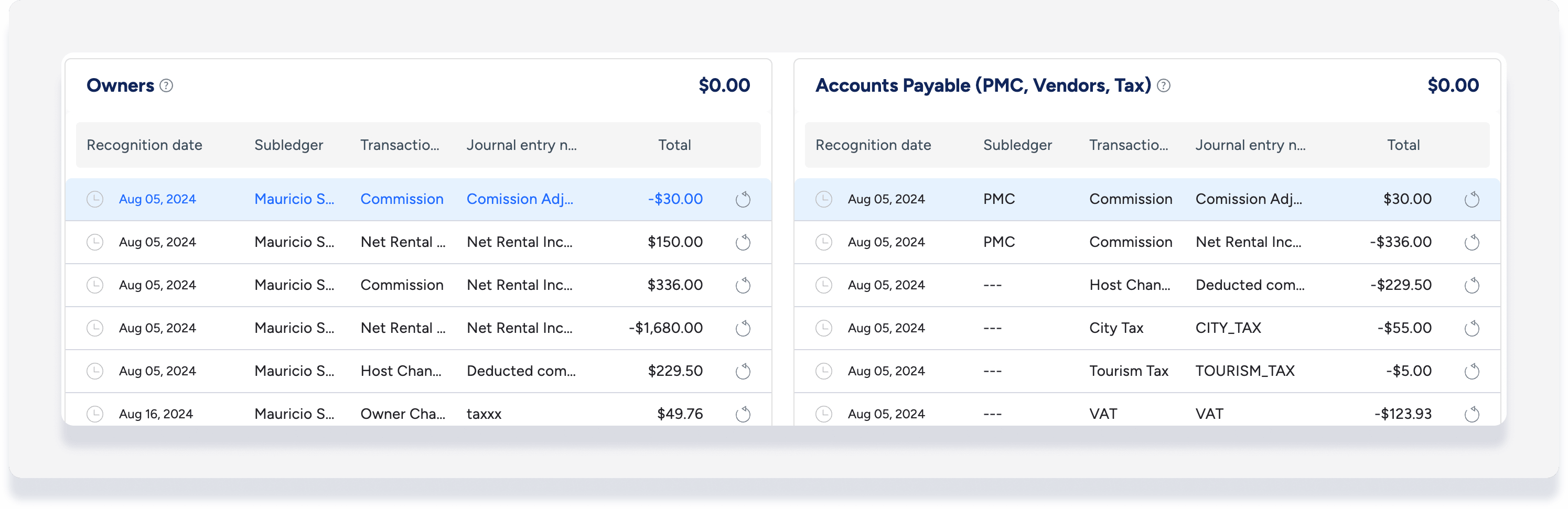
The accounting folio will reflect this as follows in each of the ledgers:
Owners ledger
Automatic commission adjustment - $30
Automatic net rental income adjustment + $150
Accounts Payable
Automatic commission adjustment +$30
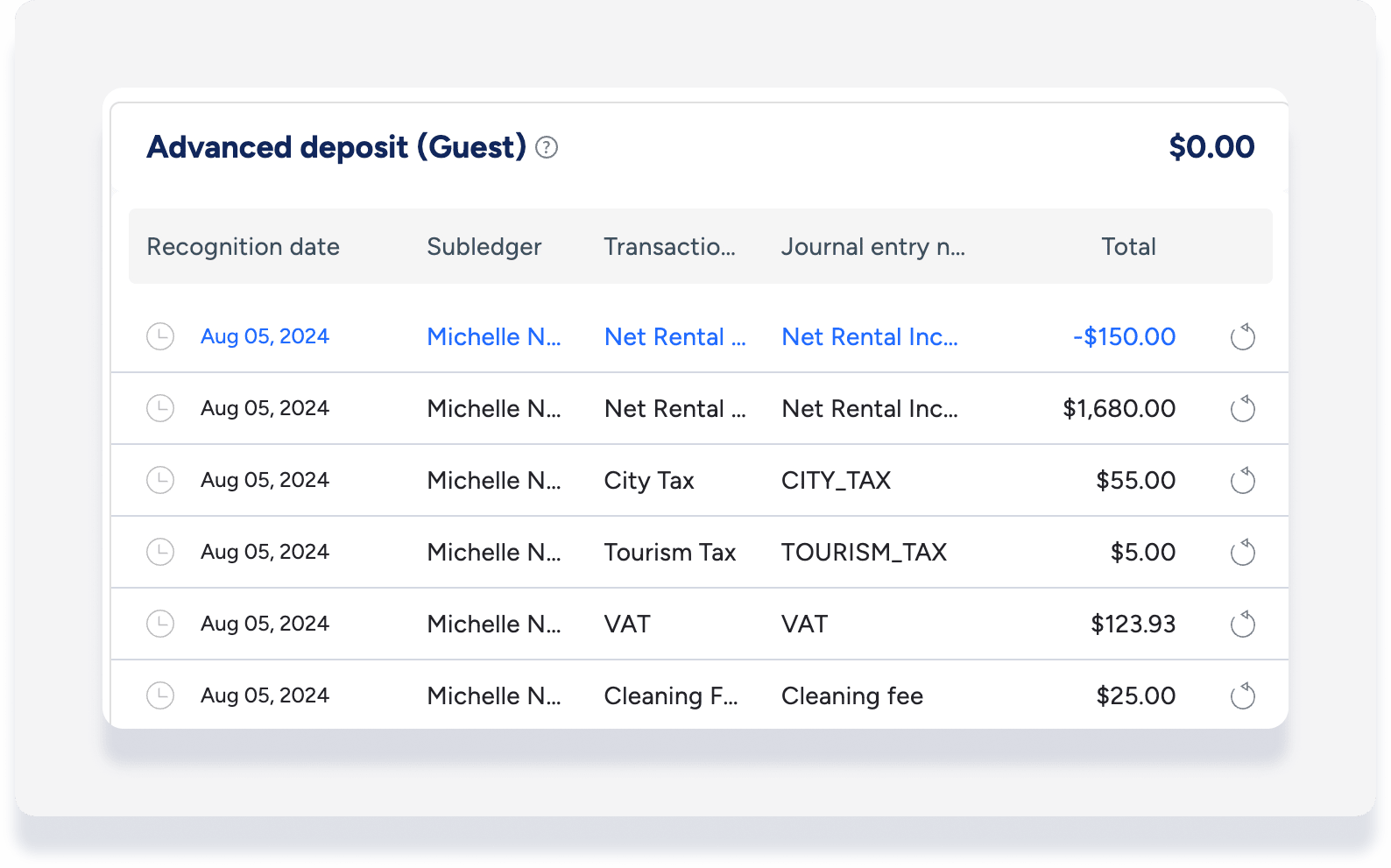
Advanced deposit (guest)
Automatic net rental income adjustment - $150
Multiple guest folio adjustments
When more than one guest folio adjustment is made, the related accounting folio adjustments are grouped together. Click the down arrow to expand the
Note that if different realization dates are selected, this is displayed under the recognition date column, but the adjustments are still grouped together.

How adjustments are reflected in the owner statement
Any adjustments made will be calculated into the total amounts for the owner statement of the realization date month.
Important:
If you choose to break the adjusted amount to be realized nightly for a reservation that spans more than one month, the adjustment will appear in multiple owner statements.
For example, adjustments made with realization dates in August in the accounting folio owner ledger:
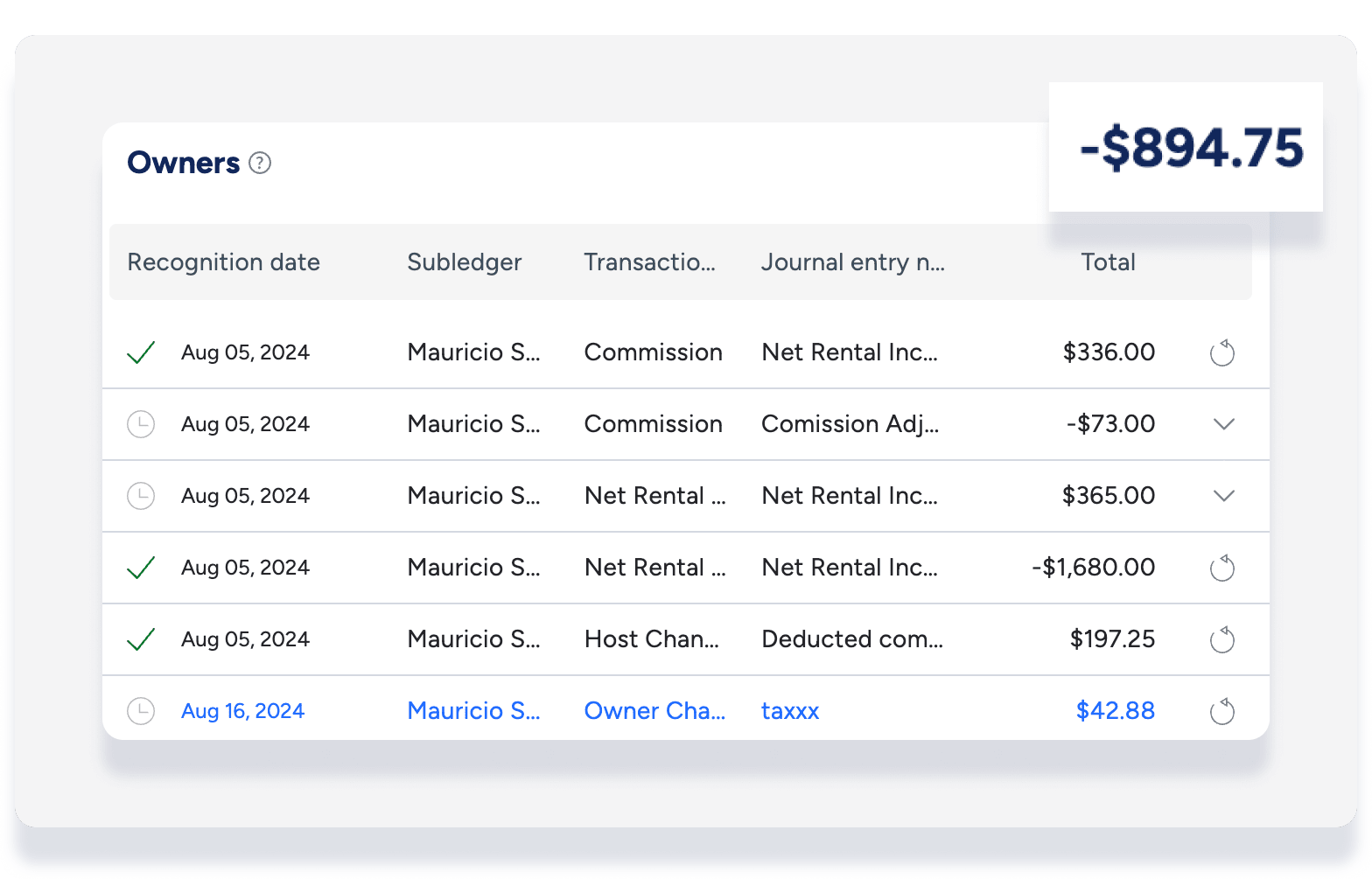
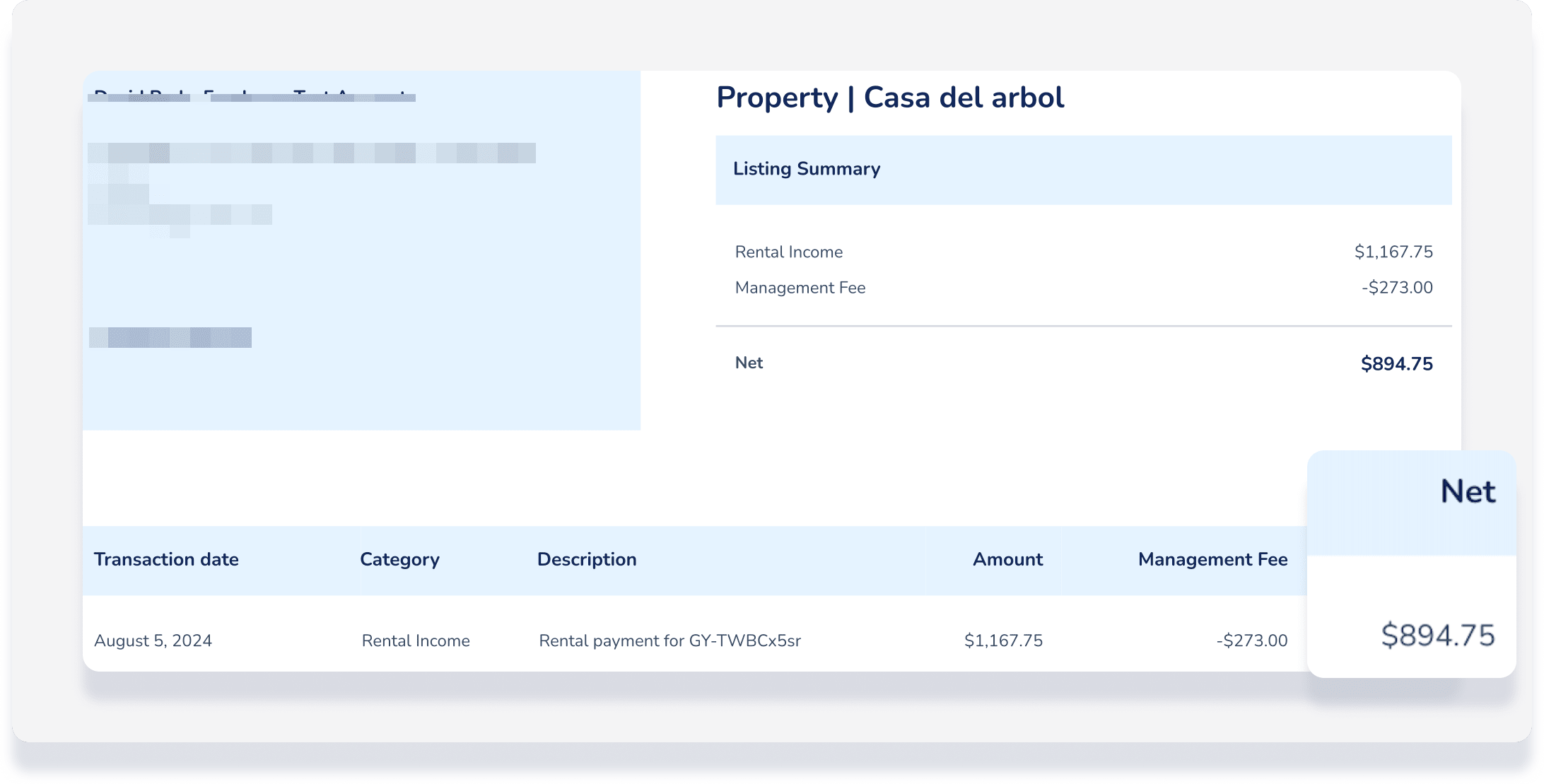
Adjustments made with realization dates in August are calculated in the owner statement for August: