Feratel is a leading booking platform in Alpine tourism, especially across Austria, Switzerland, and Germany.
It connects property managers directly with regional DMOs, tourism portals, and guests looking to book their next mountain getaway.
Link your complex listings to Feratel to manage them directly in Guesty.
Limitations
- Feratel supports only complexes.
- Creating listings on Guesty and then publishing them to Feratel isn’t supported. You can only link listings in Guesty to their matching listings in Feratel.
- Once linked, the listings’ rates, availability, and inventory (ARI) sync across the platforms. Additional content such as additional fees, amenities, and listing description won't sync and must be managed on Feratel.
- If you use rate plans, only the base-price adjustment and minimum and maximum number of nights sync to Feratel. Define all the other rate plan settings, including cancellation policies on Feratel.
Before you begin
- Establish a Feratel account: Set up a Feratel account before initiating the setup.
-
Contact Feratel support: After creating the account on Feratel, reach out to your Feratel account manager or Feratel support:
- Request them to connect each Hotel ID to the Guesty/YieldPlanet provider.
- Confirm your login and password credentials to establish an API integration between Guesty/Yieldplanet and Feratel. These credentials may differ from the login and password you use to access your Feratel dashboard.
- Pause rate plans: We recommend unlisting/stopping selling your rate plans on Feratel until the connection process is completed to avoid double bookings and other reservation syncing issues.
Connecting a Guesty complex to a Feratel Hotel ID
Follow the instructions below to connect a listing to Feratel. Repeat the connection setup for each complex you’d like to connect.
Step by step:
- In Feratel, create the relevant room types of each Hotel ID and assign rate plans.
- Sign in to your Guesty account.
- In Guesty, create a complex listing corresponding to each Hotel ID you want to connect. Use the same currency for the listing in Guesty and its corresponding listing on Feratel. Create and assign at least one rate plan to each of the room types in Guesty. Your rate plans in Guesty must correspond to the rate plans on Feratel.
- In the side navigation menu, click
 Marketing and sales to open the dropdown menu.
 - Under Channel management, select Distribution.
- Click the Feratel thumbnail.
- In the "Verify account" step, add the Feratel login and password provided by your Feratel account manager/support team.
-
Follow the connection setup instructions to:
- Link each complex in Guesty to its matching Hotel ID in Feratel
- Match each room type in Guesty to its corresponding room type in Feratel. You can skip this step and return to it later via the integration page.
- Map the rate plans in Guesty to their corresponding rate plans in Feratel. You can skip this step and return to it later via the integration page.
Note:
- Rate plans make your listing sellable and searchable on Feratel. If you connect a room type but don’t map any rate plan associated with it, the room type will not be live on the channel.
- Rate plans cannot be assigned in bulk and must be added manually for each unit type.
- Each Guesty rate plan can be linked to only one external rate plan per unit. Mapping the same Guesty rate plan to multiple units with different external rate plans will prevent a successful connection.
- When you've finished the connection process, click Continue to dashboard.
Your mapped rate plans will automatically resume being sellable on the channel. You can track each listing’s connection status and rate plans mapping.
Monitoring the connection status
The integration page will display the listings under each complex as they appear in the Feratel, even if they are not connected in Guesty.
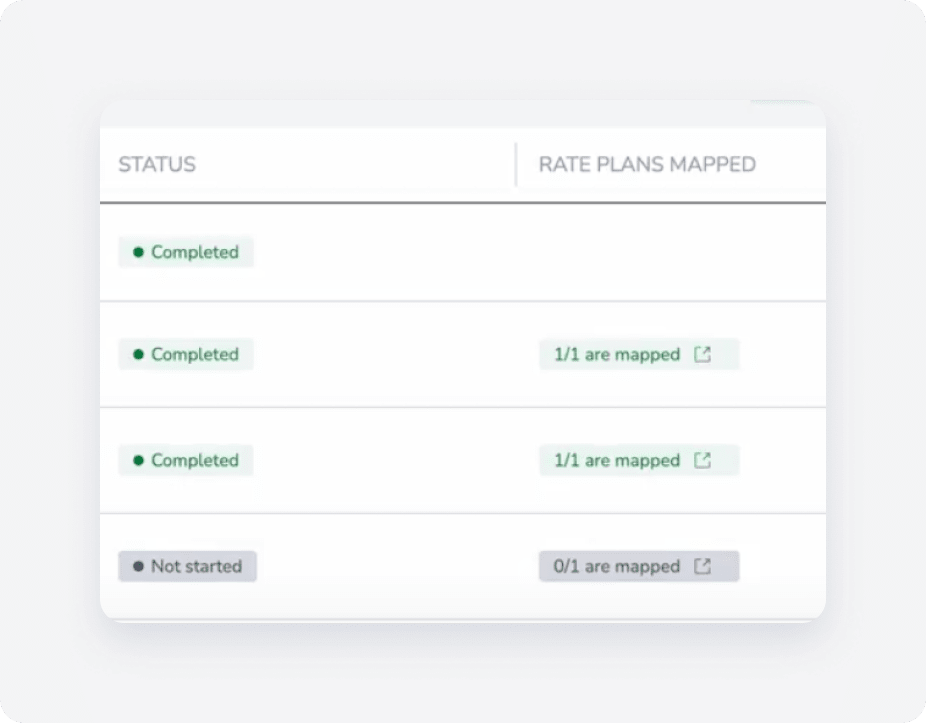
In progress - The listing has been linked to Feratel, and it is now pending the successful completion of the connection process.
Completed - The listing is connected to the channel, and at least one rate plan has been mapped. The connection is active.
Not started - The channel's listing hasn’t been linked to any listing in Guesty ( the listing is not connected).
In the "Rate plans mapped" column, click  to view the details of your rate plan mapping and make changes if needed.
Learn where to manage your Feratel listings, reservations and guest communication.
Connect additional complexes
Connect additional Hotel IDs at any time. In the top-right corner of the Feratel integration page, click Connect listings and follow the setup instructions.
Disconnect a complex
To stop selling a listing on Feratel, disconnect all of its associated rate plans. You cannot manually remove the link between a Guesty complex and a Feratel Hotel ID in the dashboard. To fully remove the connection, contact your Feratel account manager and request to remove Guesty/YieldPlanet as your provider.
Managing Feratel room types and rate plans
Learn more about adding or changing Feratel room types or rate plans.
