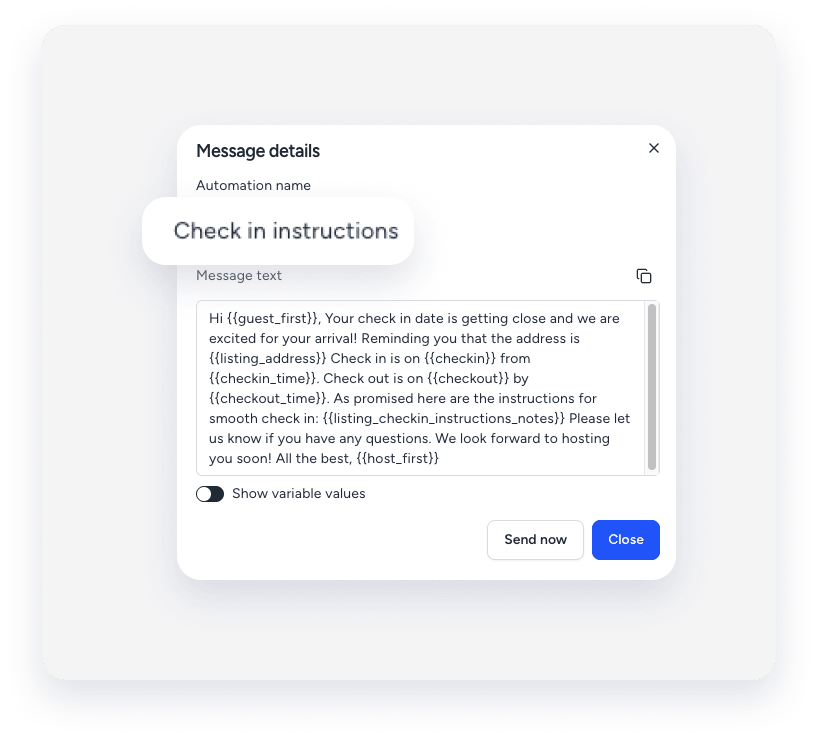
When you create a new listing, you may notice that your existing messaging automations aren't triggered. This usually happens because your automation conditions are set to include only specific properties, not All properties. Therefore, the messaging automations aren't automatically applied to your new listing.
To fix this, you need to update the settings for your automations.
Update automation settings
Follow the steps below to make sure your automations are applied to your new listing:
Step by step:
- Sign in to your Guesty account.
- In the side navigation menu, click
 Operations to open the dropdown menu.
 - Under Front desk, select Message automation.
- Next to the relevant message automation, click
 , then select Edit.
 - On the left-side menu, under "Select workflow conditions", check if "Properties" is set to All.
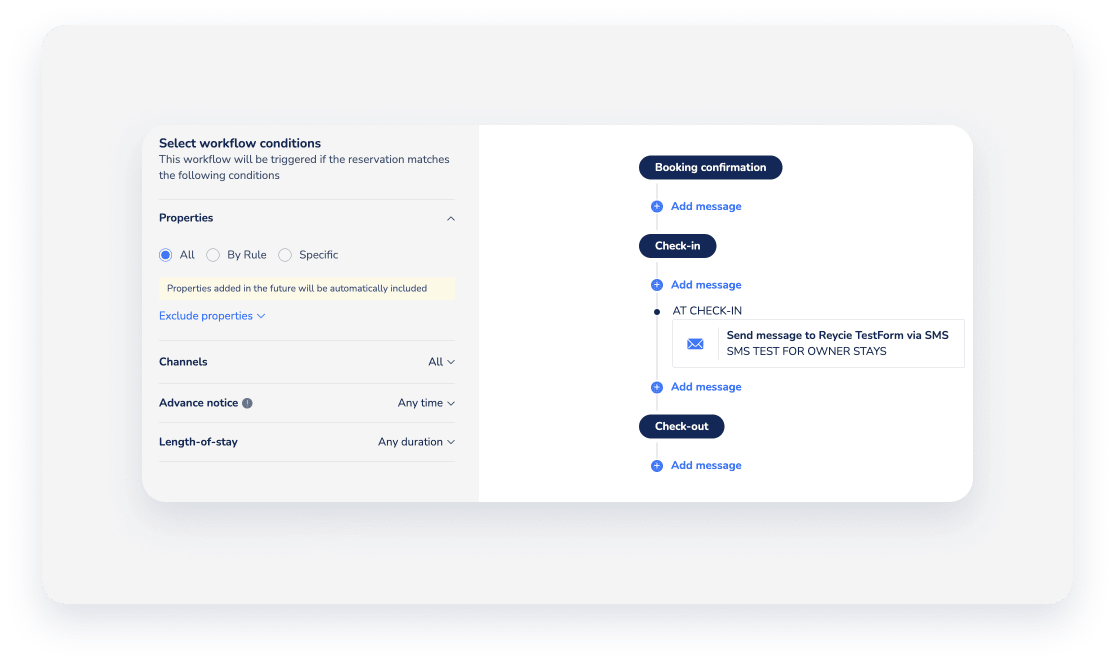
- If it is set to Specific, type your listing's name in the free text field, and select it from the dropdown menu.
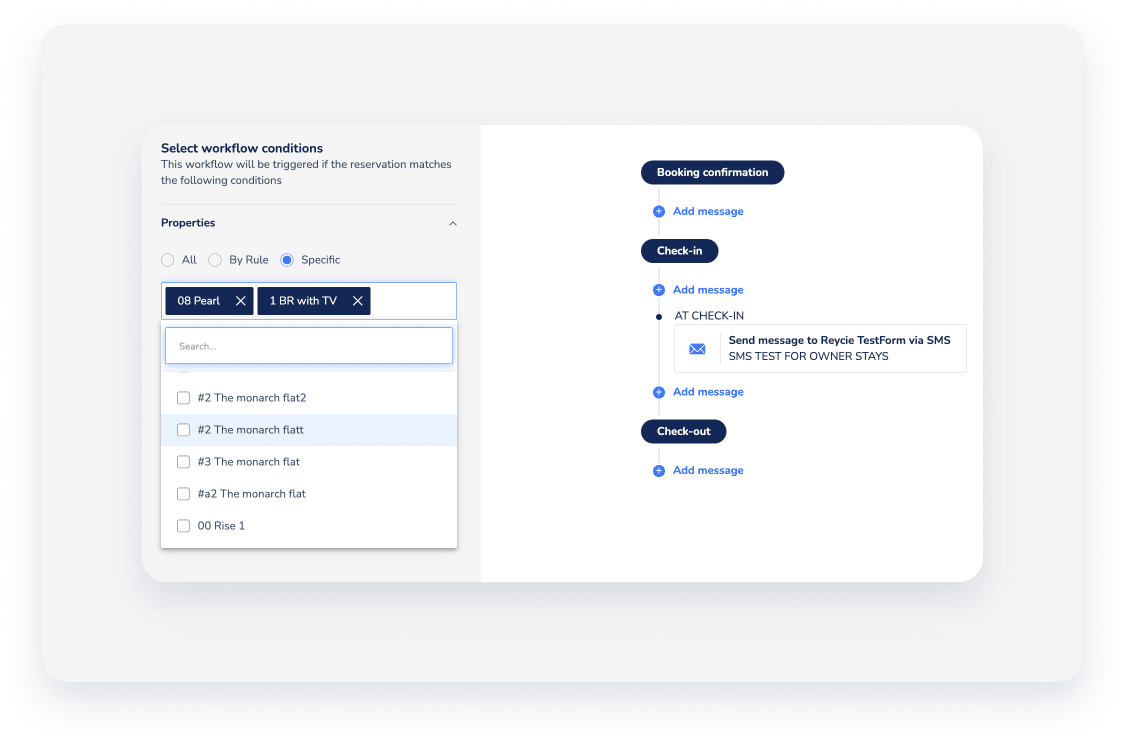
- Click Done.
Locate details for contacting support
If you confirm the configuration is correct and the issue persists, contact us to begin troubleshooting.
To help us triage the issue quickly and accurately, provide the following details along with a screenshot showing any error messages:
The reservation code is a unique identifier assigned to each booking. The code's format depends on the booking channel.
Code formats
- Airbnb: Starts with "H" (e.g., HMEXF9BKQ4).
- Booking.com: Starts with "BC" (e.g., BC-1000gAmP).
- Vrbo: Starts with "HA" (e.g., HA-8XTV36).
- Manual/Direct Bookings: Have their own specific format.
Location
-
On the Reservation Page: Select the relevant reservation. The reservation code displays at the top of the reservation card, in the top left corner.

-
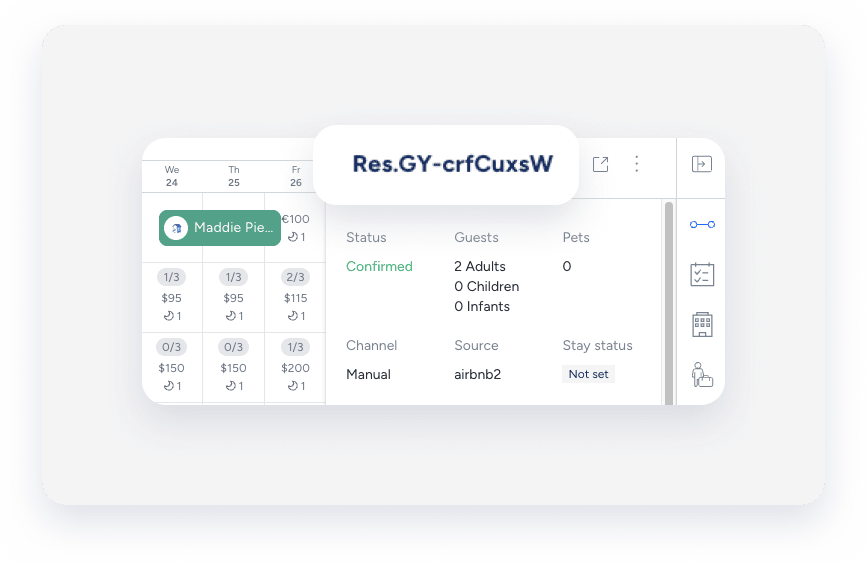
On the Multi-Calendar: Click a reservation in the Multi-Calendar to access its details. The reservation code displays in the side panel.
-
In the Guesty Inbox: The reservation code displays in the Inbox Reservation widget of the relevant conversation thread.
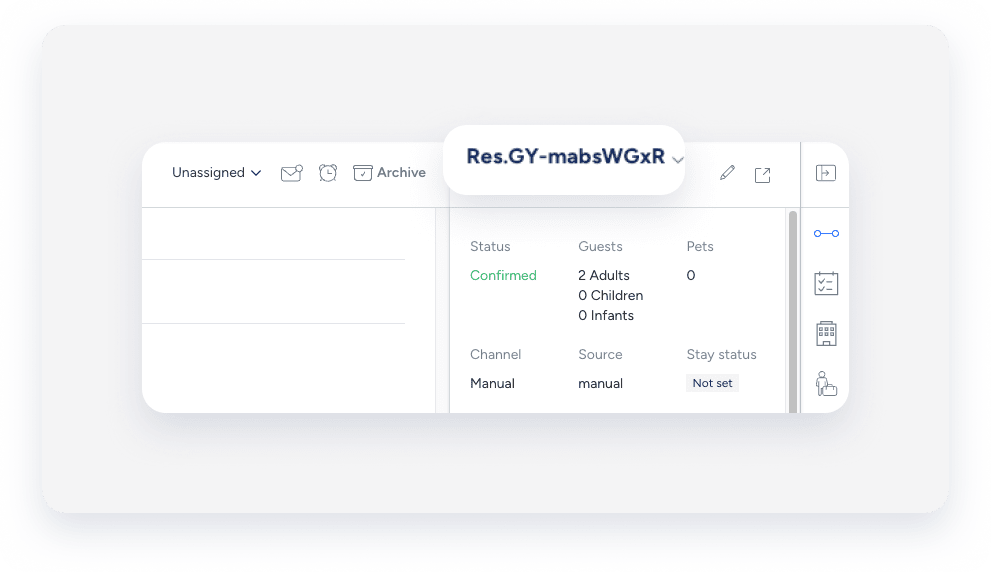
The label you assign to identify a specific message in your message automation workflow. The name is only for user identification and is not visible to guests.
Location
-
In the messaging automation page: In the side navigation menu, click Operations and select under Front desk, select Message automation. Click the relevant automation. The automated message name displays in the automations list.

-
In the Guesty Inbox: (for scheduled or sent messages): Select the relevant conversation thread. In the right side panel, click Automated messages. The automated message name for sent or scheduled messages displays in the History tab.

Tip:
Use a consistent naming convention (e.g., channel + purpose + trigger) so automations are easy to find with partial searches.
A message automation, sometimes referred to as a workflow, is the visual framework you use to set up automated guest communication based on the reservation lifecycle. The automation name is for internal use only and is not visible to guests.
Location
-
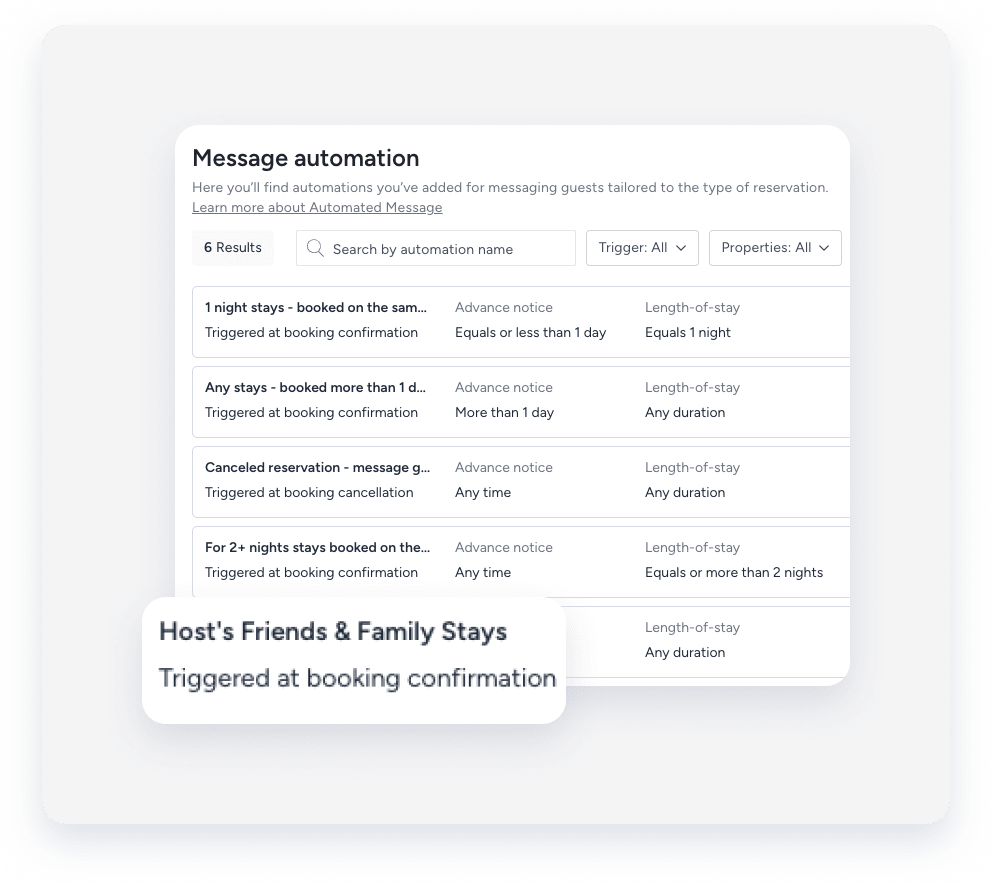
In the messaging automation page: In the side navigation menu, click Operations and select under Front desk, select Message automation. The message automation name displays in the automations list. To search for a specific automation, use the search bar at the top of the page: Type the full or partial name to quickly find it.
-
In the Guesty Inbox: (for scheduled or sent messages): Select the relevant conversation thread. In the right-side panel, click Automated messages. Select the Scheduled or History tab. Under the relevant automation, click See more. The message automation name displays in the pop-up.