The fees summary report provides a complete daily overview of all the outgoing fees and reserves that have been processed on a specific sub-account. For example, fees charged by GuestyPay and fees charged by the credit card company. See more below.
Terms and fee details
Terms to know
Sub-accounts - GuestyPay payment processing accounts.
Platform accounts - Guesty accounts.
Fee target - recipient of a fee with two options: Reserve Balance and Outgoing (all fees except Reserve).
Fee type has the following relevant options:
- Per Transaction Fees – a fee calculated as a fixed amount and/or a percentage amount per each transaction (i.e., Processing fee, Reserve fee)
- Scheduled Fees - a fee with a fixed amount will (re)occur in the time interval specified (i.e., Monthly fee, Account activation fee).
Fee names represent the actual fees applied on the relevant Transactions types and statuses.
Fee details
Fee name - Dashboard |
Transaction types |
Transaction status |
Fee name - Pricing |
|---|---|---|---|
| VI/MC/DS Discount Rate | Capture, Partial Capture, Charge | Processed | Processing Fee % (i.e. 2.9% for the US) |
| Transaction Fee | Authorization, Charge, Refund, Partial Refund, Credit |
Processed, Declined
|
Processing Fixed Fee (i.e. $0.3 for the US) |
| International Card Fee | Capture, Partial Capture, Charge | Processed | International Card Fee |
| Virtual Card Fee | Capture, Partial Capture, Charge | Processed | Virtual Card Fee |
| Chargeback Fee | Chargeback | Processed | Chargeback event |
| Chargeback Mediation Fee | Arbitration | Processed | Chargeback event |
| Chargeback Reversal Fee | Reversal | Processed | Chargeback event |
| Retrieval Fee | Retrieval | Processed | Chargeback event |
| Reserve (90 days) | Capture, Partial Capture, Charge | Processed | Rolling Reserve |
| Account Activation Fee | Onboarding Fee | ||
| Monthly Service Fee | Monthly Fee |
Access the report
Step by step:
- Sign in to your Guesty account.
- In the side navigation menu, click
 Guest payments to open the dropdown menu.
 - Under General, select Payment processing.
- In the GuestyPay section, click Payment dashboard.
- In the dashboard login page, enter your username and password and click Sign in.
- Click Sub-account reports and select Fees summary.
Fees summary report
At the top of the report, select the relevant Guesty account from the dropdown menu, then select the relevant GuestyPay account.
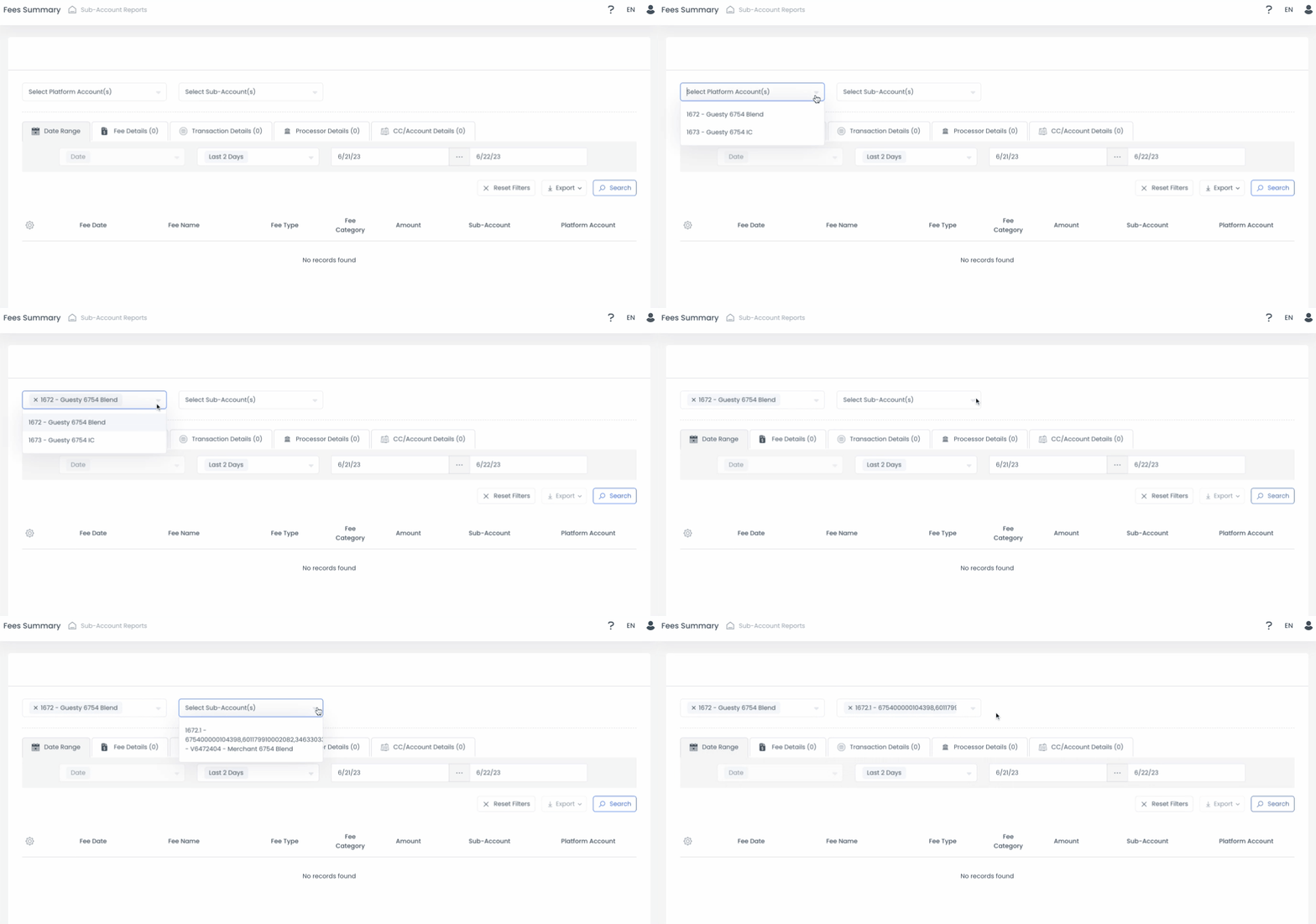
Note:
The default date range is set to the "Last 2 Days" time period.
Expand each fee date to see a breakdown of the transactions that shows the following information of whether the fee is a percentage or a fixed amount:
- Transaction system date
- Transaction ID
- Transaction type
- Transaction amount
- Billing amount
- Per trx amount
- Per trx percentage
- Fee amount
- Fee target