Nightly revenue recognition allows you to track revenue for every night of a stay, ensuring your accounting reports accurately reflect monthly income.
When you use nightly revenue recognition, Guesty creates a separate journal entry for each night. This is essential for reservations spanning multiple calendar months. For example, if a reservation starts in January and ends in February, Guesty splits the revenue between both months. This ensures your financial data is allocated to the correct period based on the stay dates.
Important:
To apply nightly revenue recognition to journal entries from past reservations, manually update those reservations in the Guest Folio before changing your recognition settings in the business model.
Set up nightly revenue recognition for PMC commission
Follow the steps below to recognize PMC commissions on a nightly basis.
Step by step:
- Sign in to your Guesty account.
- In the side navigation menu, click
 Accounting to open the dropdown menu.
 - Under Accounting setup, select Business models.
- Click Add business model and follow the prompts to create a new model, or select an existing one.
- Ensure a listing is assigned to the business model to see these settings.
- In the "PMC commission" section, under "Commission Setup," click
 next to "Confirmed reservations."
 - Click Edit.
- Select Nightly as the recognition setting.
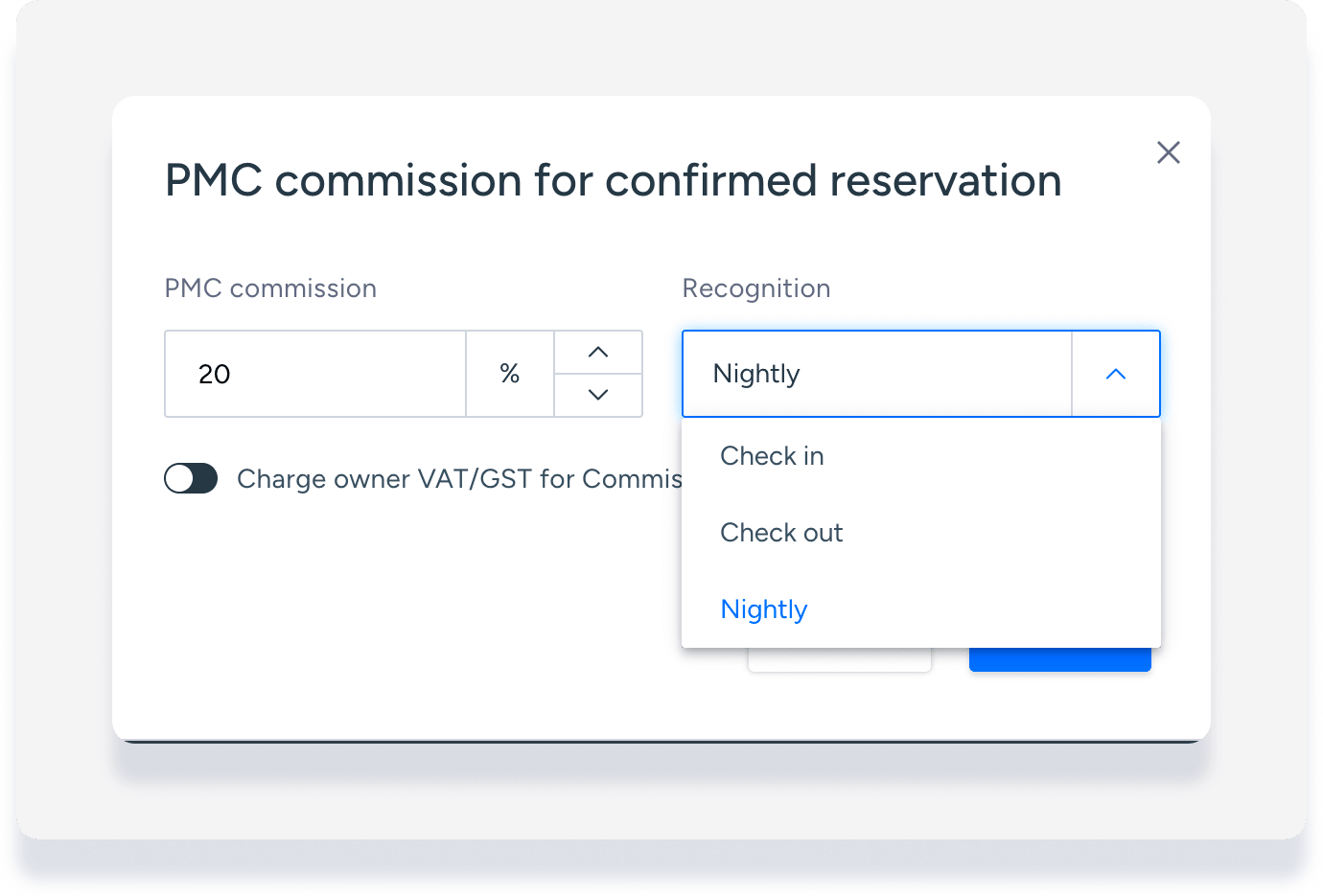
- Click Save.
- Select Create business model or Save.
Set up nightly revenue recognition for additional fees
Follow the steps below to apply nightly recognition to specific additional fees.
Step by step:
- Sign in to your Guesty account.
- In the side navigation menu, click Accounting to open the dropdown menu.
- Under Accounting setup, select Business models.
- Click Add business model and follow the prompts to create a new model, or select an existing one.
- Ensure a listing is assigned to the business model to see these settings.
- In the "Additional fees" section, click
 next to the fee you want to update.
 - Select Nightly as the recognition setting.
- Click Save.
- Select Create business model.
Set up nightly revenue recognition for a recurring owner charge or expense
Note:
If you're on the new Expenses feature pilot the below isn't relevant. Follow these steps.
Follow the steps below to recognize recurring charges or expenses nightly.
Step by step:
- Sign in to your Guesty account.
- In the side navigation menu, click Accounting to open the dropdown menu.
- Under Accounting setup, select Business models.
- Click Add business model and follow the prompts to create a new model, or select an existing one.
- Ensure a listing is assigned to the business model to see these settings.
- In the "Trust account income" section, click Add recurring owner charge, or in "Trust account expenses", click Add recurring expense.
- Fill in the required details and select Nightly as the recognition setting.
