Accounting by Guesty is a premium feature. Please contact us to discuss activating it.
Accounting by Guesty uses trust accounting to track the ownership of funds for multiple stakeholders as the funds move through our system. Stakeholders include property management companies (PMCs), owners, vendors, and tax authorities.
With double-entry bookkeeping, each transaction recorded in an account requires a corresponding transaction in a different account:
Funds flow in as a guest payment for a reservation. Your business model setup automatically creates transactions to flow funds from the guest account into the different stakeholder accounts. Transactions can also be created manually or entered via API.
Funds flow out based on a disbursement, or payout. Follow the steps below to view and download a disbursements report.
Learn more about:
View disbursements and download report
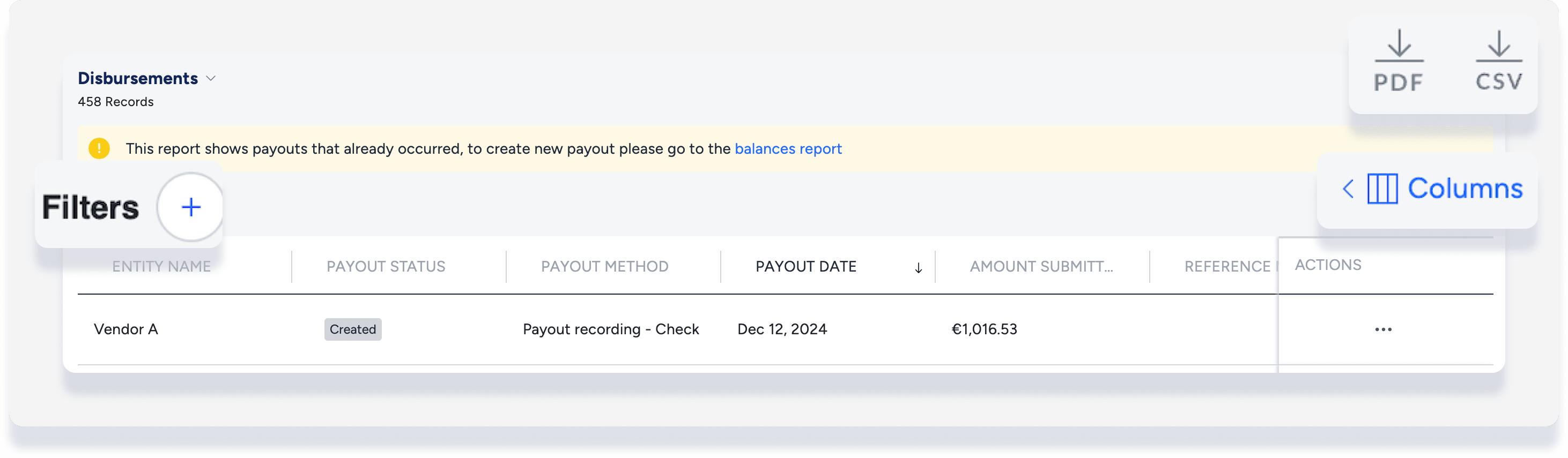
View and download a report of all disbursements that have been recorded to your stakeholders.
Step by step:
- Sign in to your Guesty account.
- In the side navigation menu, click
 Accounting to open the dropdown menu.
 - Under General ledger, select Disbursements.
- To the left, click
 to apply filters.
 - To the right, click Columns. In the pop-up, toggle on to include additional information, or toggle off to exclude irrelevant information.
- To download the report, at the top right, click PDF or CSV to download.
Any filters or columns that you added will be applied to the downloaded file.
Download PMC disbursements by category
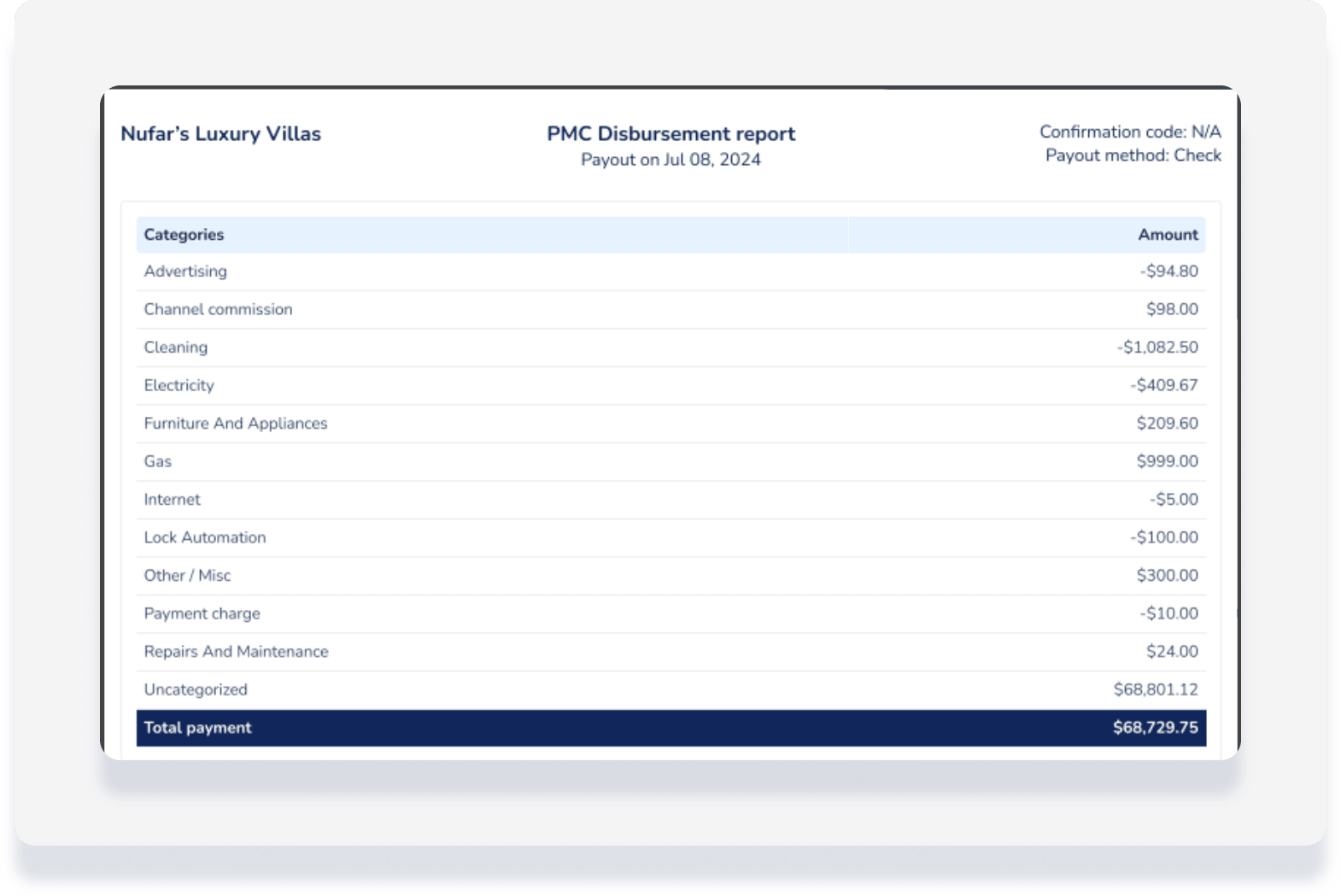
Download a report that summarizes the disbursements by category to specific PMCs. This allows you to easily determine the source of their income and expenses and enter the information as a journal entry into your operating accounting system.
- Sign in to your Guesty account.
- In the side navigation menu, click Accounting to open the dropdown menu.
- Under General ledger, select Disbursements.
- Using filters and additional columns as needed, find the relevant PMC.
- To the right of the PMC, under "Actions", click
 then select Download report.
A pdf will be sent to your email. See sample below.