Guesty automatically generates owner statements with a summary of revenue, expenses, and payments for each owner. This article explains how to view and download owner statements as single statements, in bulk, or as compiled data in a csv file.
See our other help center articles for additional owner statement actions:
- Approving, flagging, and changing owner statement status
- Sending owner statements manually
- Regenerating owner statements if changes were made to a month after automatic generation
- Running an owner activity report to understand statement calculations
View and download owner statement data
Step by step:
- Sign in to your Guesty account.
- In the side navigation menu, click
 Accounting to open the dropdown menu.
 - Under Owner accounting, select Owner statements.
- Apply filters and customize columns as needed.
- In the top-right corner, click
 to download all visible and optional table columns (balances, dates, status) for reporting.
Download a single owner statement
Tip:
Click anywhere on the relevant owner statement line to open a document preview in a new window.
Download a statement in one of the following ways:
- In the document preview window, select the download option.
- To the right of the relevant owner statement click
 then select Download.
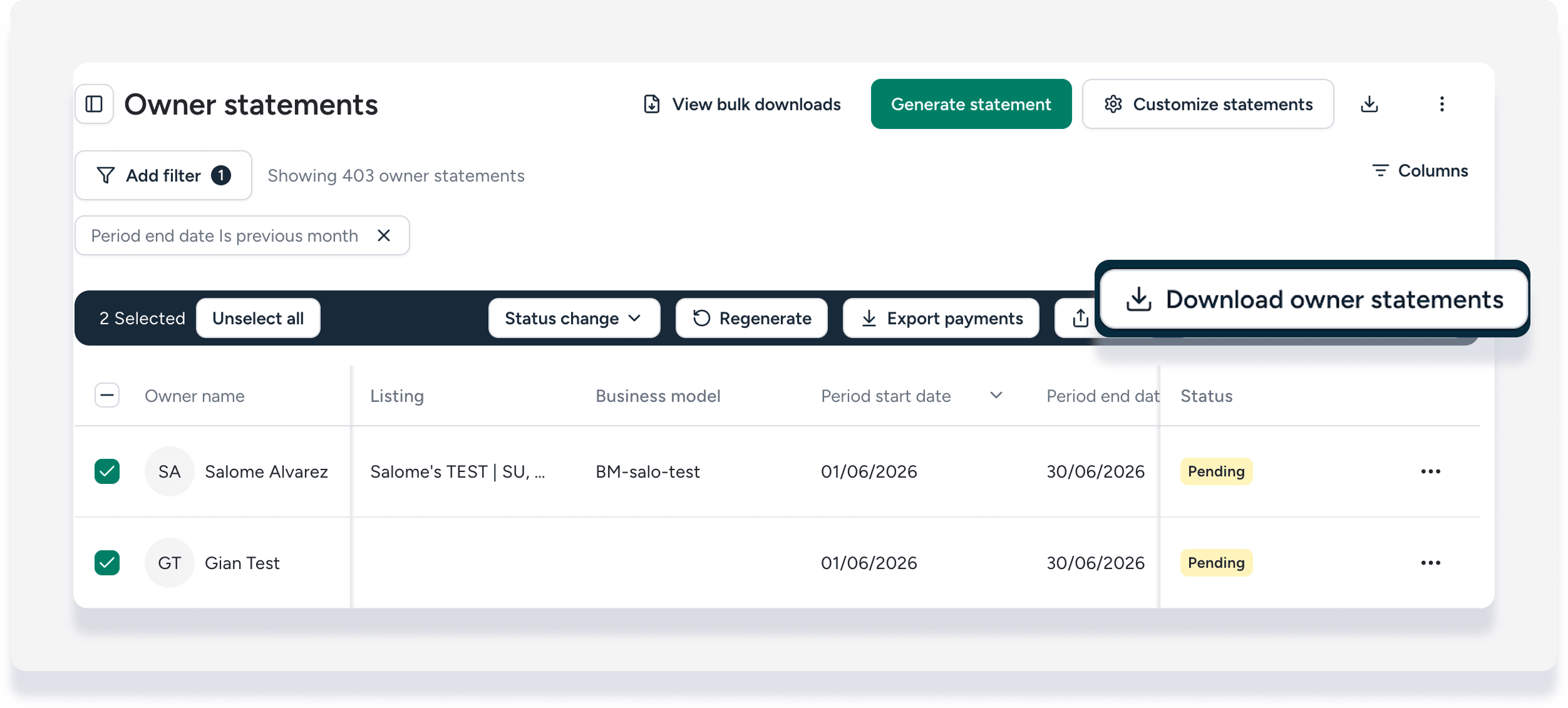
 - Check the box to select the owner statement, then in the header that appears click Download owner statements.
Download owner statements in bulk
Download multiple statements at once, such as for monthly reporting. You receive a compressed ZIP file.
Step by step:
- Check the boxes to select one or more owner statements.
-
In the header that appears, click Download owner statements.
- In the pop-up, click Generate bulk download.
- You'll receive an email notification when the compressed ZIP file is ready. This can take up to 30 minutes.
- Download the ZIP file from the email sent, or click View bulk downloads in the Owner statements dashboard and download from there.
- Extract the statements from the ZIP file.
