Saved replies are pre-written responses that can be used to reply quickly to guests via the Guesty Inbox. Whether you or your team sends the message, saved replies ensure your communication maintains a professional, personal touch. They are also essential when using our Guest Communication Services. You can edit or delete saved replies at any time.
Note:
HQ accounts: You can't create a single saved reply that applies to all sub-accounts. Saved replies visible in the HQ account are created within the individual sub-accounts.
Create a saved reply
Create replies from scratch and personalize them for guests by adding variables. This follows the same process as adding variables to automated messages.
Follow the instructions below to create a saved reply.
Step by step:
- Sign in to your Guesty account.
- In the side navigation menu, click
 Properties.
 -
Select the relevant property.
If the property is a multi-unit, access the main unit's settings or select a sub-unit.
- In the left sidebar, click Saved replies.
- Click Add a new reply.
-
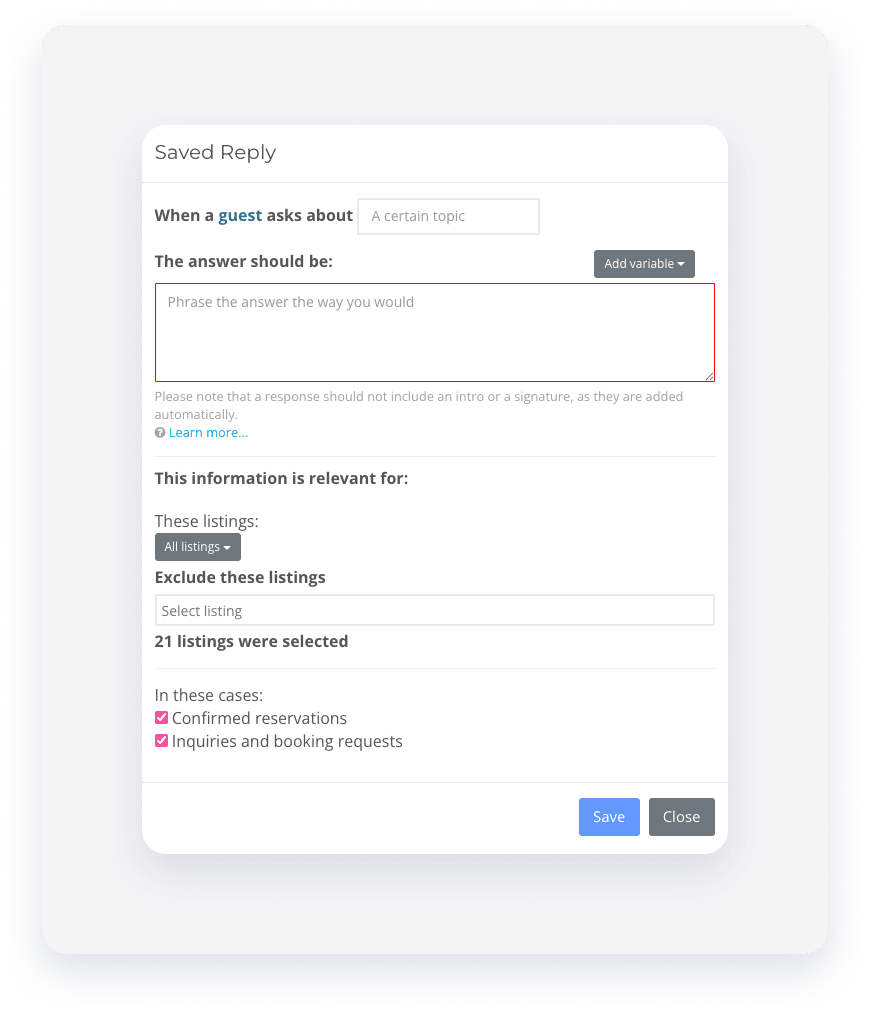
Fill in the relevant information. Use variables to personalize your message.
-
From the dropdown menu, select if the reply applies to a specific listing, filtered criteria, or all listings. Check the boxes to specify if the reply applies to confirmed reservations, inquiries, or booking requests.
Important:
To apply a saved reply to "All listings", verify you have access to the relevant properties in your roles and permissions. If necessary, ask your account admin to update your assigned properties.
- Click Save.
When creating a reply for a multi-unit listing via main settings, choose whether it applies to all sub-units. Click Yes or No.
Create folders for saved replies
Organize your saved replies by creating folders.
Step by step:
- In the "Saved reply" page, click Add a folder.
- Enter a folder name. Use specific names to help the Guest Communication Services team respond quickly.
- Click Add.
To add a new saved reply to a folder, select the folder and click Add new. Click Save when finished.
Send a saved reply
After creating a saved reply, follow the instructions below to send a saved reply from your Inbox.
Step by step:
- Sign in to your Guesty account.
- In the side navigation menu, click
 Inbox.
 - In the Inbox submenu, select the relevant inbox.
- Click the relevant message thread.
- Next to the Send button, select the sending method from the dropdown menu.
- At the bottom of the text field, click
 .
.
- In the pop-up, select the relevant saved reply.
- Click Send.
Edit or delete a saved reply
You can edit or permanently delete a saved reply. Deleting a saved reply will remove it from all the listings it's connected to.
Follow the instructions below to edit or delete an existing saved reply on your list.
Step by step:
- Sign in to your Guesty account.
- In the side navigation menu, click Properties.
-
Select the relevant property.
If the property is a multi-unit, access the main unit's settings or select a sub-unit.
- In the left-side menu, click Saved replies to view your list.
- Click the relevant saved reply.
- Edit the details in the pop-up and click Save, or click Delete to remove it.
To keep a saved reply but remove it from certain listings, click the "Exclude these listings" field and check the boxes for the listings you want to exclude.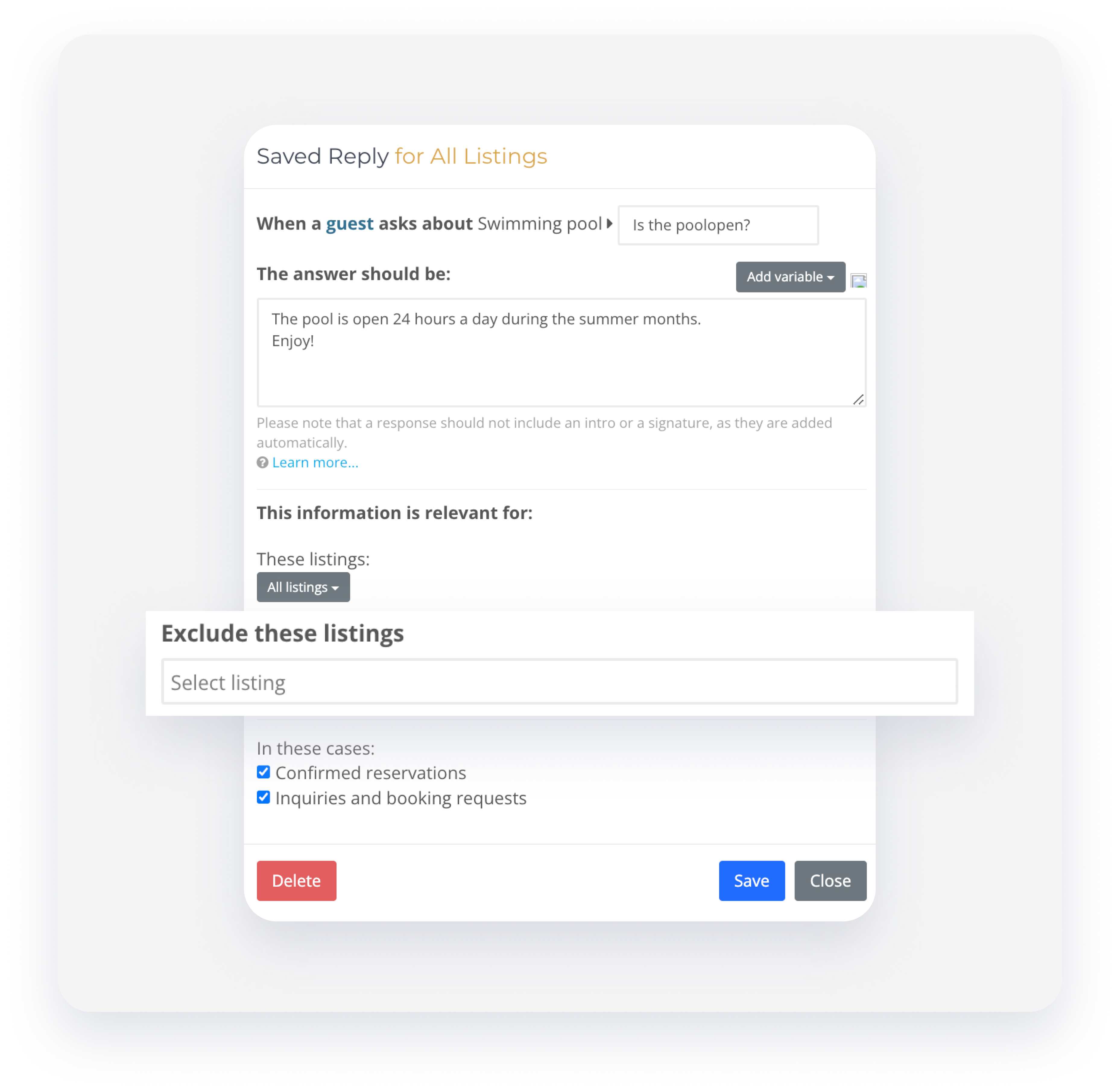
Tip:
To master saved replies, visit Guesty Academy for interactive courses and step-by-step video tutorials.
