This article explains how to use the QuickBooks integration to automatically sync new journal entries from QuickBooks to Guesty as expenses. You will learn about the data matching requirements, how to configure the settings, and how the sync process works.
When you create a journal entry in QuickBooks for property-related spending, Guesty creates matching expenses from each qualifying line. This keeps your owner statements and trust accounting aligned without you having to re-enter the same costs.
Prerequisites and matching data
Before you enable the workflow, make sure of the following:
- You are using Guesty Accounting with the new Expenses feature.
- QuickBooks is connected in Guesty's Marketplace.
- "Class tracking" is turned on in QuickBooks Online, and each journal entry line that should sync has a "Class".
- Each journal entry line that should sync names a "Vendor" on the line.
For a journal entry to sync successfully from QuickBooks to Guesty, the information must match between the two platforms:
- Vendors: The vendor name on the QuickBooks journal entry line must match a vendor in Guesty (company name, full name, or first and last name). If a matching vendor does not exist in Guesty, the system skips that line. Learn more about managing vendors in Guesty.
- Categories: The "account" name on each journal entry line in QuickBooks must match an Accounting category name in Guesty. The system matches names after trimming spaces and ignoring capitalization. That same account/category name must also appear in your integration settings as either a "PMC Expense" category or an "Owner Charge" category.
- Amount: Each line must have an amount. Guesty creates one expense per qualifying line using that line's amount.
- Property listings: The "Class" name on the QuickBooks journal entry line must exactly match the "Listing nickname" in Guesty. The "Class" should identify the listing, not the owner name, guest, or street address.
Tip:
Use the same naming convention as the purchase sync: one QuickBooks class per listing, with the class name identical to the Guesty listing nickname.
Assign charge categories
When you configure the QuickBooks integration, you'll need to set up two settings that determine how Guesty assigns financial responsibility for an expense.
PMC expense categories
-
Data to enter: A comma-separated list of category names, such as
Cleaning Supplies, Office Rent, Repairs. You can copy existing category names from Guesty or create new ones that match your QuickBooks account names in your Guesty account's Accounting categories setup. Names must match QuickBooks exactly. - System outcome: If a journal entry line from QuickBooks has an account/category that is on this list, Guesty records it as a "PMC expense".
- Financial breakdown: The PMC pays the vendor. Guesty records it as a 100% payment share to the PMC and a 100% revenue share to the vendor.
Owner charge categories
-
Data to enter: A comma-separated list of category names, such as
Plumbing Emergency, New Linens, Pest Control. You can copy existing category names from Guesty or create new ones that match your QuickBooks account names in your Guesty account's Accounting categories setup. Names must match QuickBooks exactly. - System outcome: If a journal entry line from QuickBooks has an account/category that is on this list, Guesty records it as an "Owner charge".
- Financial breakdown: The property owner reimburses the PMC. The system records it as a 100% payment share to the owner and a 100% revenue share to the PMC.
You must fill in at least one of these lists. A category that appears on neither list will not create an expense in Guesty, even if the vendor, class, and amount are valid.
Activate the journal entry sync
Follow the steps below to activate the automated QuickBooks journal entry sync.
- Sign in to your Guesty account.
- In the side navigation menu, click
 Integrations to open the dropdown menu.
- Select Marketplace.
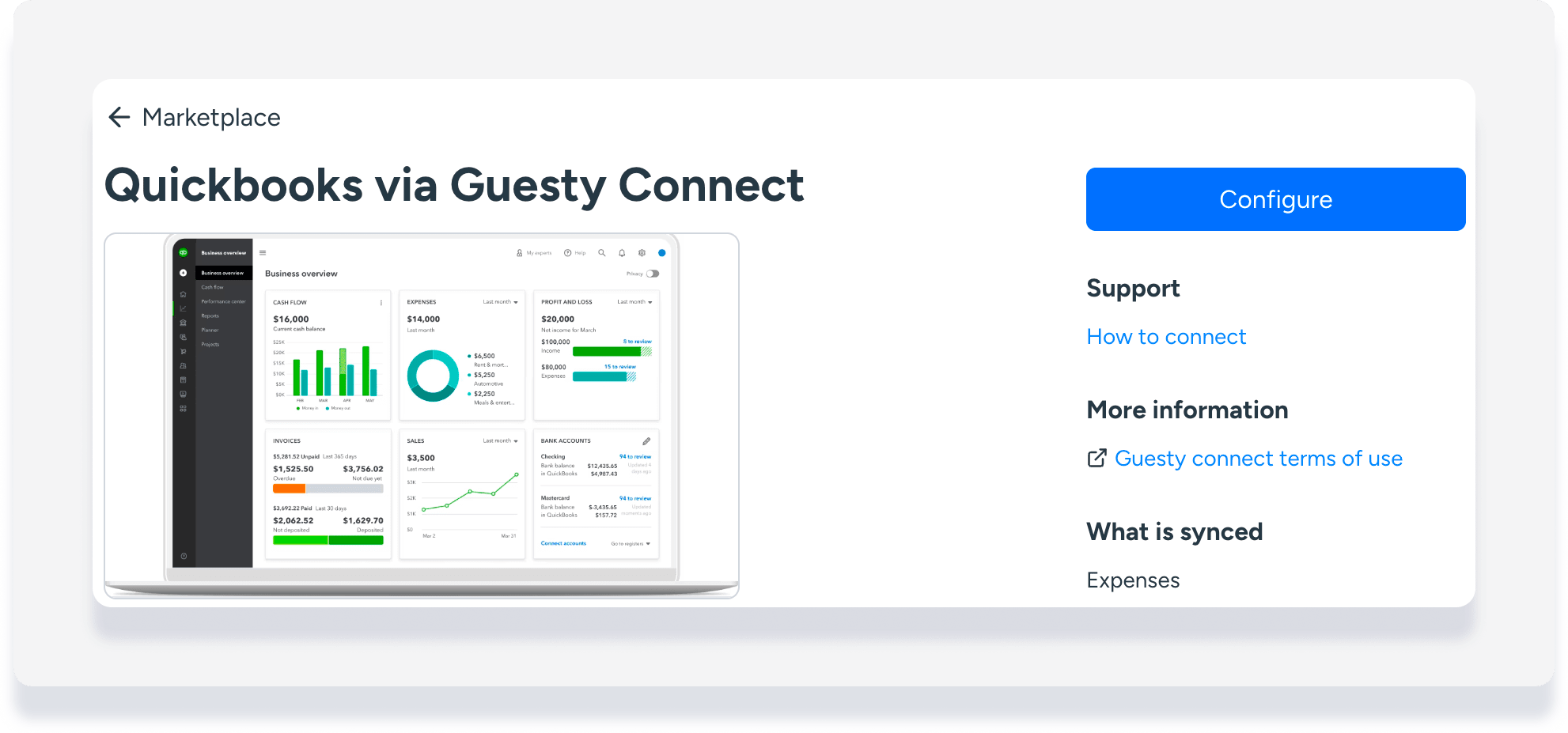
- Click on the QuickBooks thumbnail.
- In the top-right corner, click Configure.
- Click the Configuration tab.
- Toggle on Sync Journal Entries from Quickbooks to Expenses in Guesty.
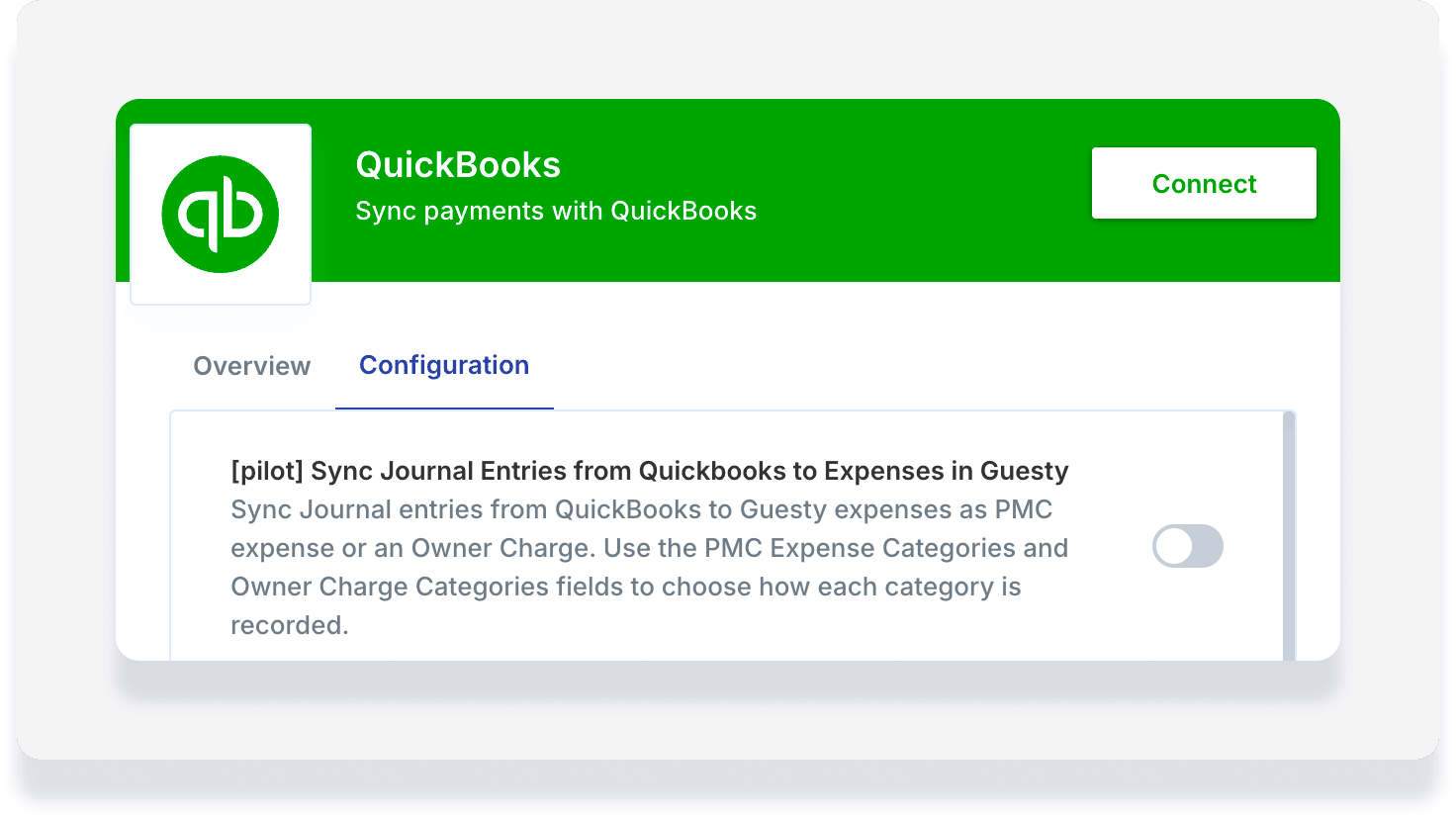
- Enter the relevant categories in the "PMC Expense Categories" and "Owner Charge Categories" fields, separated by commas.
- In the top-right corner, click Connect.
Expenses synced from QuickBooks journal entries appear in the posting journal for each listing according to the categories you entered.
What syncs and what does not
This workflow is a one-way sync from QuickBooks to Guesty. It does not push Guesty expenses back to QuickBooks.
What syncs
- New journal entries created in QuickBooks.
- One Guesty expense is created per qualifying journal entry line.
- Lines whose account name is listed under PMC Expense or Owner Charge categories.
- Lines with a matching vendor, category (on a charge list), amount, and class.
What does not sync
- Journal entry edits, voids, or deletes after the initial creation.
- Lines without a vendor, matching category, matching class, or amount.
- Historical backfill of older journal entries.
- The creation of missing vendors, categories, or listings in Guesty.
Understand the data workflow
The integration follows a multi-step process to verify and sync each journal entry from QuickBooks to Guesty.
- The trigger: The process begins when a new journal entry is created in your QuickBooks account.
- Load the journal entry: The system loads the full QuickBooks journal entry and its line items.
- Fetching categories, vendors, and listings: The integration retrieves expense categories, vendors, and property listings from Guesty.
-
Line matching: The workflow processes each journal entry line to match:
- the QuickBooks line vendor with a Guesty vendor,
- the QuickBooks "account" name with a Guesty category, and
- the QuickBooks "class" with a Guesty listing nickname.
- Cost share assessment: The system checks the matched category against your configured "PMC Expense Categories" and "Owner Charge Categories" lists to determine whether Guesty should create a PMC expense or an owner charge.
- Creation in Guesty: Guesty creates an expense for each qualifying line using the mappings below.
| QuickBooks data | Guesty expense field |
|---|---|
| Journal entry transaction date | Expense date |
| Matched category (from account name) | Category |
| Line amount | Chargeable amount |
| Journal entry currency | Currency |
| Matched vendor (from the line) | Vendor |
| Journal entry document number | External reference ID |
| Line description | Description |
| Matched class (listing nickname) | Listing |
Troubleshooting common misses
| Symptom | Likely cause | What to check |
|---|---|---|
| Nothing appears in Guesty after you create a journal entry | Workflow is off, or no lines qualify | Confirm the workflow toggle is on and category lists are filled in the integration configuration. |
| Nothing appears for a specific line | Vendor is missing on that line | Add a "Vendor" on the journal entry line in QuickBooks (not only on a balancing line). |
| Some lines sync, others do not | Class or category mismatch on those lines | Confirm the class equals the listing nickname and the account name exists in Guesty and is listed under PMC Expense or Owner Charge categories. |
| Category matches Guesty but still no expense | Category not on a charge list | Add the exact account/category name to "PMC Expense Categories" or "Owner Charge Categories" in the integration configuration. |
| Expense is on the wrong listing | Wrong class on the journal entry line | Set the QuickBooks class to that listing’s Guesty nickname. |
| Vendor looks correct but line is skipped | Name does not match Guesty | Align the QuickBooks vendor name with the Guesty vendor's company name or full name. |