Schedule a one-off message to a guest and send it at a later time, directly from the Guesty Inbox. Scheduled messages are ideal for one-time updates, such as letting a guest know when a broken appliance will be fixed. For messages triggered by recurring events, use automated messages instead. You can edit, reschedule, or delete a scheduled message at any time before it's sent.
Important:
Scheduling is based on your time zone. If the property has its own time zone, the equivalent local time is shown as "At property" time for reference only. This "At property" time is informational and doesn't affect when the message is sent.
Scheduling is only available for guest conversations in the desktop Inbox.
Schedule a message to send later
Follow the steps below to schedule a message to a guest to be sent at a later date.
Step by step:
- Sign in to your Guesty account.
- In the side navigation menu, click
 Inbox.
 - In the Inbox submenu, select the relevant inbox.
- Click the relevant message thread.
- At the bottom of the page, click Type your message here and enter your message.
-
Select the communication method.
Note:
WhatsApp doesn't support scheduled messages.
- Next to Send, click
 .
. - Select one of the suggested times from the dropdown, or click Custom time to pick a different date and time.
- If you selected Custom time, a pop-up appears. Select the date and time, then click Schedule message.
Once scheduled, a banner appears above the text field in the relevant conversation thread, showing a preview of the message and its send time. Click the banner to open the Scheduled messages inbox filtered to that conversation.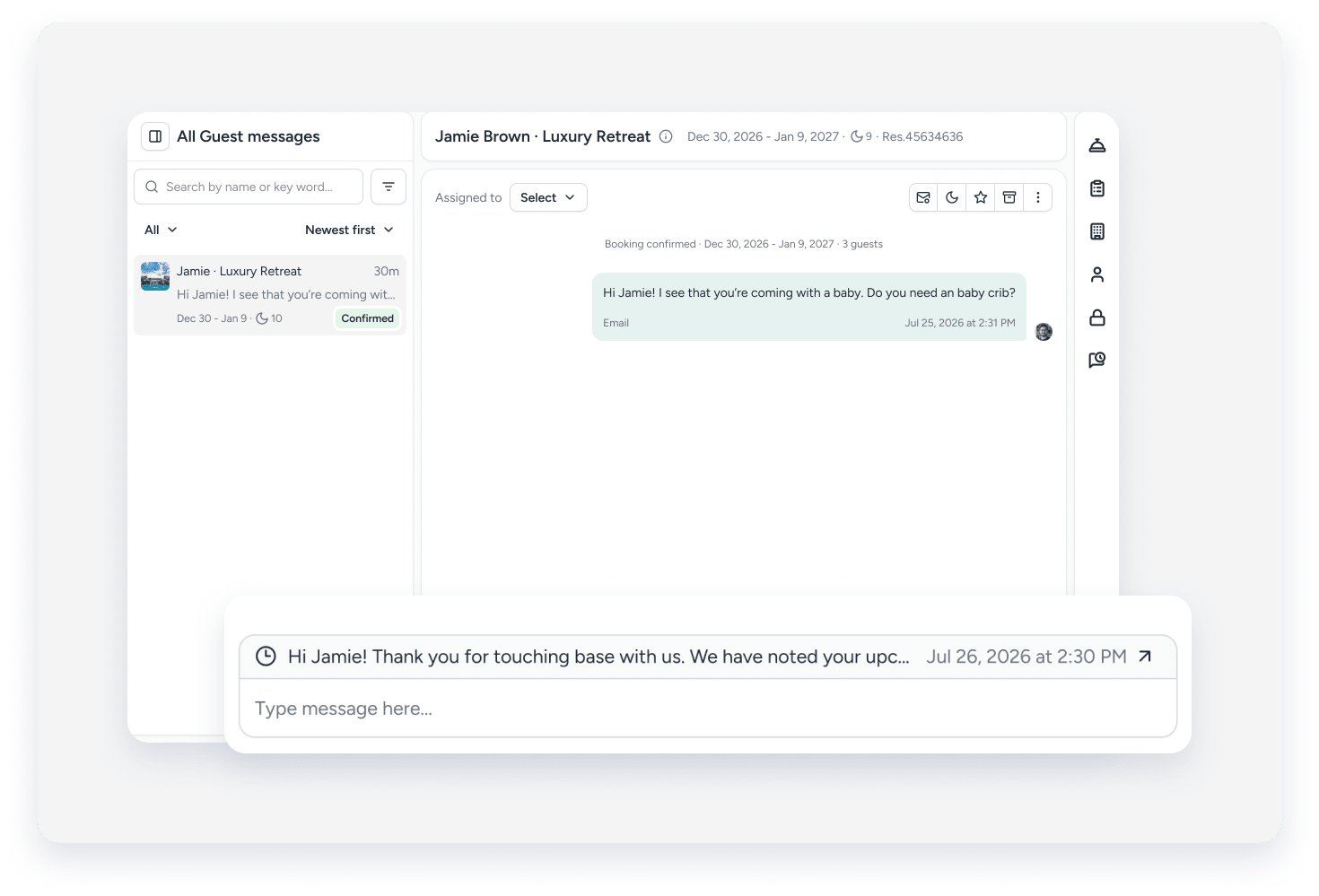
Note:
If you send a new message on a thread that already has a scheduled message, you'll be prompted to choose Send now, Send later, or Cancel.
View, edit, and delete scheduled messages
Open the Scheduled messages inbox under your Snoozed and Archived inboxes to see all pending scheduled messages. A green badge shows how many messages are scheduled. Messages are listed by send time, soonest first.
You can search for a message by guest or reservation, filter the list by property, or sort by send time.
To open the relevant message thread, click  . To manage a scheduled message, click
  and select one of the following:
- Edit: Opens the message thread with the scheduled message loaded in the text field for editing. When finished, click Send now to send the edited message immediately, or ✓ to save your changes.
- Reschedule: In the pop-up, select the relevant date and time, then click Schedule message.
-
Delete: In the pop-up, click Continue to remove the scheduled message.

