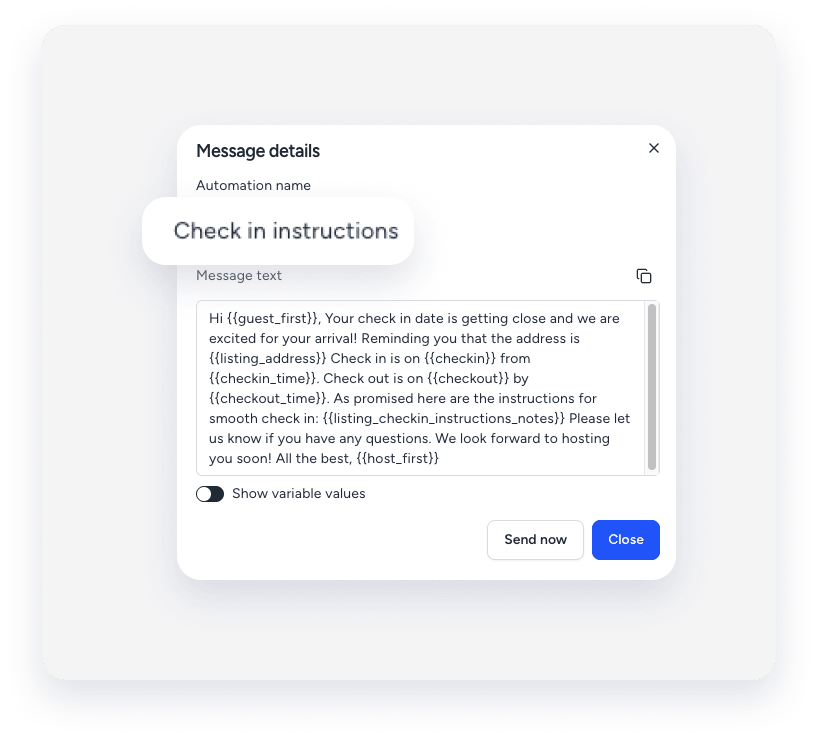
Use message automations to streamline guest communication by sending scheduled messages such as check-in instructions, welcome notes, or agreement reminders.
In some cases, an automated message may not be sent at the originally scheduled time — or may be sent much later than expected — because a required message condition (e.g., "Guest App check-in form submitted" or "Agreement completed") wasn't met by the guest before the scheduled execution time.
Determine why a message wasn't sent at the scheduled time
Follow the troubleshooting steps below to identify whether an automated message is in a "waiting" status because a required condition wasn't met by the scheduled send time.
-
Investigate the message status in the Guesty Inbox
Check the current status of the automated message to determine if it is waiting on a condition.
-
Verify the message conditions
Confirm which message conditions are applied to the automated message and whether the guest completed the required action in time:
- Locate the affected message and check whether any message conditions are applied (e.g., "Guest App check-in form submitted" or "Agreement completed").
- Navigate back to the reservation page to verify the exact time the guest completed the required action. If the action was completed after the scheduled send time, this explains the delay.
- Understand how conditions are evaluated
- When an automated message has a condition applied, Guesty evaluates that condition precisely at the scheduled execution time, not beforehand. If the condition isn't met at that moment, the following occurs:
- The message doesn't fail—it moves into a waiting status.
- If the guest fulfills the condition later, Guesty immediately re-evaluates it as met and sends the message at that exact time.
- If the condition is never met, the message will eventually expire and won't be sent.
For additional causes unrelated to message conditions, review the guide on reasons an automated message wasn't sent.
Locate details for contacting support
If you confirm the configuration is correct and the issue persists, contact us to begin troubleshooting.
To help us triage the issue quickly and accurately, provide the following details along with a screenshot showing any error messages:
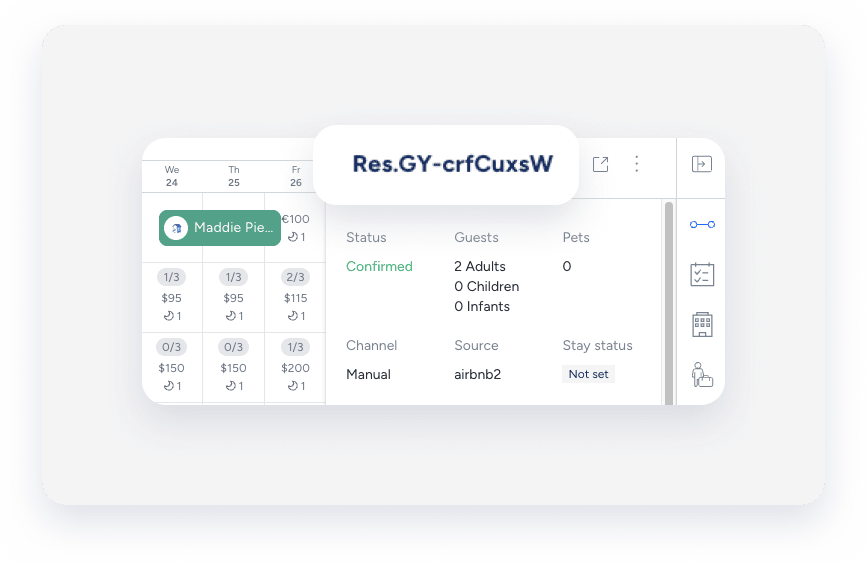
The reservation code is a unique identifier assigned to each booking. The code's format depends on the booking channel.
Code formats
- Airbnb: Starts with "H" (e.g., HMEXF9BKQ4).
- Booking.com: Starts with "BC" (e.g., BC-1000gAmP).
- Vrbo: Starts with "HA" (e.g., HA-8XTV36).
- Manual/Direct Bookings: Have their own specific format.
Location
-
On the Reservation Page: Select the relevant reservation. The reservation code displays at the top of the reservation card, in the top left corner.

-
On the Multi-Calendar: Click a reservation in the Multi-Calendar to access its details. The reservation code displays in the side panel.
-
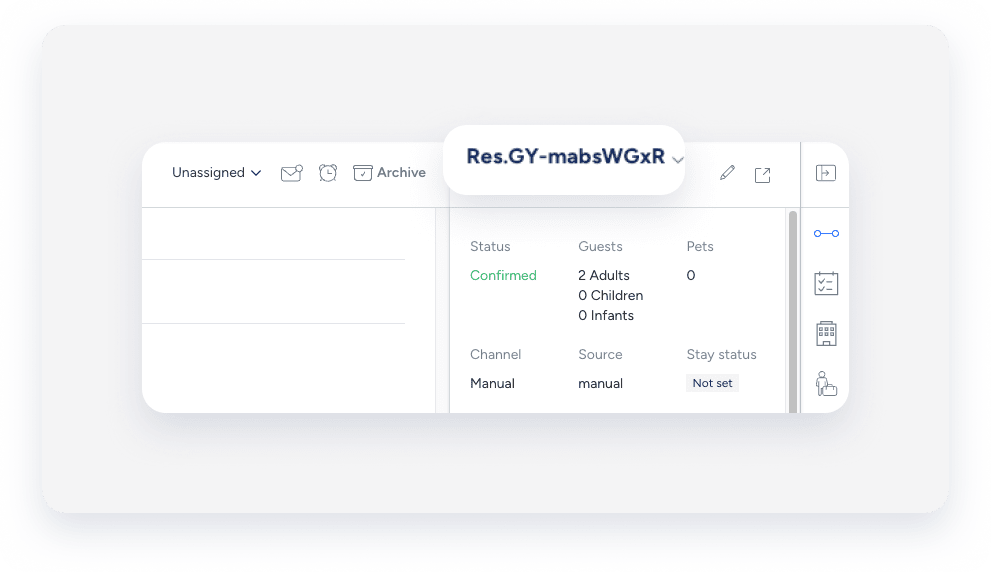
In the Guesty Inbox: The reservation code displays in the Inbox Reservation widget of the relevant conversation thread.
The label you assign to identify a specific message in your message automation workflow. The name is only for user identification and is not visible to guests.
Location
-
In the messaging automation page: In the side navigation menu, click
 Operations and select under Front desk, select Message automation. Click the relevant automation. The automated message name displays in the automations list.
-
In the Guesty Inbox: (for scheduled or sent messages): Select the relevant conversation thread. In the right side panel, click Automated messages. The automated message name for sent or scheduled messages displays in the History tab.

Tip:
Use a consistent naming convention (e.g., channel + purpose + trigger) so automations are easy to find with partial searches.
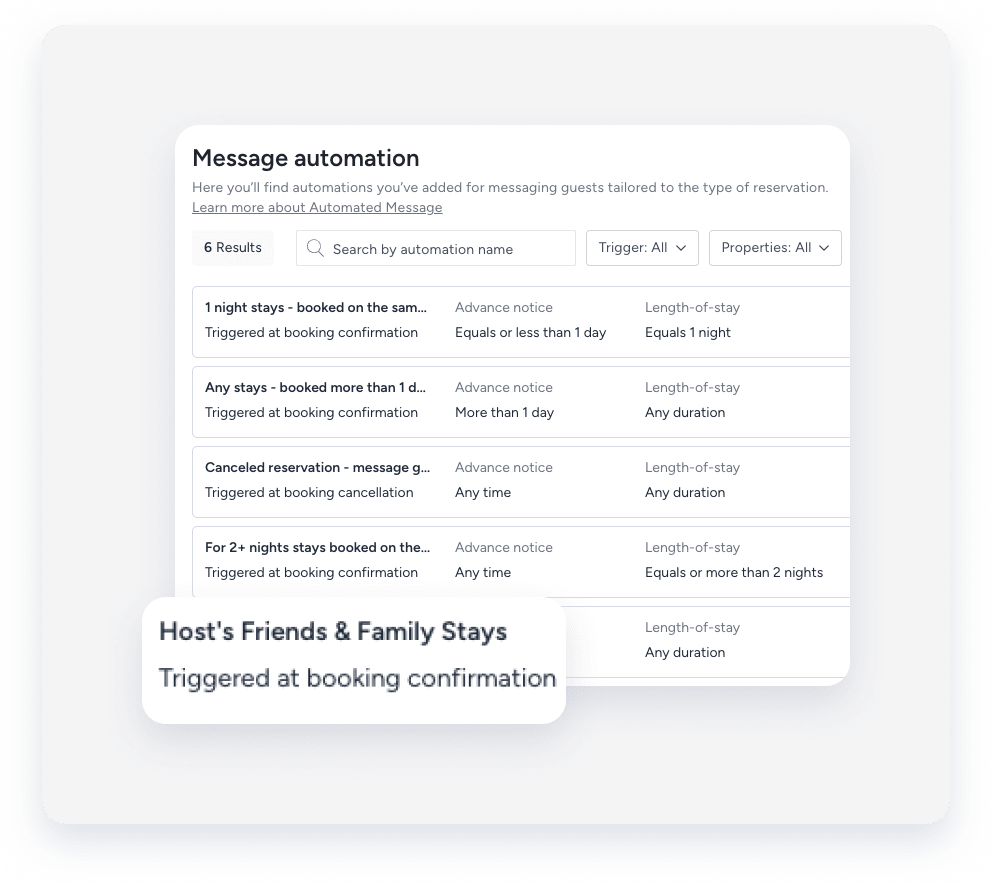
A message automation, sometimes referred to as a workflow, is the visual framework you use to set up automated guest communication based on the reservation lifecycle. The automation name is for internal use only and is not visible to guests.
Location
-
In the messaging automation page: In the side navigation menu, click Operations and select under Front desk, select Message automation. The message automation name displays in the automations list. To search for a specific automation, use the search bar at the top of the page: Type the full or partial name to quickly find it.
-
In the Guesty Inbox: (for scheduled or sent messages): Select the relevant conversation thread. In the right-side panel, click Automated messages. Select the Scheduled or History tab. Under the relevant automation, click See more. The message automation name displays in the pop-up.