This article explains how to set up conditional pricing for your additional fees based on a reservation's length of stay (LOS). Use this feature to automatically apply different fee amounts for short-term versus long-term stays, helping you optimize your pricing strategy for Airbnb, Booking.com, and Vrbo.
You can apply conditions based on both the length of stay and date ranges (seasonality). When both types of conditions are applied to the same fee, Guesty gives higher priority to date range conditions when determining how to charge the fee.
- What it is: An LOS condition automatically adjusts an additional fee based on the number of nights a guest books.
- Example: You can set a $50 service fee for short stays of 1–2 nights to cover quick turnover costs, but lower it to $30 for stays of 3+ nights.
- The benefit: It automates your revenue strategy, allowing you to protect your margins on short-term stays and incentivize longer bookings without manual adjustments.
- Limitations: The LOS pricing engine calculates rates for a maximum of 30 nights.
Understanding channel limitations and syncing
How length of stay (LOS) conditions apply and sync depends on the technical capabilities and constraints of each booking channel.
Airbnb
Airbnb supports LOS conditions up to a maximum of 30 nights due to a system constraint on Airbnb. Guesty prevents setting conditions beyond 30 nights for Airbnb. For searches and reservations over 30 nights, Airbnb uses the default fee pricing, and no LOS conditions apply.
Additionally, Airbnb doesn't support complex fee conditions. To sync your fee, Guesty automatically bundles it into the accommodation fare, hiding it from guests during booking. The bundled fee automatically deducts in the guest folio for internal visibility.
Booking.com
Guesty allows you to set LOS conditions beyond 30 nights for Booking.com without limitation. However, Booking.com has its own channel limits and doesn't allow guest searches for stays exceeding 90 nights. Guesty syncs your configured fees, but conditions don't apply to searches exceeding Booking.com's search limit.
Like Airbnb, Booking.com doesn't support complex fee conditions. Guesty automatically bundles the fee into the accommodation fare, hiding it from guests during booking. The bundled fee automatically deducts in the guest folio for internal visibility.
Vrbo
Vrbo supports conditional fees directly through its API. The fee is sent along with its conditions. You have the option to manually bundle the fee into the accommodation fare. Vrbo will calculate the fee amount on its end.
Set LOS conditions for one channel
Follow the steps below to set conditions for Airbnb, Booking.com, or Vrbo.
Step by step:
- Create a new fee or edit an existing one. For a full guide on creating fees on the account or listing level, see Additional fees: Creating and syncing with channels.
- From the "Fee settings" page, click Next in the top-right corner to access the "Sync fee with channels" settings.
- On the relevant channel line, click Set condition.
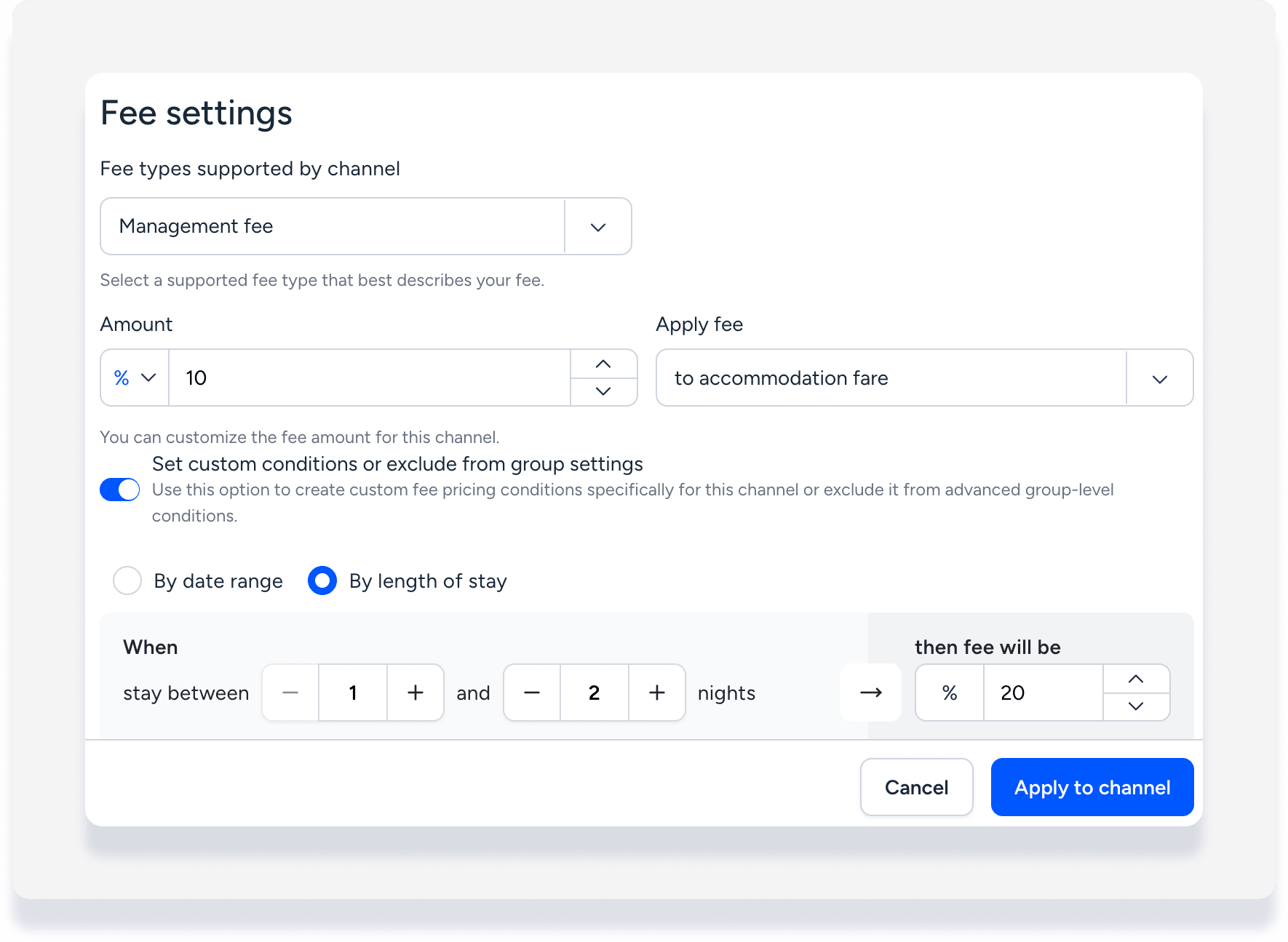
- Toggle on Set custom conditions or exclude from group settings.
- Click Set new channel conditions.
- Click By length of stay.
- Enter the LOS range and the fee amount.
- To add another LOS range for the same fee amount, click Add a date range.
- To set a new amount and LOS range, click New fee condition.
- Review the summary information for accuracy.
- At the bottom, click Apply to channel.
Troubleshoot an inflated rate on Booking.com
If Booking.com shows an inflated nightly rate, like $999,900, after you apply an LOS condition, see our dedicated troubleshooting guide.
