Spotting listings that hold back your revenue isn't always easy. A base price might be well below the market, a minimum-night rule might turn guests away, or a listing might be missing from a channel where similar properties do well. The revenue center finds these gaps across your portfolio and gives you recommendations to review and apply in a few clicks.
The revenue center is a paid feature. Some recommendations also require Guesty PriceOptimizer. These are marked in the recommendation types section below.
Understand the revenue center
The revenue center is an AI-powered workspace. You open it when you need it, and it doesn't run on a schedule or create tasks, so it doesn't appear in the Activity feed.
Each time you open a recommendation page, the revenue center scans your listings using the latest data. Nothing changes on your listings until you apply a recommendation and confirm it.
Access the revenue center
Follow the steps below to access the revenue center.
Step by step:
- Sign in to your Guesty account.
- In the side navigation menu, click
 Agents hub.
 - In the left-side menu, click Workspaces, and select Revenue center.
Apply recommendations
The revenue center is a decision-support tool providing insights, but it doesn't automatically apply changes to your properties. Manually implement any recommended pricing changes or adjustments.
In the revenue center, click the tile of the recommendation type you want to review.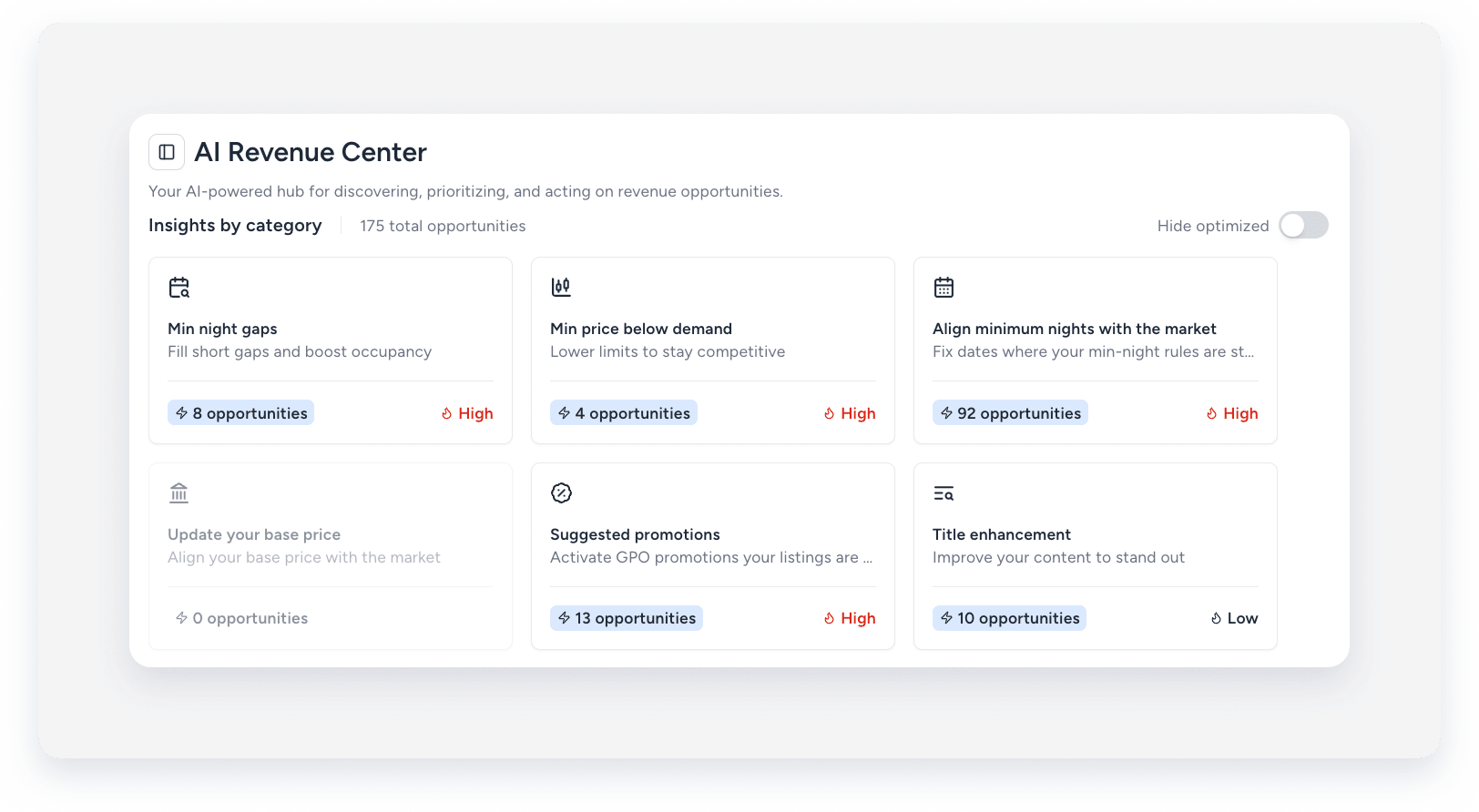
You can act on one property, several, or every property on the page:
- For recommendations with an editable value, click
 to change the suggested value if needed.
 - Click
 to review more details when relevant.
 - Click Apply in a listing's row. To apply in bulk, click Apply all in the top-right corner, or check the boxes next to the relevant rows and click Apply selection in the bottom-right corner.
- Click
 to remove the recommendation for one listing from the table. You can dismiss any recommendation, including ones you can't apply directly. To dismiss in bulk, check the boxes next to the relevant rows and click Dismiss selection in the bottom-right corner.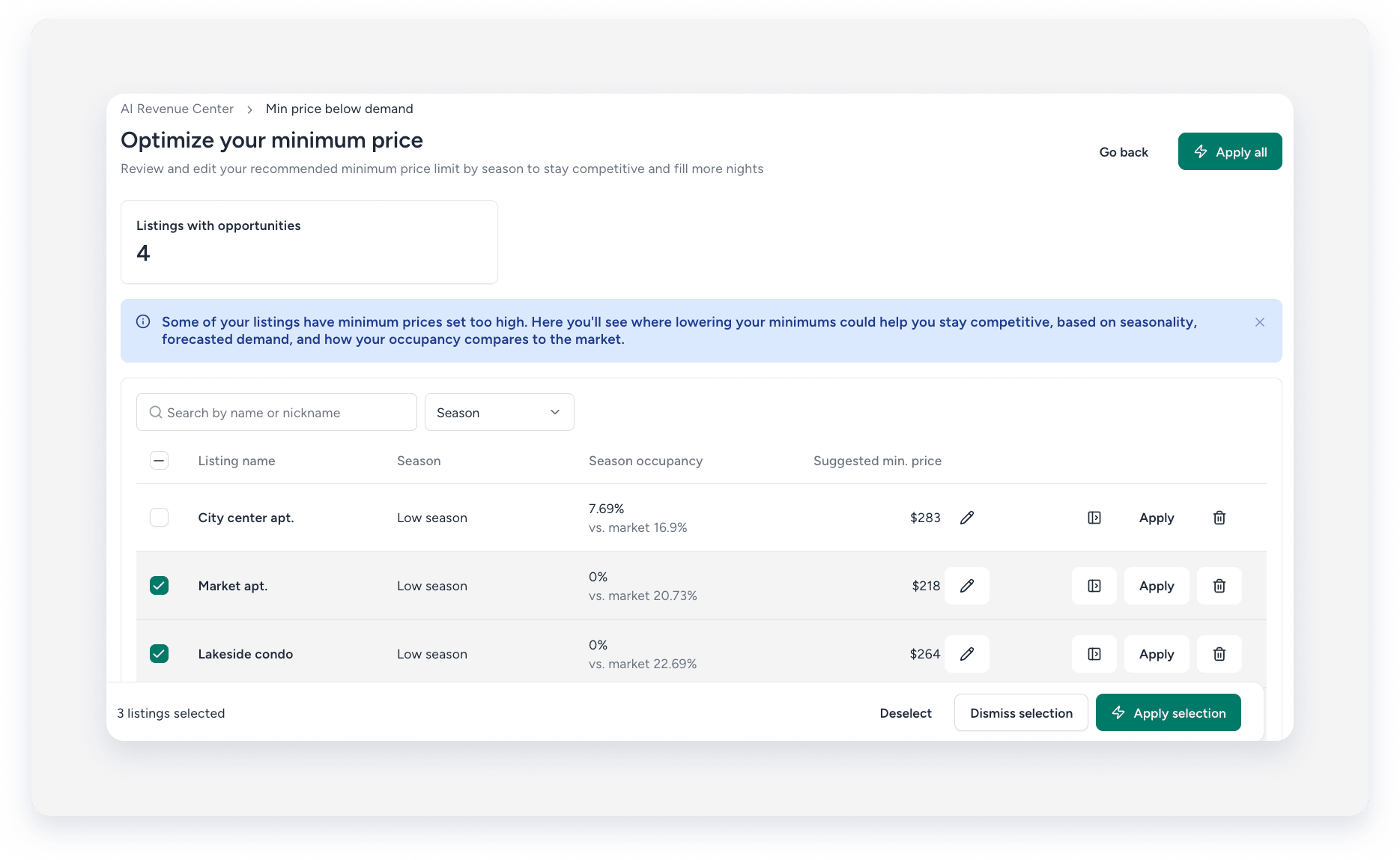
Every action asks you to confirm before it goes through, keeping your listings safe from accidental changes.
Recommendation types
Review the available recommendation types below.
Pricing and availability
Finds listings whose base price is well above or below similar listings in the same market. It suggests a base price for each listing and shows it next to market averages.
You can edit the suggested price before you apply it, and it replaces your current base price. Listings with the biggest price gap appear first.
Finds listings with a minimum night setting that's too high for their market, which can cost you bookings. It suggests a lower minimum for specific date ranges.
You can edit the value before you apply it, and the change affects only the flagged dates. Listings with the highest estimated revenue impact appear first.
Finds periods where a listing's minimum price is too high for market occupancy, causing missed bookings when demand is low. It suggests a lower minimum price, which you can edit before applying it.
Finds PriceOptimizer listings with data-driven promotion recommendations that haven't been activated yet, and shows the pending promotion details. When you apply, the promotion is activated exactly as recommended.
To manage promotion settings yourself, use the link to the listing's promotions page in PriceOptimizer.
Listing content
Scores your listing titles on length, keywords, uniqueness, and how they compare to the market. For low-scoring titles, it suggests a better one that highlights the listing's most important features, such as its key amenities, to help convert more guests.
You can edit the suggested title before you apply it. The new title is updated on the listing and sent to your connected channels. Listings with the lowest title scores appear first.
Ranks every photo in a listing's photo library by how well it's likely to perform as the cover photo. If the top-ranked photo isn't your current cover photo, the listing shows up with both photos side by side. When you apply, the recommended photo becomes the cover photo.
To use a different photo, change it in the listing's settings. Listings with the biggest performance gap between the two photos appear first.
Scans your listing photos for amenities that appear in the images but aren't in the listing's amenity settings. When you apply, all the detected amenities are added to the listing together.
If any are wrong, remove them from the listing's amenities afterward.
Note:
AI detects these amenities from photos. Make sure each one really exists before you apply.
Scans your listing photos for spaces, like a balcony, pool, or garden, that appear in the images but aren't in the listing's space settings.
When you apply, all the detected spaces are added to the listing together. You can adjust them in the listing's settings afterward.
Distribution and booking policies
Compares how your listings are distributed with high-performing listings in the same market. It then suggests channels where each listing is likely to do well. Each channel has its own recommendation page, which shows only the listings relevant to that channel.
Supported channels:
- Airbnb
- Vrbo
- Booking.com
- Expedia
- Tripadvisor
Read why each listing was recommended, then connect it to the channel or use the link to open the channel's settings.
Checks listings connected to Booking.com, Expedia, and direct booking for dates with no active rate plan. Guests can't book those dates on that channel. Each row shows a listing and channel, the number of unbookable dates, and which dates are affected. Listings with the most unbookable dates appear first.
You can't apply this recommendation in the revenue center. Instead, use the link in the row to open the rate plan settings and create or extend a rate plan that covers those dates. Once the gap is closed, the recommendation goes away on the next scan.
Compares each Airbnb listing's default cancellation policy with booking data from similar listings in the same market. If a different policy is likely to get more bookings, it shows your current policy next to the recommended one.
When you apply, the recommended policy is set exactly as shown. To choose a different policy, change it in the listing's Airbnb channel settings.
