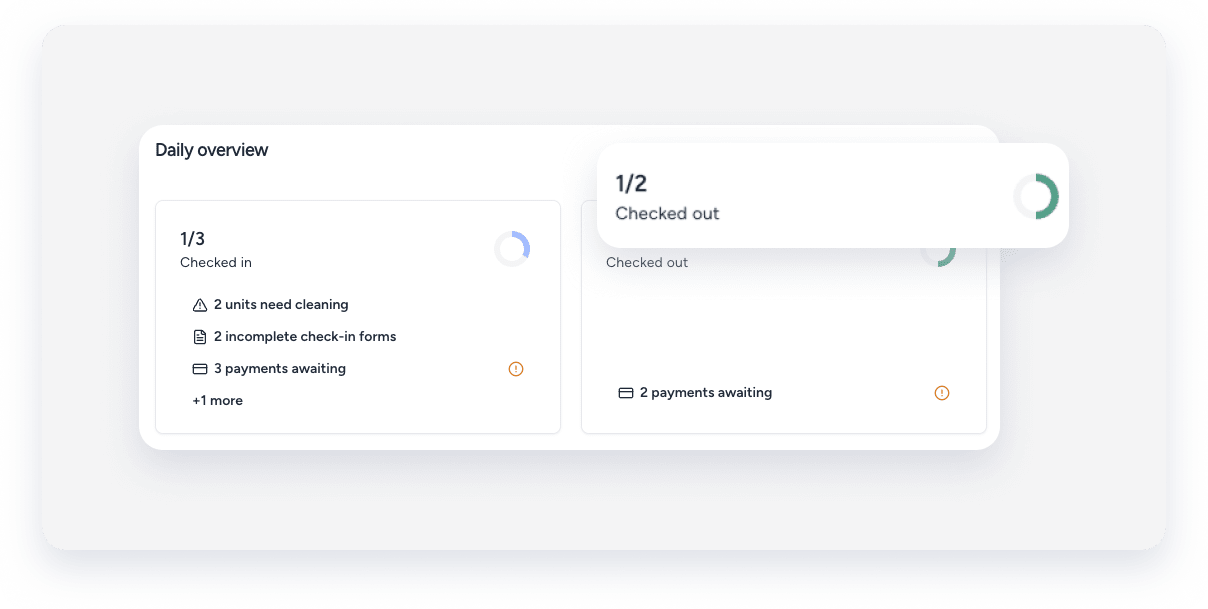
The Guesty homepage is an overview hub that provides an interactive summary of your daily activities, performance trends, and revenue. From the homepage, you can access detailed reservation information through three main widgets: Daily overview, Trends overview, and Revenue.
This article explains how to use each section to monitor your operations.
The daily overview
The daily overview displays your key operational activities for a selected timeframe. It includes four interactive cards:
- Check-ins
- Check-outs
- Turnovers
- Staying
Each card displays a total count and clickable rows with a breakdown by status.
Viewing daily activities
Follow the steps below to access your account's daily activities.
Step by step:
- Sign in to your Guesty account. The homepage is your account's landing page by default.
- In the "Daily overview" section, select a timeframe: Today, Tomorrow, or 7 days.
- You have the following options:
- Click an activity card (e.g., Check-ins) to open the reservation side panel to view a list of all relevant reservations.
- Click a specific status row on an activity card (for example, "9 payments awaiting") to open the reservation side panel to view all relevant reservations filtered to the selected status.
Note:
Activity cards with a count of zero aren't clickable and won't open the reservation side panel.
The trends overview
The trends overview displays a bar chart of your daily check-ins, check-outs, and turnovers, with your occupancy percentage displayed on hover. This helps you visualize performance trends over a 7-day or 30-day period.
Viewing trend details
Follow the instructions below to view trends for your account over a seven-day or thirty-day period.
Step by step:
- In the trends overview section, select a timeframe: 7 days or 30 days.
- Hover over the bar chart to view the relevant data according to date.
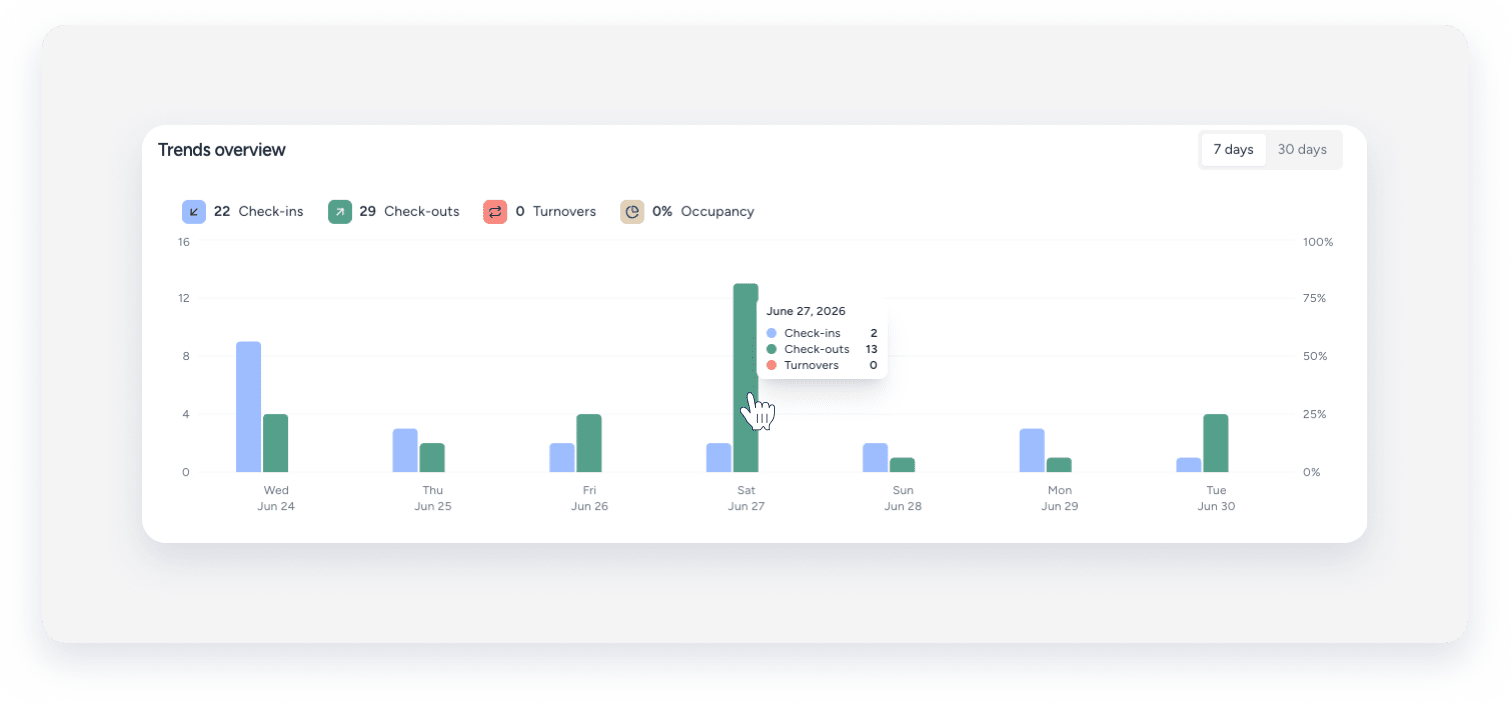
- Click any bar on the chart. The reservation side panel displays the relevant reservations for the selected day and activity.
The revenue overview
The revenue section displays a monthly line chart of your Total Revenue and Average Daily Rate (ADR). You can navigate between months and compare the data to previous periods.
Note:
The revenue section is only visible to users with the "readReservationFinancials" permission. Learn more about user roles and permissions.
Analyzing revenue data
Follow the steps below to view your revenue and average daily rate data month-on-month.
Step by step:
- In the revenue section, use the month navigation arrows to select a month.
- Click the Compare to dropdown menu and select the relevant option:
- None
- Previous month
- Same month last year
- Select the relevant option to view the data: Revenue, or Average daily rate.
The reservation side panel
The reservation side panel opens when you click on an element in any of the homepage sections. It provides a detailed, sortable list of reservations and allows you to search, filter, and update stay statuses directly.
The reservation side panel has four tabs, each with a badge showing a live count of reservations:
- Check-ins
- Check-outs
- Turnovers
- Staying
Viewing reservations in the reservation side panel
- When the reservation side panel is open, select one of the four tabs to view the relevant reservations: Check-ins, Check-outs, Turnovers, or Staying.
- Use the search bar to find a reservation by property nickname.
- Select a timeframe: Today, Tomorrow, or 7 days options.
-
Click Filters to apply additional filters to the reservation list: Late check-out, and Awaiting payment. Click Clear to remove filters.
Learn more about filtering reservations.
- Click a reservation to view it in the Reservation page.
Update a guest's stay status
You can change a guest's stay status directly from the reservation side panel. Learn more about the different ways of updating a guest's stay status.
Follow the steps below to update a guest's stay status from the reservation side panel.
Step by step:
- In the reservation side panel, locate the relevant reservation.
- Click the stay status dropdown menu for that reservation.
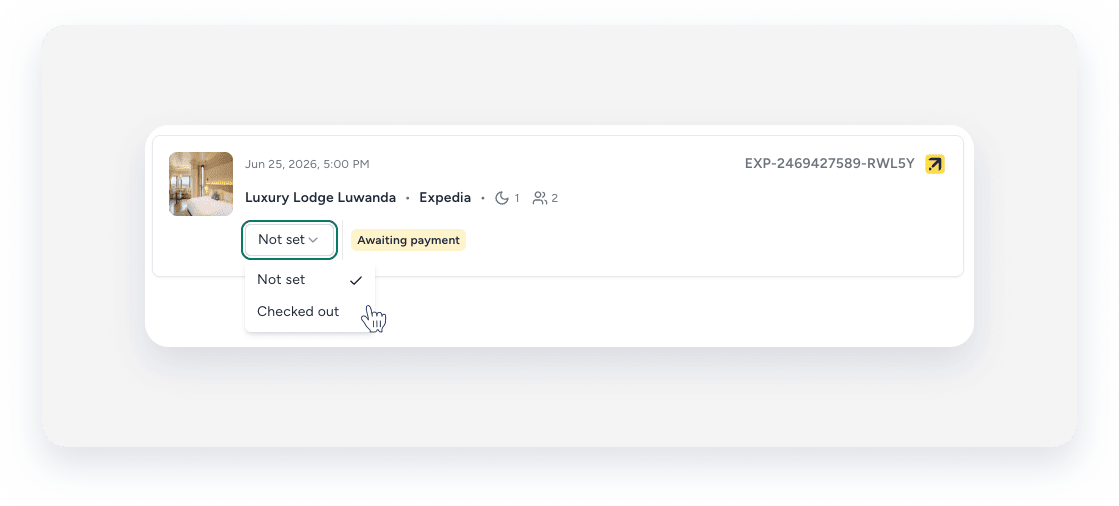
- Select the new status:
- Checked in
- No-show
- Not set
- Checked out
When a guest's stay status changes, a notification will appear if the reservation side panel is closed. If the reservation side panel is open, the count badges and donut charts on the tabs update without notification. The order of reservations in the reservation side panel doesn't change when a status is updated.