When creating additional fees, set pricing for a specific date range, with the option to recur on a yearly basis. For example, charge a higher rate for activities during the summer months.
Fee conditions work for direct bookings made through the Guesty Booking Engine, Booking Engine API, or added manually. Conditions are in pilot for Airbnb, Vrbo, and Booking.com.
Note:
You can add date ranges and change the fee amount when editing seasonal conditions. However, you can't change the fee type from a flat dollar amount ($) to a percentage (%) or vice versa.
Access syncing fee settings
Add or edit a fee on the account or listing level. For multi-unit listings, additional fees don't automatically sync from parent to sub-unit and require setup on both.
Step by step:
- Sign in to your Guesty account.
- In the side navigation menu, click
 Financials to open the dropdown menu.
 - Under Items, select Additional fees.
- Click Add fee, or on an existing fee line click
 and select Edit.
 - Enter or review the fee settings.
- At the top-right corner, click Next.
Step by step:
- Sign in to your Guesty account.
- In the side navigation menu, click
 Properties.
 - Click the relevant listing. If the listing is a multi-unit, set up the fee on the parent and the sub-unit.
- In the left-side menu, click Pricing & policies and select Additional fees.
- Toggle on Custom listing fees.
- Click Add custom listing fee, or on an existing fee line click and select Edit.
- Enter or review the fee settings.
- At the top-right corner, click Next.
Set conditions for all supported channels
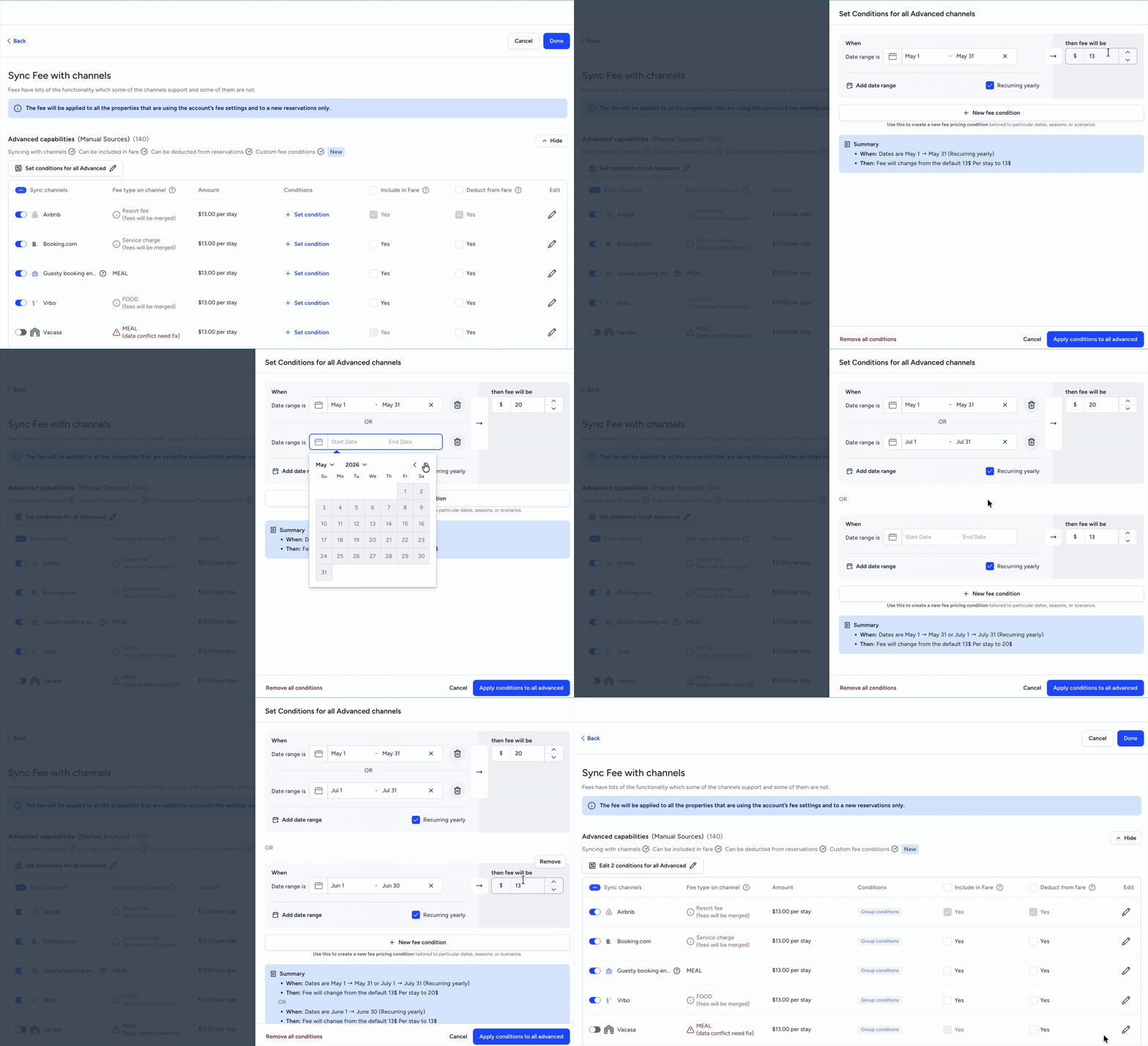
Follow the steps below to set conditions for all supported channels with advanced capabilities. Once set, edit on a channel basis to set custom conditions or exclude from the group conditions.
Step by step:
- Click Set conditions for all advanced
 .
.
- Enter a date range.
- Enter the fee amount to apply for this date range.
- To add more dates for the same fee amount, click Add a date range.
- To set a new amount and date range, click New fee condition.
- (Optional) Check the Recurring yearly for each condition.
- Review the summary information for accuracy.
- At the bottom, click Apply conditions to all advanced.
Step by step:
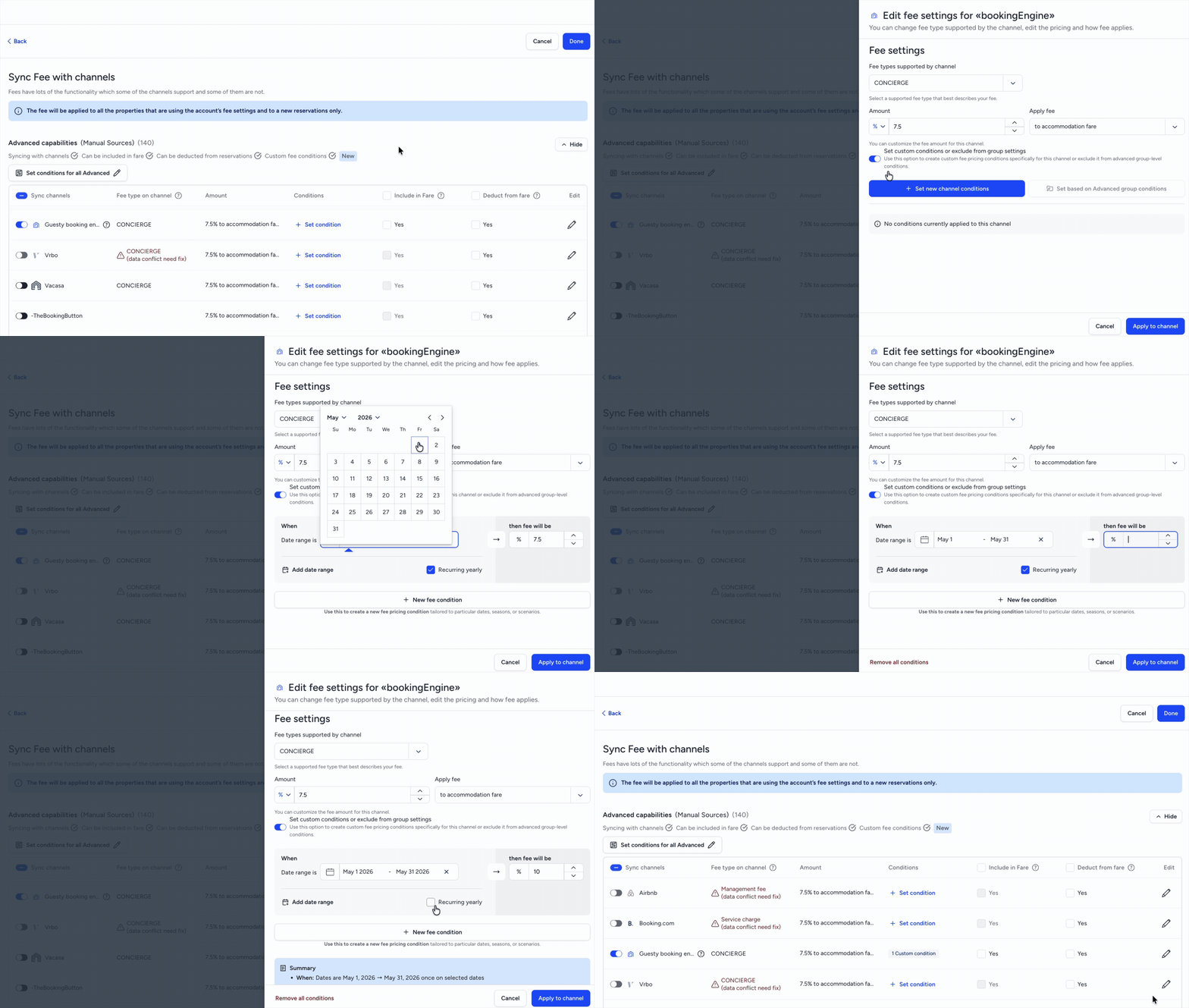
- To the far right of the relevant channel, click .
- Toggle on Set custom conditions or exclude from group settings.
- Click Set new channel conditions.
- Enter the custom date rates and amounts.
- At the bottom, click Apply to channel.
Step by step:
- To the far right of the relevant channel, click .
- Toggle on Set custom conditions or exclude from group settings.
- At the bottom, click Apply to channel.
Set conditions for one channel
Follow the steps below to set conditions for a single channel.
Step by step:
- On the relevant channel line, click Add conditions.
- Toggle on Set custom conditions or exclude from group settings.
- Click Set new channel conditions.
- Enter a date range.
- Enter the fee amount to apply for this date range.
- To add more dates for the same fee amount, click Add a date range.
- To set a new amount and date range, click New fee condition.
- (Optional) Check the Recurring yearly box for each condition.
- Review the summary information for accuracy.
- At the bottom, click Apply to channel.
In pilot: Using conditions for Airbnb, Vrbo, and Booking.com
Airbnb, Vrbo, and Booking.com appear under "advanced capabilities". Group conditions apply or require setup on a channel basis following the same steps above.
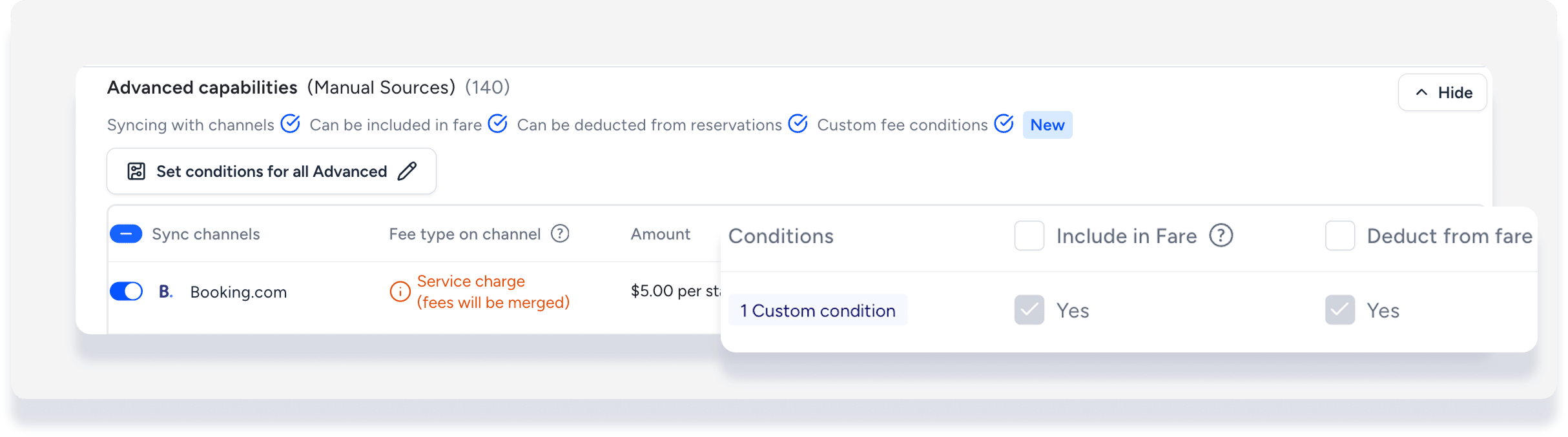
Booking.com limitation
When conditions are set for Booking.com, the fee automatically bundles into the accommodation fare and hides from guests when making a reservation. The bundled fee also automatically deducts in the guest folio for visibility.
Important:
This setting can't be changed. If you don't want to bundle the fee into the accommodation fare, remove the conditions for Booking.com.
