Set up and manage taxes with channel-specific configuration. This allows you to define unique tax rules for each channel, ensuring accuracy and compliance without affecting the tax behavior on other channels.
Important:
Taxes aren't applied retroactively. They only apply to new reservations after the tax is created or edited.
Understanding the tax model
Every tax you create has a core "master tax" configuration that acts as the default for all channels. You can then create a "channel instance" by editing the tax settings for a specific channel. This instance is a unique version of the tax that applies only to that channel.
- Changes to a channel instance do not affect the master tax or any other channel.
- If you edit a "locked" field on the master tax, the change is applied to all channels, including those with custom overrides.
- Deleting a master tax removes it and all its channel instances from every channel.
To maintain financial consistency, some tax fields are locked at the master tax level, while others can be customized for each channel.
These fields can only be edited at the master tax level. Changes to these fields will apply to all connected channels.
- Tax Type & Calculation Method (e.g., "Fixed" or "Percentage")
- Amount (e.g., 10%)
- Multiplier (e.g., "Per Night", "Per Stay")
- Taxable Items (e.g., "Accommodation Fare", "Cleaning Fee")
- Conditions (e.g., length of stay, specific date ranges)
- Activation Toggle: Turn a tax on or off for one channel without affecting others.
- Tax Name: Customize how the tax name appears on invoices for a specific channel.
- Added or Included: Choose whether the tax is included in the rate or added on top. Learn more.
Where to create taxes
Decide where you want to set up your taxes:
- Account Level: Configure here if the tax applies to all or most of your listings.
- Listing Level: Configure here for taxes that apply to specific listings.
Review how taxes sync (or don't) with each channel and their specific limitations. Not all tax types are supported by every channel, and the tax name may change when it syncs.
Channel notes and limitations
Vrbo
If you include any fees in your tax calculation, the tax and the included fee need to have the same multiplier (per night, per stay, etc) in order for the tax to calculate accurately.
Airbnb
On the account level, only taxes configured as included in the price sync with Airbnb. Both inclusive and exclusive taxes can be set on the listing level.
When you create a tax, we dynamically show syncing details provided by Airbnb in two parts of the process.
1: How taxes are collected based on listing location
Airbnb collects taxes for the specific listing location in one of the following ways. This information is provided automatically by Airbnb. If you don't think the status is correct, contact Airbnb for more details.
- Ineligible: You can't sync taxes from Guesty to Airbnb on this listing.
- No Airbnb collected tax: Airbnb does not collect taxes for reservations on this listing. You can set up the tax in Guesty and sync it to Airbnb. You're responsible for collecting and remitting this tax—not Airbnb.
- Override: Airbnb collects and remits some taxes for reservations on this listing. If you create a tax in Guesty and sync it with Airbnb, it replaces the tax that Airbnb collects. You're responsible for collecting and remitting this tax—not Airbnb.
- Stacked: Airbnb collects and remits some taxes for reservations on this listing. If you create a tax in Guesty and sync it with Airbnb, it's in addition to the taxes Airbnb collects. You're responsible for collecting and remitting this additional tax—not Airbnb.
Note the information provided for the next step.
2: If a tax type syncs or not
If syncing is possible for the specific tax type, choose to sync or not with Airbnb. For example, if the Airbnb tax collection type for the listing is "Override," you may want to sync it, but if it's "Stacked," you may choose not to sync.
Create a new master tax
Follow these steps to add a new fee on the account or listing level. Create the settings and configure for channels as detailed below.
Step by step:
- Sign in to your Guesty account.
- In the side navigation menu, click
 Financials to open the dropdown menu.
 - Under Items, select Tax configurations.
- To the right, click Add tax.
- Define the master tax configuration settings, then click Next.
- If you don't want to configure specific channels, click Finish at the bottom then Save configuration at the top-right corner.
Step by step:
- Sign in to your Guesty account.
- In the side navigation menu, click
 Properties.
 - Click the relevant listing. If the listing is a multi-unit, the fee must be set up on the parent and the sub-unit level.
- In the left-side menu, click Pricing & policies and select Tax configuration.
- In the top-left corner, toggle on Customize listing taxes.
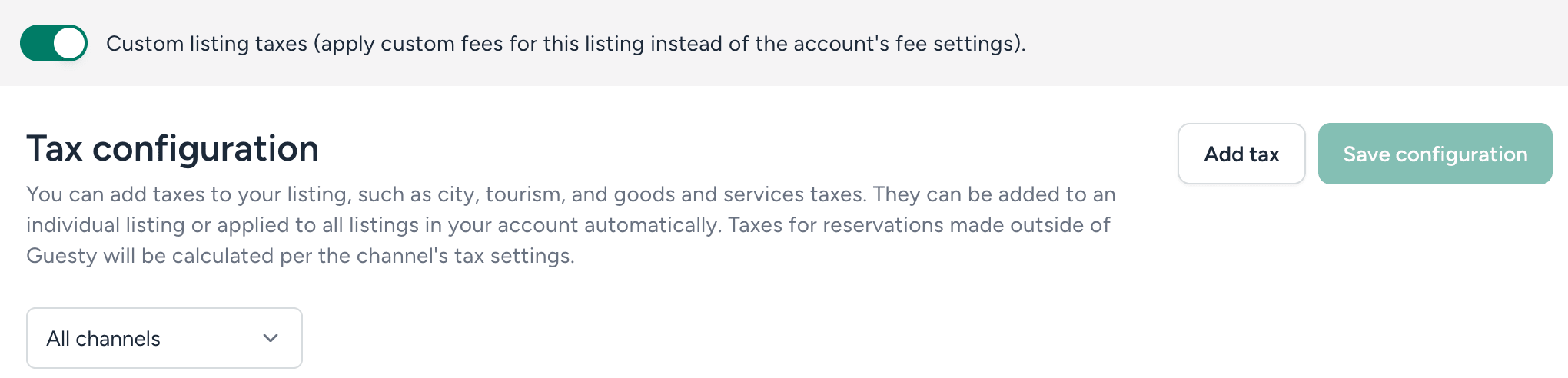
- To the right, click Add tax.
- Define the master tax configuration settings, then click Next.
- If you don't want to configure specific channels, click Finish at the bottom, then Save configuration at the top-right corner.
Tax settings
- Tax type: Select from the dropdown. See which taxes sync with each booking channel to help you choose an appropriate tax. You can use tax types multiple times; this applies to inclusive taxes (Pilot) that are included in the price, as well the standard exclusive tax that is added on top. Avoid using the "Other" tax type because it doesn't sync to any booking channels.
- Tax Name: Identifies the tax in Guesty. This appears as a line item in the guest folio and guest invoice.
- Added or Included: Specify if the tax is included in the price or added on top. Learn more.
- Calculation Method: Choose "Fixed Amount" or "Percentage".
- Amount: Enter the numeric value.
- Multiplier: Select the application logic (e.g., "Per Guest", "Per Night", "Per Stay", "Per Guest per Night").
- Invoice Item to tax: Select the items the tax applies to (e.g., "Accommodation Fare", "Cleaning Fee").
Tax conditions apply to direct reservations. Some conditions apply to Vrbo. Most of the conditions are only available for fixed amount taxes.
A maximum of 15 tax rules is allowed. Each tax is one rule, and each condition is three rules. For example, a city tax of $5 per stay (one rule) for less than 30 days (three rules) totals four rules.
- By night: Tax differently based on the order of nights in the reservation. For example, for nights one through four the tax is $8, and $4 for nights five until the end of the reservation.
- Date range: Tax differently based on the time of year. For example, between May and October the tax is $10, and between November and April the tax is $5.
- Night and date: Combine the previous conditions to tax differently based on the order of nights during a specific time of year. For example, between May and October only, for nights one through four the tax is $10, and $5 for nights five until the end of the reservation.
- Length of stay (LOS): Reservations longer than a certain number of nights don't pay taxes.
If the condition you set up doesn't cover the entire reservation, the part that isn't covered gets the basic tax. So if you set a "By Night" condition for nights 1–4, nights 5–8 on an 8-night reservation receive the basic tax amount.
Configure tax settings per channel
A list of your connected channels appears under separate tabs based on sync status. Toggle between the tabs to access and update settings for specific channels.
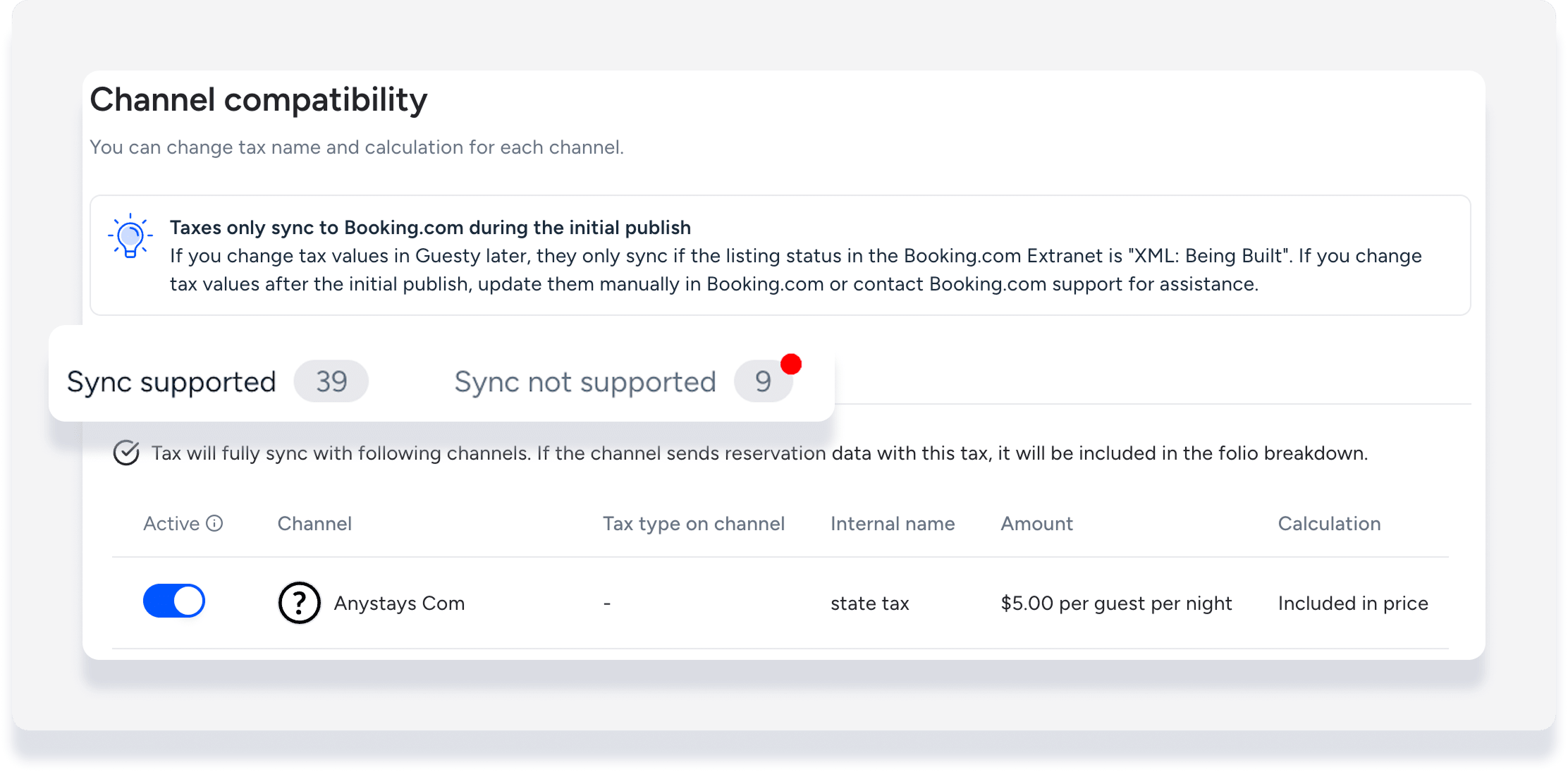
Step by step:
- Toggle off the channel to deactivate.
- Scroll to the right and click
 to open a side panel.
 - Edit the tax name for how it appears on invoices for this channel.
- Change if the tax is included in the price or added on top.
- Click Apply.
- Repeat as needed for additional channels.
- At the bottom, click Finish.
- In the top-right corner, click Save configuration.
Tip:
On the tax configuration page, select a specific channel from the dropdown to view only taxes sycned with that channel.
Understanding channel sync statuses
Sync supported
The tax configuration is fully compatible and will sync to the channel.
Sync partially supported
The tax will sync, but the channel has limitations and may ignore certain parameters. Example messages include:
- Unsupported Conditions: "[Channel Name] does not support the defined tax condition(s). The tax will be synced but the defined condition will not be applied."
- Unsupported Taxable Items: "This channel does not support taxes on all item types. For example, BDC does not support taxes on fees."
Sync not supported
The tax cannot be synced due to a critical incompatibility. You must either change the tax settings or manage the tax manually on the channel's extranet. Example messages include:
- Unsupported Tax Type: "This tax type isn’t supported on [Channel Name], so it won’t sync. If the channel doesn’t share this tax item, Guesty won’t break it down. Click to learn how to resolve this."
- Unsupported Multiplier: "[Channel Name] does not support the defined multiplier. It only supports: [Insert Supported List]. Please adjust the multiplier for this channel for this tax to be synced."
- Channel Does Not Support Tax Sync: "[Channel Name] does not support tax sync. Please configure this tax directly on the channel's extranet. Note: If you keep this configuration active, Guesty will use it to break down the incoming tax amount from reservations. If you remove it, the tax will be displayed as a single lump sum received from the channel."
- Listing Level Only: "[Channel Name] only supports listing-level sync. Please configure this tax directly on the specific Listing's tax settings."
- Initial Sync Only: "[Channel Name] only supports tax sync upon initial connection. Please review tax settings on the [Channel Name] extranet to ensure alignment."
Edit or delete a tax
The editing and deleting behavior depends on whether you are changing a master tax or a channel instance.
- Editing a channel instance: When you edit a tax for a specific channel, the changes only apply to that channel. The master tax and all other channels remain unaffected.
- Editing a master tax: When you edit a "locked" field on a master tax, the update applies to all connected channels. If a channel has an existing override, it will keep its unique customized values (e.g., tax name) but will adopt the new values for the locked fields.
- Deleting a master tax: You can only delete a master tax. This action permanently removes it from all channels, including any with custom overrides.
- Click
 to the right of the relevant tax and select Edit.
 - Edit the details as needed.
- At the bottom, click Finish.
- In the top-right corner, click Save configuration.
Click to the right of the relevant tax and click Delete.
What happens to existing tax settings?
Your existing tax rules are automatically migrated to this format. All existing taxes are mapped to all previously supported channels. If a tax is not supported by a channel it was previously assigned to, it will be flagged with the relevant "Not Supported" status but will remain active. There are no changes to your financial calculations until you manually edit a tax configuration.
