Connecting an existing Airbnb account grants Guesty the permissions to sync reservations, manage messaging, and update your calendar. Establishing this connection consolidates your channel management efforts and reduces the need to switch between platforms.
Before you begin
Verify that your Airbnb account meets the following requirements to ensure a successful authorization:
- Identity verification: You must fully verify your identity on Airbnb.
- Profile requirements:Navigate to "Personal info" and "Edit profile" in Airbnb to ensure you have added a profile picture, a verified email address, a verified phone number, and a government-issued ID.
- Disconnect previous software: If you currently manage your Airbnb listings using another property management system (PMS), disconnect it before connecting to Guesty.
Limitations
Account limits: You can connect multiple Airbnb accounts to Guesty, but each Airbnb account can only be connected to one Guesty account.
Connect your Airbnb account to Guesty
Follow the steps below to connect your account.
Note:
Log into the correct account: Before starting the connection process, ensure you are logged into the Airbnb account you want to connect.
Use two tabs and keep them open: Keep both Guesty and Airbnb open in your browser throughout the process.
Avoid quota blocks: Do not repeat actions, such as clicking "send email", multiple times in quick succession. This may cause a quota limit block for 24 hours.
Step by step:
-
Open a new tab and sign in to the Airbnb account you want to connect.
Important:
Do not use your social login.
- In a separate tab, log in to your Guesty account.
- In the side navigation menu, click
 Marketing and sales to open the dropdown menu.
 - Under Channel management, select Distribution.
- Click the Airbnb thumbnail.
- In the top-right corner, click Add account.
- In the pop-up, click Connect your account and click Choose.
- Locate the "Connect an existing account" tile and click Start.

-
Connect to Airbnb: Ensure you are logged into the relevant Airbnb account in a different tab. Click Connect account.
You will be redirected to Airbnb to grant Guesty management permissions. Accept the requested permissions to proceed.
- Return to Guesty to set up your account.
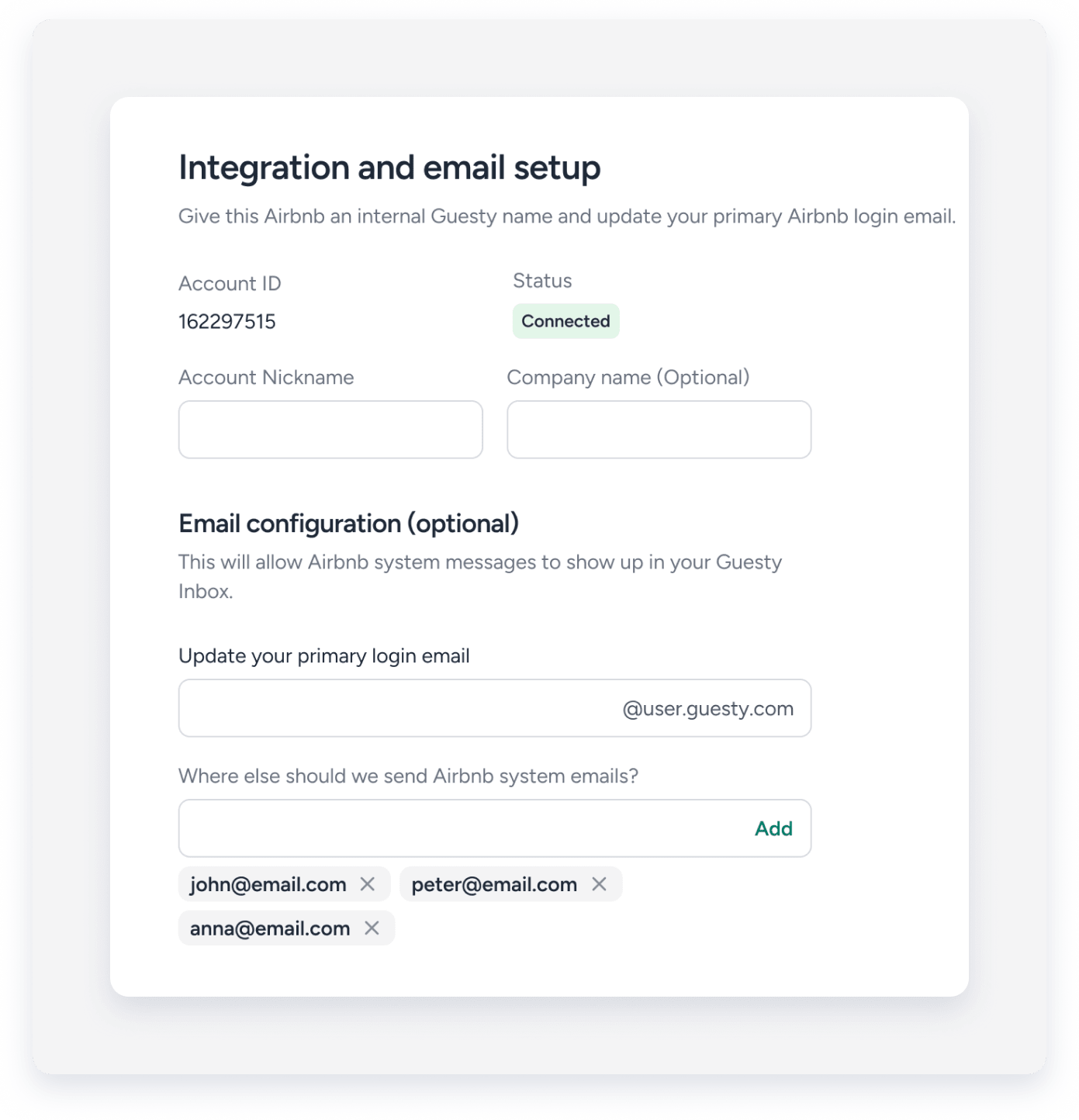
- Under "Integration and email setup":
- Enter your account nickname
- Optional: Enter you company name
- Optional: Under "Email configuration":
-
Update your primary login email: Enter your login email address.
Guesty generates a custom integration email ending in
@user.guesty.com. Customize the prefix of this email and ensure it is updated as your primary email in Airbnb, as this allows Airbnb system messages to appear in your Guesty Inbox.Note:
Ensure this email is updated as your primary email in Airbnb so that system messages appear in your Guesty Inbox.
-
"Where else should we send Airbnb system emails?:" Click Add to select additional forwarding email addresses if necessary.
Click X to remove additional emails.
-
- Under "Integration and email setup":
- Click Complete setup.
Once Airbnb approves the connection, the account status changes to "Connected". Your existing Airbnb listings are automatically added to Guesty with a "Not connected" status.
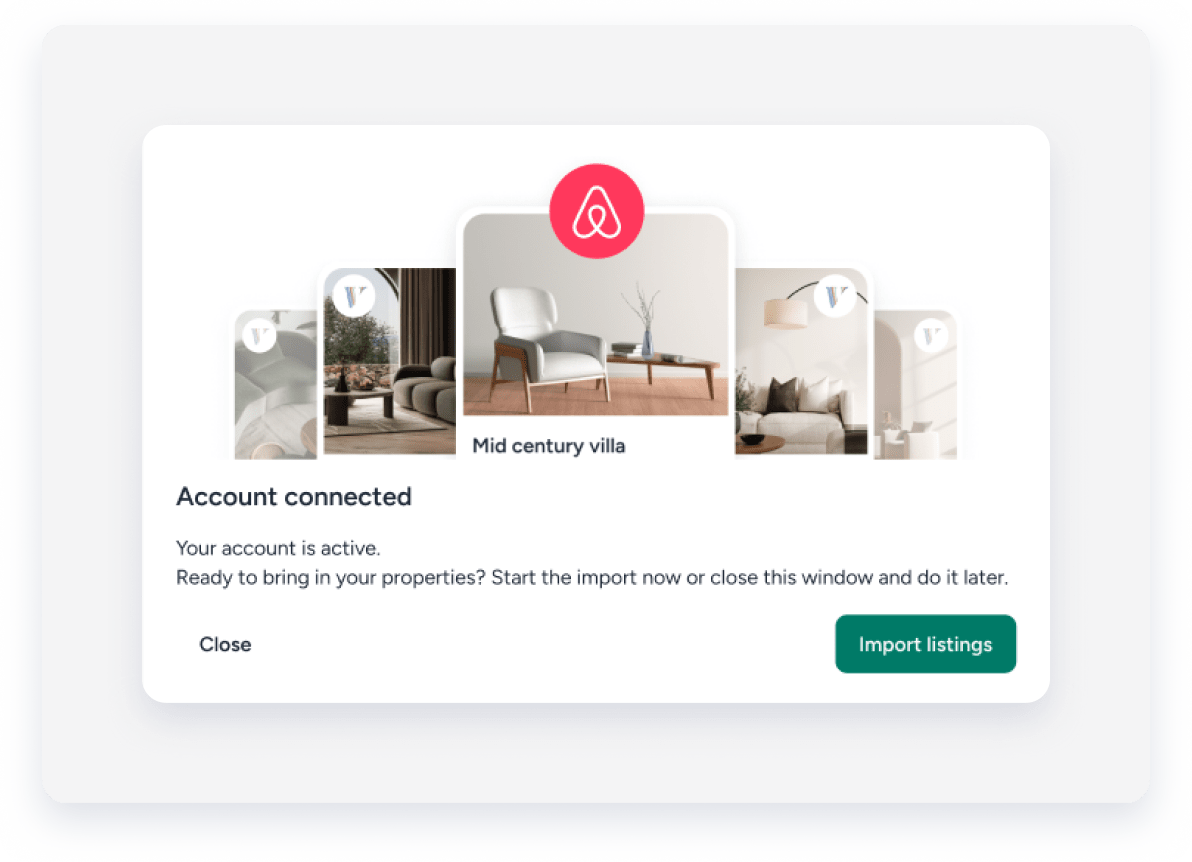
Click Import listings to start importing your existing Airbnb listing to Guesty. Alternatively, or perform this action later from the Airbnb integration page in Guesty. This will enable you to manage listing pricing, availability, and content directly from Guesty.
