When connecting your Guesty's listings to Google Vacation Rentals (Google VR), the listing status can be one of the following:
To view the listing's status, access the Google VR integration page in Guesty. Hover over the listing's status to display additional information.
Live on channel
If the listing status displays "Live on channel", it indicates that the request is approved by Google VR and the listing is ready to be published. "Live on channel" doesn't mean the listing is published on Google VR.
Allow up to three weeks after publishing your listings for them to become live on Google. After three weeks, follow the instructions below to search for your listings on Google.
Step by step:
- Open Google Travel.
- Click Vacation rentals.
- Use the search bar to find the city/neighborhood/area in which your listing is located.
- Use the map to zoom in on the property’s location.
- If you are not able to find the listing, contact us.
Pending
A "Pending" listing status indicates that we sent your request to Google VR for approval. The approval process usually takes up to three weeks. However, if your listing accommodates 10 or more guests, the approval process can take up to six weeks.
To see when connection is expected, hover over the listing status on the Google VR integration page in Guesty .
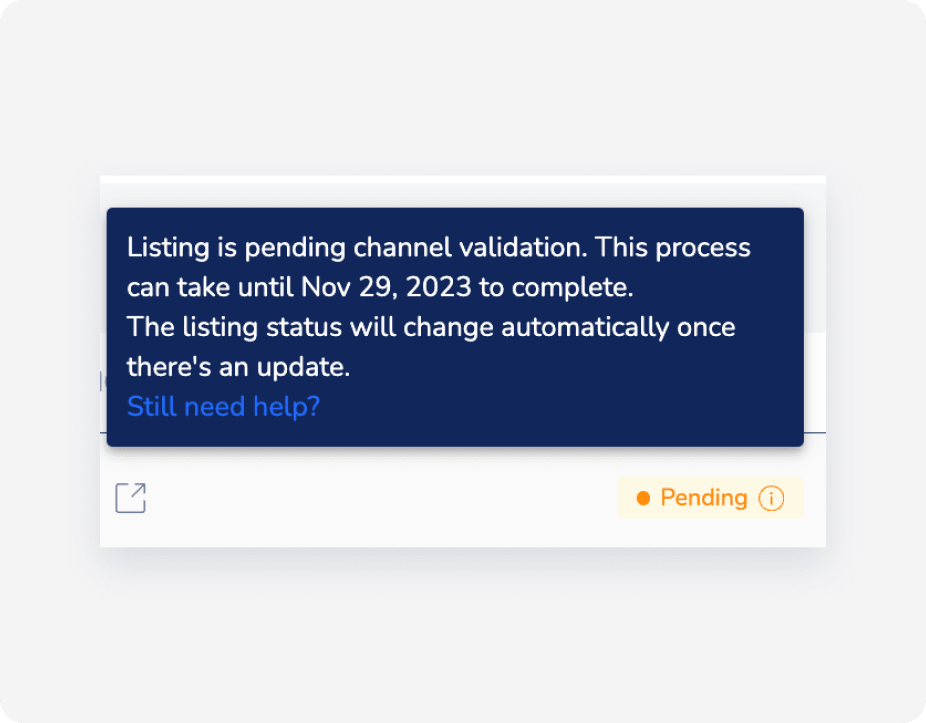
Follow these troubleshooting steps if your listings are stuck in pending:
- If your listing can accommodate 10 or more guests, it needs to be listed by Google manually. This process can take up to six weeks.
- Check that your images are compatible with Google's requirements.
-
Check the resolution of your images:
Step by step:
- Sign in to your Guesty account.
- In the side navigation menu, click
 Properties.
 - Select the relevant property.
- In the left-side menu, click Marketing, and select Photos.
- Right-click the photo and select Inspect to open up the Dev Tools console.
-
The photo resolution is displayed above the relevant image.

- Click X to close the Dev Tools console.
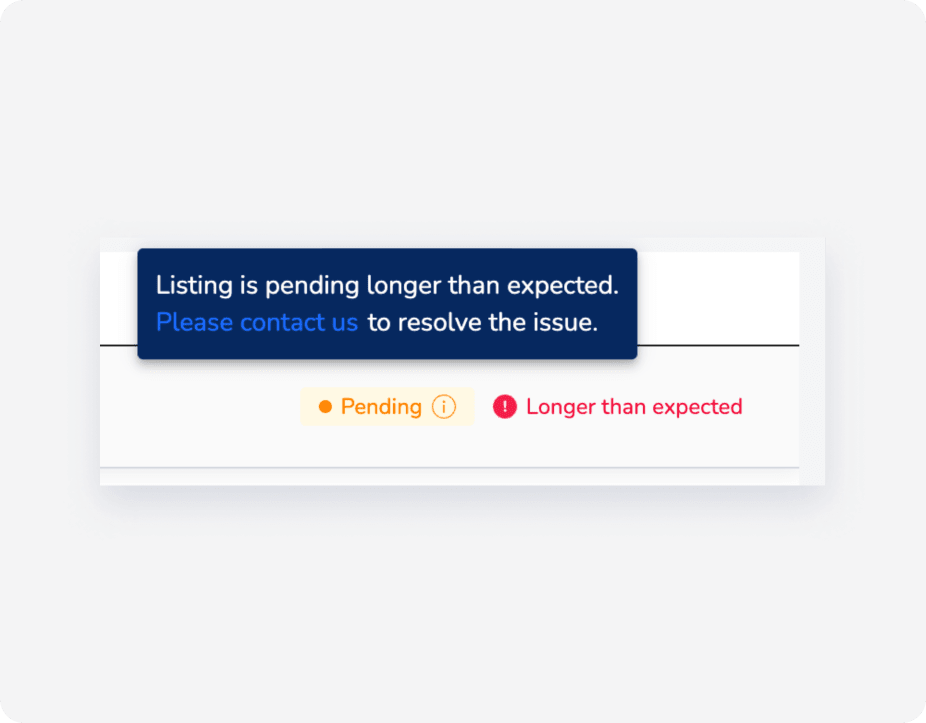
- If the listing's status is "Pending" after more than 20 days and the issue is not resolved, contact us.
Failed
If the listing status displays "Failed", it indicates that your request wasn't approved by Google VR. Click Learn more next to the "Failed" status to see how to resolve the issue.
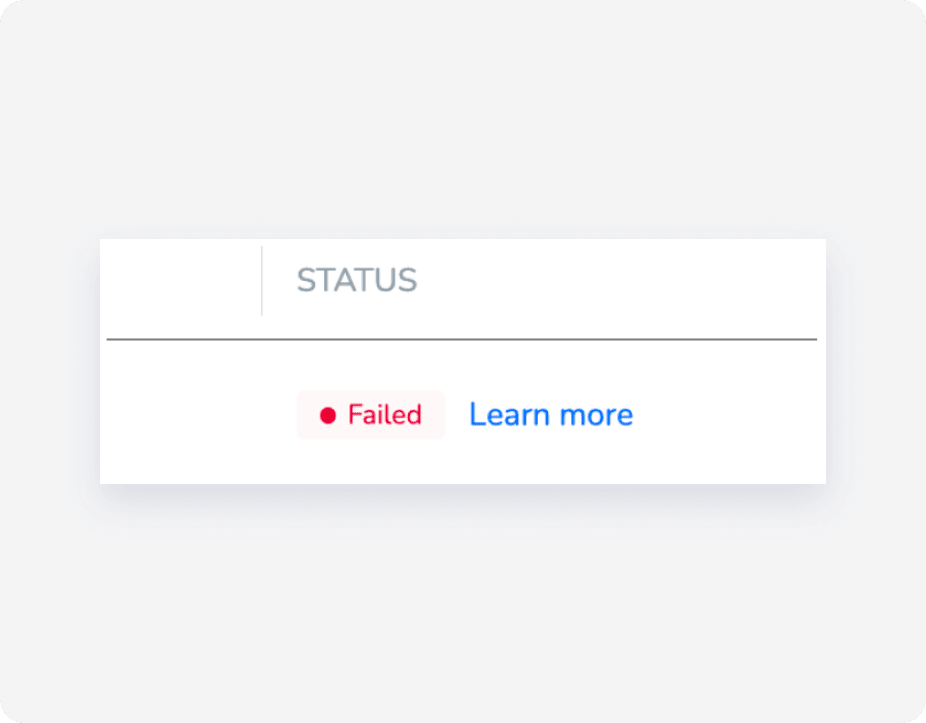
It may be that your listing was rejected because it was not eligible. Contact us for more information.
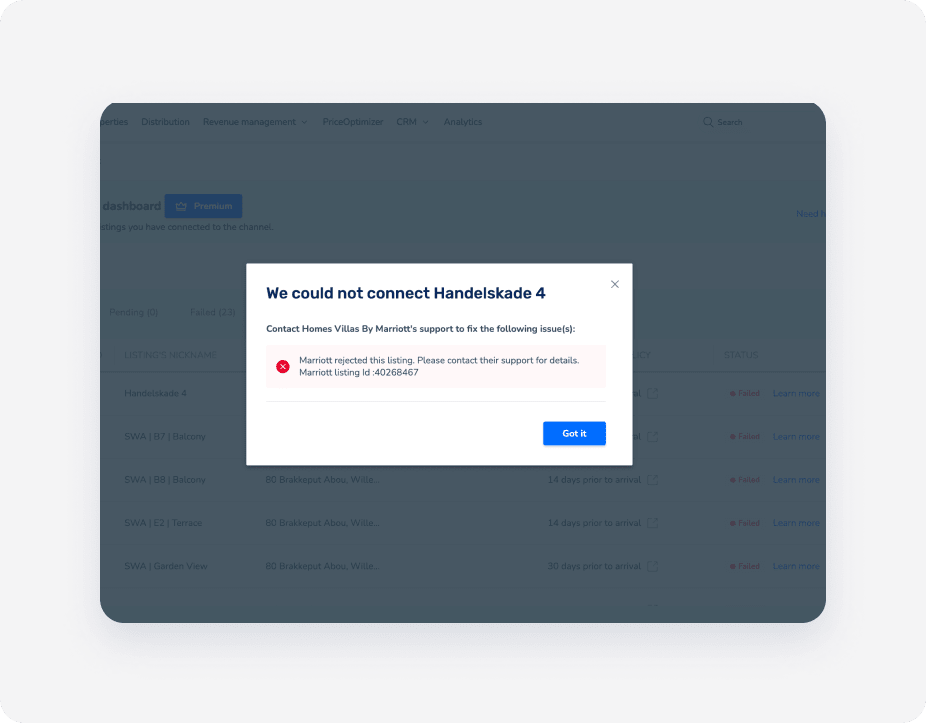
If you receive an error such as “Status: 403, error: Forbidden”, contact Google VR’s support team directly. This error means Google VR has rejected the connection.
Once the rejection error has been fixed, click Retry listing to retry the connection.
Google failure statuses
Check the failure reason and fix as needed.
Common errors
Your listing may not be validated if there's a missing title, missing public description, or not enough photos.

Images don't meet requirements
The validation may have failed if images don't meet Google's requirements.

Error "VR_BRAND_MISSING_LANDING_PAGE”
This error means Google detected no landing page. Reconnect the listing to resolve this.
Error "Website access for URL...is not reachable"
This error means the connected Booking Engine has an active custom domain added.

To resolve this issue, remove the custom domain from your Guesty Booking Engine. Note that this can harm your SEO if the site is already established.
Step by step:
- Sign in to your Guesty account.
- In the side navigation menu, click
 Marketing and sales and select Distribution.
 - Click the Guesty Booking Engine thumbnail.
- Next to the relevant Booking Engine, click
 and select Edit Booking Engine.
 - In the Custom Booking Engine custom domain (web address) section, remove the URL from the textbox.

- In the left-side menu, click Languages (optional).
- At the top right, click Save Booking Engine.
Return to the Google Vacation Rentals integration page to reconnect the listing.
Pending disconnect
“Pending disconnect” is displayed when a listing is disconnected in Guesty, pending approval from Google. Once approved, the status will change to "Disconnected". This process can take up to two weeks.
Disconnected
The "Disconnected" status displays when you stop the syncing of a listing. Updates no longer sync between platforms.
Contact us if issues persist.
