Creating an Airbnb account through Guesty ensures your integration is configured correctly from the start to reduce setup errors and syncing issues. Once your account is ready, use Guesty’s bulk publishing tools to publish multiple listings to Airbnb at once.
1. Create a new Airbnb account
Follow the steps below to create and connect a new Airbnb account.
Before you begin
- Age requirement: You must be 18 years or older. Airbnb verifies this during registration.
-
Email requirements: You need two distinct email addresses:
- Personal/Business email: For receiving Airbnb registration and verification emails.
- Airbnb login ID: Your official Airbnb login email; Guesty uses this to send and receive guest messages.
Step by step:
- Sign in to your Guesty account.
- In the side navigation menu, click
 Marketing and sales to open the dropdown menu.
 - Under Channel management, select Distribution.
- Click the Airbnb thumbnail.
- In the top-right corner, click Add account.
- Select Create a new Airbnb account.
-
In the “Create a new Airbnb account” pop-up, fill in the following fields:
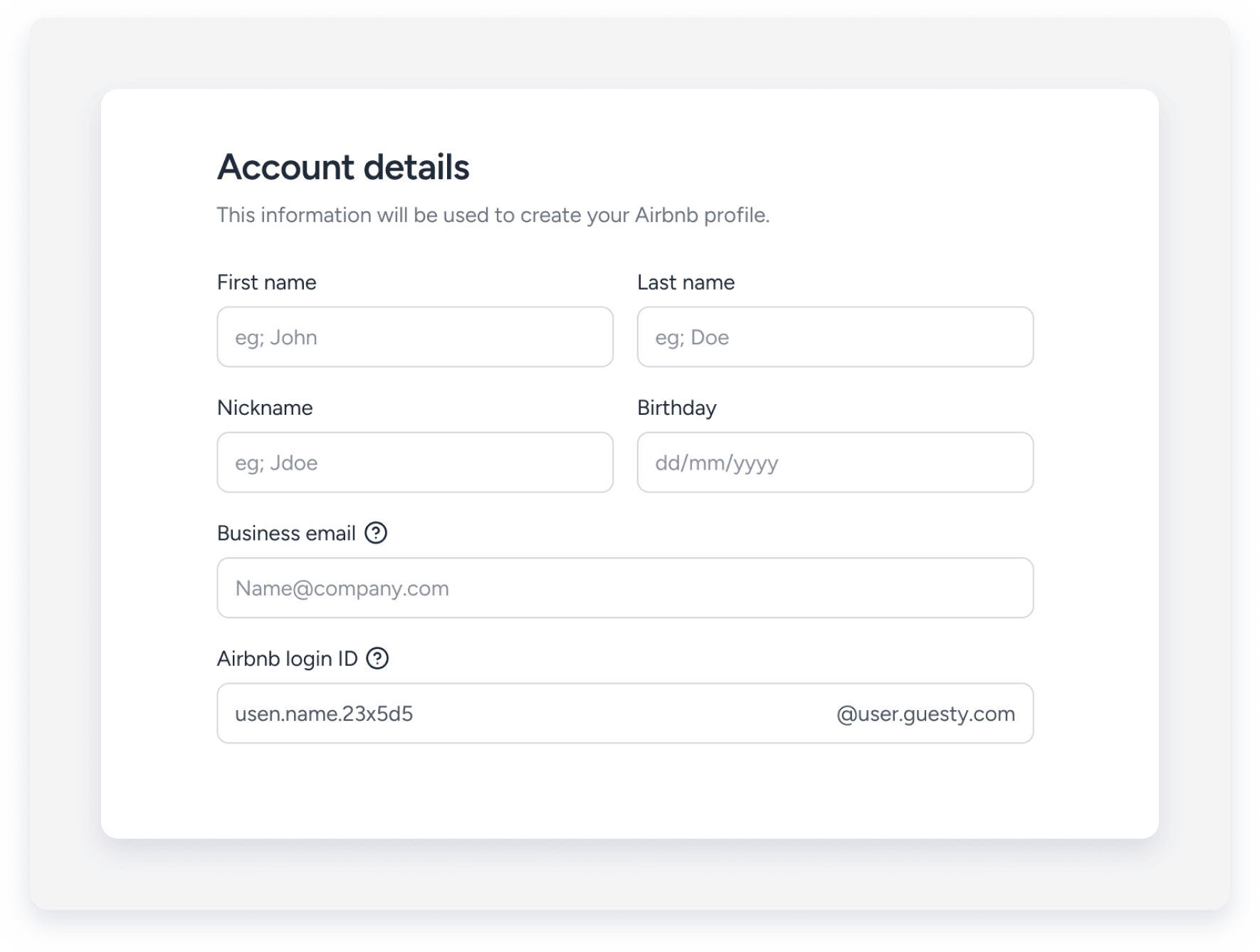
- First name and Last name
- Nickname
- Birthday
- Business email
- Airbnb login ID
- Click Create your account.
-
Check your personal or business email inbox for the Airbnb verification email.
Click the verification link and create a password.
Important:
Complete all mandatory Airbnb verifications before publishing any listings.

2. Publishing listings to Airbnb in bulk
After you create and verify your Airbnb account, publish multiple listings at once using Guesty’s bulk publishing tools.
Before you begin
- The bulk publishing process applies one set of booking settings and one cancellation policy per batch. To use different settings for different listings, group those properties and run separate bulk publishing flows.
- Verify that your listings meet Airbnb requirements before publishing to avoid errors:
- The listing is listed.
- Space arrangements are fully configured.
- The property doesn't have an existing or previously connected Airbnb account.
Step by step:
- Sign in to your Guesty account.
- In the side navigation menu, click Marketing and sales to open the dropdown menu.
- Under Channel management, select Distribution.
- Click the Booking.com thumbnail.
- From the Account list, click Publish listing to channel.
-
Check the boxes for the relevant listings and click Select listing(s).
Use the filters to narrow your search by city, tag, and type, or search for listings by name in the search bar.
- Configure the following settings for the bulk publishing batch:
-
Booking settings: Choose Instant Book or Request to book.

- Cancellation policy: Select a policy, such as Flexible, Moderate, Firm, or Strict.
- Listing promotions: Apply a promotion if desired.
-
Non-refundable discounts: Toggle on Activate non-refundable discount and enter a percentage to offer lower prices for non-cancellable reservations.

-
-
Click Publish listings.