The base price is the foundation of your pricing strategy in Guesty PriceOptimizer. It's the starting point for an average night at your property, and all other pricing rules, such as seasonal increases or last-minute decreases, build on top of it. Because it's such a core component, even small adjustments can significantly impact your overall pricing forecast.
PriceOptimizer provides recommendations to help you find the most competitive base price, but Guesty never changes it automatically. You must manually initiate any changes, so you always maintain full control over your revenue strategy.
Base price options
PriceOptimizer offers three different sources of insight to help you determine your base price. For new listings, it typically suggests a price based on market data or listing history by default.
Market pricing
This option uses data from comparable listings in your local area. PriceOptimizer considers factors like location, bedroom count, guest capacity, and key amenities to identify relevant comparables. It works best if you're unsure whether your current pricing is optimal, or if you have a high volume of similar listings nearby.
Click View market to see exactly which listings PriceOptimizer uses to calculate your recommendation. Adjust the bedroom count or guest capacity used in the calculation (useful if, for example, a three-bedroom property with a small den is more comparable to a two-bedroom). Changing this value applies a multiplier to the recommended price. For even more refined results, create custom sets of comparable listings using market groups.
Listing history
This option analyzes your pricing data from the last six months to suggest a base price. This is a good fit if you're satisfied with your property's past performance or if your area has few comparable listings. You need at least three months of pricing history for PriceOptimizer to generate this recommendation.
Manual pricing
If you have a specific price in mind, enter any value using the manual option.
Tip:
Review the Market pricing and Listing history suggestions before entering a manual price to ensure your rates stay competitive.
Manage base price in group pricing strategies
If you use group pricing strategies to manage groups of listings, the group acts as the source of truth for the pricing strategy, while the actual price remains listing-specific. When a group is set to "Market pricing" or "Listing history", each listing in that group calculates its own price based on that shared strategy.
Refresh recommendations for the group to update data for all inheriting listings, or refresh suggested pricing for an individual listing, even if it's controlled by a group. Adjustments based on bedroom count or occupancy (multipliers) are only available for the individual listing and can't be managed via a group.
If a listing in a group doesn't have enough data for the chosen strategy, for example, a brand-new listing in a "Market pricing" group, the group strategy won't apply to that listing.
Migration for existing users
All existing base price values are preserved to prevent accidental shifts. Every individual listing is set to the manual strategy with your current price pre-filled. If you use group pricing, your groups remain intact with their current listings, but the base price for each group will be set to "Not set." Listings will be managed individually until you define a new base price strategy at the group level to transition them back to a shared strategy.
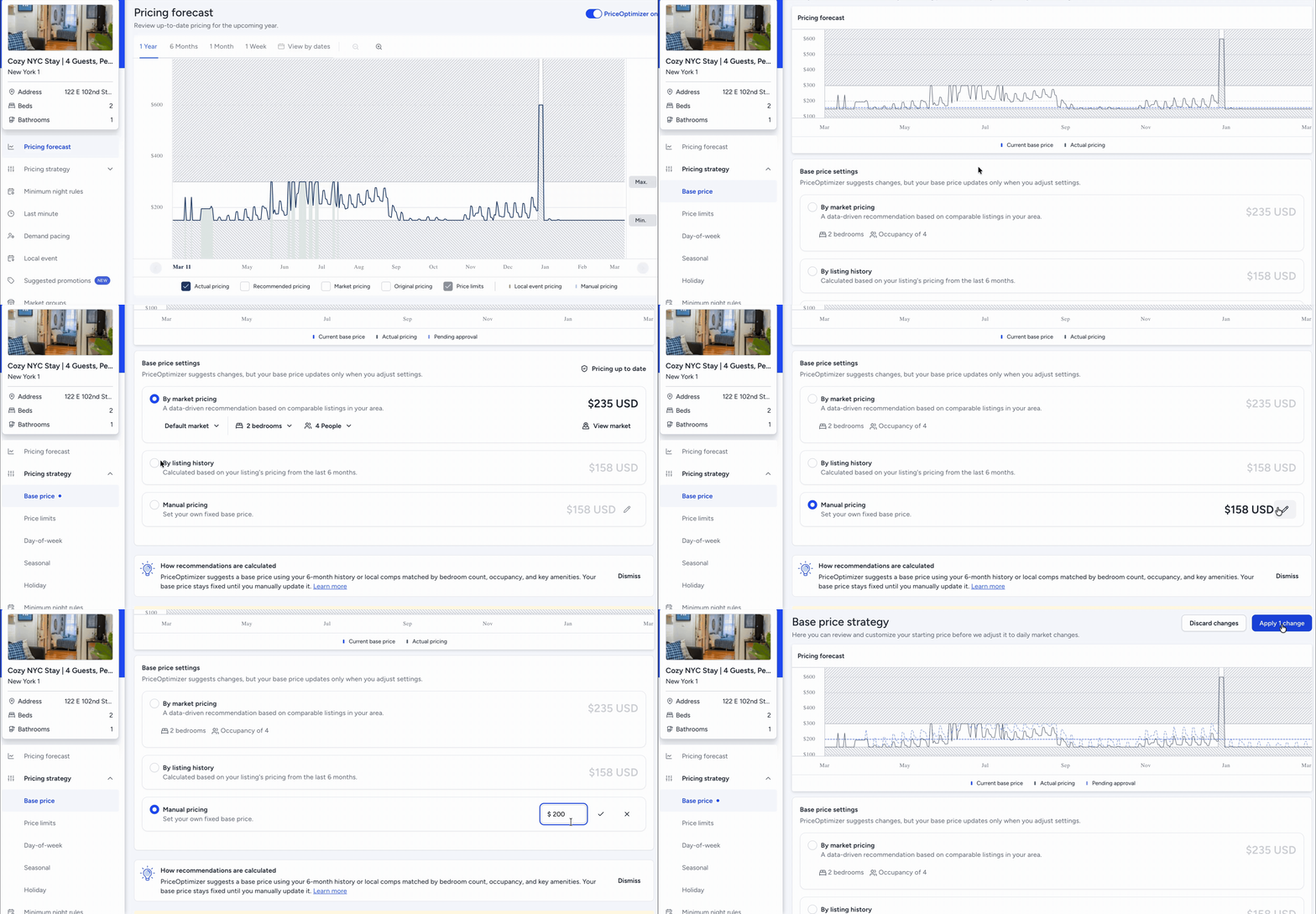
Set the base price
Follow the steps below to select or update your base price strategy for an individual listing.
Step by step:
- Sign in to your Guesty account.
- In the side navigation menu, click
 Integrations to open the dropdown menu.
 - Select Guesty add-ons.
- In the Guesty PriceOptimizer thumbnail, click Open.
Search for a specific listing by name or nickname, or use the filters to find all listings that match your specific criteria.
Select the relevant listing.
In the left-side menu, click Pricing strategy, then select Base price.
Select your preferred strategy: Market pricing, Listing history, or Manual.
If you select Manual, edit the price, then click ✓.
In the top-right corner, click Apply change.
Updating recommendations
PriceOptimizer recalculates its pricing recommendations monthly to account for changing market conditions. While unselected options update automatically, your active base price stays the same until you take action.
If the recommended price for your chosen strategy changes, a notification appears. Pull the updated recommendation and click Save to apply the new rate to your listing.
