Guesty’s AutoComply automates the collection and reporting of guest data to authorities. This reduces your administrative workload and ensures compliance with local regulations, allowing guests a worry-free stay.
See below for the steps to connect your properties to DTCM and EMAAR.
Connect to police authorities
Connect your properties to DTCM or EMAAR to automate police reporting and comply with local regulations.
Prerequisites for DTCM and EMAAR
To connect AutoComply to your DTCM or EMAAR account, you must register your property with the relevant authority. They will activate the connection and provide you with the required credentials.
- DTCM: Obtain your DET HH 2.0 username and password.
- EMAAR: Obtain your community portal username and password.
Connect the property in AutoComply
Once you have your credentials, follow the steps below to connect the property.
Step by step:
- Access the AutoComply dashboard.
- Select the relevant property.
-
Click the Authority connection tab.
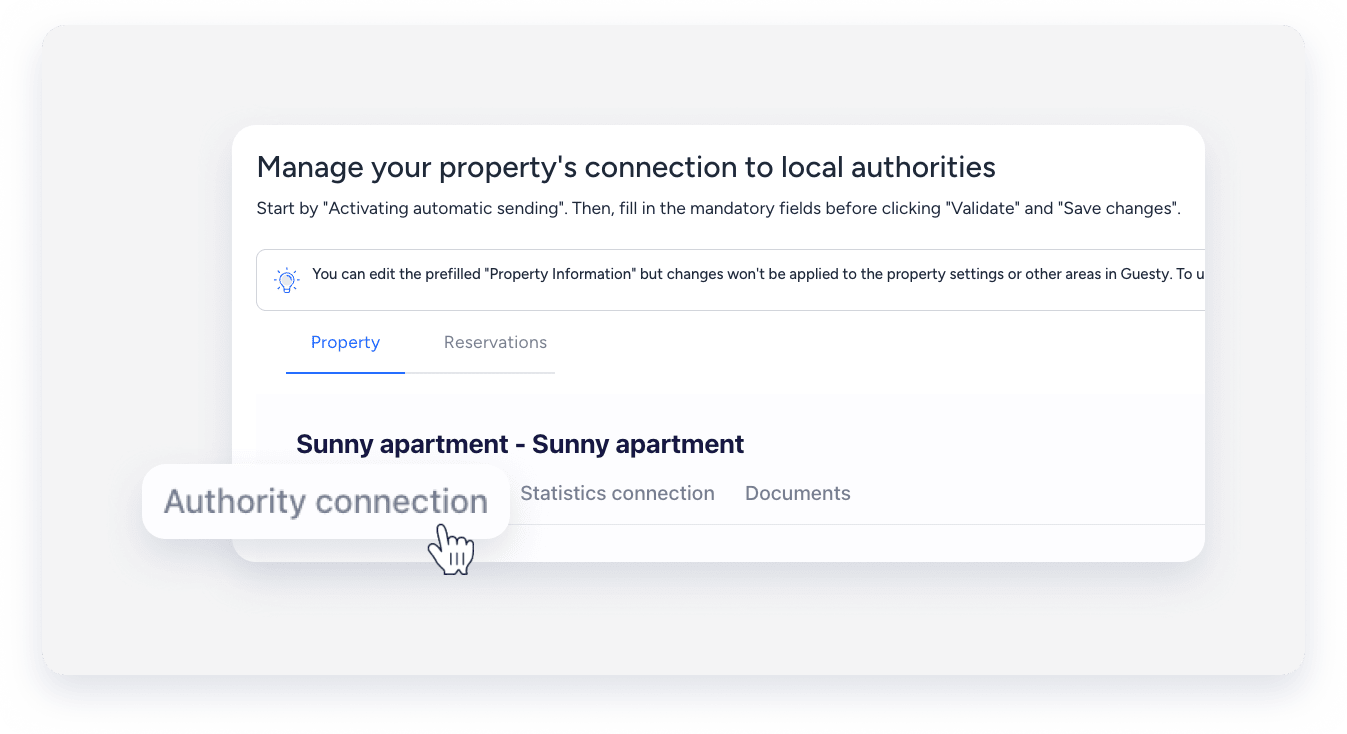
- Under the "Authority connection" section, toggle on Activate sending of guests data to your police account.
- Click Send info to and select DET – Holiday Homes Portal (2.0).
- Enter your username and password for the selected service.
- Click Validate.
- Under the "Payment method" section, click Payment type, and select a method from the dropdown menu.
- Click Save changes.
- At the top right, click Next.
Troubleshoot validation errors
If you encounter errors, check the following common solutions:
- Validation failure: Verify the username and password in the DET portal. Confirm that the selected property matches the one registered in DET. Confirm that the UAE phone number includes the correct country prefix.
- Error status: This is often caused by missing or invalid guest information, or temporary DTCM system issues. Open one of the erroneous guest records and review the error message. Correct the guest details (document number, nationality, and dates of birth), and try again.
- Some guests sent, others still in error: Because each guest is submitted individually, some may fail even though they belong to the same reservation. Check that at least one guest record was successfully sent. If one record is accepted, the remaining ones should complete automatically. If some remain in error, try sending those records again.
- Reservation not accepted by DTCM: The reservation is not marked as "Checked in", or the check-in date is incorrect. Confirm that the reservation status is "Checked in". Verify that the check-in date matches the guest’s actual arrival date.
- Credentials stop working after initial success: The password was changed or expired in the DET system. Verify the credentials directly in the DET portal. Update the credentials in AutoComply, and validate again before trying the submission again.
- Automatic sending is disabled: One or both police connection toggles are disabled. Confirm that both Activate sending of guests data and Send guest data automatically are enabled in AutoComply.
Connect to EMAAR
Properties in EMAAR communities must submit guest data to the EMAAR access portal.
Connect the property in AutoComply
Send guest data directly to the EMAAR access portal.
Step by step:
- Access the AutoComply dashboard.
- Select the relevant property.
-
Click the Statistics connection tab, and toggle on Activate overnight stay report.
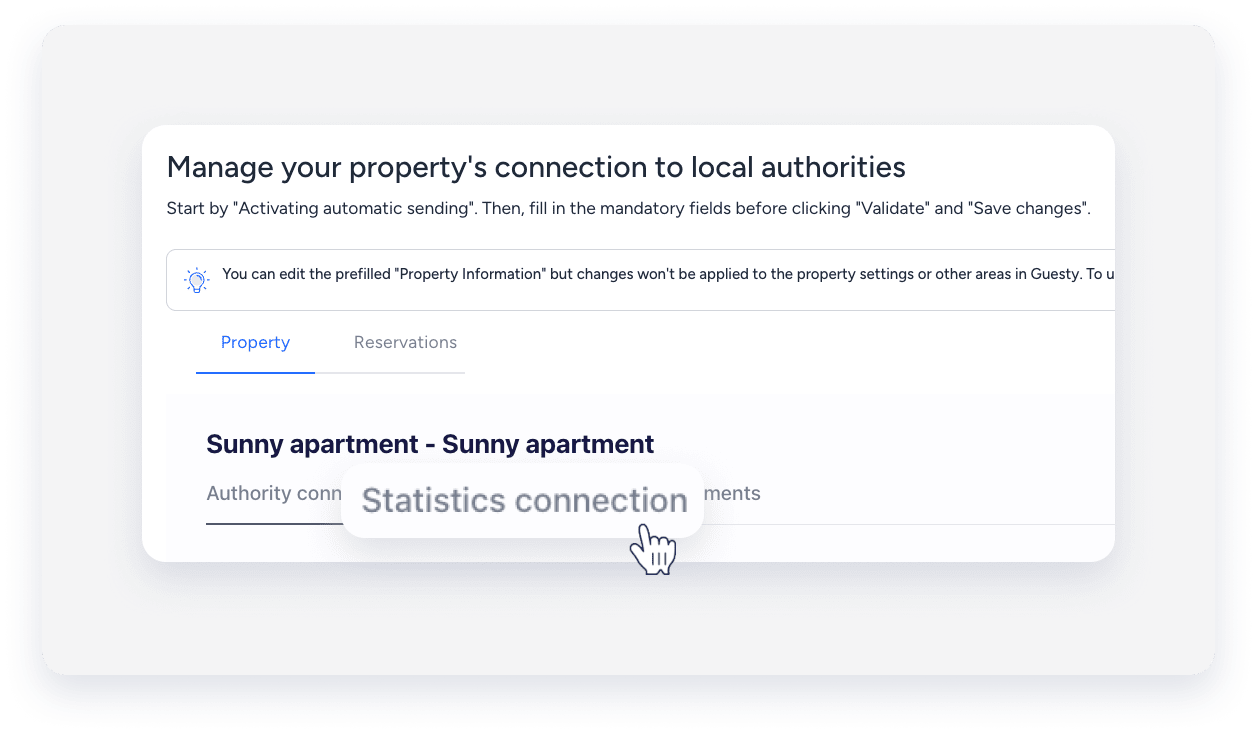
- Click Region and select EMAAR stat account.
- Enter your username, password, and room quantity.
- Click Validate.
- Click Save changes.
Troubleshoot validation errors
If you encounter errors, check the following common solutions:
- Validation failure: Double-check the selected region. Confirm that the room quantity matches the EMAAR property configuration.
- Timeout errors: This is often caused by the EMAAR system being slow or temporarily unavailable. Try the submission manually. Wait a few minutes between retries. Multiple retries may be required.
- Booking not found in EMAAR: The submission failed. Log in to the EMAAR portal. Click Add new guest, and manually add the booking.
- Error status (no timeout): This is often caused by invalid or missing guest data, or EMAAR-side validation rules. Open one of the erroneous guest records and review the error message. Correct the guest details (document number, nationality, and dates of birth), and try again.
- Booking date not accepted: EMAAR only accepts submissions for same-day check-ins. Confirm that the check-in date matches the current date. Past or future dates can’t be sent to EMAAR.
- Credentials stop working after initial success: Verify the credentials directly in the EMAAR portal. Update the credentials in AutoComply, and validate again before trying the submission again.
