AI Task Suggestions, powered by Guesty Copilot, automatically analyze incoming guest messages in the Guesty Inbox. When the AI detects an actionable request, such as a maintenance issue or a cleaning request, Guesty Copilot generates a pre-filled task suggestion directly in the conversation thread after verifying a relevant task doesn't already exist.
You can quickly approve and assign these suggestions to ensure no guest request falls through the cracks, all without leaving the Inbox.
Permissions
Members with permission to answer messages can receive notifications and view task suggestions in the inbox. To review, assign, and approve suggested tasks, members must also have permission to create tasks.
Review and create a suggested task
Follow the steps below to review and create an AI-suggested task.
Step by step:
- Sign in to your Guesty account.
- In the side navigation menu, click
 Inbox.
 - In the Inbox submenu, select the relevant inbox.
- Select the relevant conversation thread.
- Click Review on the task suggestion card.

- Review the original guest message and the pre-filled details on the right-side panel. These include:
- Task title: AI-generated task title (maximum 65 characters).
- Urgency: AI-assigned urgency level.
- Urgent: Requires immediate attention.
- Non urgent: Can be handled during normal operations.
- Post checkout: Can be addressed after the guest checks out.
- Type: AI-assigned task type: Maintenance, Cleaning, Inspection, Mid-stay, Runner, Sanitation, Check-in, Issue, Inventory, and Administration.
- Description: AI-generated description of what needs to be done.
- Property: Automatically associated with the property from the reservation.
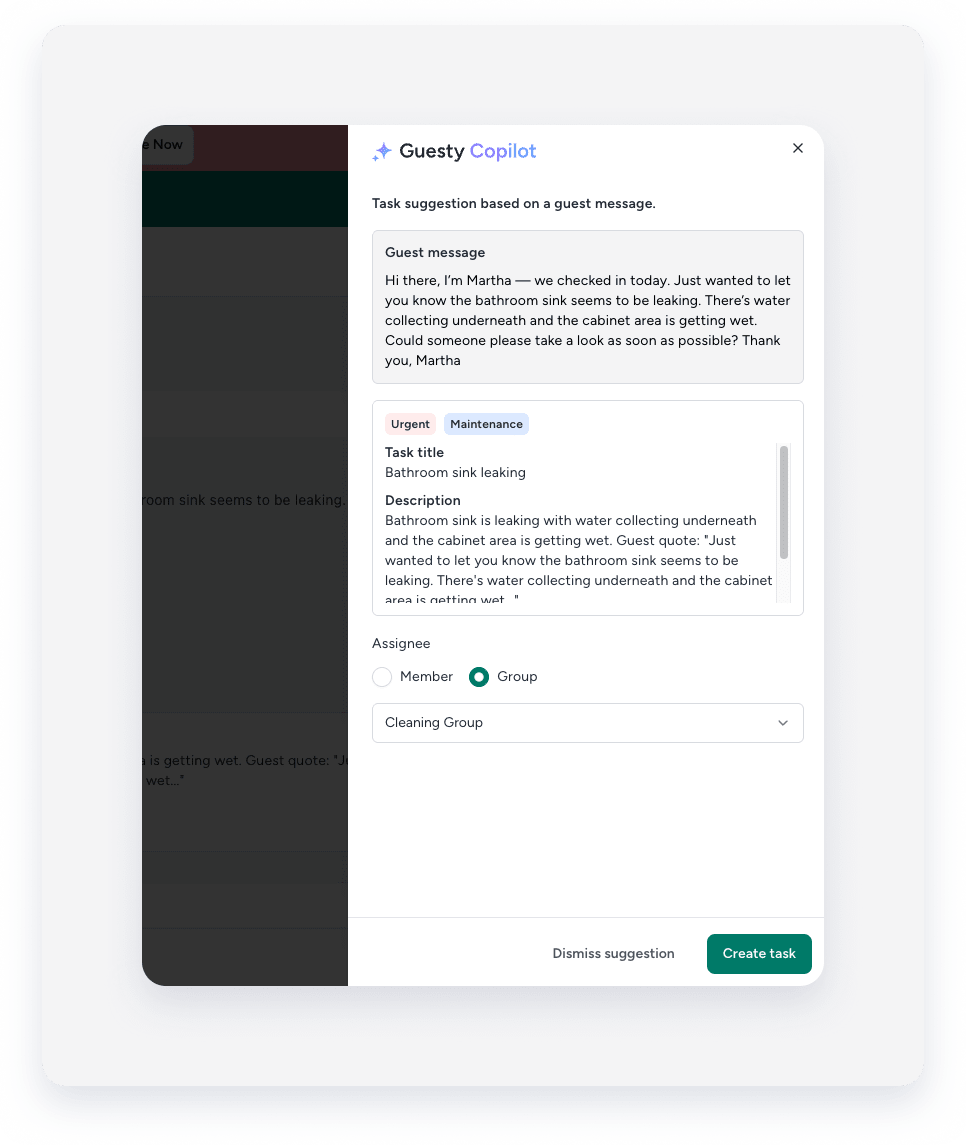
- Choose how to proceed:
- Click Create task to accept the suggestion.
- Click Dismiss suggestion if the suggestion isn't relevant. Once dismissed, the message "Issue identified by Guesty Copilot" appears below the guest's original message.
Open a task created from a suggestion
After creation, the suggestion card updates automatically to display the task type, the user who created the task, and the original task title.
Click View task on the updated card to open the newly created task.

Disable notifications
To disable the "Guest complaint detected" notifications, click the profile icon at the top-right and select My profile from the dropdown menu. Under "Tasks", uncheck the Guest complaint detected boxes for Guesty and the mobile app push notifications.
