Correct mistakes in posted journal entries, such as incorrect dates, amounts, or descriptions, without needing to reverse and recreate them. Edit entries quickly while maintaining a clear audit trail.
Modify a journal entry
Find the journal entry you want to modify via the posting journal or directly in a reservation.
Access a journal entry
Step by step:
- Sign in to your Guesty account.
- In the side navigation menu, click
 Accounting to open the dropdown menu.
 - Under General ledger, select Posting journal.
- To the right of the journal entry, click
 and select View transaction.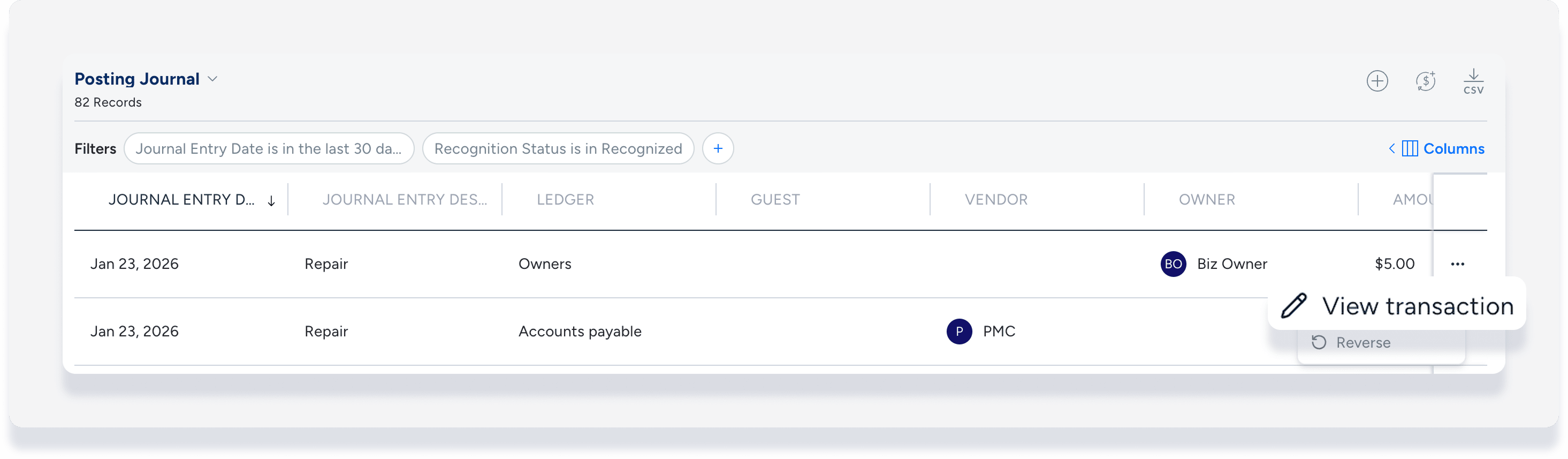
Step by step:
- Sign in to your Guesty account.
- In the side navigation menu, click
 Reservations.
 - Select the relevant reservation.
- In the left submenu, click Accounting.
- To the right of the journal entry, click
 and select View and edit journal entry.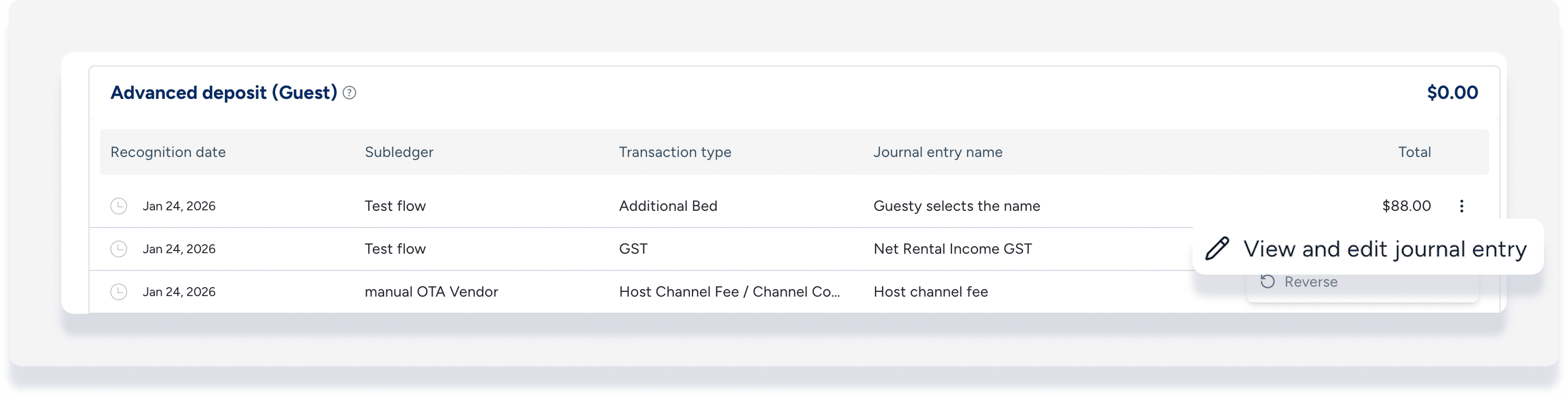
Edit a journal entry
Step by step:
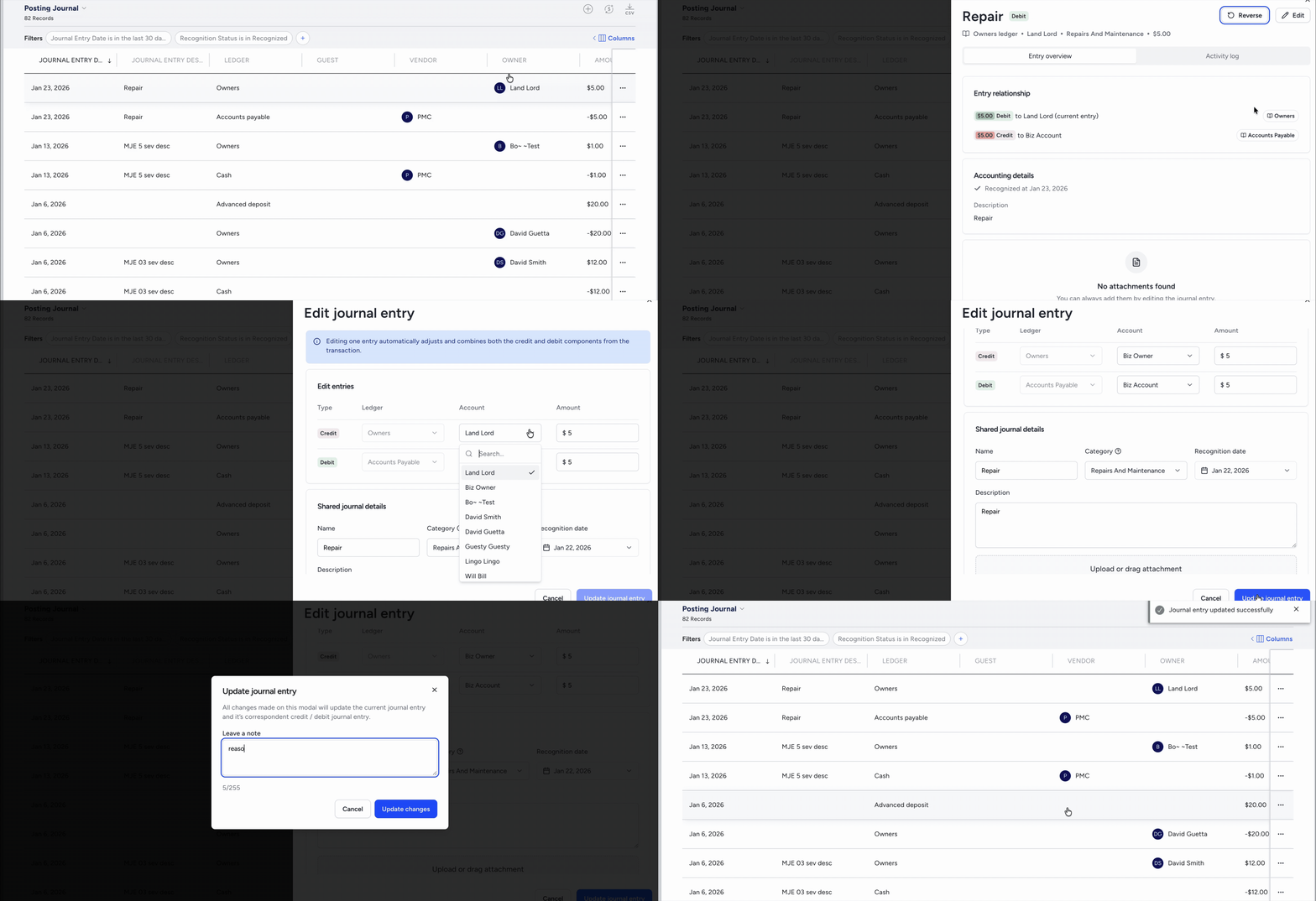
At the top right of the right side panel, click Edit.
-
Update the relevant fields:
Amount: When you change the credit amount, the debit updates automatically to keep the entry balanced.
Date: Update the recognition date for entries in open periods.
Accounts and Ledgers: Select different ledgers and accounts for manual entries.
Entry Details: Edit the entry name, description, or category.
Click Update journal entry.
Optional: In the confirmation screen, add a note in the Reason for edit field to explain the change for the audit trail.
Click Update changes.
Understand editing restrictions
Certain fields are locked or "grayed out" to ensure financial integrity and compliance. Review the limitations below:
Locked periods: You can't change the amount or date of entries in a locked accounting period because this impacts past owner statements and opening balances.
Disbursed or paid entries: If an entry is already paid or disbursed, you can only edit the Name and Description.
Reservation-based entries: For entries created automatically through a reservation, the Ledger and Account fields are locked to match the original reservation data.
Cash or payment journal entries: These journal entries can't be edited. You must edit the amount and date of cash transactions through the original payment flow.
Reconciled or grouped entries: You must unreconcile or ungroup an entry before you can change the amount or date.
Important:
In cash basis accounting, you can't edit the recognition date to any date before the payment date. If you try to set an earlier date, the system reverts the recognition date to match the payment date.
Track journal entry changes
Every change to a journal entry is recorded to maintain accountability and transparency.
Review the Activity Log
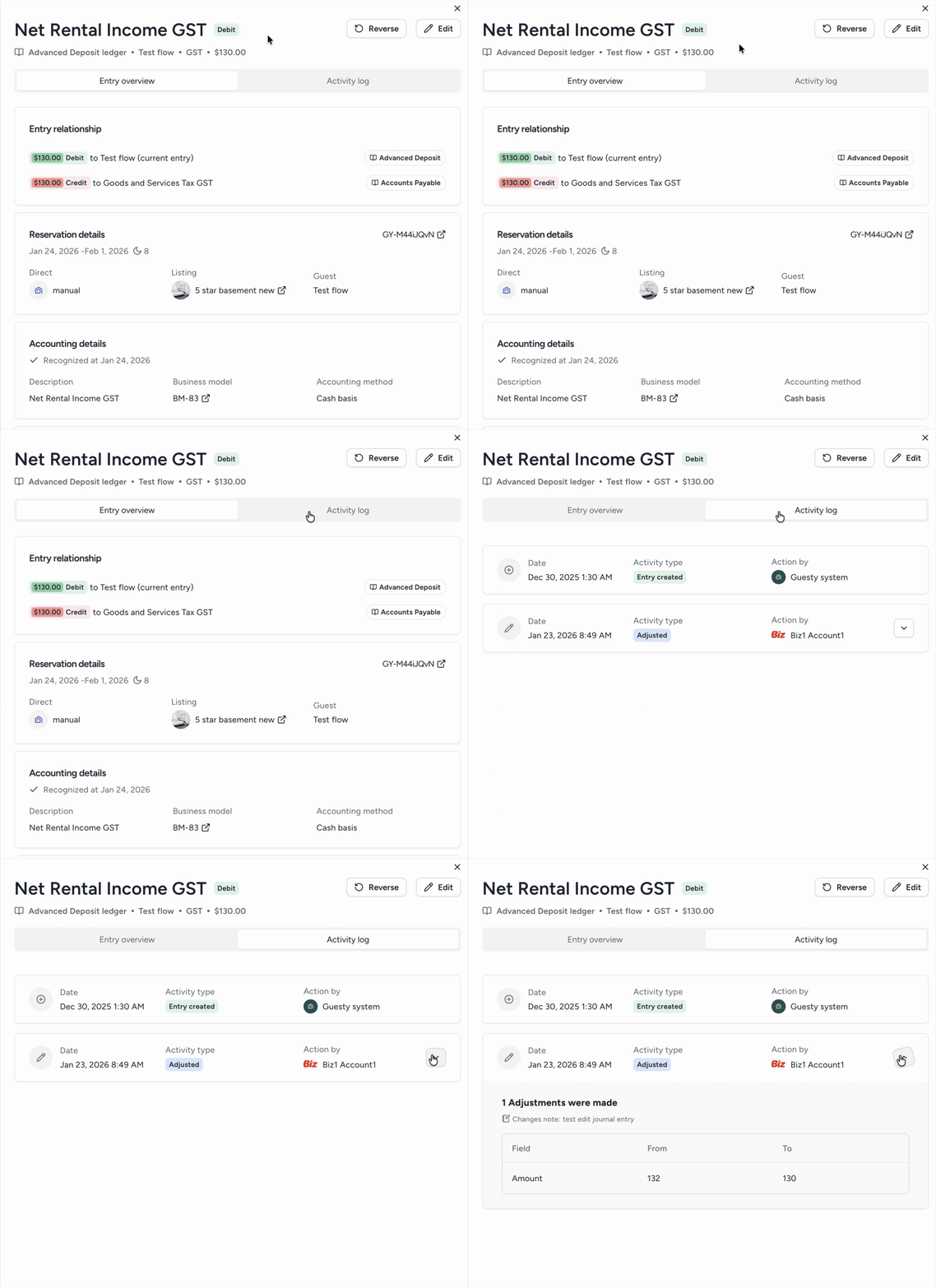
To see the history of an entry, open the journal entry side panel and click the Activity log tab. (If you don't see your change immediately, allow a minute or so for the activity log to refresh.)
The log includes the following information:
The user who performed the edit.
The exact timestamp of the update.
A breakdown of the "before" and "after" values.
Any notes provided in the Reason for edit field.
Identify edited entries
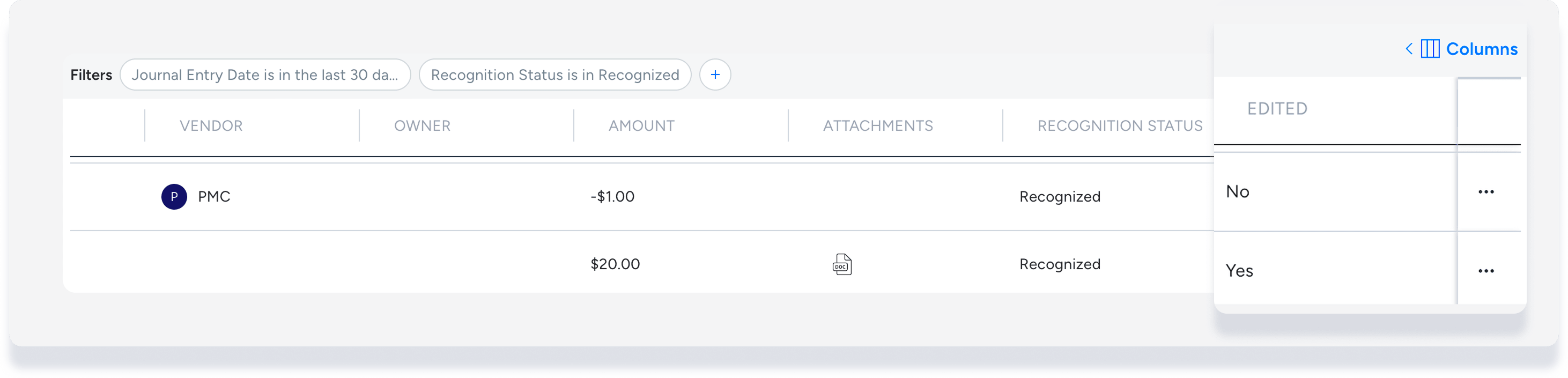
Quickly identify modified transactions in the Posting Journals table. Click Columns and toggle on Edited to add the column to your view. This column displays "Yes" for any entry that has been adjusted.