Integrate your Guesty reservations with HubSpot to automate sales workflows, track guest interactions, and manage property revenue directly within HubSpot as Deals.
Setup
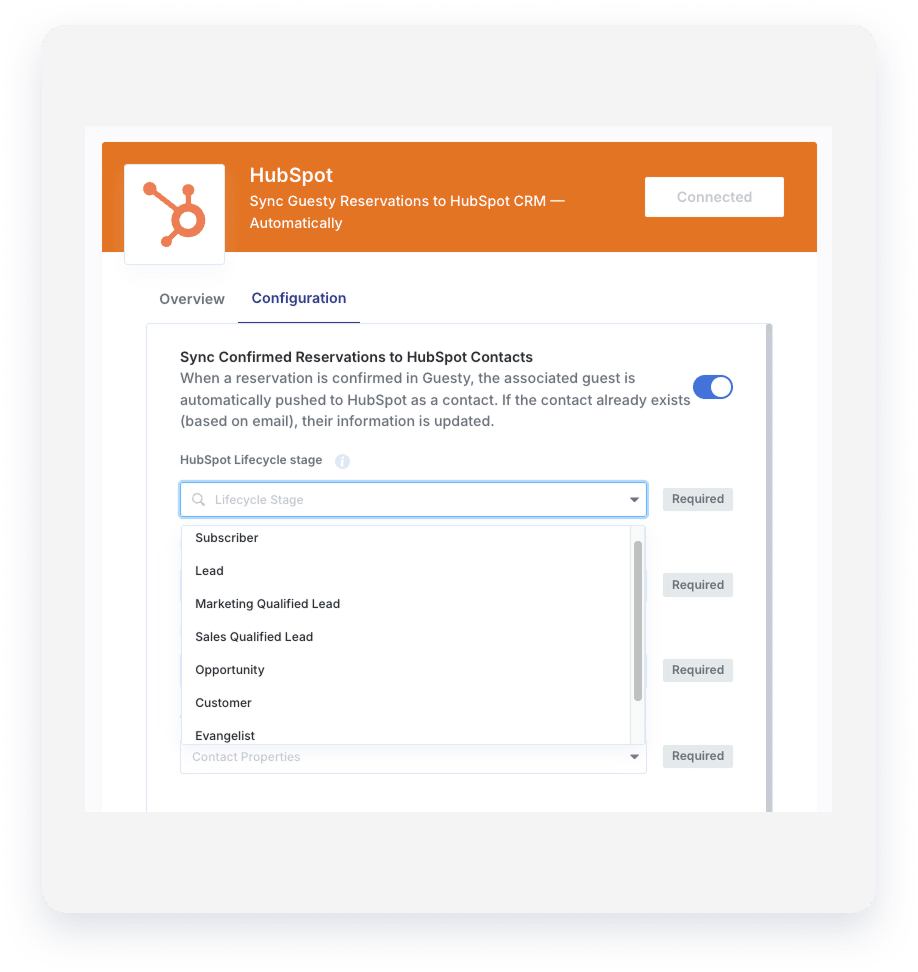
- Set up the HubSpot integration by following these steps.
- Click the Configuration tab.
- Toggle on workflows and map fields.
Tip:
Link your Guesty fields to HubSpot properties during setup to ensure data sync flows correctly.
Core integration logic
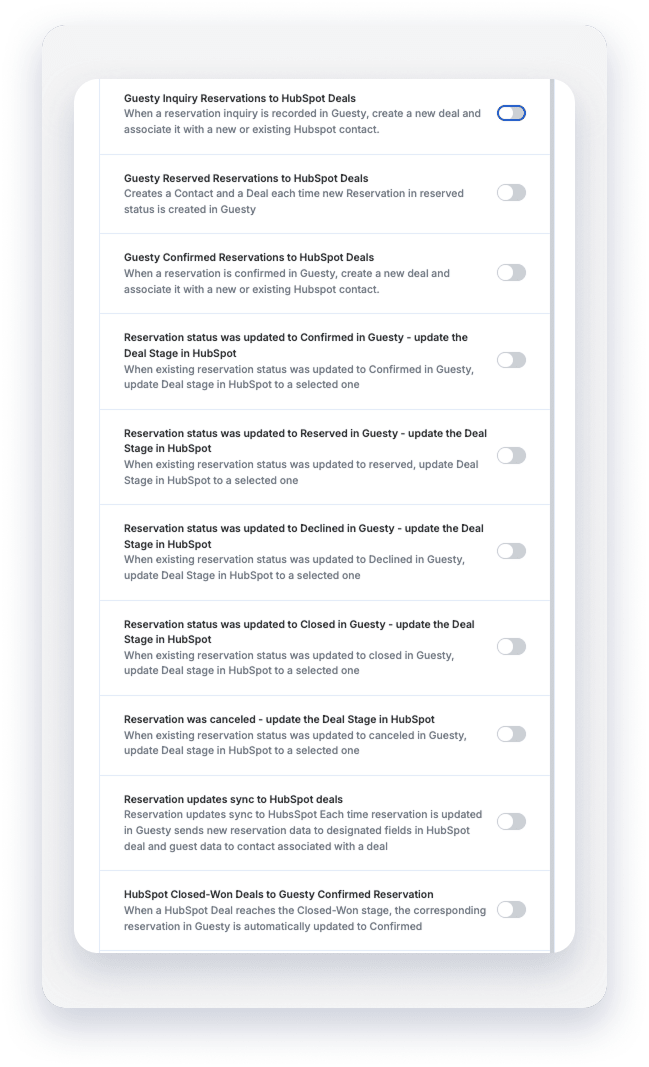
The integration monitors reservation activity in Guesty and triggers actions in HubSpot based on the reservation's status. You can configure the sync for three primary entry points:
- Inquiry: Create a deal when a guest makes an inquiry.
- Reserved: Create a deal when a reservation is placed in "Reserved" status.
- Confirmed: Create a deal when a confirmed reservation is created.
Dynamic status syncing
The integration automatically moves deals through your HubSpot pipeline. When a reservation status changes in Guesty (for example, from Reserved to Confirmed or to Canceled/Declined), the corresponding HubSpot Deal Stage updates to match your predefined mapping.
Contact search and creation logic
The system follows strict logic to avoid duplicate contacts:
- Search: When a reservation event occurs, the system searches HubSpot for an existing contact using the exact email address from the Guesty reservation.
- Match found: If a contact exists, the system updates that contact and associates it with the relevant Deal.
- No match: If no contact is found, the system creates a new HubSpot Contact with the guest's details (name, email, phone, and more) before creating the Deal.
Field sync requirements
Match Guesty data points to HubSpot properties to enable sync.
Important:
Property type constraint: Most Guesty fields (like Listing Nickname, Confirmation Code, and Guest Notes) must be mapped to Single-line text properties in HubSpot. Create these properties in HubSpot before mapping.
Connect your data
The integration handles relationships between HubSpot objects for a complete view of your business:
- Deal to Contact: Each deal is automatically linked to the guest's contact record.
-
Deal to Listing (Custom Object): If you use a custom object for your "Listings", the integration can associate the deal with the correct listing.
- Association labels: Specify a "HubSpot Deal-to-Custom object Association label" (such as "Primary Listing") to clarify the relationship.
Note:
To see the full power of association features, ensure you use HubSpot’s custom object support and label your relationships for clarity.
How to enable a sync rule
- Navigate to your Guesty-HubSpot Integration Settings.
- Toggle the switch for the specific flow you want to activate (for example, Guesty Confirmed Reservations to HubSpot Deals).
- Connect your properties: Select the HubSpot Deal and Contact properties from the dropdown menus for each Guesty field. Fields marked as required must be connected.
- Select pipeline: For status-based updates, choose the HubSpot Pipeline and Deal Stage where the deal should land.
- Click Save.
Automate these workflows to help your sales team focus on closing bookings instead of manual data entry.