Airbnb co-hosting lets a listing owner (the host) authorize you as the co-host to manage their listings in Guesty. This article explains how to connect listings with co-host permissions to your Guesty account whether the host uses another Property Management System (PMS) or doesn't have another PMS in place.
Important:
- Airbnb supports three types of co-host permissions: Full access, Messages & calendar only, and Calendar only. Guesty only supports co-host listings with full access. Listings without full access can’t be imported and won't appear in your Guesty account.
-
The order in which you connect host and co-host accounts to the same Guesty account is crucial. Connecting the co-host account first can cause connection failures. You must connect the host account first to ensure all listings integrate correctly.
- Connect the host account first.
- Connect the co-host account next.
Contact us if you connected the co-host account before connecting the host account.
Limitations
- The co-host integration doesn't support pre-onboarded accounts.
- The co-host integration isn't supported on mobile devices.
Accounting users
Co-hosted listings with shared payouts aren't recommended for Accounting users due to data discrepancies. Manually adjust line items to match the actual payment sent to the trust account.
Co-host connection types
The method you use to connect co-hosted listings depends on whether the host uses another Property Management System (PMS).
-
Connect and import specific co-hosted listings to Guesty. This connects the listing only, not the host's full Airbnb account. After the co-host listings are connected, only the co-host sends guest communication, including automated messages.
-
If a host doesn’t use a PMS, Airbnb requires co-host listings to be managed directly on Airbnb. To bypass this and gain full management capabilities in Guesty, invite the host to grant Guesty permission to connect to their Airbnb account directly and sync their listings. The host approves the connection securely on Airbnb, without sharing login credentials.
Tip:
We recommend this option as it allows you to manage the co-hosted listing without restrictions. Once connected, choose whether communication is sent by the host or co-host.
Connect a listing when the host uses another PMS
Connect co-hosted listings to Guesty if the host grants you co-host permissions for specific listings in their account. This option is available if the host uses another PMS and their Airbnb account isn't connected to Guesty. This action connects the listing only, not the Airbnb account.
Limitations
- To import a listing to Guesty, the host's account must be connected to another PMS and the listing must be connected to it.
- Airbnb allows only one PMS to manage a listing's calendar and pricing. The host's PMS manages these settings. Changes you make to the calendar and pricing in Guesty won’t sync to Airbnb.
- You can’t import a co-host listing if it's connected to a different Guesty account.
Follow the instructions below to locate and import a co-hosted listing into Guesty.
Step by step:
- Sign in to your Guesty account.
- In the side navigation menu, click
 Marketing and sales to open the dropdown menu.
 - Under Channel management, select Distribution.
- Click the Airbnb thumbnail.
- Select the relevant account from the account list.
-
Locate the co-hosted listing, which is identified by a special co-host icon when hovering over it.
Important:
If the listing isn't displayed, click the
 next to the Airbnb account name and refresh your browser. If it is still missing, follow the instructions for a host's account that isn't connected to a PMS.
 - Click Connect next to the listing, and select Import
Once the listing is connected, the listing’s details and reservations are imported to Guesty and displayed with the following co-host indicators:
- On the property page:
- The property page displays

-
The tooltip displays "Airbnb co-host" when hovering over the icon

- The property page displays
- The reservation widget via the Inbox and Multi-Calendar:
- The reservation widget displays
- The tooltip displays “The listing has a co-host on Airbnb” when hovering over the listing
- The reservation widget displays
- On the reservations page:
- The reservation page displays in the reservation bar and summary section
- The tooltip displays “Co-host listing” when hovering over the icon
- The reservation page displays
If a co-hosted listing is missing from your Airbnb integration page in Guesty, it indicates the host’s account and listings aren't connected to a PMS. An Airbnb restriction blocks these from being managed by a PMS, even if you have full co-host permissions. To resolve this, invite the host to connect their Airbnb account to Guesty.
Important:
The host's listings must remain connected to Guesty. If the host chooses to disconnect their listings, they won't sync with Airbnb, and connection will need to reestablished.
Connect a host account when the host doesn't use a PMS
If the host isn’t connected to another PMS, you can request permissions to connect their Airbnb account to Guesty. This invites the host to connect their full Airbnb account, allowing Guesty to import and manage all their listings, including calendar and pricing. The connection is secure, and credentials remain private.
Note:
The order in which you connect host and co-host accounts to the same Guesty account is crucial. You must connect the host account first and the co-host account second to ensure all listings integrate correctly. Contact us if you connected the co-host account before connecting the host account.
Follow the steps below to invite the host to connect to their Airbnb account to Guesty to give you full co-host permissions.
Step by step:
- Sign in to your Guesty account.
- In the side navigation menu, click Marketing and sales to open the dropdown menu.
- Under Channel management, select Distribution.
- Click the Airbnb thumbnail.
- On the integration page, click Add account.
-
An account connection popup will display four options to connect. Select Connect a co-hosted account.
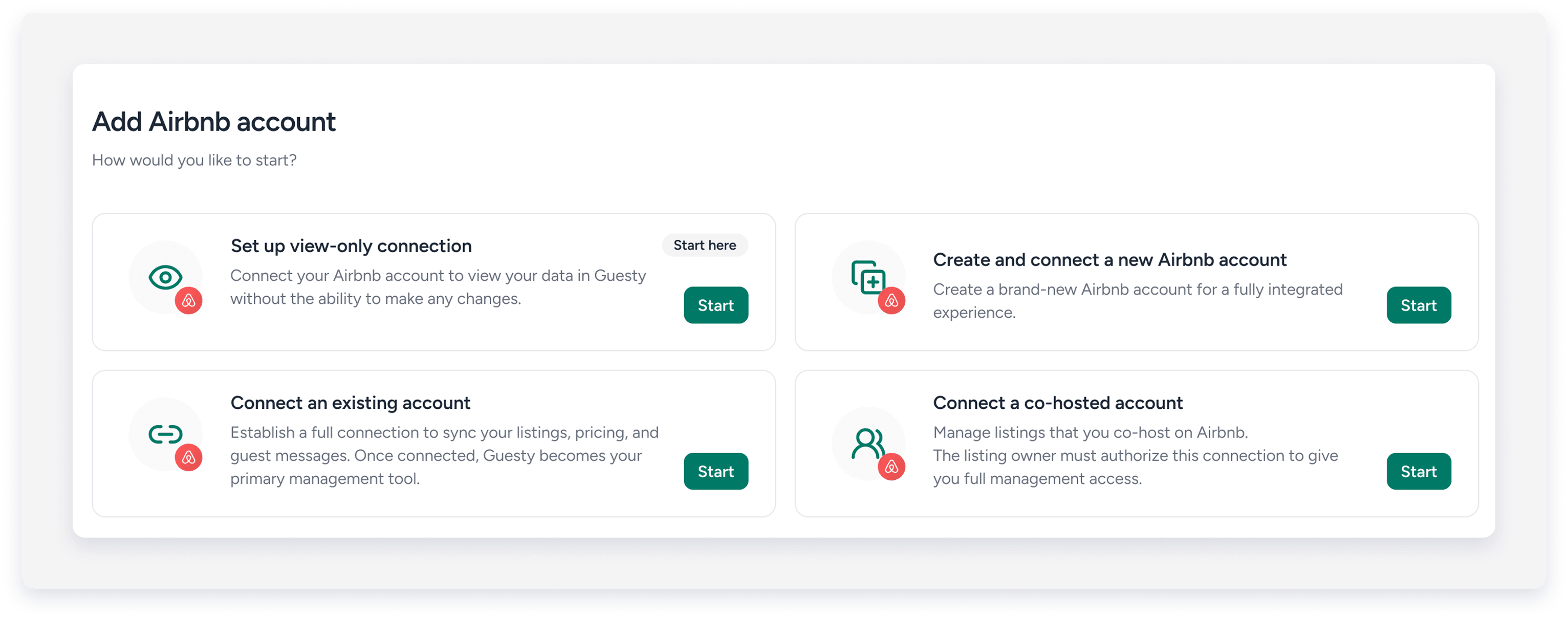
- Review the pre-connection checklist to confirm the owner's account is disconnected from any prior PMS and click Next.
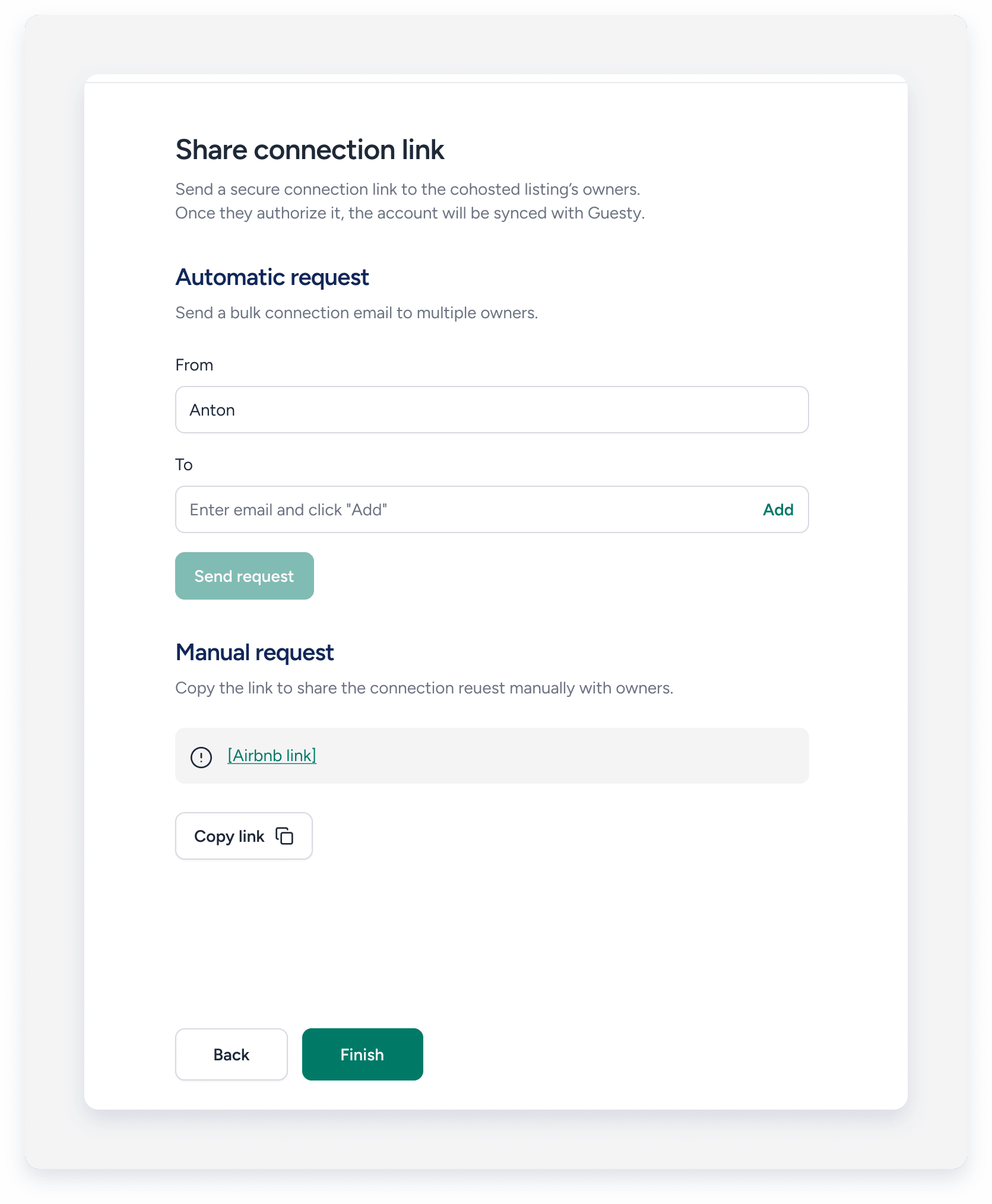
- Share the connection link with the listing owner. You have two options:
- Automatic request: Enter the owner's name and email, click Add, and click Send request to email them directly. You can add multiple email addresses.
-
Manual request: Click Copy link and share the URL directly with the host.
-
Click Finish.

When the host opens the link, they will be redirected to Airbnb and given the option to securely give Guesty access to their Airbnb account. Once the host approves your request, Guesty will connect their account and sync all listings. The new account will appear on the Airbnb integration page in Guesty. Select the account to view all connected listings.
Important:
The host's listings must remain connected to Guesty. If the host chooses to disconnect their listings, they won't sync with Airbnb, and connection will need to reestablished.
Choose who sends messages to guests
Once a host's account is connected, follow the instructions below to select whether you or the host is the sender when you create a message or an automated reply.
Limitations
- Setting a default sender isn't supported. However, when you select a sender for a reply, that selection remains for the rest of the thread.
- Automated messages for co-hosted listings aren't currently supported and will be sent from the host.
- Co-host messaging is available on desktop only. It isn't supported on the Guesty mobile app.
Step by step:
- Sign in to your Guesty account.
- In the side navigation menu, click
 Inbox.
 - In the Inbox submenu, select the relevant inbox.
- Click the relevant message thread.
- At the bottom of the page, click Type your message here and enter your message.
- Choose the communication method: Airbnb.

-
Select the sender from the dropdown menu: you (Co-host), or the listing owner (Host). If this option isn't available, it indicates that the co-host is the default sender, or the host's Airbnb account isn't connected to Guesty.
Tip:
If you confirmed the listing is co-hosted on Airbnb but the co-host sender option is unavailable in the Guesty Inbox, navigate to the Airbnb integration page in Guesty and click
for both the co-host's and the listing owner's Airbnb accounts. Refresh the page after both accounts sync.
The conversation thread displays the sender's name under each sent message, next to the date and time the message was sent.
Resolving co-hosted sync conflicts
You may occasionally encounter a situation where connecting an owner account breaks the existing co-host sync for that same listing. If this occurs, follow the steps below to resolve the conflict manually.
Step by step:
- Verify the owner account status in Guesty.
- If the owner account is pre-onboarded, do not continue. Contact us to move the listing.
- If the owner account is fully connected, proceed to the next step.
- Disconnect the listing from the co-host integration.
- Unlink the listing. This step is especially critical.
- Connect the owner Airbnb account to Guesty.
- Click in the co-host integration.
- Click in the owner integration.
- Refresh the page. The listing should now appear under the owner integration.
- Click in the co-host integration one more time to enable the "Message sender" option in the Inbox.
| Criteria | Host has another PMS | Host doesn't have another PMS |
|---|---|---|
| When to use |
|
|
| Connection process |
|
|
| Imported listings | Access to manage listings with co-host permissions | Access to manage all listings in host's account, regardless of co-host status |
| Visual indicators | Co-hosted listings display icon indication on multiple pages | No indication. Co-host listings are treated as regular listings |
| Calendar & pricing management |
Restricted by Airbnb
|
Full control
|
| Co-host profile support | Full access profile only | Full account access |
| Access level | Limited: Co-host access only | Full: You have full access to manage all co-hosted listings in Guesty, but can't access the host's Airbnb account or change settings |
| Primary PMS | Host continue to use another PMS | Guesty becomes the primary PMS |
| Messaging | Messages can be only sent from co-host, including automated messages | Option to choose who is the sender: host or co-host |
