Guesty’s AutoComply automates the collection and reporting of guest data to authorities. This reduces your administrative workload and ensures compliance with local regulations, allowing guests a worry-free stay.
See below for the steps to connect your properties to Medatec, Feratel, and Vienna Tourism Statistics (WIEN Stats VIETour).
Connect to police authorities
Connect your properties to Medatec or Feratel to automate police reporting.
Prerequisites for Feratel
To connect AutoComply to your Feratel account, you must contact your municipality office to tell them you will send data to Feratel through Chekin (company code VT: CheKin).
They will activate the connection and provide you with two required codes:
- Community Number (Gemeinde)
- Mapping Code (Objektcode)
Connect the property in AutoComply
Once you have your credentials, follow the steps below to connect the property.
Step by step:
- Access the AutoComply dashboard.
- Select the relevant property.
-
Click the Authority connection tab.
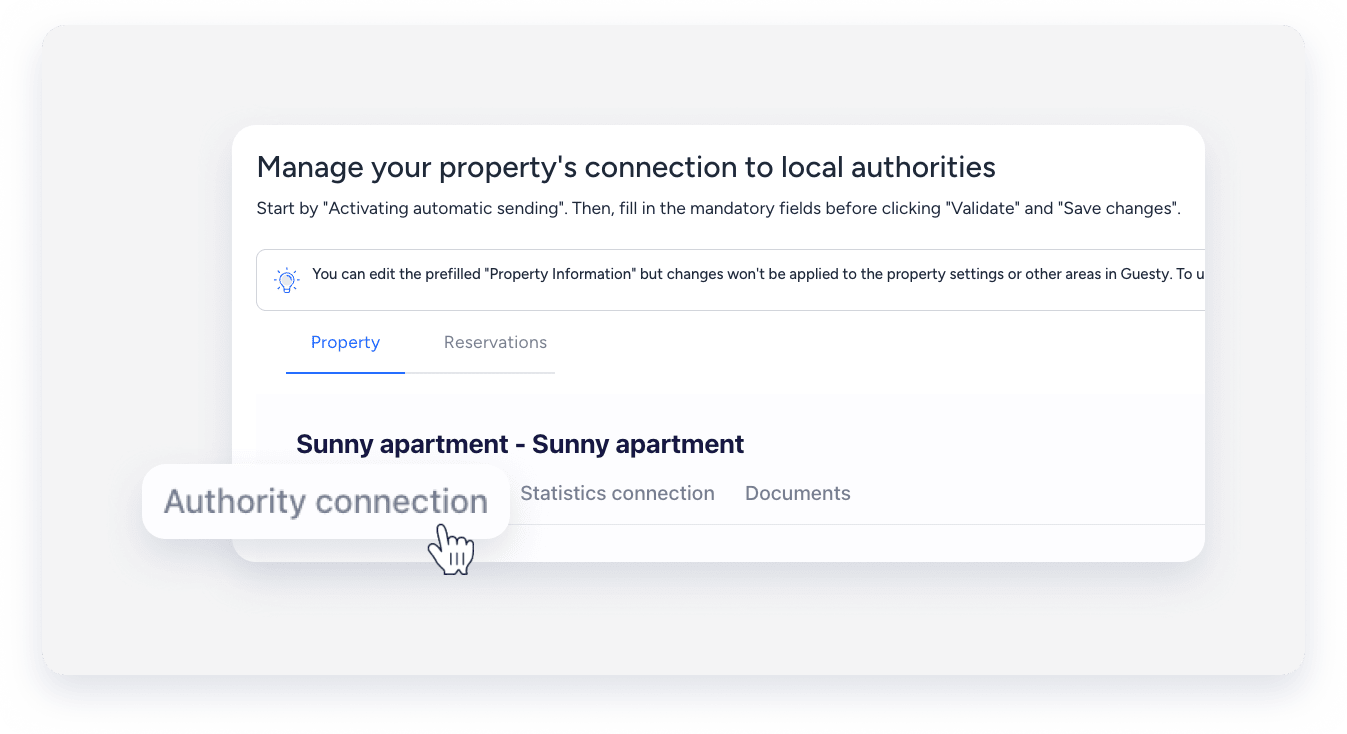
- Under the "Authority connection" section, toggle on Activate sending of guests data to your police account.
- Click Send info to and select Medatec or Feratel.
- Enter the credentials for the selected service.
- Medatec: Enter your username and password.
- Feratel: Enter the "Community number" (Gemeinde) and "Mapping code" (Objektcode).
- Click Validate.
- Click Save changes.
- At the top right, click Next.
Troubleshoot Feratel validation errors
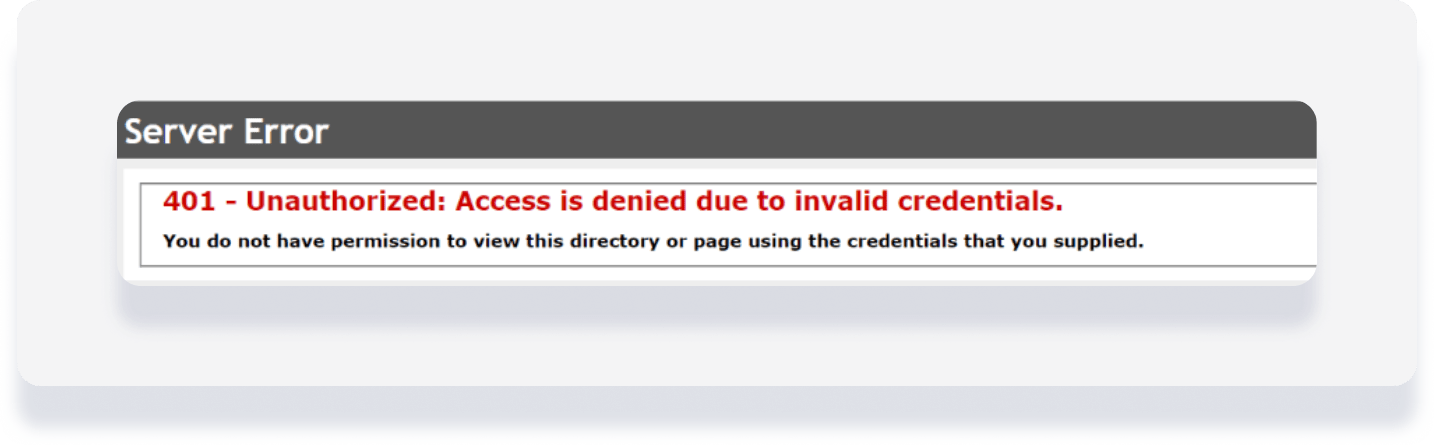
If you receive an error during validation, your credentials may be incorrect, or the local municipality may not have activated your connection.
- Copy the following URL into your browser's address bar:
https://visitortax.deskline.net/ProcessData.asmx/GetVTInfo?betriebnr=XXXX&oestat=XXXX&companyCode=VTCH3K1N - Next to betriebnr=XXXX: Replace XXXX with your Mapping Code (Objektcode).
- Next to oestat=XXXX: Replace XXXX with your Community Number (Gemeinde).
- Click Enter.
- Check the response. If it matches the image below, contact the local office to check your credentials or activation status.
Activate Feratel guest cards
Under "Guest cards", toggle on Activate Feratel guest cards.
When active, Guesty asks guests for their email address. When Guesty sends data to Feratel, we request the guest cards and email them to the guest.
Connect to WIEN Stats VIETour
WIEN Stats VIETour is the statistics and tax reporting system for Vienna. Anyone who accommodates guests for a fee within the City of Vienna must comply with specific regulations.
- Transmit the number of overnight stays monthly and the number of rooms and beds annually, in accordance with the nationwide tourism statistics regulation 2002.
- Pay the local tax and submit an annual local tax declaration in accordance with the Vienna Tourism Promotion Act (§ 13).
- Report the rented accommodation to the magistrate within two weeks of the tax obligation arising, in accordance with the Vienna Tourism Promotion Act (§ 15).
Important:
The city of Vienna requires statistical reports on monthly arrivals and overnight stays, categorized by the guest's country of origin. Learn how to generate a statistical report.
Connect the property in AutoComply
Send guest data directly to the Vienna tourism board (WIEN Stats VIETour).
Step by step:
- Access the AutoComply dashboard.
- Select the relevant property.
-
Click the Statistics connection tab, and toggle on Activate overnight stay report.
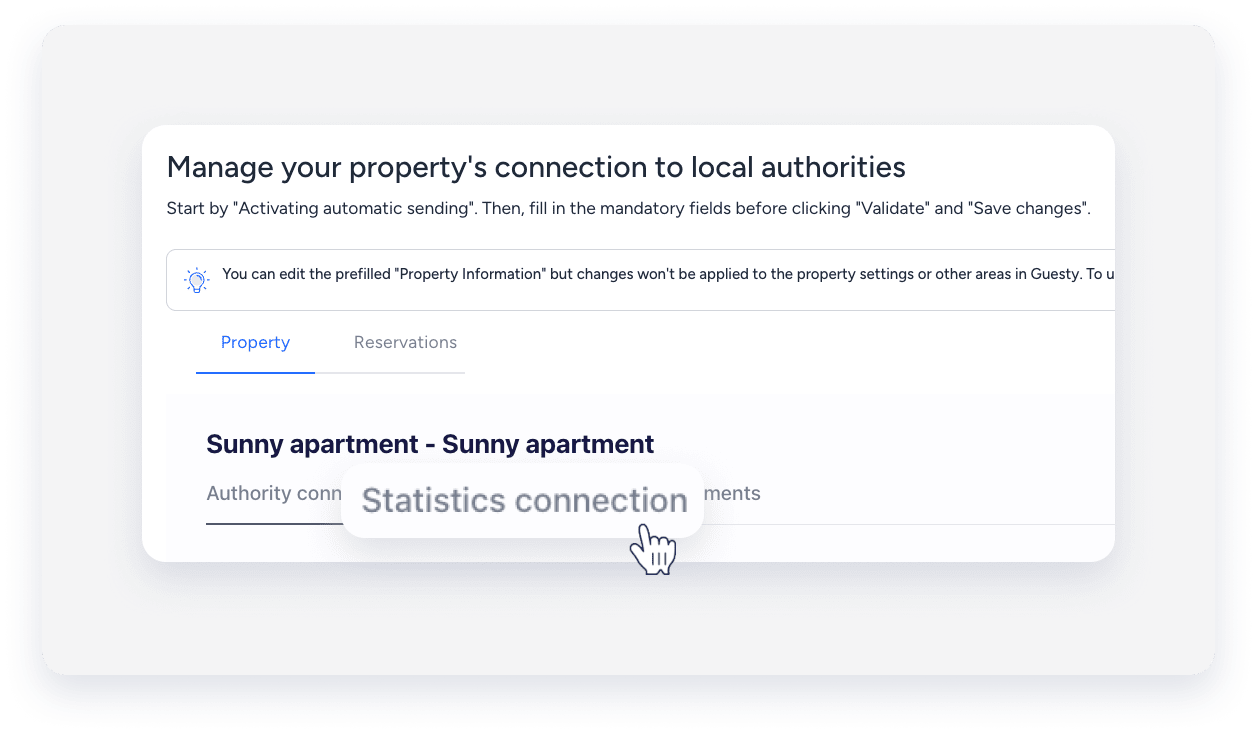
- Click Region and select Austria (Vienna) Graz E-Government portal or Austria (Vienna) VIETour.
- Enter your username, password, and room quantity.
- Click Validate.
- Click Save changes.
Note:
AutoComply sends guest data automatically on the day of check-in, around 7:00 PM. If a guest registers after this time, send the data manually.
