Deleting an owner permanently removes their profile from your Guesty account. This action is irreversible and cannot be undone. While deleting an owner is possible if you no longer manage their properties, we highly recommend against this action to maintain a complete history of your business records.
Accounting users: Before you begin
If you use Guesty Accounting, deleting an owner impacts the integrity of your journal entries, transactions, reports, and owner statements.
Once deleted:
You can't retrieve accounting records from the Posting Journal for that owner
A 1099 tax form can still be generated based on historic journal entries.
Statements for deleted owners are still available to download, although you can't filter by that owner.
In addition to the prerequisites below, complete the following actions to preserve your data before proceeding with an owner deletion.
Clear existing balances: Record a payout to the owner via the Balances page in the General Ledger. This is required to delete an owner.
Download posting journal reports: Export all transactions associated with the owner from the Posting Journal.
Generate reservation reports: Download a report of all reservations associated with the owner. Include the PMC Commission (accounting) and Owner net revenue (accounting) columns.
Save owner statements: Download all existing owner statements. If the latest monthly statement has not yet been generated, generate it manually before deleting the owner.
Archive disbursements: Download all records of disbursements and other relevant accounting reports related to the owner.
Delete an owner
Follow the requirements below to ensure the owner is ready for removal.
Prerequisites
Cancel future stays: Cancel all owner stays with future check-in dates. Stays not canceled before deletion will continue to block the calendar and cannot be removed later.
Unassign from listings: Remove the owner from all properties via the Properties page.
Remove fractional ownership: If the owner is part of a fractional ownership setup, remove them from those settings first.
Delete one owner
Step by step:
- Sign in to your Guesty account.
- In the side navigation menu, click
 Operations to open the dropdown menu.
 - Under Portfolio, select Owners.
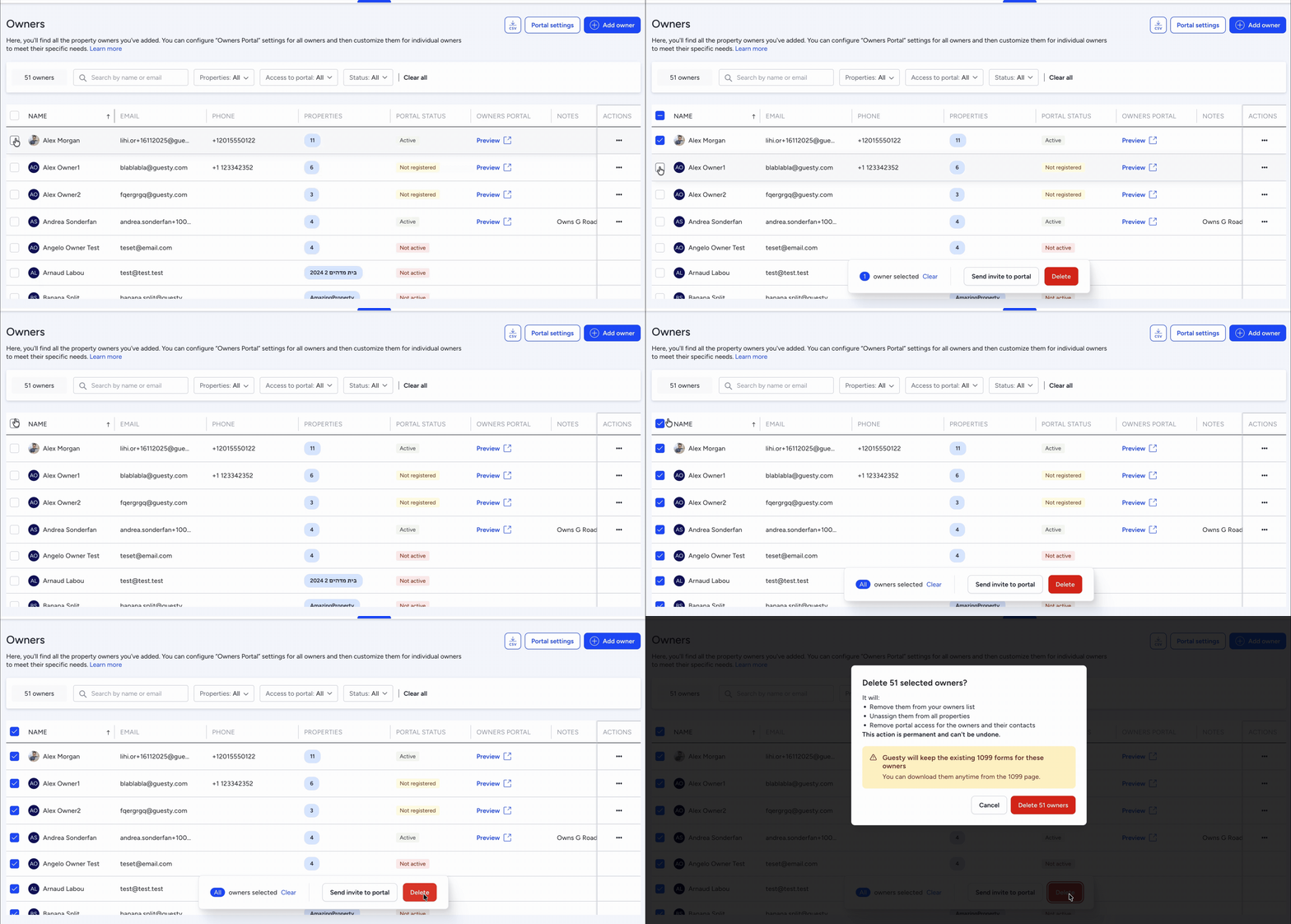
- Check the box to the left of the relevant owner.
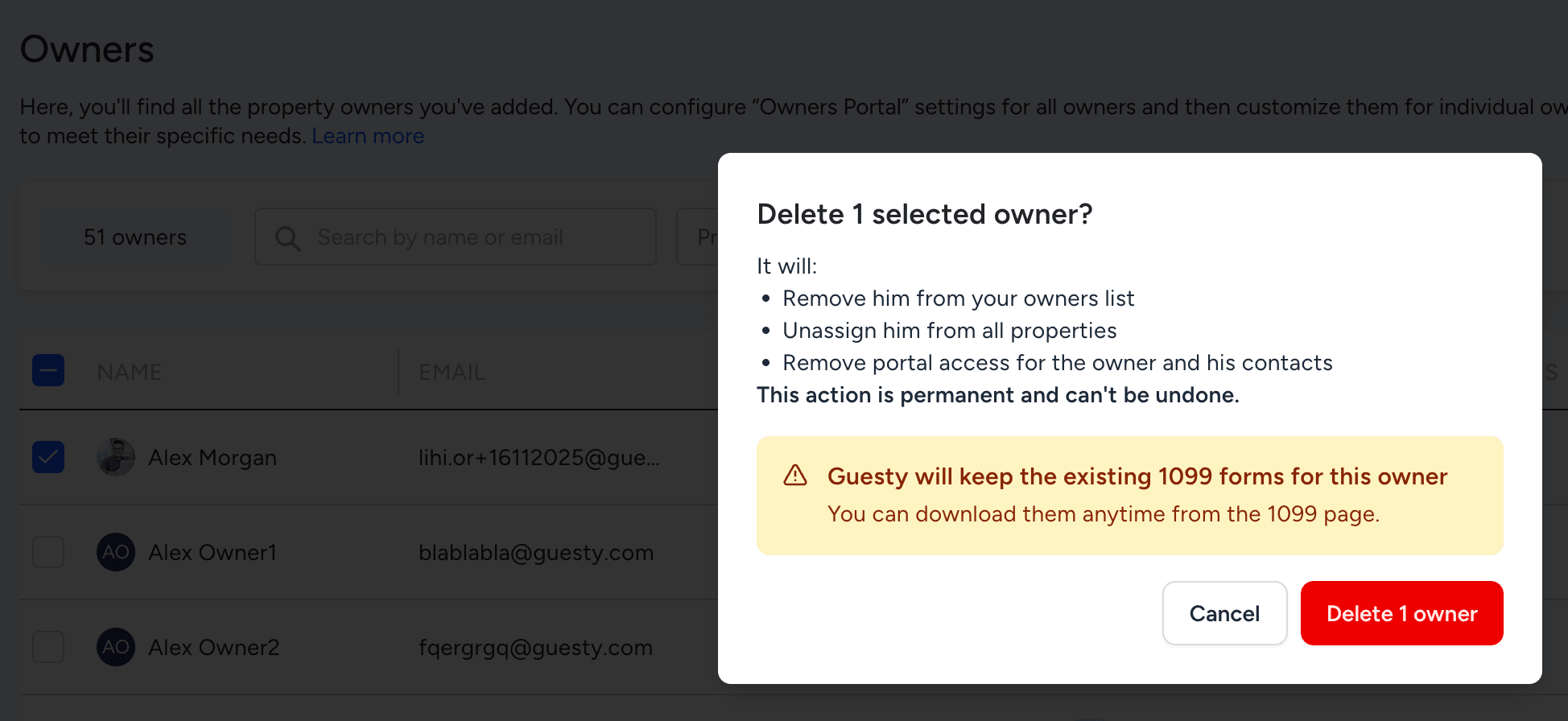
- Click Delete at the bottom of the page. In the pop-up:
- Any of the above requirements not met are noted and prevent you from continuing. Complete the requirements then start this process again.
- If the requirements are met, confirm the action in the pop-up then click Delete owner.
Delete multiple owners
- Check the box to the left of "Name" in the header to select all owners, or check each box to select specific owners.
- Click Delete at the bottom of the page. In the pop-up:
- Any of the above requirements not met are noted and prevent you from continuing. Complete the requirements then start this process again.
- If the requirements are met, confirm the action in the pop-up then click Delete owner.